|
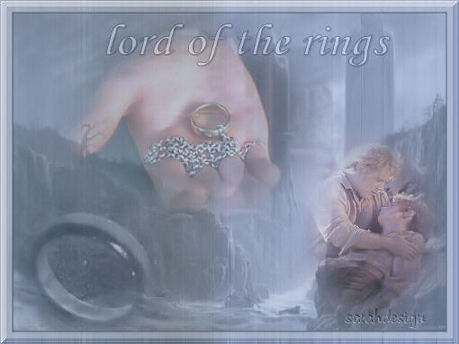
Lord of the Rings
Sarah's original Dutch tutorial can be viewed
here.
MATERIALS NEEDED:
Download the supplies here
***
FILTERS NEEDED:
NVR's Bordermania
L&K's Raisia
Download the filters here
***
The images was tubed
by Sarah - please keep
the filename intact
when you share it.
Open all the images
in PSP.
Okay, let's begin :)
1. Open a new
transparent image, size 600x450px.
Selections -- Select
All.
2. Open the *.jpg
image.
Copy and paste into
the selection.
3. Adjust -- Blur --
Gaussian Blur - 36.
4. Adjust --
Add/Remove Noise - 10
'Monochrome'must be
checked.
5. Apply Effects --
Filter Effects --
L&K -- Raisa with
these settings:
33-204.
6. Change the
opacity of this layer to 60%
in your Layers
palette.
Change the Blend
Mode to 'Overlay'.
Your image should
still be selected.
Otherwise select it
again.
Selections -- Modify
-- Contract by 15px.
8. Apply Effects --
3D Effects -- Chisel:
size - 2
Sold color -
checked.
Keep selected.
9. Add a new raster
layer.
Paste the image
(still in memory)
again into the
selection.
The Blende Mode of
this layer should be
'Luminance(Legacy)'.
Opacity should be
40%.
Deselect ( Ctrl +D).
10. Merge all
layers.
11. Open tube 62.
Copy and paste as
new layer.
Position it a bit to
the left as seen in the example.
Change the opacity
of this layer to 38%.
12. Open tube 147.
Copy and paste as
new layer.
Position it in the
bottom right corner.
Don't let it touch
the frame.
Opacity on 60%.
13. Open the ring
tube.
Copy and paste as a
new layer.
Position it in the
bottom left corner.
Opacity on 40%.
Blend Mode
'Luminance(legacy)'.
14. Open the text,
or write your own.
Copy and paste as
new layer.
Drag it to the top.
Opacity on 30%.
Blende Mode on
'Luminance(Legacy)'.
15. Merge all
layers.
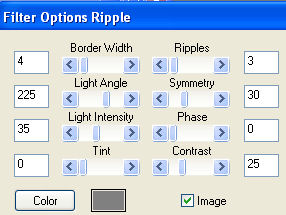
16. Apply Effects --
Filter Effects -- Bordermania -- Ripple
with these settings:
17. PSP X: Adjust --
One Step Noise Removal.
18. Reduce the image
size to 75% with
'Resize all Layers'
checked.
I hope you had fun !
:)
It becomes more
difficult for Sarah to write these tutorials
since so many other
people are using the same concept now
in their tutorials.
Sarahdesign
november 2005
Back to Index
Translated
3rd March 2006.
The graphic design of this page is
copyrighted to ©Magstags2005-2008
Home | Filter Links |
Email |Terms
Of Use |
|