|

*~*
Wishing Well
*~*
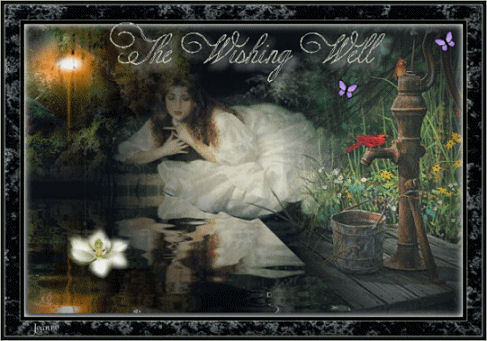
The non-animated
version
Jeanne's original animated Dutch
tutorial can be viewed
here.
File
size is 354 kb
This tutorial was written
for PSP 9.
MATERIALS NEEDED:
Download the supplies
here.
(File size - 2,497 kb)
Sqirlz Water Reflet
Download here
Install the little
program on your pc
FILTERS NEEDED
Filter XX Xtra - Elemental
Download here
THE COLOR PALETTE
Change the foreground
color to #c4c2b3,
background color to
#0f1418.
Open a new transparent
canvas, size 600 x 400
pixels.
Fill with the background
color.
Copy and paste the tube
'MD_blend 112'onto the
canvas.
Move it to the top left.
Copy and paste the tube
'lady bij water' onto the
canvas.
Image --> resize 80%:
'Resize All Layers' should
be unchecked.
Copy and paste the tube
'waterpomp' onto the
canvas.
Drag it to the bottom
right.( see example)
Layers --> Merge --> Merge
All.
Selections --> Select All.
Effects --> 3D Effects -->
Cutout:
H & V - 0
Opacity - 100
Blur - 15
Color - white.
Selections --> Select
None.
Image --> Add borders:
*1 px foreground
color
5 px background color
1 px foreground color *
20 pixels background color. |
Select
with the Magic Wand.
Filter XX Xtras- Elemental
- Minerals:the opacity
slidebar
should be in the middle.
Effects --> 3D Effects -->
Inner Bevel:
Width 13
Smoothness 16
Depth 3
Ambiance 0
Shinniness 0
Angle 315
Intensity 44
Elevation 33
Color white.
.
Repeat from * to *.
Activate your Text Tool.
Choose a nice font.
Jeanne used 'Copper Alt
Caps E', size 28
for the tag example.
Type your text.
Apply a drop shadow:
V & H - 8
Opacity - 60
Blur - 12.00
Color - white.
Add your name or
watermark.
Layers --> Merge --> Merge
All.
Save your file.
PART TWO.
Open the Sqirlz Water
Reflets program.
Click on the yellow file
icon and find your image
where
you saved it.
Click on 'Outline'
and drag the cursor
over the area that will
form the wishing well.
Double click on it when
completed.
You have marching ants
there now.
Click on the blue water
wave-icon in the top
toolbar.
( It is in front of the
yellow arrow)
Set the top two slidebars
on 30.
Click on the yellow arrow
to view the water effect.
Click on the 'Avi' - icon.
The animation will be
completed now.
Give it a name when asked.
Close the program and open
AS (Animation Shop)
Click on the yellow
file-icon in the top
toolbar.
Click on 'yes' when asked
if it should be imported
from Avi.
Your image is now in AS.
It is a huge file so we
will have to remove
some of the frames in
between.
Select every 3rd image -
right-click on it and
delete.
Do the same with image 2,
6 and 9.
Click on the 'View
Animation'-icon in the top
toolbar
to view the animation.
The animation should have
12 frames now.
Go back to the yellow
file-icon in the top
toolbar.
Find the butterfly
animation (GIF) that was
included
in the zip.
Open it.
Edit --> Select All -->
Duplicate.
Keep duplicating it until
you have 12 images.
Go to Animation --> Resize
Animation 50%.
Resize again to 80%.
*Select --> Select All
(the waterlily animation).
Edit --> Copy.
Activate the wishingwell
image.
Edit --> Select All.
Edit --> Paste into
selected frame.
The waterlily hangs onto
the cursor now.
Click in the image (
frame 1) where you want it
in the water.*
Repeat the step * to *
if you want to add another
lily to the water.
Open the butterfly
animation GIF now.
Duplicate it 12x as well.
Repeat * to * with it.
Add as many as you like.
Click on the 'View
Animation'- icon to
see how the animation
looks like.
Beautiful, huh? :-)
Save your image as a
Compuserve Graphics
Interchange (*gif) file.
File size of the completed
tut will be 461kb-
animated.
Have fun !!
Please take a few
minutes to write
a message in
Jeanne's Guestbook.
Thank you kindly.
Back to Index

translated on the 30th
December 2006

The graphic
design of this page is
copyrighted to
©Magstags - All Rights
Reserved.
Home |
Filter Links |
Email |
Terms Of Use |