|

Add Animatin to your
images.
1. Open Animatin Shop.
2. Click on the file
icon
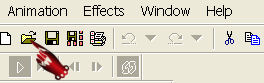
Find your PSP image
that you have save as a
PSP image
in PSP.
3. Open the animated
GIF-image that you want to
add to your own image.
Note how many frames it
contains.
It will be mentioned on
the bottom bar of the
image.
You will have to multiply
the number of frames
of your image now.
If the GIF image contains
10 frames,
your image will have to
have 10 frames as well.
4. Highlight your image (
it will be frame 1)
by clicking on it.
5. Go to Edit -->
Duplicate Selected.
Keep on duplicating it
until you
have the required number
of frames.
6. Go back to the
GIF image again.
Edit --> Select All.
Edit --> Copy.
7. Go back to your own
image.
Edit --> Select All.
Stay on your image.
8. Edit --> Paste
--> Paste Into Selected
Frame (Ctrl + E)
The GIF image will cling
to your mouse now.
Drag your mouse pointer
over the image and
left-click where you want
to add the animation.
Click on the 'View
Animation'-icon
in the top toolbar to view
the animation effect.
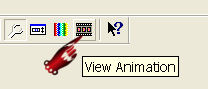
Click on it again to close
it.
Repeat step 8 as
many times as you want to
add
the animation to different
areas in your image.
Don't add too much.
It tends too spoil the
effect. :-)
And now you can save it as
a GIF file.
Just follow all the steps
and you're done !
Back to Index


The graphic
design of this page is
copyrighted to
©Magstags - All Rights
Reserved.
Home |
Filter Links |
Email |
Terms Of Use |