Preventing Virus Problems

Computer Viruses are appearing at an alarming rate and won't go away any time soon. Any unprotected computer system can fall victim to viruses, which can cause serious damage in a short time. The results of a virus can range from merely annoying to disastrous, and the loss of software and data can be time-consuming and expensive. It doesn’t matter what type of virus, worm or Trojan horse the user gets, because they are all harmful. But, it is important for the user to know how to protect his computer from viruses and how to discover an infection before it can cause damage.
Tips on protecting your computer against viruses:
 1.
If
you want to stop viruses before they enter you computer, you should purchase a
good virus protection program. Antivirus software monitors your system for
virus-like behavior. When the antivirus software discovers suspicious behavior,
it checks the behavior against a list of virus definitions. If the behavior matches
the definition of an existing virus, the antivirus application takes quick
action, alerting you to the presence of the virus and then either deleting the
infected program or restoring the file to a previous condition. In order to take
a full advantage from antivirus software, be sure to update your virus
protection program regularly. To keep you protected as much as possible, it is
recommened purchasing antivirus software that updates automatically. If you
update your virus protection manually, a weekly update is mandatory; a daily
update may be a good idea in today's virus-infested atmosphere.
1.
If
you want to stop viruses before they enter you computer, you should purchase a
good virus protection program. Antivirus software monitors your system for
virus-like behavior. When the antivirus software discovers suspicious behavior,
it checks the behavior against a list of virus definitions. If the behavior matches
the definition of an existing virus, the antivirus application takes quick
action, alerting you to the presence of the virus and then either deleting the
infected program or restoring the file to a previous condition. In order to take
a full advantage from antivirus software, be sure to update your virus
protection program regularly. To keep you protected as much as possible, it is
recommened purchasing antivirus software that updates automatically. If you
update your virus protection manually, a weekly update is mandatory; a daily
update may be a good idea in today's virus-infested atmosphere.
Many forms of virus prevention and detection programs are available for personal computers, including some good public domain and shareware programs that can be used at little cost. Here are the best three antivirus utilities:
Norton AntiVirus
This program sits in the background and protects your computer from malicious code while you perform other computing tasks. For the most part, the software runs automatically. This program provides you to accept the default configuration. While installing the software, you will encounter the Information Wizard, which will help you register the software. The wizard also prompts you to select and configure several post-installation tasks, including LiveUpdate. Also, the wizard will ask you to make a decision about setting up a weekly scan. This option available via Task Scheduler to automatically schedule a weekly scan of local hard drives, as well as perform a full system scan, which lets manually scan entire computer or individual floppy diskettes, drives, folders, or files. After the software is installed, Norton AntiVirus monitors all incoming and outgoing files, and checkes them against its database of virus definitions.
McAfee VirusScan
McAfee VirusScan makes process of protecting a system from viruses nearly invisible to the user. After installing the program, it automatically monitors all files that try to enter or leave computer. The most important part of the software is VShield, which is automatically enabled so that it runs a check every time you access a file. The VShield scanning tool starts when you boot you computer, and it stays in memory until you shut down your system. It monitors hard drive files and scans diskettes, discs, messages and attachments. It compares files to a database of known computer viruses, and if it finds a virus, it alerts you via a default message or audible signal. Every day via Internet connection and the Instant Updater feature, VirusScan checks with McAfee online service for virus definition updates, virus scanning engine updates, and product updates. You might use the software for month without realizing that Instant Updater is communicating regularly with McAfee online service.
Kaspersky Anti-Virus
Kaspersky Anti-Virus is an antivirus program from Russian company Kaspersky Labs. One of the best parts of this software, is that it's actually several programs in one, such as Kaspersky Anti-Virus Monitor, Kaspersky Anti-Virus Scanner, Kaspersky Anti-Virus Mail Checker, Kaspersky Anti-Virus Updater and Kaspersky Anti-Virus Personal. You can choose to download and run one or multiple programs. Anti-Virus Monitor automatically scans for viruses. Then, if Anti-Virus Monitor finds an infection, it will try to clean it up, but if it can't do so, it disables or quarantines the file. If you wish to run manual virus scans, use Kaspersky Anti-Virus Scanner. This program scans drives and system memory for viruses, either on a schedule you determine or when you instruct the program to do so. Kaspersky Anti-Virus Mail Checker looks for viruses in both incoming and outgoing email messages. The Kaspersky Anti-Virus Updater lets you update the program's antivirus database. You can configure Updater so that it adds updates automatically each day or manually. Kaspersky Anti-Virus Personal includes a Rescue Kit, which lets you create a set of startup diskettes. That way, if a virus damages system data on the hard drive, you can insert the startup diskettes and restore the computer.
If you want to save money or want just to try antivirus technology before buying it, you can try these free online antivirus utilities:
AVX On-line scanning System
Very simple Central Command's AVX On-line offers a selection of scanning tools without confusing the user. You can select individual drives or folders to scan, along with option for scanning system memory, boot records and emails.
McAfee.com Virus Scan Online
The software scans program files by default. But there are also option for scanning compressed files and subderectories.
Symantec Security Check
http://www.symantec.com/securitycheck
Security Check gives your entire system the full benefit of Symantec's database of viruses and Trojans. However, the user can only scan their entire system and not specified files or folders. It also doesn't have the option to clean infected files.
Trend Micro HouseCall
HouseCall does let you select any or all of your fixed drives to scan. This online scanner is exceptionally fast. Once the scan is complete, you can clean and delete any or all infected files.
2. Open
email attachments with caution! When you receive an attachment, do not open or
execute it unless you are expecting it and know exactly what it is. Email
viruses often come as attachments that rely on the person to execute the
attachment to infect the computer. Even if you know the person that the email is
coming from, confirm that they sent the email before opening it. If
you receive an unsolicited e-mail attachment from an unknown e-mail address, the
safest course of action is to delete the message without opening the attachment.
If you are very curious to open attachment, the safest method to do it, is right
click on the file after saving it to disk, and then select the antivirus scan
before opening it. Do not open it directly from the email program. Typically, a
virus attachment will have an EXE, BAT, SCR, PIF, COM, VBS, LNK extension, such
as clickme.exe, iloveyou.jpg.pif, memo.doc.scr, newdean.bat,
your_tenure.vbs. If you receive a file via email that ends with any of these
extensions,
delete it.
| Extensions | Type Of File | Examples of Virus, Worm, or Trojan Horse |
| .Bat | batch file | W32/Klez |
| .Com | executable program file | W32/Magistr |
| .CPL | control panel file | W32/Duni |
| .DOC, .DOT | document, template | WM/Melissa |
| .EXE | executable program file | W32/Fretham-Fam |
| .JS | JavaScript script | JS/NoClose |
| .PIF | program information file | W32/Klez |
| .REG | Registry file | TROJ/Unreal |
| .SCR | screen saver file | W32/Yaha |
| .VBS | Visual Basic script | VBS/LoveLetter |
| .XLM, .XLS | spreadsheet macro, file | XM/Laroux |
| .ZIP | compressed file | VBS/RTF-Senecs |
3. When
you download any programs from the Internet, you MUST use extreme caution to
prevent your computer from being infected with a virus.
It is the best to download from known sites such as C|Net
or ZDNet for shareware. Stay away from
strangers inviting you to come to their web site for free downloads. After you
download a file, ALWAYS scan it before installing or opening the file.
4. Like
email, IM (instant messaging) is a form of text communication that take place
across a network. Like email, IM is extremely popular. And like email, IM has
become a common source of viruses. Because email and IM have so much in
common, it makes sense that you should take the same precautions with IM as you
do with email. That means you should note who sends you messages, pay attention
to the contest of the messages, and carefully analyze any attachments to the
messages.
5.
Do not boot your PC
from a
floppy diskette. Boot sector viruses can be transmitted to your computer only if
you boot the computer with an infected disk. It
is recommended to always remove floppy diskettes from A: drive when they are not
in use. If you accidentally reboot or turn on your PC with a diskette in drive
A:, turn it off immediately. If it is necessary to boot your computer from a
drive A, follow these suggestions:
1. Prepare a "clean boot" disk by coping the original, trusted DOS disk to a new formatted floppy.
2. Write-protect the floppy.
3. Always boot from your "clean boot" floppy, and make a back-up copy as a reserve.
4. Never boot a hard disk from an unknown diskette.
6.
If
you want to use the Internet without putting your system at risk, you should let
you browser play a major role in providing system security. The most recent
version of Internet Explore, version 6, provides advanced security settings that
let you specify how you want the browser to handle potentially risky online
transactions. To access the security settings in IE, open its Tools menu and
select Internet Options. Next, choose the Security tab, which gives you the
option of configuring security settings for various zones, including Internet
and Local Intranet.
7.
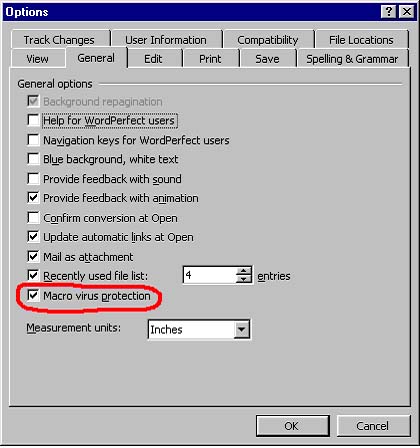
Make sure that
Macro Virus Protection is enabled in all Microsoft applications, and you
should NEVER run macros in a document unless you know what they do. There is
seldom a good reason to add macros to a document, so avoiding all macros is an
important guideline.
8.
To be safest,
purchase all you software programs, shrink-wrapped, from a reputable dealer. One
of the greatest dangers of using unauthorized software is its ability to destroy
valuable data. Pirated software swiftly carries the threat of viruses directly
to your computer. Unauthorized software copies lack the quality controls built
into original software, making the copies far more prone to computer viruses.
9.
Make backups! Backups are the most important action you can take to
protect you computer from virus attack. If you don't have backups, anything that
goes wrong can really mess things up. You can't just restore from before the
problem and you would have to start over. Also, keep more than one backup of
important data. Most viruses will copy themselves to anything they can reach,
and that includes the backup diskette. That is why you should keep more than one
backup. Keep all you diskettes write-protected.
Good Luck!