| A Lesson in GIFS
How-to's of making transparent GIFS
Please keep in mind this is a basic lesson. Quite frankly, gifs are so easy to make that all you'll even need is a basic lesson. So...with that in mind, shall we begin?
1. First you'll need an image editing program. I personally like Paint Shop Pro - I use version 7.02 or something like that, and this little mini lesson will be based on it. You can download a free evaluation version at the Jasc Software page. If you aren't fond of PSP, you may enjoy using Adobe Photoshop . You can download a trial version here. (Although Photoshop has been the king of all image editors for awhile, Paint Shop Pro version 7 and up prove to be just as effective in my opinion.)
A side note: don't worry about all the functions. You don't need to know any fancy stuff to make a transparent gif.
2. Second , once you have PSP open, click FILE, NEW. Having done this, there are only three things you need to worry about here. The height, the width, and the background colour. 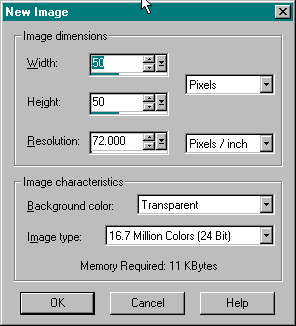 Trust me, none of them matter too much as long as you keep your image small (I rarely go above 50x50). When you choose your background colour choice just be aware that whatever colour you choose as your background will disappear later! Make sure that it isn't a colour that you plan to use in your image. Or you can choose to begin with a transparent background, it doesn't matter. Click OK.
3. Next you'll want to choose the paintbrush option, select your colour and set the paintbrush size to one pixel width. Choosing the paintbrush is easy - simply click the paintbrush :P. To change the size of the paintbrush you need to open the tool options palette. Do so by clicking the little box on the toolbar with the blue line across the top, or by clicking VIEW, TOOLBARS, and checking off TOOL OPTIONS PALETTE.
 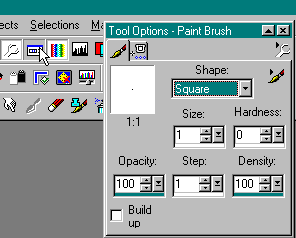
To select a colour simply click the pretty rainbow of colours at the right of the screen.
4. Part four is the fun part. DRAW! YAY!
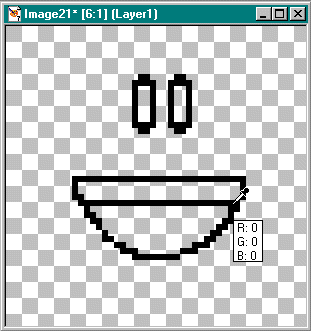
5. Once you're done drawing you'll want to make this gif transparent. Even if you have a transparent background and save it as a gif, it won't stay transparent. Therefore this part is necessary.
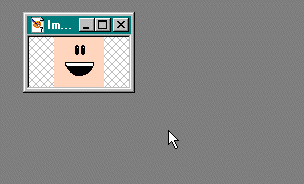
Now if you look at my image, there are no transparent sections (actually there are - I forgot to colour the dots in the eyes. It doesn't matter much, but it will be handy to know later.) No matter what, I don't want that peachy colour to show up when I put this on my webpage!
So what do we do? Paint Shop Pro users, click FILE, EXPORT, and GIF OPTIMIZER. 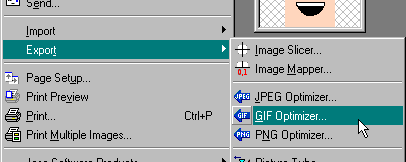
6. Completing that simple task a box will open with all these funky tabs and confusing things. You're welcome to venture around for a bit, but if you would like to do this quickly and easily I recommend clicking the USE WIZARD button on the bottom left. 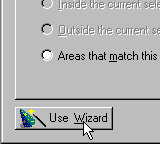
The Gif Wizard will open and will ask you which areas you would like to make transparent. 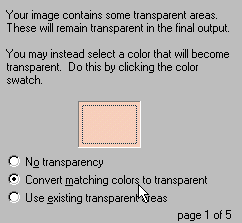
If you don't want transparencies (which I don't know why you wouldn't since you wouldn't be here otherwise) choose NO TRANSPARENCY
If you have a solid background colour and would like to be rid of it (like me and the peachy colour) choose your colour (see below if you're having problems doing this), and click CONVERT MATCHING COLOURS TO TRANSPARENT.
If all the spaces you don't need are already transparent, i.e. you started with a transparent background to begin with and didn't fill it with colour, choose USE EXISTING TRANSPARENT AREAS. (Remember how I forgot to fill in the dots in the eyes? That's the only reason this choice appeared. If you have no transparent sections available you won't even see this option). Once you're done click "Next".
Colour selection troubles - Right click on the colour box if your colour isn't already there - if you still can't find it by doing that, close the wizard, right click one of the colour boxes on the right side of the screen underneath the colour palette, and select your colour from there. If your colour isn't there either, then select the Dropper tool - to the immediate left of the paintbrush, look at your image, and directly click the colour you want to remove from it. One of the colour boxes on the right should now be the colour you've selected.
7. Easy isn't it? Now it asks you to choose the background colour of your web page. 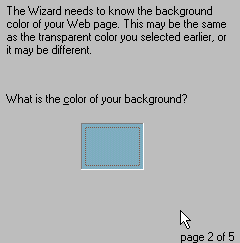 In my opinion it doesn't matter what you choose here. Pick a colour. If you save the gif image to your computer from a website and open it in PSP or another image editor, the background colour will revert to what you choose here. Completing that click "Next".
8. Next you'll have the option of choosing web-safe colours or the best colours. 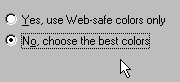
This is entirely up to you. I always choose the best colour option, but you may check out what the gif will look like with web-safe colours if you're curious. If you don't like what you see simply hit the back button on the wizard and switch. Click "Next".
9. Now it asks for image quality. 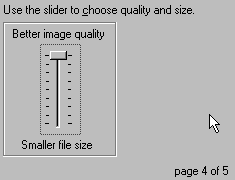 If you've made a massive gif, you may want to risk quality for a smaller file size. Faster loading is sometimes worth it for your visitors. Otherwise, gifs are generally pretty small, you can probably afford best quality. Click "Next".
10. One more step! Wait for the preview to show you what your gif will look like with the transparent areas. Zoom in, zoom out, if you like what you see, click "Finish". Change the file name to whatever you like and, TADAA!, you have a transparent gif!
|