2 - Open a new transparent canvas of 1024 x 400px
or 800 x 400 px
Selections > Select All
Edit > Paste Into Selection
Selection > None
3-Effects > Image Effects > Seamless Tiling >
Factory Defaults
4 -Adjust > Blur > Motion Blur> Angle =315; Strenght = 100%
Repeat 3 times.
5-Effects > Image Effects > Seamless Tiling >
Factory Defaults
6 - Effects >Plugin >TruFilters>Beveled Edge Blender = 181
7- Effects > Edge Effects > Enhance.
Minimize the canvas
8 - Activate the minimized tube again
Layers - Load/Save Mask - Load Mask from Disk -
Load my mask, or one of your own choice.
Layers > Delete Mask and reply "yes to the question.
Layers > Merge Group
Edit > Copy ( Ctrl+C)
Minimize the tube again
9 - Activate the background canvas again
Edit > Paste as New Layer
Move the image in place with your Mover Tool.
Adjust > Sharpness > Sharpen
10. Effects > 3D Effects >
Drop Shadow, with these settings:
Horizontal and Vertical - 5;
11 -Layers > Merge Visible
12- Activate the Selection Tool, choose the
Rectangle and draw a small shape from edge to edge
in the lower part of the topper,
it will be our edge, keep selected.
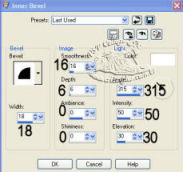
Effects > 3D Effects > Inner Bevel, with these settings: