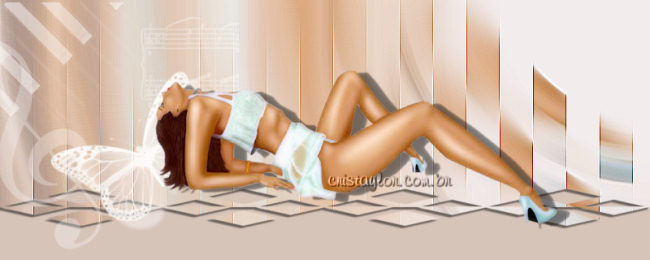
1. Open your tube in
PSP, and resize to 280 pixels.
Edit> Copy, and minimize.
2. Open a new
transparent canvas of 800 x 280 px
Flood fill with a color from your tube.
3. Selections – Select
All
Edit - Paste Into Selection
Deselect ( Ctrl + D )
4. Adjust > Blur >
Radial Blur,
with these settings:
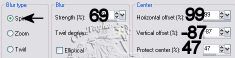
5. Effects – Filter Effects> DSB Flux>
Linear
Transmission,
with these settings:
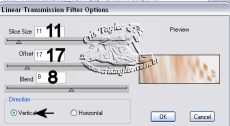
6. Layers > Load/Save
Mask>
Load Mask From Disk> find CT_Lisette.
Apply.
Delete Mask Layer
Layers > Merge Group
7. Add a new layer.
Image> Canvas Size: 800 x 320 pixels
Fill this layer with a color that matches the
topper
Layers > Arrange> Move Down
Position the topper where you like it
with your Mover Tool.
8. Activate the topper
layer
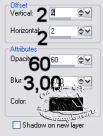
Effects > 3D effects > Drop Shadow,
with these settings:
9. Edit > Paste as New
Layer
Use your Mover Tool
to position the tube
where you like it.
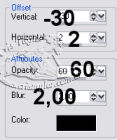
Effects – 3D Effects – Drop Shadow,
with these settings
(you are welcome to use your own settings of
course)
10. Layers > New raster
layer
Activate your Brush Tool ans apply the LK brush
You can change the
opacity of this layer to your own liking.
11. Add your name or
watermark on a new layer.
Layers – Merge All.
I wrote this
tutorial for my dear friend, Lisette.
Written by Cris Taylor