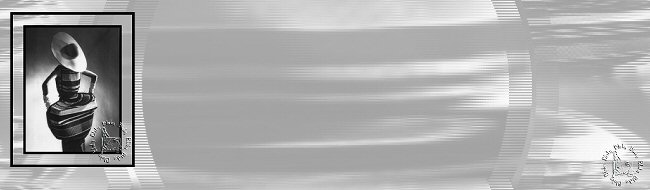
1 - Open your tube in PSP and resize to 260 pixels in height
Edit > Copy, minimize.
2 - Open a new transparent canvas
of 1024 x 300 pixels
Selection > Selection All
Edit > Paste Into Selection
Selection > Selection none.
3 - Effects > Image Effects > Seamless Tiling >
Factory Defaults.
4 - Effects > Plugins > Unlimited > Distortion
Filters -
Magnifying Glass, with these settings:
Zoom Factor 46; Size 168; Width 64.
5 - Use your Magic Wand to select the two black parts
Edit > Paste Into Selection
Selection > Selection None.
6 - Effects > Plugins > Filters Unlimited >
Distortion Filters, with these settings:
Scanline Shifter - Shift =9 > Scanline Height =23.
7 - Add a new layer
Flood fill with white
Reduce the opacity of this layer to 65% in our layers palette
Layers > Merge All.
8 - Effects > Plugins > Filters Unlimited > Image
Enhancement -
Sharpen -
Sharpen 187.
9 - Effects > Image Effects > Seamless Tiling >
Factory Defaults
Save your background and minimize for now
Activate your minimized tube.
10 -Image > Add Borders > Symmetrical border of 6 pixels
Select the border with your Magic Wand
Flood fill with a color of your choice.
11- Effects - 3D Effects - Inner Bevel of your choice.
12- Image -
Add Border - Symmetrical border of 26 pixels
Select the border with your Magic Wand
Flood fill with your background pattern.
13- Image > Add Borders > Symmetrical > 6 pixels
Select the border with your Magic Wand
Flood fill with the same color as in step 10.
14- Effects - 3D Effects - Inner Bevel of your choice
Your frame should not be bigger than 280 pixels in height
15 - Image > Resize to 280 pixels in height.
16 -Adjust - Sharpness -
Sharpen
Edit > Copy
Activate your Background canvas again.
17 Edit > Paste as New Layer
Move the image into position with your Mover Tool.
18 - Add your name or watermark
***
Tutorial was written by Blaky