2 - Open a
new transparent canvas of 350 x 350 pixels
Selections > Select All
Edit > Paste Into Selection
Selection > None
3 -Adjust > Blur > Motion
Blur> Angle =245; Strenght = 100%
Repeat this step 1x.
4 - Effects >Plugin > Unlimited 2 >
Tile e Mirror > Distortion Vertical =18
5 -Effects > Image Effects >
Seamless Tiling > Factory Defaults
Change your foreground color
to pattern
and find this image you have
just made.
Select it as the pattern
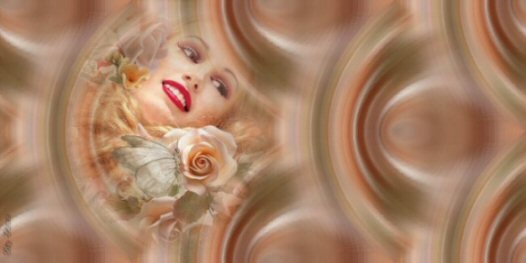
6 - Open a new image of 800 x 350, and flood
fill with the pattern
7 - Effects > Plugins > FM
Tile Tools > Blend Emboss
Save your Background and minimize for now
Acticate your minimized tube/image.
8- Layers > Masks > Load From Disk, Mask nevoa ,
or any mask of your
choice
Layers > Delete Mask layer and reply "yes" to the question
Layers > Merge Group
Edit > Copy or ( Ctrl+C)
Activate
your background
9- Edit > Paste as New Layer
Move your image into position with your Mover Tool
10 - Add
your name or watermark on a new layer
11 -Layers > Merge All.
***
Tutorial was written by Lena Esposito