1 - Open your
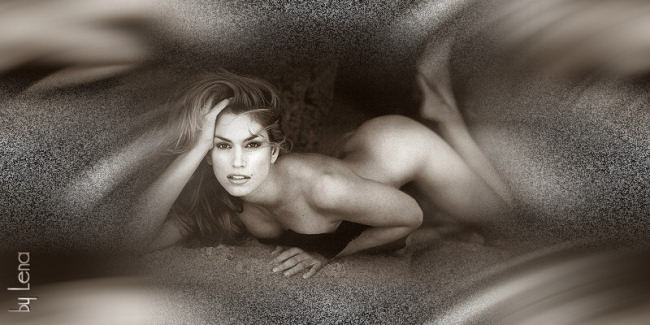
image in PSP, resize to 280 pixels in height
Edit > Copy, minimize
2 - Open a
new transparent canvas of
1024 x 300 pixels or 800 x 300 pixels
Selection > Selection All
Edit > Paste Into Selection
Selection > Selection None
3- Effects
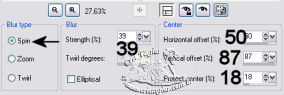
> Adjust Blur> Radial Blur, with these settings:
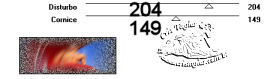
4 -Effects > Plugins > Italian Editors Effects,
with these
settings
5 -
Effects > Image > Seamless Tiling > Factory Defaults
Save and minimize the background for now.
6 - Activate your minimized tube
Layers > Masks > Load From Disk, Mask Nevoa > Load
Layers > Delete mask layer
Layer > Merge Group
Edit > Copy, minimize
7 - Activate your background canvas again
Edit > Paste as New Layer(your image should still be in the memory)
Move the image into position with your Mover Tool
Adjust > Sharpness > Sharpen
8 -Add
your name or watermark on a new layer
Layer > Merge All
***
For You,
Jean Pierre
***