|

original
tutorial can be found here:
http://www.cristaylor.com.br/free/g001/arquivo.asp
Jama Background
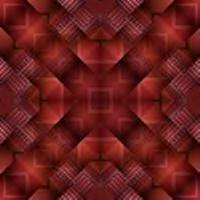
Materials needed:
Program PSP 8 or 9
Plugins
Graphic Plus
and
Jama 3D (one of Redfield's
filter effects)
Download filters
here
Use a framed picture or an image
Use a
background that blends nicely in.
1
- Open the image or ready-made frame in PSP
Promote the background layer to raster layer.
2 - Activate your Crop Tool
, and draw a shape in the top left corner,
like this:
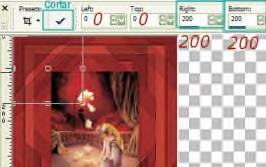
The size should be 200 x
200 pixels
3
-Effects >Image Effects> Seamles Tiling > Factory
Defaults.
4
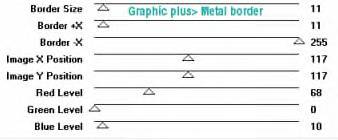
-Effects > Plugins > Graphic Plus > Metal Border
Change the configuration of the Red, Blue and
Green levels to suit
your
image. Cris 's settings looked like this.
Keep
the border sizes the same for this tutorial.
5 -
Selection > Selection All
Selection >Modify > Contract by 10 pixels.
Keep selected.
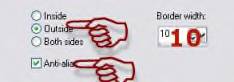
6 -Selection > Modify >
Select Selections Border ,
with these settings:
7
-Effects > 3D Effects > Outer Bevel with the
standard settings.
8 -
Selection > Selection None
9 - Effects >
Image Effects > Seamless Tiling,
with
these settings:
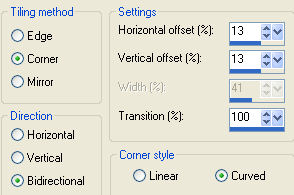
Tip:
Choose your foreground and background colors
before you apply
the
Redfield Jama 3D filter.
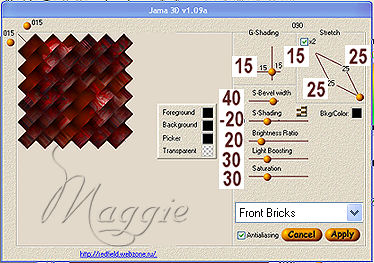
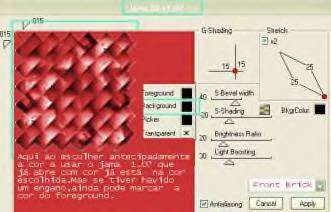
10 - Effects > Plugins > Jama or Redfield > Jama
3D
(additional screenshot added for clearer settings)
11 -
Effects > Image Effects > Seamless Tiling > with
the same
settings as in step 9.
12 -
Effects > Plugins > Simple > Pizza Slice Mirror.
13 -
Effects > Plugins > Simple >Blintz
14
- Add your name or watermark
15 -
Layer > Merge All
Tutorial was created for Brisinha
Translated 8th
September 2005
Copyright- 2003 2005.
All Rights Reserved By Cris Taylor

Copyright - Magstags2005
Home |
Filter Links |
PSP Goodies
|