 |
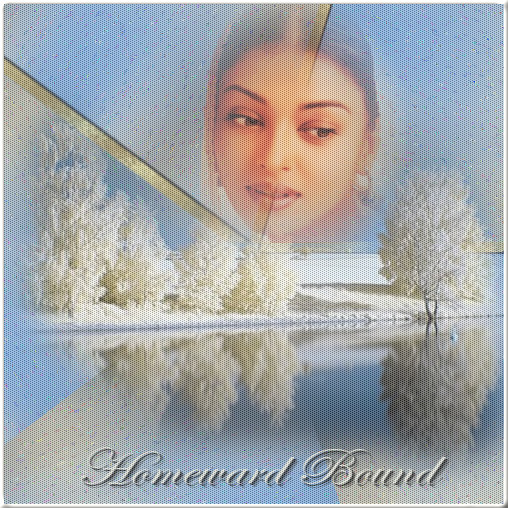 |
| As in all my tutorials, I urge you to be creative, although I would appreciate you staying within the spirit intended for the tut. This tutorial was written using PSP X. Supplies Needed: Tubes; a nature scene and someone to overlook the scene. Filters Used: Filters Unlimited: Screenworks. (Woman: Tube_ �rystal) Nature Scene by Sandi |
| 1. Open a new transparent file 1024 x 300. Selections > Select All. Copy and Paste your Nature tube into selection. Selections > Select None. Effects > Image Effects > Seamless Tiling, use default settings. If you use a different tube and there is a lot of white showing as in this tube, add a new raster layer selecting a colour from your Nature tube. Flood fill and move layer down, then merge visible. Effects > Edge Effects > Enhance. 2. Adjust > Blur > Gaussian Blur 35. Adjust > Add/Remove Noise > Add Noise; Random 2, Monochrome UNchecked. Effects > Edge Effects > Enhance. 3. Image > Resize (or use new resize button), 500 W x 500H, Lock Aspect Ratio UNchecked. 4. Effects > PlugIns > I.C. Net Software > Filters Unlimited > Tile & Mirror > Kaleidoscope 3, Default Settings (65, 128). 5. Layers > New Raster Layer. Click on your selection tool and set your Selection Type to Rounded Rectangle. Draw out a narrow bar and fill with a gold pattern. Effects > 3D Effects > Drop Shadow, H & V 1, Opacity 45, Blur 1, Colour Black. Effects > 3D Effects > Inner Bevel with the following settings: Bevel #10, W14, Smoothness 35, Colour White, Depth 4, Ambience 15, Angle, 315, Intensity 45, Shininess 15, Elevation 30. Selections > Select None. There are several lines indicated by the Kaleidoscope setting. Move the bar with your Move Tool covering the horizontal one on the right and draw out so that it ends in the center. Using your Pick Tool (Deformation Tool in previous versions), manipulate the bar so it is in a straight line covering your Kaleidoscope line. Layers Duplicate and move your new bar so that it is covering the diagonal line to the left of the center, then repeat so that you have another bar on the far left. See finished tutorial to get an idea of how this should look. 6. Copy / paste as new layer your Nature tube where you like it best. Copy / paste as new layer your Woman tube to your taste. Resize, all layers checked, then add your own text and watermark. Layers > Merge Visible. and save as .jpg. 7. Optional: Add a new layer and flood fill with a light colour from your tube. Effects > PlugIns > Screenworks > Dot Screen to give it a quilted appearance. Lower the opacity according to taste. Image > Add Borders 4 symmetric and fill with a light colour from your Nature Tube. Effects > 3D Effects > Inner Bevel; use previous settings, they should still be there. I hope you like this tutorial and have fun with it. It was created during another of my insomniac moments. I�d love to hear about the artistic changes you made. You can email me at: [email protected]. |