| GAME SOUNDS |
| ALL SOUNDS ARE OF THE FILE TYPE WAV |
| DEPENDING ON YOUR OPERATING SYSTEM AND/OR HOW YOU HAVE YOUR OPERATING SYSTEM SET UP, YOU MIGHT BE PROMTED TO PROVIDE A DESTINATION FOR THE WAV FILE OR IT MAY GO DIRECTLY TO A PRE-DETERMINED STORAGE FILE ON YOUR HARD DRIVE. IN IETHER CASE THE WAV FILE SHOULD BEGIN PLAYING IMMEDIATLY AFTER CLICKING ON THE LINK. YOU SHOULD BE ABLE TO DETERMINE THE FILES LOCATION FROM WITHIN WHATEVER MEDIA DEVICE YOU ARE USING TO PLAY THE FILE. |
| I don't know what you might want them for but here they are just incase you do. ( I think some are pretty cool ) |
 |
 |
 |
 |
 |
 |
|
|
 |
 |
|
 |
| WALLPAPER |
 |
 |
 |
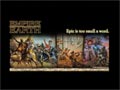 |
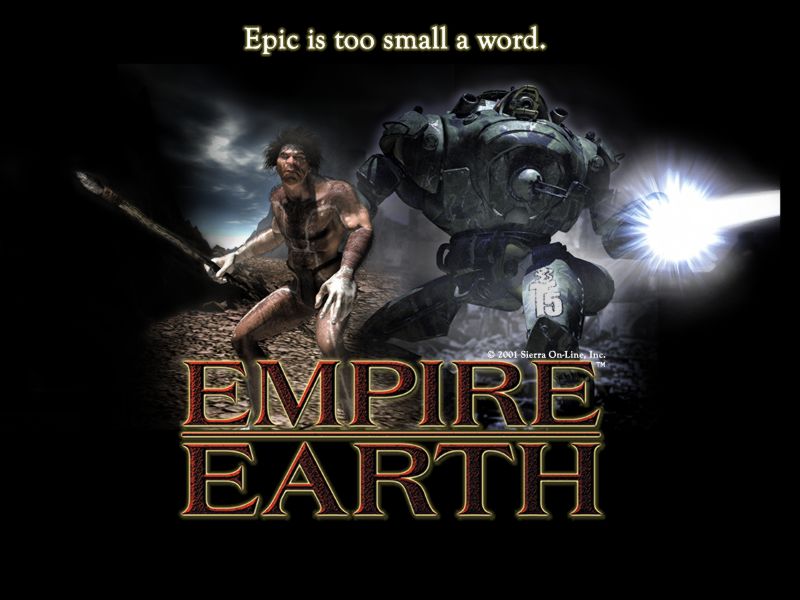
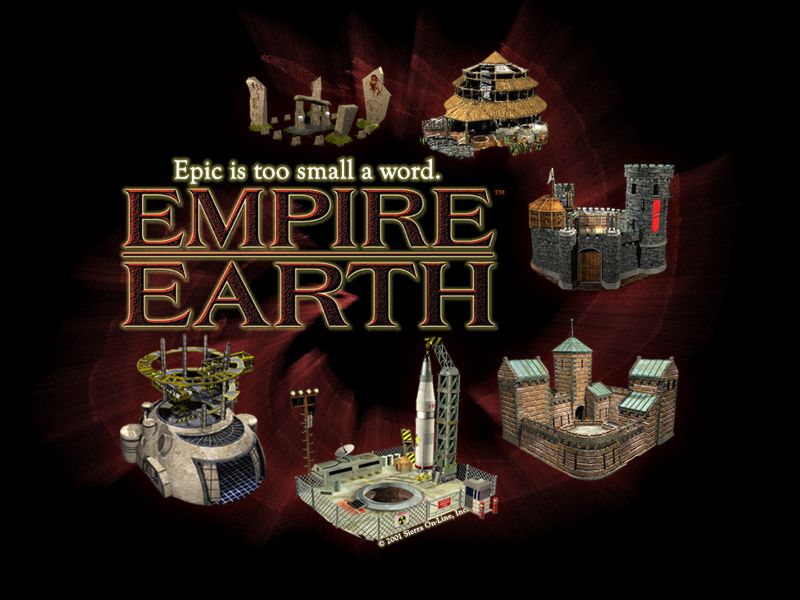
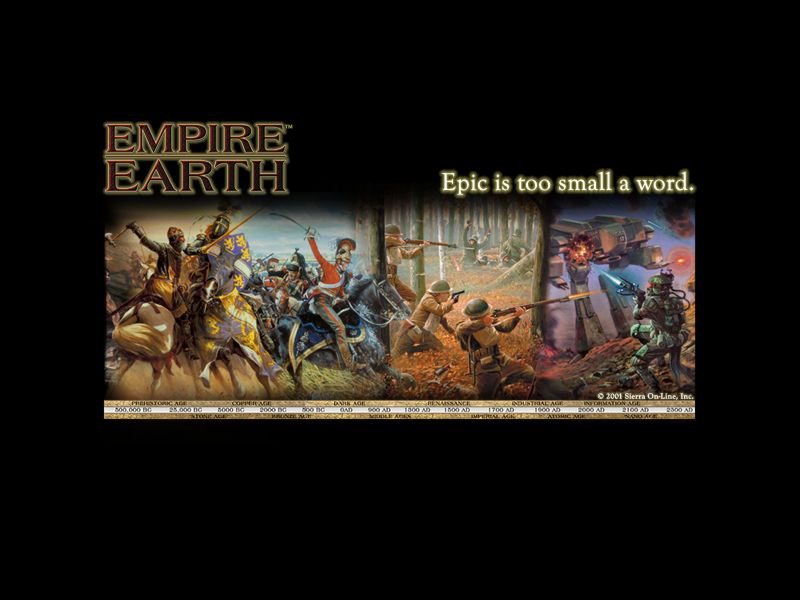
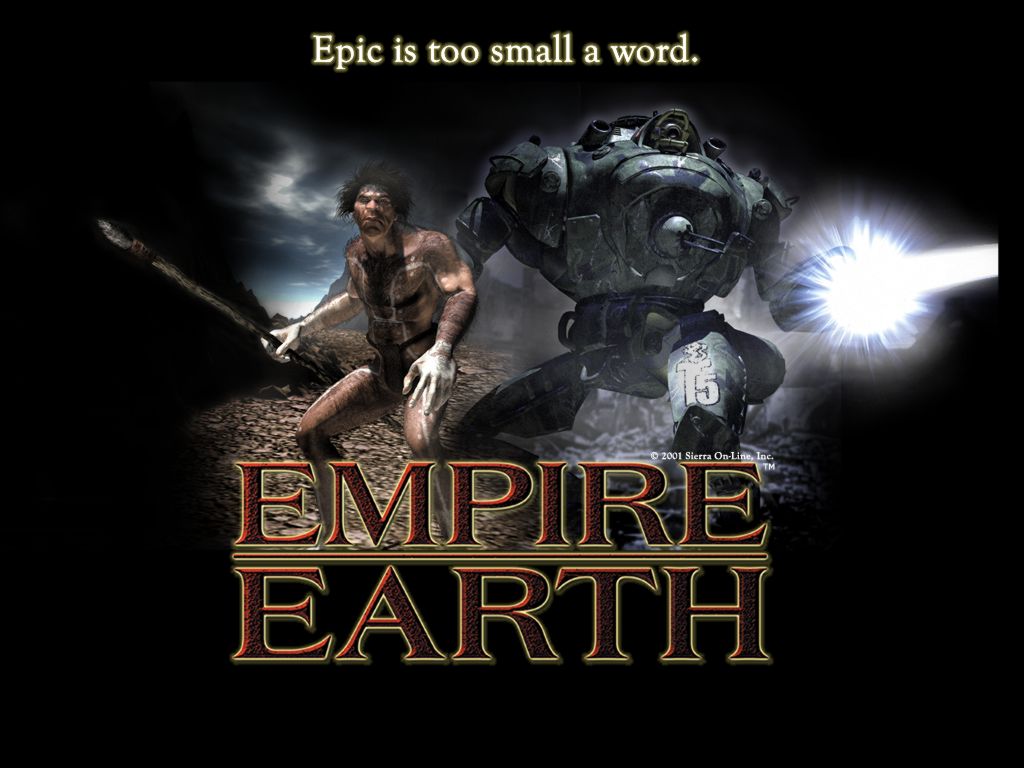
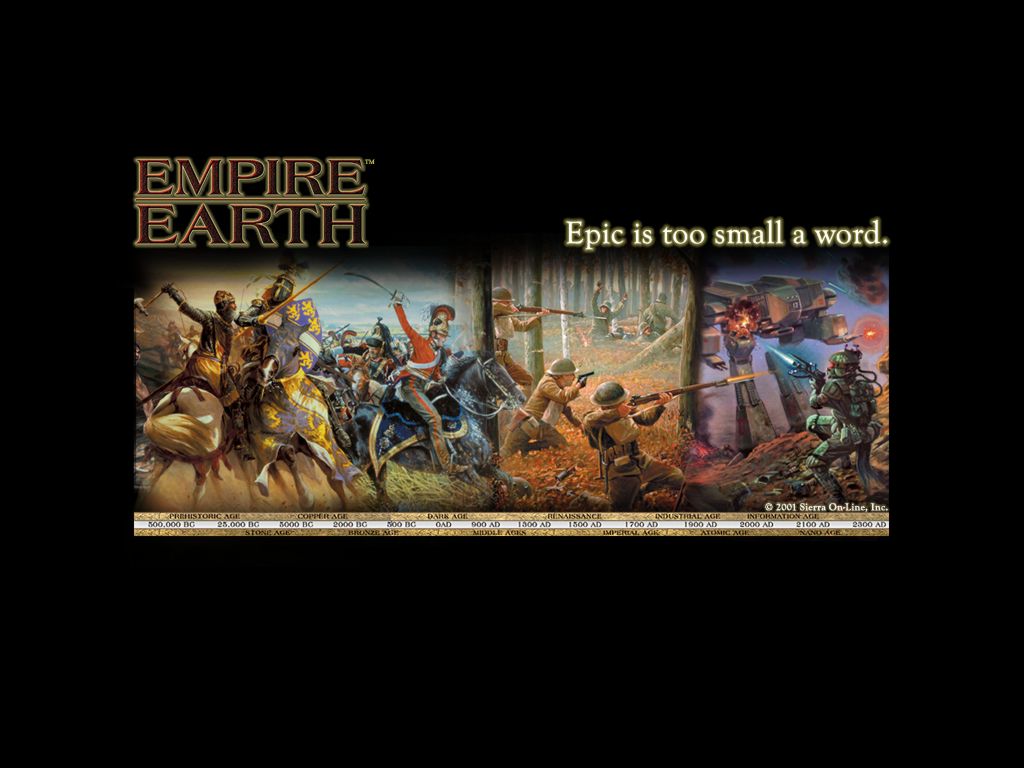
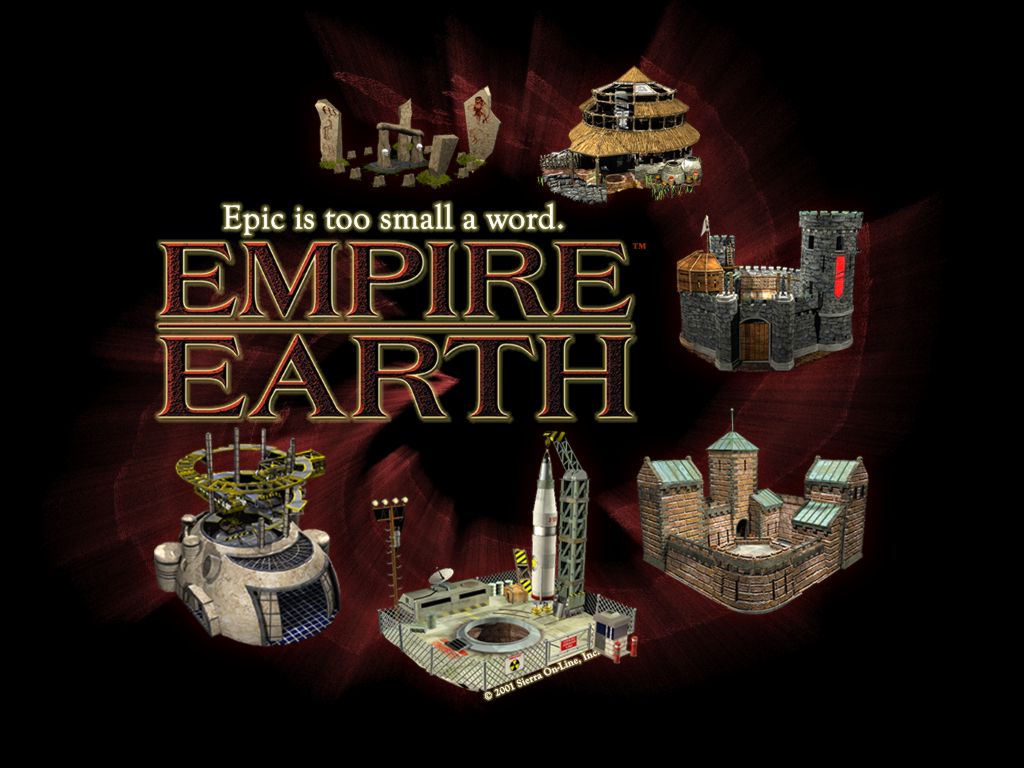
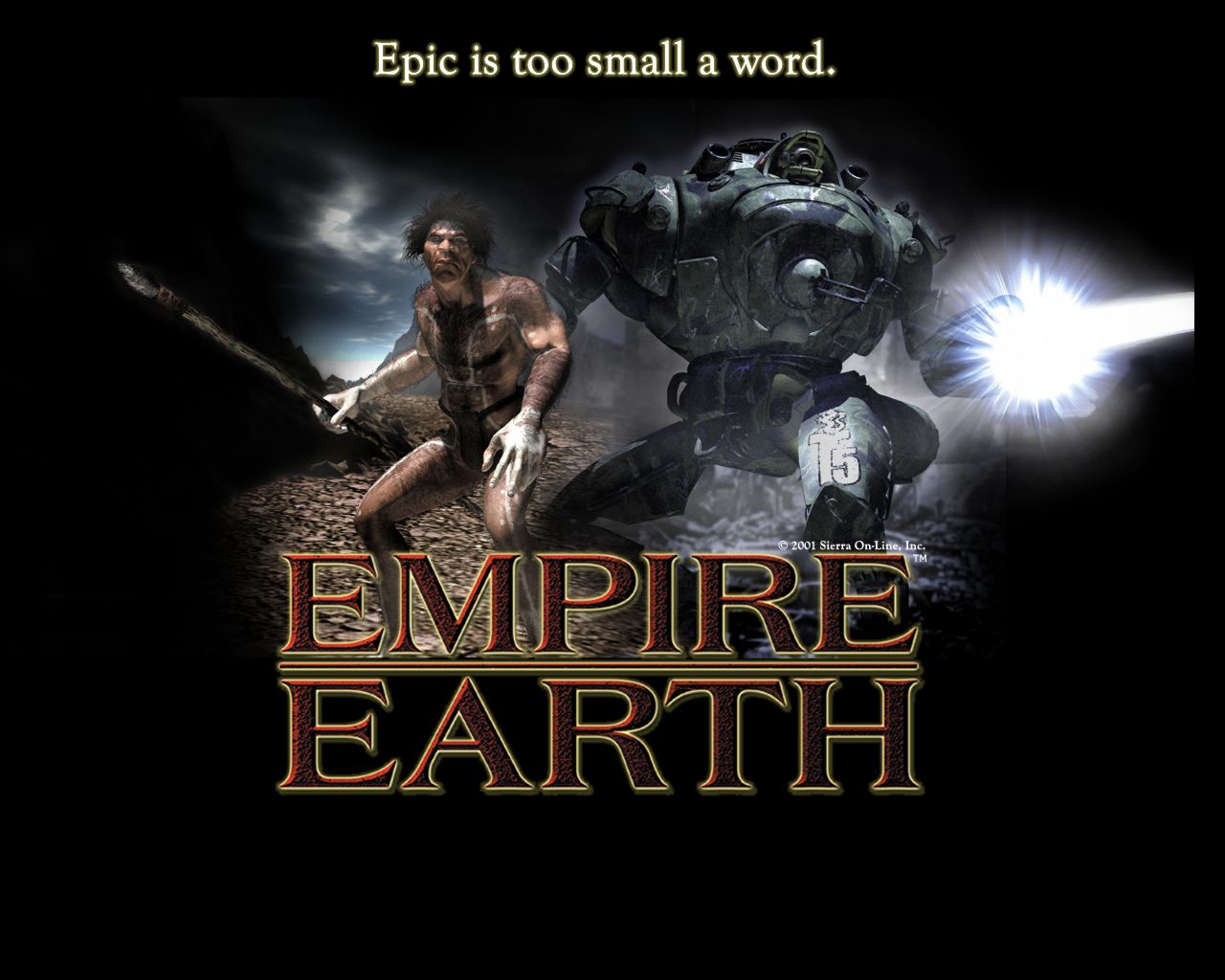
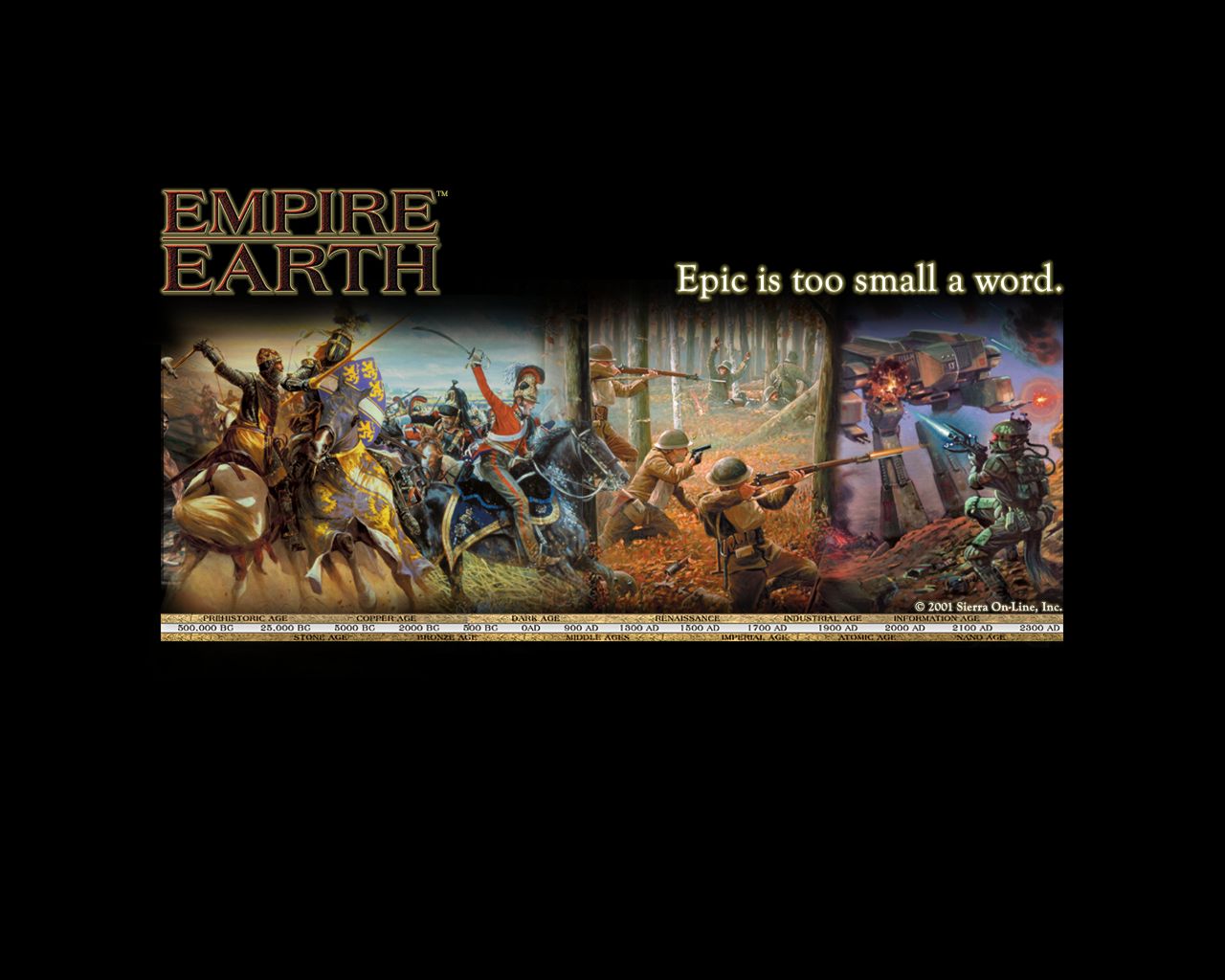
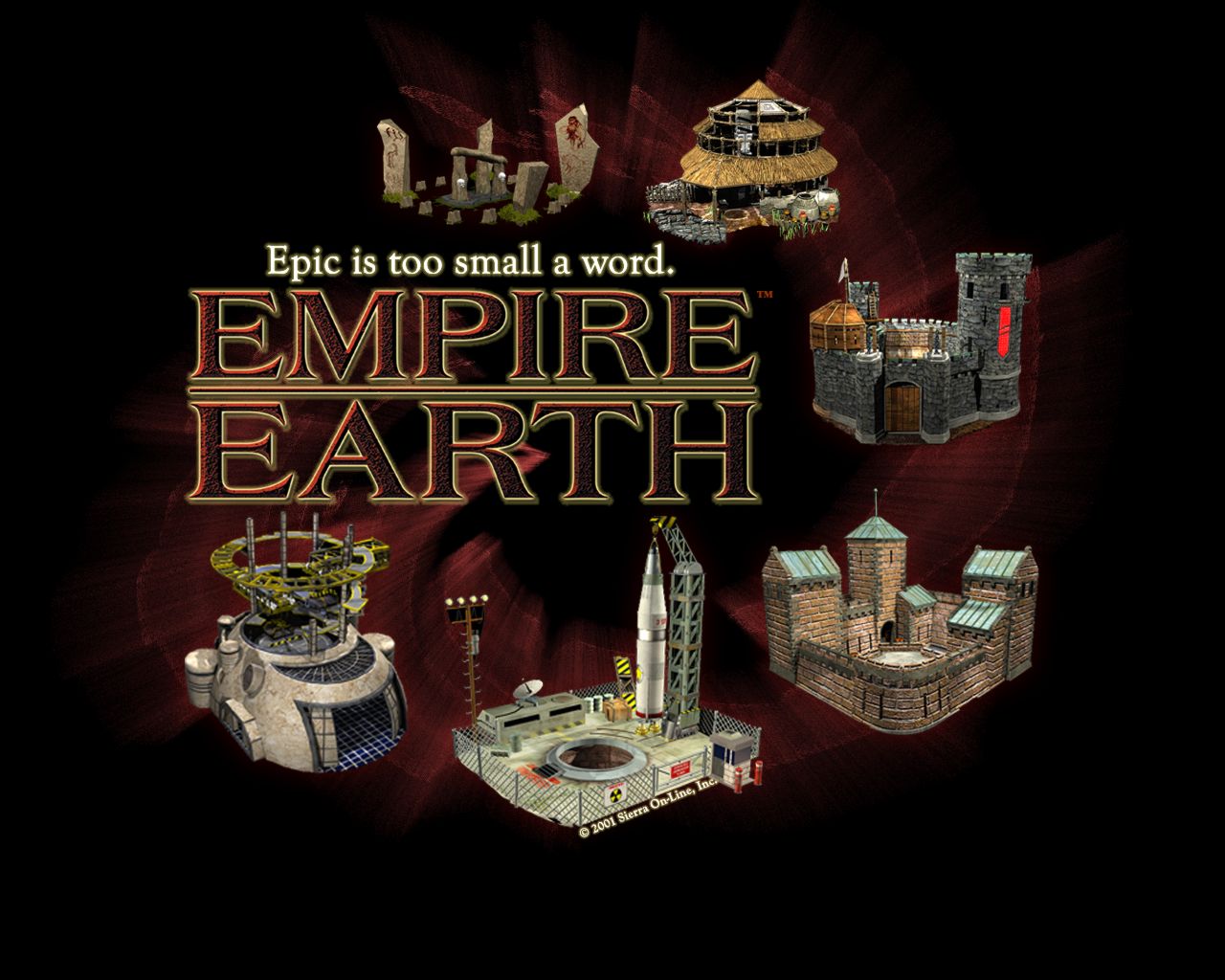
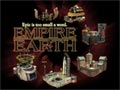
| To install a desktop background, choose a link above that matches your screen resolution ( to check screen resolution, open the Display Properties Dialog box in the Control Panel). Save the file in your Windows directory ( usually C:\WINDOWS ) |
| To make a new desktop active, open the Display Properties dialog box by clicking start, pointing to Setting, clicking Controll Panel and then double-clicking Display. In Wallpaper select the Empire Earth background. Click Apply to see the changes before you close the dialog box, or click OK to accept the changes and close the dialog box. |
| 1) |
| 2) |
 |
| CivEd |
| The custom civilization builder you don't have to load the game to use |
| Hate having to load the game or log off of the server every time you have a good idea for a new civ? Well you don't have to. Use this stand alone editor anytime. ( I love this thing ) Just click the Empire Earth icon above and choose Save in the File Download window. Then choose a place to put the file ( I recomend putting it in the Empire Earth file, usually: C:\SIERRA\Empire Earth ) then click Save. When the file is done downloading click Open Folder. You will see a compressed folder called "cived", right click that folder and click Extract All. Then click Next and then click Finish. Now there will be a new regular file called "cived" containing a read me file and an application. double click the application icon and you will see the editor. make a shortcut and put it on your desktop to use anytime. If you've never downloaded and decompressed a file before, this may seem like a lot of work but just follow the instructions and you'll see it's not that hard at all and deffinetly worth it. |
 |
|
| RogerWilco |
|
| Click the hand radio to download this program so you can verbaly communicate with other members or anyone else who has this program. Great for type-free comunications durring a game. |
 |