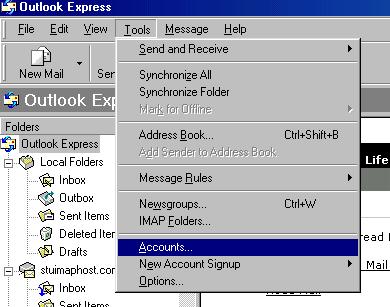
1. Under the Tools tab, click Accounts.
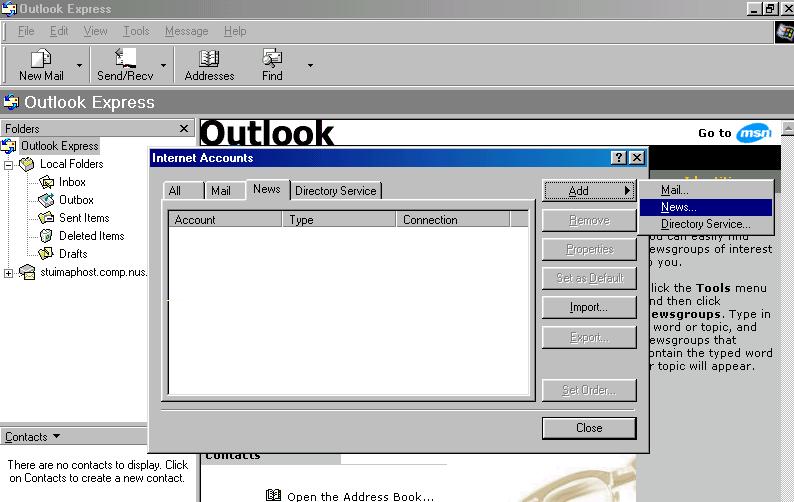
2. Under the News tab, click Add follow by News.
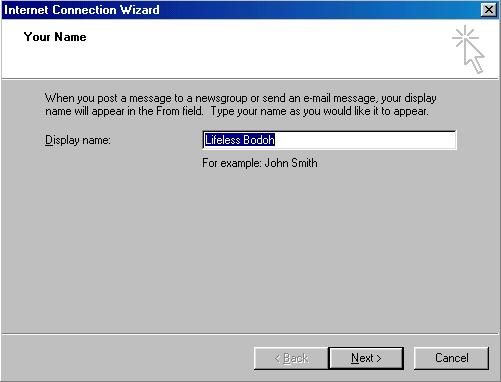
3. Internet Connection Wizard will pop up. On the screen, type name you want to appear in the BBS as (Can be an alias or nickname) -> Next.
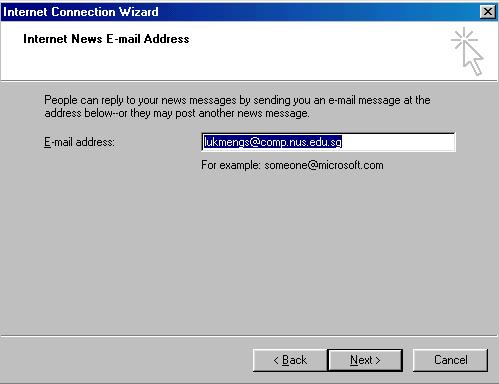
4. Type in your soc email address.
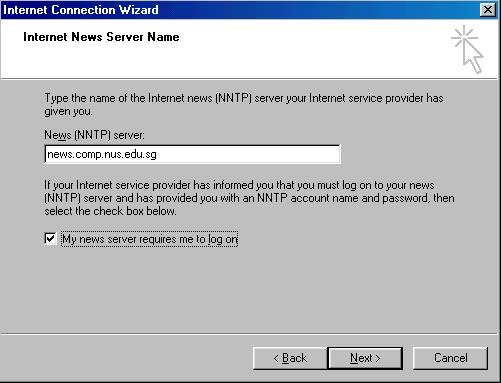
5. To access Student BBS, type your News server as news.comp.nus.edu.sg
6. Type in your SoC (UNIX not NUSNET!) userid. Password is optional.
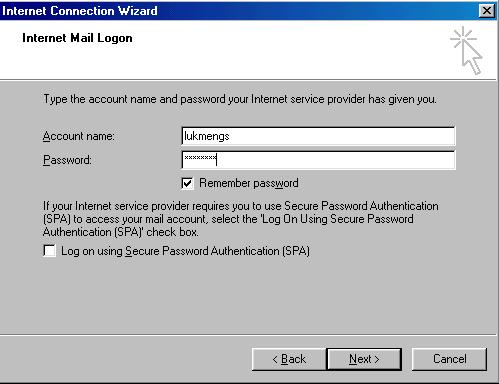
7. Click Next follow by Finish.
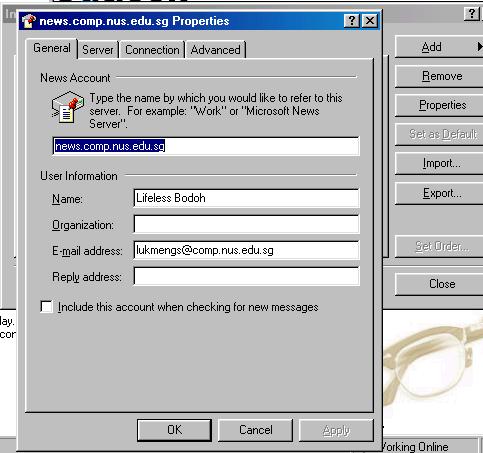
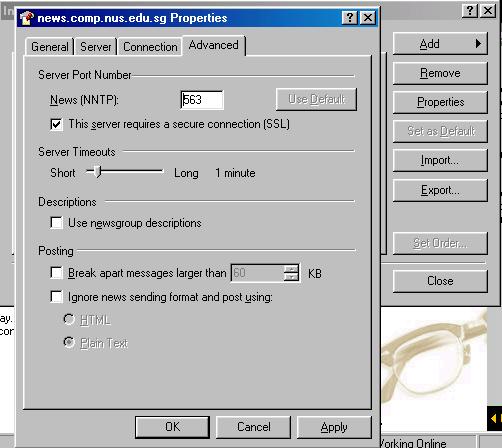
8. Under the Advanced tab, tick the SSL checkbox.
9. In the folders on your left, you will see your new news server listed if you look through the list. If you have not subscribed to any newsgroups in the news server, it will prompt you to subscribe.
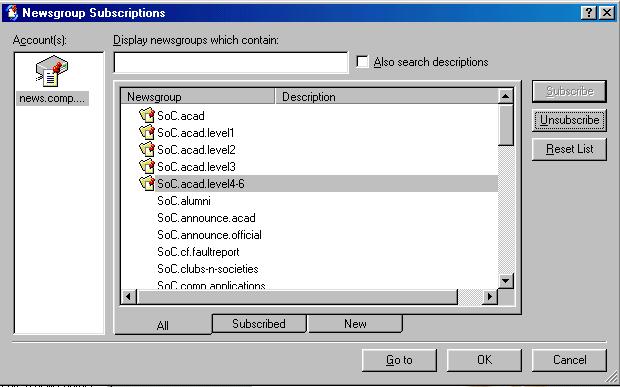
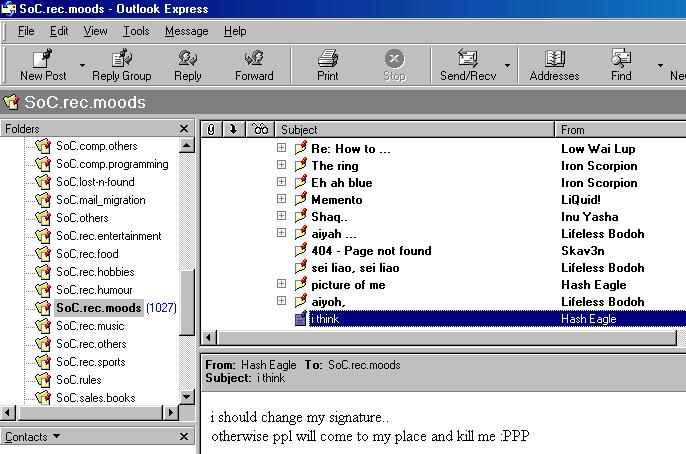
10. You should get something like the below after you have followed steps above.