 |
 |
 |
 |
 |
|
 |
|
 |
| MSpaint is an inexpensive (in most cases free ;D) painting program that can be used to learn the basics of painting software. Many sophisticated graphics software applications (such as Paint Shop Pro or Photoshop) use the same basic principles that can be learned using MS Paint. |
| Basics To MSpaint |
| The first step in learning how to use MSpaint, is to locate your software. Start menu > | | > all programs | | > Accessories | | > Paint |
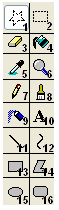
| after you have opened MSpaint you will notice a tool bar like this one <-------------------- |
| find the number on the picture on the tool bar, and look at the corisponding number below to find out its purpose. |
| 1: Freeform Select tool: With the left button, click on your image wherever you want to begin the selection. Drag the mouse around to create the outline of the freeform shape of your selection. Be careful! The mouse is tricky to use. It may help to zoom in using the Magnifying Glass tool (6). Zoom in close so you can see what you�re working with more clearly, and to control the mouse with better precision. When you finish outlining your freeform selection shape, release the mouse button. You will notice that the freeform shape that you had been drawing has just mysteriously turned into a rectangle! What gives? Actually, your freeform shape is still preserved; the selection, however, is outlined in a rectangular-shaped guide box. The freeform selection is bounded within this box. If you move the selected portion of the image around, you�ll notice that it still retains the freeform shape that you drew. This may confuse you at first, but you�ll get used to it before long. |
| 2: Rectangle Select tool: With the left button, click and hold the button to begin your selection. Where you click will become one of the corners of the rectangular selection area. Drag the mouse diagonally to where you want the opposite corner of the rectangular area to be. Release the mouse button. The Rectangular selection will also have a rectangular shaped guide box around it. |
| 3: Eraser Tool: The Eraser tool is simple to use. Just click on it to select it, then click on the part of the image that you want to erase. "Erasing" changes the erased part of the image back to the background color of the image file. This is usually white, but can be changed to other colors using the color palette. The size of the eraser can be changed by clicking on the Options portion of the Toolbar when the Eraser is active. Use a smaller eraser to go after small details, the larger eraser to wipe out larger areas of the image. |
| 4: Fill tool: The fill tool applies color (or "paint") to a large area of the image. The Icon for the Fill Tool resembles a pouring jar of paint. Just like if you were pouring a liquid in real life, the Fill Tool�s "paint" will fill an area�s shape with color. You have to be careful when using the Fill Tool for this reason: if you click in an unbounded area of the image, the color will "spill" out and fill more of the image than you originally bargained for, possibly obliterating parts of the image that you wanted to save. Look closely before applying the Fill tool to an area to make sure it is bounded on all sides and that no "paint" can "seep out" and get where it�s not supposed to go. If this happens by accident sometime, don�t panic. Just Undo the Fill tool by pressing Ctrl-Z, find the "leak" and close it with the pencil or line tool, and then re-apply the Fill. |
| 5: Eyedropper: The Eyedropper tool has only one function, but it is a useful one. The eyedropper can be used to "pick up" colors that you�ve already used in an image. Say you�re working with an image with many shades of Green. You want to pick a specific shade, but there are several that are so similar that it�s difficult for your eye to distinguish between them. Just click on the eyedropper, and click on the exact portion of the image that contains the color that you want. The active color for your paint tools will automatically change to the color that you picked with the eyedropper. Additionally, the Eyedropper will automatically switch over to the previously selected tool, enabling you to rapidly resuming work on the image with the color you just selected. |
| 6: Magnifying Glass: The Magnifying Glass, or Zoom tool, can be used to get a closer, more detailed view of an image. This is very useful if you�re working in close with the fine details of a part of an image. When you activate the Magnifying Glass tool, you�ll have an option to select between 1x, 2x, 6x, and 8x magnification. You can click on the part of the image that you want the magnification to center on. This will not affect the actual image in any way, just how it appears on your screen. Once you zoom in, the magnifying glass will automatically switch back to whatever tool you were using before. |
| 7: Pencil: The Pencil tool is your basic drawing tool. You can draw in different colors, but other than that there are no other options. The pencil�s stroke is a single pixel wide, which makes it useful for working with fine details, but a poor choice for filling in large areas of the image with color. |
| 8: Paint Brush Tool: The Paint Brush tool is similar to the pencil, but has more features. It too can be used in different colors, but the shape and size of the Paint Brush can also be changed. You can use square, round, and slanted shaped brushes, of various sizes, selected in the Toolbar Options |
| 9: Air Brush: The airbrush tool is a bit more complicated than the regular paintbrush. Instead of applying color to the image evenly, it applies it gradually. The "spray" is a semi-random distribution of pixels. Gradually, as the airbrush is left hovering over the same area while it is painting, it will fill up with color. A skillful artist can use this effect to create subtle differences in tone and variation, and even achieve the illusion that colors are mixing, all by using the airbrush. It does take some getting used to, however. The airbrush can paint at three different sizes, selected through the Options portion of the Toolbar. |
| 10: Text Tool: The Text tool is used to position and enter text into your image. The text may be of any color or font that you have active on your computer. You also have the option to set the text tool to work so that the background color is used for the "fill space" around the text, or if the text will be applied with transparent "fill space", allowing the image to show through behind the text. |
| 11: Line Tool: The Straight Line tool is pretty easy to work with. You can change the color and width of your lines by using the Toolbar Options. All you have to do to draw a line is click on the image where you want one of the line�s endpoints to be, then drag over to where you want the other endpoint to be. Then release the button. Easy! But the lines can only be straight. |
| 12: Curve Tool: The Curve tool is trickier to use than the Line tool. It can be difficult to learn how to use, and it is difficult to explain. Your best bet is to experiment with it, but be patient, because it will take a lot of getting used to before you get very good at making curved lines that are the shape that you want. |
| 13: Curve Tool: The Rectangle tool draws three types of rectangles: outline, filled with outline, and filled without outline. The interior of the outline rectangle is transparent, whereas the filled types fill the rectangle with the background color. To draw a rectangle, click on the tool, then click a point on the image where you want one corner to be, then drag diagonally and release the mouse where you want the opposite corner to be. |
| 14: Polygon Drawing tool: The Polygon tool is similar to the rectangle, but works a bit differently. To create a polygon, activate the tool from the tool bar. Then, click on the image wherever you want your first vertice to be. A vertice is like a corner. Draw the edges of the shape like you would use the Straight Line tool, then simply connect the last edge to the first vertice and the shape will finish. You have to be pretty precise, though. If you just miss by a few pixels, the shape will think that you want to continue adding sides to the polygon. |
| 15: Oval Tool: The Oval Tool works much like the Rectangle tool. The only difference is that since there are no corners, you will need to guess where the corners would be in order to place your oval where you want it to go. Imagine that the oval you are drawing is being "hugged" by a rectangle that goes around it. Like up the top-most and left-most peaks of the oval�s curve to guess where the corner of the imaginary rectangle is and click there. Then, drag down to where the bottom-most and right-most peaks of the oval�s curve would be, and click again. Your oval should be about the right size and in the right position if you estimated it correctly. It can take some practice. |
| 15: Rounded Rectangle Tool: The Rounded Rectangle tool is like a cross between the Rectangle Tool and the Oval Tool. It draws rectangles, but instead of having sharp 90 degree angle corners, they�ll be somewhat rounded. |