Windows 98 Course Guide
By Richard Edward Gordon.
© Copyright 2000.
Duplication prohibited without author's permission.
[email protected]. 727-771-9328.
Last Updated 5/19/00.
Course Rationale
By learning Windows 98, you will accomplish far more than learning one
single program. Scores of wordprocessing, spreadsheet, and database programs
designed for Windows share similar features. By taking this course, you
will grasp the common threads running through hundreds of Windows applications.
Familiar with these threads, you will have a head start in learning a variety
of programs geared to the Windows environment.

Course Description
In this course, you will --
-
learn to use the mouse to point at and select icons.
-
learn to select options from pull down menus.
-
learn to respond to dialog boxes, and to use scroll bars.
-
learn to use keyboard commands common to countless Windows programs – including
such popular programs as Word, WordPerfect, Excel, and Access.
-
understand the language of Windows 98. Terms like creating shortcuts, sizing
and cascading, blocking, selecting, embedding, and multitasking will become
familiar to you, and by knowing Windows 98 terminology, you will more quickly
and easily grasp instructions for using all Windows 98 based programs.
-
learn to use the helpful accessory programs called Calculator, WordPad,
and Paint.
-
explore the Internet with the help of Microsoft's Internet Explorer..
-
become familiar with Outlook Express, the e-mail and news-reader program
in Windows 98.
Your instructor will emphasize showing instead of merely telling you how
to perform a Windows operation. Using an overhead projector connected to
his computer, your instructor will guide you step by step through various
exercises as you duplicate his actions on your own computer. Then you will
practice the demonstrated skills by completing several Exercises in this
course guide.
Required Text
Your text is Microsoft Windows 98, by Salkind and Johnson, published
by Course Technologies, 1999. Be sure to purchase the book and a diskette
before the first class and to bring them with you to all class sessions.
Curriculum
Mr. Gordon intends to teach as many of the following aspects of Windows
98 as time permits. He will keep in mind that covering material is not
the same as teaching it. There is little if any value in racing over a
lot of ground at a pace that leaves students overwhelmed and confused.
Your instructor’s objective is to teach the material at a pace and level
within the students’ learning abilities and the time constraints of the
course. To reach this objective, your instructor may have to modify this
curriculum outline, but as the course begins, this outline will serve as
a map of his intentions.
The numbers after each item refer to pages the items are covered in
your text Microsoft Windows 98. No page number next to an item means that
your text does not cover this item. Such items, instead, will be taught
with the help of your instructor’s notes or handouts. *An asterisk
next to an item indicates that it is optional and will only be covered
if time permits. Your instructor will remind you several times during
the course to check off those items you have learned so far in the course.
In that way, you will have an updated record or your progress.
Windows 98 Curriculum and Suggested Time Allocation
Page numbers after each item refer to the pages items are introduced
in the textbook Microsoft Windows 98, by Salkind and Johnson. No page number
next to an item means that the text does not cover this item. Such items
will be taught with the help of the instructor’s notes or handouts. Time
allocation based on 15 hours of class. An asterisk next to an item means
that it is optional and will only be covered if time permits.
1. Introduction to course (½ hour)
1.1. Checking student roll, distributing handouts, course guide, etc.
2. Getting Started with Windows 98 (2½ hours)
2.1. Recognizing the elements of the Desktop, A-2 (2½ hours)
2.2. Using the mouse, A-4
2.3. Moving, hiding, resizing the Taskbar, A-2
2.4. Accessing the Internet from the Desktop, A-7
2.5. Moving, sizing windows, A-8
2.6. Using menus and toolbars, A-10
2.7. Using scroll bars, A-12
2.8. Using dialog boxes, A-14
2.9. Using Windows Help, A-16
2.10. Shutting down Windows, A-19
3. Working with Windows Programs (2 hours)
3.1. Starting a program, B-2
3.2. Installing a program
3.3. Creating a folder on your hard drive for your class work
3.4. Creating, opening and saving in WordPad, B-4
3.5. Editing text in WordPad, B-4
3.6. Shortcut keys, B-7
3.7. Formatting text in WordPad, B-8
3.8. Using Paint, B-10
3.9. Copying data between programs, B-12
3.10. Printing a document, B-14
3.11. Running and switching among opened programs using Alt+Tab keys
as well as the Taskbar
3.12. *Playing a video clip, B-16
3.13. *Playing a sound, B-18
4. Managing Files Using My Computer (2 hours)
4.1. Understanding file management, C-2
4.2. Changing default to browse windows using a single window
4.3. Opening and viewing My Computer, C-4
4.4. Formatting a diskette, C-6
4.5. Viewing folders and files, C-6
4.6. Viewing files with Quick Viewer, C-7
4.7. Creating a folder, C-8
4.8. Moving files and folders, C-10
4.9. Copying files to a diskette
4.10. Deleting and restoring files and folders, C-12
4.11. Creating a shortcut to a file, C-14
4.12. Displaying drive information, C-16
5. Managing Folders and Files Using Windows Explorer (2 hours)
5.1. Viewing the Windows Explorer window, D-2
5.2. Opening and viewing folders in Windows Explorer, D-4
5.3. Changing the Windows Explorer window, D-6
5.4. Creating and renaming folders in Windows Explorer, D-8
5.5. Finding a file, D-10
5.6. Copying and moving a file to a folder, D-12
5.7. Restoring a deleted file using Undo, D-14
5.8. Customizing a folder, D-16 |
6. Customizing Windows 98 Using the Control Panel (1 hour)
6.1. Customizing the Active Desktop, E-2
6.2. Viewing a window as a web page, E-3
6.3. Changing the desktop background and screen saver settings, E-4
6.4. Changing the desktop color scheme, E-6
6.5. Setting the date and time, E-8
6.6. *Working with fonts, E-10
6.7. Customizing mouse operations, E-12
6.8. Examining system properties, E-14
6.9. *Customizing the Taskbar, E-16
6.10. *Adding an item to the Start Menu, E-18
7. Exploring the Internet with Microsoft Internet Explorer (2 hours)
7.1. Understanding web browsers, F-2
7.2. Starting Internet Explorer, F-4
7.3. Exploring the browser window, F-6
7.4. Opening a web page and following links, F-6
7.5. Understanding a web address, F-19
7.6. Adding a web page to the Favorites list, F-8
7.7. *Organizing your Favorites, F-11
7.8. *Adding an Active Channels to the Channels list, F-12
7.9. Selecting a Home Page and adding a link button, F-14
7.10. *Viewing and maintaining a history list, F-15
7.11. *Search the Web, F-16
7.12. Printing a Web page, F-18
8. *Exchanging Mail and News (Optional --only if extra time available and
if classroom computers can be setup to handle this function.)
8.1. *Starting Outlook Express, G-2
8.2. *Exploring the Outlook Express Window, G-4
8.3. *Adding a contact to the Address Book, G-6
8.4. *Composing and sending e-mail, G-8
8.5. *Attaching a file to an e-mail message, G-9
8.6. *Managing E-mail messages, G-14
8.7. *Selecting a News Service, G-14
8.8. *Viewing and subscribing to a newsgroup, G-16
8.9. *Reading and Posting News articles, G-18
9. *Managing Shared Files Using Network Neighborhood (Optional --only if
extra time available and if classroom computers can be setup to handle
this function.)
9.1. *Understanding network services, H-2
9.2. *Opening and viewing network neighborhood, H-4
9.3. *Examining network drive properties, H-6
9.4. *Creating a shared folder, H-8
9.5. *Mapping a network drive, H-10
9.6. *Copying and moving shared files, H-12
9.7. *Opening and editing a shared file, H-14
9.8. *Disconnecting a network drive, H-16
10. Miscellaneous (2 hours)
10.1. Using the Find feature on the Start Menu to locate a file on your
hard drive
10.2. Using the Print Screen feature to copy, paste, save and print
whatever appears on your screen
10.3. Backing up your files
10.4. Running scandisk and defrag
10.5. *Creating shortcut-key combinations to access a program
11. Finishing Up (1 hour)
11.1. Review, final exam, and course evaluations
|
Grading Options
You have two grade options:
-
P (Pass). This choice is for you if you hope to earn one credit and achieve
a Passing grade.
-
X (Audit). This is the choice for you if you wish to audit the class.
As an auditing student, you attend classes for informational purposes only.
You will receive neither a grade nor credit for the course. This is the
best option if you wish to simply enjoy the course without the pressure
of required exams and exercises. Although Mr. Gordon encourages you to
try the exams, exercises and final class project, you are not obligated
to do them. You are, however, expected to attend all class sessions.
Students who select the P option will automatically end up with an X
(no credit) grade if they do not meet the requirements for Passing.
You must tell your instructor your choice within the first class hour.
Once you make a choice, you may not change it.
The PASS option.
. Here are the requirements you must meet if you select this option:
-
Do five of the assigned Exercises in this course guide. Your instructor
will tell you which of the exercises you will be required to do. Additional
ones beyond those required may be done for extra credit.
-
Be absent from class no more than two hours.
-
Take class quizzes and the final exam.
-
Receive a passing grade on an assigned project that you will mail to your
instructor within 14 days after the last class. (More about this project
later.)
-
Work on the course content or related enrichment materials throughout the
course hours.*
*Regarding this last item, occasionally a student signs up for this course
who already is a competent and experienced in using the Internet, perhaps
expecting to coast to an easy credit with an Passing grade. If you take
the course already knowing the curriculum, Mr. Gordon will require you
to make constructive use of class time by expanding your knowledge beyond
the basic curriculum. You may do so by (1) exploring additional web sites
that Mr. Gordon suggests and by (2) completing advanced exercises
furnished by Mr. Gordon. Regardless of how well you do on the Exercises
and final exam, wasting class time will result in reducing your class average
by lowering your participation grade.
How an S (Satisfactory) grade is determined.
-
Five assigned Exercises will be worth a total of 50 points (50%) toward
your final grade, 10 points for each Exercise.
-
Class participation — which includes working on content-related materials
throughout the course hours — will count for 10 points (10%) toward your
final grade.
-
Your final exam will be worth 20 points (20%).
-
Your project will also count for 20 (20%) points of your final grade.
However, if you do not earn a satisfactory grade on your project or if
you do not turn it in, you will NOT be given a final grade of S (Satisfactory)
no matter how well you do on items 1, 2, and 3. A satisfactory project
is an essential requirement for passing.
Please note well: No satisfactory project turned in – no Passing
grade for the course and no college credit earned even if you do a perfect
job on the other requirements.
Students who earn a minimum of 70 points and a satisfactory project
grade will receive an S grade for the course.
The X grade.
If you do not submit a satisfactory project on time or if you earn less
than 70 points, your final grade will be X. You will also receive an X
if you have elected to Audit the class. X stands for both “(1) Audited
or (2) showed progress, but did not meet the requirements for pass.”
The W grade.
For students who are absent for more than two hours of the class.
5% deduction for each missing homework assignment and additional exercise.
In addition to the graded Exercises, final exam, and project, your instructor
will require that you complete additional Exercises, homework or other
assignments. Some of these additional Exercises are included in this course
Guide, but others may be distributed later in the course. For each missed
or unsatisfactory assignment, Mr. Gordon will deduct 5% from your class
average.
Extra credit work
You may gain up to 5 points by doing extra credit assignments. Consult
with Mr. Gordon about the nature of extra credit work that may be designed
to fit your job needs and interests. For example, you may be given the
extra credit option of using a search engine to research a topic related
to your job or personal interest.
Academic Honesty and Behavior
The following statement is from a memo of the college administration. This
statement applies to this class:
Computer software and hardware should be used properly. In addition,
each student’s behavior in the classroom is expected to contribute to a
positive teaching and learning environment. The instructor has the authority
to request the student to leave the classroom if the disruptive behavior
continues.
Registered Students Only
This statement, too, comes from the college administration
and also applies to this course:
Other than in an emergency when specifically approved by the Provost,
employees and students shall not bring children to work or class other
than for an occasional quick visit, to drop off a paper, pick up materials
or other similar activities. In no case is a child to be left unattended
on college premises.
Attendance
Here, too, is a college administrative statement applying
to this course:
Attendance at all WCI (Weekend Computer Institute) class meetings/times
is mandatory. Permission for an excused absence must be obtained from the
WCI instructor and must be based on extreme circumstances. Any absence,
as determined by the instructor, may result in the student being dropped
from the class.
-
Maximum two hour absence for credit eligibility. Using this
administrative statement as a guideline, your instructor has determined
that students may be denied course credit if they miss more than two hours
of class time
Understand that your instructor expects you to be in class on time and
to attend all class hours. If you anticipate that you will not be able
to meet this attendance obligation, you should select Audit for your grade
choice.
-
Phone instructor if anticipating absence. If an emergency
arises causing your absence, call Mr. Gordon at 727-771-9328. An unexplained
absence will suggest to your instructor that you did not have a serious
reason for missing valuable class time.
-
Missed work must be made up. If you miss class because of an excused
lateness or absence, it is your responsibility to get the missing notes,
handouts, and to make up the missed work.
Safeguarding Equipment
No food or drink is allowed in the classroom. A spilled drink or food particles
could lead to costly computer repairs. At the end of each class, please
be sure to (1) exit properly from all running programs, and (2) turn off
your computer, monitor and printer.
Individual Help
-
Variety of student computer experience. Even though this course
assumes no previous Windows experience, inevitably students will have a
variety of computer backgrounds. Some students may walk into the classroom
having never used the previous versions of Windows while other students
may have had years of previous Windows experience with both Windows 3.1
and Windows 95.
-
Individual help to meet special needs. Having such a variety
of student backgrounds, your instructor will seem to go too fast for some
and too slow for others; to you, he may concentrate too much on the basics
while neglecting the more advanced features that you feel ready to tackle.
If you find yourself in this spot where you are unhappy with your progress,
be sure to take advantage of individual help before or after class or other
times by appointment at the computer labs. Call Mr. Gordon at 727-771-9328
for an appointment. During such individual help time, he will try to tailor
instruction to your special needs. If he is aware of your concerns, he
may also arrange to give you advanced or more basic additional exercises
during class time.
If you are unhappy with any aspects of the class, please tell your instructor
before or after class, either in person or through a phone call. He will
make a special effort to make this class a valuable experience for you,
but you must communicate your concerns to him. Don’t delay until the last
class. Bring up any problems while there is time to remedy them.
Final Exam Question Bank
Twenty possibilities. For the final exam, your instructor will select
twenty questions from the following possibilities. You will not know in
advance the twenty questions your instructor will choose. Therefore, to
be on the safe side, know the answers to all the possibilities.
Textbook page numbers. Numbers after a question refer to the
page number in your textbook Microsoft Windows 98 where the answer can
be found. For questions not having page numbers, you must rely solely for
the answers on Mr. Gordon’s class notes.
Forty percent of final grade. If you are taking the course for
credit, you will take this test under conventional test-taking conditions,
without the help of notes or assistance from others. The time limit is
60 minutes. Each question will be worth 2 points for a total possible score
of 40, making this test worth 40% of your final course grade.
Question Bank Questions
1. What are four common pointer shapes? A-5
2. From the Start Menu, how can you open a letter or a report you recently
worked on and saved? A-6
3. On the Start Menu, how can you tell that an item has a sub menu?
A-7
4. How can you hide an open window without closing it? A-8
5. If you have more than one open window, how can you tell which window
is active? A-8
6. How can you drag a window? A-8
7. What do the maximize, minimize, and restore buttons look like? A-8
8. How can you resize a window? A-8
9. Without using a menu, how can you close a window? A-8
10. How can you move the Taskbar? A-9
11. What does the mouse pointer look like when it can be used to resize
a window? A-9
12. When does a ScreenTip appear? A-10
13. What does a dimmed command mean on a menu? A-11
14. What is a keyboard shortcut? A-11
15. When do the scroll bars appear in a window? A-12
16. How can you adjust the double-clicking speed of the mouse? A-15
17. How can you shut down Windows properly? A-18
18. What writing program comes with Windows 98? B-2
19. Why would you want to select text? B-4
20. How many characters can you use in saving a Windows 98 document?
B-5
21. What is temporarily stored on the Clipboard? B-6
22. What is multitasking? B-10
23. What are four Paint tools? B-11
24. How do you switch among open Windows programs? B-12
25. What are two file management programs included in Windows 98? C-1
26. Give an example of a folder having three sub-folders? (You do not
have to use the examples in the text, but can make up your own examples.)
C-3
27. What letters stand for your diskette drive and your hard drive?
C-15
28. Why should you be careful before formatting a diskette? C-5
29. In My Computer, how can you create a new folder? C-8
30. How do you empty the Recycle Bin? C-12
31. Why create a shortcut to a document? C-14
32. How can you determine how much free space you have on your hard
drive? C-17
33. How is Windows Explorer similar to My Computer? D-1
34. Using Windows Explorer, how can you rename a file? D-8
35. How can you rename a file? D-8
36. How can you get back (restore) a file that you accidentally deleted?
D-14
37. What is a font? E-11
38. How can you change the double clicking speed of the mouse? E-12
39. How can you show a hidden Taskbar? E-16
40. What happens when you click on a hyperlink? F-2
41. What is the browser that comes with Windows 98? F-2
42. What is the main purpose of an ISP? F-5
43. What information goes in the Internet Explorer’s Address bar? F-7
44. How can Favorites help you explore the Internet? F-10
45. What is a home page in relationship to Internet Explorer? F-14
46. What does Internet Explorer’s History feature keep track of? F-15
47. How can you use Internet Explorer’s toolbar to access a search
engine? F-16
48. What does Microsoft’s Outlook Express do? G-1
49. In Outlook Express, what is a Contact? G-6
50. Why would you click on the paper clip icon on the Outlook Express
toolbar? G-9
51. What does it mean if one of your e-mail messages has a red explanation
point next to it in the Outlook Express Inbox? G-11
52. In a Network, what is the big advantage of file sharing? H-2
53. In a Network, what is the difference between a server and a client?
H-2
54. How can you make changes to a Read-Only document? H-15
Exercises
Exercise 1: Concepts Review – A-20
Do examples 6 to 18 on Concepts Review on pages A-20 to A-21 in your
textbook. Write your answers on notebook paper. For this exercise and for
all the others in this study guide, be sure (1) your name and the exercise
number appears on your work and (2) your exercise is included in your Work-Folder
which will be turned in to Mr. Gordon for evaluation.
Exercise 2: Skills Review – A-22
Turn to the Skills Review on pages A-22 to A-23. Do steps 2 to 9. Put
a check mark next to every item under each step that you are able to do.
Put a question mark next to those items you cannot do. Then get help from
your instructor or another student on the question-marked items.
Once you have successfully completed all items in steps 2 through 9,
write this statement on a piece of paper and include it in your Work-Folder:
“I completed all items in steps 2 through 9 on pages A-22 to A-23.”
Exercise 3: Practice 2 – A-24
Do Practice 2 on pages A-24 in your textbook.
1) Instead of pasting your Desktop image into Paint, paste it into
a Word window.
2) Keyboard your name and Exercise 2 beneath the pasted Desktop image.
3) Save your Word document on your diskette with the name desktop image.
4) Print your word document and include it in your Work-Folder.
Exercise 4: Concepts Review – B-20
Write the numbers 6 to 18 along the margin of a piece of notebook paper.
Do Concepts Review, questions 6 to 18, on pages B-20 to B-21. Write the
letters of each correct choice next to each question number.
Exercise 5: Independent Challenge 1 – B-22
Do Independent Challenge 1 on B-22 (Bookstore Inventory). Be sure to
put your name and Exercise 5 at the top of your work. For step 9, you need
to only print one copy which you will include in your Work-Folder.
Exercise 6: Independent Challenge 3 – B-23
Do Independent Challenge 3 on page B-23. Be sure to put your name and
Exercise 6 at the top of your WordPad document. Include this assignment
in your Work-Folder.
Exercise 7: Concepts Review – C-18
Write the numbers 6 to 15 along the margins of your paper. Do Concepts
Review on pages C-18 to C-19, numbers 6 to 15 only. Include this exercise
in your Work-Folder.
Exercise 8: Independent Challenge 2 – C-21
Do Independent Challenge 2 on page C-21. Be sure to create the folders
in this exercise on your student diskette and not on your hard drive. Include
your pencil and paper work (step 8) in your Work-Folder.
Exercise 9: Finding a File
Using the Find feature on the Start menu to search in the AAGORDON
folder, find the files containing these words in their text: grammar,
Janice, lion, Martin, booklet. On a separate piece paper, list each
of the found words along with the name of the file in which the word appears.
Double check that a found word appears in a file by opening the file and
doing a search (Edit/Find) for the word.
Exercise 10: Concepts Review – D-18
Write the numbers 6 to 19 along the margins of your paper. Do Concepts
Review on pages D-18 to D-19, questions 6 to 19 only.
Exercise 11: Independent Challenge 1 – D-21
Do Independent Challenge 1 on pages D-21 to D-22. Instead of pasting
your work into Paint as instructed in step 9, paste your work into Word.
Save this Word document on your diskette with the name Sewing Works. Be
sure to keyboard in your name and exercise number.
Exercise 12: Independent Challenge 2 – D-22
Do Independent Challenge 2 on page D-22. Again, print your screen into
a Word document.
Exercise 13: Using My Computer
Using My Computer program, list the files in the AAGORDON folder. On
a separate piece of paper with your name and Exercise 13 written on top,
answer the following questions.
1) Listing the files by date, which file was most recently worked on?
2) How many files are listed in the AAGORDON folder?
3) Listing the files in alphabetical order, which file appears first?
4) Listing the files in reverse alphabetical order, which file name
appears on top?
5) Which file takes up the most space on the hard drive?
6) How many files were created in Word format?
7) Why is it important to be able to see file extensions?
8) How can you view file extensions if they do not appear on your screen?
9) How could you copy a file in the AAGORDON folder to a diskette?
10) If you accidentally delete a file, how can you quickly get it back
without going into the Recycle bin?
Exercise 14: Creating Shortcuts
1) Using WordPad, create and save five short documents. A sentence
for each will do the job. Save all five documents in the AASTUDENT folder.
Call the first document diary; the second, Napoleon report; the third,
insurance complaint; the fourth, financial records; and the fifth, phone
numbers.
2) Using My Computer, create five short cuts to each of the above saved
documents. Paste these short cuts on your desktop.
3) Create a desktop folder called Often Used.
4) Move each of your short cuts into this folder.
5) Open up the folder so that it shows all five shortcuts.
6) Size the folder so that it only takes up about a fourth of the screen.
7) Now use the Print Screen feature to copy the appearance of your
desktop into the Windows clipboard.
8) Next, switch to WordPad and type in your name and Exercise 5 at
the top of your screen.
9) Then paste what is on your clipboard into your WordPad document.
Your desktop with your open shortcut folder should appear pasted in WordPad.
10) Print your WordPad document and include it in your Work-Folder.
Exercise 15: Managing files with My Computer
1) Insert a diskette into the A drive.
2) Copy eight files from the AAGORDON folder on your C drive to your
A drive.
3) Create three folders on your A drive. Name the folders school, home,
office.
4) Use Print Screen to copy on your Clipboard the file and folder setup
of your A drive.
5) Now open a WordPad document.
6) Put your name and Exercise 15 at the top.
7) Paste what is on your Clipboard into your WordPad document.
8) Save the WordPad document on your diskette. Name it Diskette contents.
9) Print your WordPad document and hand it in to Mr. Gordon.
10) Move three files on your diskette into you school folder; three
files into your home folder, and three files into your office folder. (One
of your moved files should be Diskette contents.)
Exercise 16: Self-Evaluation Sheet
During your Windows 98 course, Mr. Gordon will ask you to respond to
many of his class questions by writing out your answers in note form on
a piece of paper title Self-Evaluation Sheet. At the end of course, you
will include this sheet in your Work-Folder.
Exercise 17: Copying/pasting text from an Internet Explorer into
WordPad
-
Using Windows 98 Internet Explorer, go to this website: http://www.tampatrib.com.
-
Copy and paste text from three different articles into a WordPad document.
-
Type in your name and Exercise 16 at the top of your WordPad document.
-
Save your document in the C:/AASTUDENT folder as "Tampa Trib Excerpts."
-
Save your document again with the same name but this time on your diskette.
-
Print and include your document in Work-Folder
Course Project
Directions: After the final class, you must complete this project.
Mail it to Mr. Gordon in the envelope he has provided for you. He must
receive your work between 7 and 14 days after the final class. Your letter
should be postmarked no later than June 23, 2000. Be sure to keep copies
of whatever you mail to Mr. Gordon so that if your work is lost in the
mail, you can easily send an additional copy while always retaining a copy
for your own records.
-
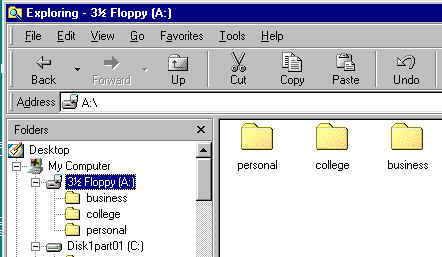
On a diskette, use Windows Explorer to make three subfolders called business,
college, personal.
-
Keep Explorer open while also opening WordPad.
-
Next write the following letter using WordPad.
-
To help paste the Explorer Window into your letter, use your Print Screen
key.
-
First paste your Explorer Window into Paint where you can crop the Explorer
Window so that it will fit into your WordPad letter as shown below.
-
Save and then print your Wordpad letter..
-
Mail your letter to Mr. Gordon in the envelope provided for you. Your envelope
must postmarked by June 23. Be sure that your name appears on your letter.
Your name goes here
156 Stillwell Avenue
Palm Harbor, FL 34684
June 23, 2000
Ms. Janet Sims
Quick Publications
3827 Tampa Road,
Suite 104, Palm Harbor,
Fl 34684
Subject: Creating folders
Dear Ms. Sims:
I just completed a course in
Windows 98. You asked me to take this course so that I would have the background
necessary to learn Windows’ spreadsheet and wordprocessing programs. I
know that I will be using both Excel and Word in my new position starting
in October.
I learned how to create folders
and subfolders to organize my work, and to copy and paste from one program
into another. Here is an example of folders I have created on a diskette.
To paste this image into this
letter, I had to use together Wordpad, Windows Explorer, and Paint. I have
learned the basics of Windows’ multitasking – using Windows programs together
to accomplish a single task, which in this case is writing this letter.
When I begin my new job in
October, the Windows skills I have mastered in this course will help me
to do an excellent job. Thank you for suggesting this course to me.
| Sincerely, |
| Your name here |
|
Bibliography for Windows 98
PC Novice Guide to Windows 98. Vol. 3, Issue 10. Magazine layout.
PC Novice Magazine, 120 W. Harvest Drive, Lincoln, NE 68521. Phone
800-367-7333. 156 pages. $5.98.
Person, Ron et al. Using Windows 98 (Special Edition). 1998.
Que Corporation, 201 West 103rd St., Indianapolis, Indiana 46290. 1287
pages. $39.99. Accompanied by CD-ROM.
Rathbone, Andy. Windows 98 for Dummies. 1998. IDG Books,
919 E. Hillside Blvd., Suite 400, Foster City, CA 94404. Phone 415-655-3000.
382 pages. $19.99.
Reisner, Trudi. 10 Minute Guide to Windows 98. 1998. Que Corporation,
201 West 103rd St., Indianapolis, Indiana 46290. 180 pages. $12.98
Schwartz, Karl & Joanne Schwartz. Windows 98: Quick Reference
Guide. 1998. DDC Publishing, Inc., 14 East 38th Street, New York, NY.
10016. 280 pages. $10.
Windows 98. (No author given.) IDG's 3-D Visual Series from MaranGraphics.
1998. IDG Books Worldwide, Inc., 919 E. Hillside Blvd., Suite 400, Foster
City, CA 94404. Phone 415-655-3000. 211 pages. $19.99.
Internet Resources
-
Richard Gordon's Windows 95/98 Notes.
-
http://members.aol.com/Imfern/GordonCourseNotes.html#WindowsNotes
-
CNET shows how to get started with Windows 98.
-
http://coverage.cnet.com/Content/Features/Howto/Win98tips/index.html
-
LearnLots.com shows how to use Windows 98.
-
http://www.learnlots.com/webskins/Subcategory.cfm?Subcategory_ID=5&LL_Style=1
-
Microsoft answers 95/98 questions.
-
http://www.microsoft.com/windows98/support/faq/default.asp
-
http://www.microsoft.com/windows95/support/faq/default.asp
-
Northwestern University Information Technology gives help on Windows 95
and 98,
-
http://helpdesk.tss.nwu.edu/os/pc/win95nt.html
-
Win 98 Tips & Tricks from Smart Computing Magazine.
-
http://www.winmag.com/windows/win9x.htm
-
http://www.smartcomputing.com/editorial/stoc.asp?guid=fdi7ngv8&vol=5&iss=4&type=3
-
WinMag.com. Free downloads for Windows 95.
-
http://www.winmag.com/win95/software.htm
-
1001 Tutorials including Windows 95 & 98.
-
http://www.1001tutorials.com/win95/index.html
-

This course guide was created by Richard Edward Gordon for use with
his junior college students. Other instructors are free to use this web
site with their students, but this site is protected by copyright and must
not be duplicated in whole or part without the author's permission. The
author can be contacted by e-mail
or phone at 727-771-9328.
END
|