XML Tutorial
Part 1 – Introduction
Part 1 - Introduction
Introduction
XML is a new type of language which has been developed for the web
which is different to any other type of scripting or programming language
available before. Instead of being concerned with the processing and display of
data, XML's primary purpose is to tell the computer what data entered actually
means.
The Two Problems
There are two main reasons for the development of XML:
Computers do not understand the information placed in
them.. For example there is no way for a search engine, or any other computer,
to know that this is page contains the introduction part of an XML tutorial.
All it is is a collection of letters and numbers, with HTML formatting around
it. The computer cannot even tell what on this page is a heading, what is text
and what is an advert. This is the main problem which XML was designed to
overcome. If a page or document is written in XML, a computer can understand
exactly what it is about. As will probably be obvious, this has very major
implications for search engine technology. If a search engine knew exactly what
was on a page, it would be able to instantly provide the exact results a person
was looking for, with no inaccurate matches and no half-relevant pages. This is
just the revolution the over-bloated web needs.
Web pages are not compatible across different devices. One
of the major difficulties that web designers have today is that people are now
accessing the pages from a variety of different devices. PCs, Macs, mobile
phones, palmtop computers and even televisions. Because of this, web designers
must now either produce their pages in several different formats to cope with
this, or they must cut back on the design in order to have the page compatible
across the different formats. Because XML is used to define what data means and
not how it is displayed, it makes it very easy to use the same data on several
different platforms.
What Is XML?
So what actually is XML? The thing about it which people find the most
difficult to understand is that XML does not actually do anything. XML is not a
way to design your home page and it won't change the way in which you build
sites. This has made many people believe that XML is useless, as they can't see
a way that it will benefit them. XML has a wide variety of benefits though, two
of which were outlined above.
The real use of XML, though, is to describe data. It is used, in a similar way
in which HTML is, except for the fact that there is a major difference between
the two:
HTML is used to describe how data is formatted.
XML is used to describe what data actually means.
The Language
As mentioned above, XML looks, and is structured very similarly to
HTML. They both use the system where tags are used to enclose the data they
refer to. They both can use nested tags and both can also have attributes added
to their tags.
The most revolutionary thing about XML, though is that you are not restricted
to just using the normal, pre-defined tags like font and br. Instead you are
responsible for making up the tags yourself. You can name them anything you
like and can use them to represent anything you like. This is a feature which
cannot be found in any other scripting language on the web.
Is It Difficult To Learn?
The answer to this, in short, is no. The only thing you have to learn
about XML is how to structure your tags, and they are in fact almost identical
to HTML tags. Most of it is just logical thinking. Before learning XML it is
important that you already know HTML. It is also useful if you know a web
scripting language such as PHP, ASP or JavaScript. If you do not yet know these
try some of the tutorials on the site. If you are looking to be able to format
a web page, not describe data, you will be better of learning XHTML, the new
standard replacing HTML.
Part 2
In part 2 you will learn how XML documents are structured and how to
write your own XML document
Part 2 - Writing XML
Introduction
As you will have read in part I, the way in which XML is written is
very similar to HTML. They both use the same system of enclosing pieces of
information or data in tags to apply formatting (in the case of HTML or data
rules (in the case of XML) to it.
XML Tags
The tags used in XML, as well as being very similar in construction to HTML,
also look like HTML tags. They are formed by a word (or a number of words)
enclosed inside <> and </> signs. Just like, for example the
<font></font> tag in HTML. The difference, of course, though is
that XML tags are not pre-defined like HTML ones are. An example could be the
XML tag <message> and the end tag </message> which could be used to
enclose an e-mail message stored on a web based e-mail system.
Nesting And Structure
Much like HTML tags, XML tags can be nested. Using the example of the
e-mail above, this is a piece of XML code:
<message>
<header>
<from>[email protected]</from>
<to>[email protected]</to>
<subject>Comments on XML</subject>
</header>
<body>
I think that XML has great potential. It will work very well and will help many
people to make much better use of the internet.
</body>
</message>
As you can see. this piece of code includes nested tags. The first element
(tag) in the XML code is the <message> element. This is what is called
the root element. It defines the bottom level of the document and is saying
'This is an e-mail message'. All the other tags are nested inside this
<message> tag. The next tag which appears is the <header> tag. This
is saying that the information contained within it is the e-mail header. This
also has nested tags. for example the <subject> tag, which appears as
part of the header tag. as the subject is part of the header. Something which
is often done in HTML is incorrect nesting. For example: the code:
<b><i>Bold and italic</b></i> would work correctly in a
web browser. even though the italic tags should both be inside the bold tags.
This must not be done in XML. It is very important that all XML tags are
correctly nested.
XML Correctness
Another point which should be brought up now, is the strictness of XML
when writing code. The whole idea of XML is that it should be independent of
the platform it is running on. The same code should run the same way on a PC, a
Mac, a mobile phone and even a toaster. As XML does not actually do anything
(it is just a language for defining data), it is up to software developers to
make software to use this data on a particular platform. This means that it is
important that all XML code is structured the same way, so that software can
easily be developed. Because of this requirement for correct code, it has been
decided (and is now a standard) that if any mistakes (for example incorrectly
nested tags) are found in XML code, it will not execute, and will just give an
error message. This means that when writing XML, you must be very careful about
correct syntax.
Declaring XML
The final part of the XML syntax you should learn just now is how to
declare an XML document. The correct way of doing this is to use the tag:
<?xml version="1.0"?>
This tells whatever software receives this data that you are writing XML and
that it should match the specification for version 1.0. As this is not actually
an XML tag it does not require a closing tag.
Part 3
In part 3 I will explain further about how an XML document is displayed
by the browser and how to make an XML file.
Part 3 - XML and Browsers
Introduction
Now you should know what
XML is for and how to write a basic XML document. In this
part I will show you how to create a full XML document and load it in a
browser, as well and the different ways it can be displayed.
Making The Document
Creating your XML document is as easy as making an HTML
page. All you need is a text editor (for example Notepad). Create a new
document and enter the XML document into it, for example, the e-mail message
from part 2:
<?xml version="1.0"?>
<message>
<header>
<from>[email protected]</from>
<to>[email protected]</to>
<subject>Comments on XML</subject>
</header>
<body>
I think that XML has great potential. It will work very well and will help many
people to make much better use of the internet.
</body>
</message>
Then, all you have to do is to save the document with a .xml extension. Now,
try loading this file in your browser.
Click
Here To Load The File
This is probably quite a surprising result, whatever browser you are using. I
will now cover the results for both Internet Explorer and Netscape/Mozilla.
XML In Internet Explorer
Internet Explorer is probably one of the best browsers for viewing XML pages.
It provides a hierarchical display of the XML file, color coding the elements
and allowing you to expand and collapse the nested elements.
If you don't have Internet Explorer you can see what it looks like in the image
below (without the collapsable elements, though).
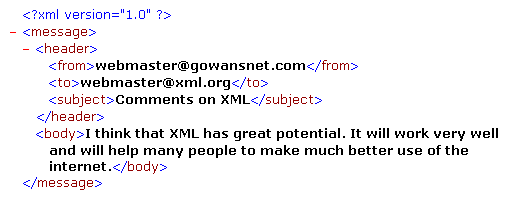
This is proably quite surpising to see, as it doesn't look like any other web
page you will have seen before. You may also be surprised that you can't really
do much, but this is exactly what XML is. Some sort of program or code must be
written to process the data.
Netscape/Mozilla
The Mozilla and Netscape browsers are not as good as
Internet Explorer at supporting XML. Mozilla, for example, presents the XML
data as plain text:

This is also a valid display of XML, because, as you will have noticed from the
code above, there is really no way to tell the browser how to display the data,
so it just shows it as plain text.
Which Is Best?
Probably the best way to develop your XML files is to use Internet Explorer.
Apart from the fact that it will provide you with a nicely formatted version of
your XML file, it also has another benefit. If there is an error in your XML
file, Internet Explorer provides a helpful message telling you exactly where
the error is and displaying the incorrect piece of code. The latest version of
Mozilla will also do this, although its XML formatting is not as good.
How Can I Guarantee The User Will See The Page?
This is the major problem with XML. With so many browsers around there is no
way to guarantee that your data will be displayed the way you want it (which is
the reason why there are images of the output in this tutorial). Luckily, there
are very few occasions where you will want your users to see the raw XML data,
and in most cases a piece of software or a script will process the data first.
For now, processing the data first is really the best course of action to take.
Part 4
In part 4 I will show you how to format the XML output in
the browser.
Part 4 - Formatting XML
Introduction
As you will have seen in the last part of the tutorial, browsers are
not particularly good at formatting XML, and only the very latest browsers
support it at all. Although most of the time XML will be used to define data,
not to display it, there may be occasions where you decide that you want to
format the XML data for viewing. There are three main ways of doing this.
CSS
Cascading Style Sheets (CSS) are one of the more recent web technologies, and
are used extensively for formatting standard HTML pages. If you would like to
find out more about Cascading Style Sheets read the tutorial on Free Webmaster
Help (see related links).
CSS can also be used to format XML documents, though. CSS can 'redefine' HTML
tags, allowing them to be presented in different ways. Similarly, it can be
used to define how XML tags are displayed. In this section of the tutorial, I
will be using an expanded version of my earlier e-mail example:
<email>
<message>
<header>
<from>[email protected]</from>
<to>[email protected]</to>
<subject>Comments on XML</subject>
</header>
<body>
I think that XML has great potential. It will work very well and will help many
people to make much better use of the internet.
</body>
</message>
<message>
<header>
<from>[email protected]</from>
<to>[email protected]</to>
<subject>An excellent site</subject>
</header>
<body>
I have just visited your site and I think it is amazing. Keep up the good work!
</body>
</message>
</email>
If I wanted to display this on a web page, I could use the following CSS code:
email
{
background-color: #ffffff;
width: 100%;
}
message
{
display: block;
background-color: #DDDDDD;
margin-bottom: 30pt;
}
header
{
display: block;
background-color: #999999;
margin-bottom: 10pt;
}
from
{
display: block;
color: #0000FF;
font-size: 12pt;
}
to
{
display: block;
color: #FF0000;
font-size: 12pt;
}
subject
{
display: block;
font-size: 14pt;
font-weight: bold;
}
body
{
display: block;
font size: 12pt;
}
There may be a few pieces of code here that are unfamiliar, so I will just
cover them. display: block; is important as it tells the system to display the
data inside this tag as a block on the page, and most importantly, taking a new
line after it. This is also related to the margin-bottom declaration, which
allows a space after pieces of data have been displayed.
The actual format of this CSS code is quite simple, though. The XML element
name is given, followed by the formatting data inside curly brackets { }. The
easiest way to use this with your code is to save it as a .css file (which is
just a plain text file, which can be made in any text editor.
Finally, add the following to the beginning of the XML code:
<?xml version="1.0"?>
<?xml-stylesheet type="text/css" href="estyle.css"?>
The first line is the standard declaration of the XML document. The
second line points to the stylesheet which will format this document (in this
case estyle.css).
You can click
here to see the output of this (only recent browsers will support this).
XSL
XSL
stands for eXstensible Stylesheet Language, and is a new language developed to
format XML docuements. For this example, I will use the same XML code from
above.
To format the code, you must create an XSL stylesheet. Although XSL is a
language in itself, I will just cover the basics here. The following code goes
in a file estyle.xsl:
<?xml version="1.0"?>
<HTML xmlns:xsl="http://www.w3.org/TR/WD-xsl">
<BODY STYLE="font-family:Arial, helvetica, sans-serif; font-size:12pt;
background-color:#FFFFFF">
<xsl:for-each select="email/message">
<xsl:for-each select="header">
<DIV STYLE="background-color:#EEEEEE; padding:4px">
<SPAN STYLE="color:black">To: <xsl:value-of
select="to"/></SPAN>
</DIV>
<DIV STYLE="background-color:#EEEEEE; padding:4px">
<SPAN STYLE="color:black">From: <xsl:value-of
select="from"/></SPAN>
</DIV>
<DIV STYLE="background-color:#EEEEEE; padding:4px">
<SPAN STYLE="font-weight: bold; color:black"><xsl:value-of
select="subject"/></SPAN>
</DIV>
</xsl:for-each>
<DIV STYLE="margin-left:20px; margin-bottom:1em;
font-size:10pt">
<xsl:value-of select="body"/>
</DIV>
</xsl:for-each>
</BODY>
</HTML>
At first glance it looks very strange, but really it is just HTML DIV
and SPAN tags, combined with a little XSL code. I won't cover DIV and SPAN tags
fully here, as this is not an HTML tutorial, but the basics of them are that
you are assigning areas of the page which contain formatting. The XSL document is
really just an HTML page with a bit of XSL code added to it. For anyone who has
used PHP or another scripting language to output HTML, this will all be quite
familiar. The actual XSL is as follows:
<?xml version="1.0"?>
<HTML xmlns:xsl="http://www.w3.org/TR/WD-xsl">
This is the standard header for an XSL document.
<xsl:for-each select="email/message">
This works just like a for loop in a scripting or programming language.
It tells the browser to loop through all the items <message> inside the
<email> tag.
<xsl:for-each select="header">
This is another for loop to go through all the occurences of the
<header> tag inside the <message> tag. In this example of code,
there is only one <header> for each message, but this code needs to be
included so that the browser looks inside the <header> tag.
To: <xsl:value-of select="to"/>
This is probably the best feature of XSL over CSS. You will have noticed
that in the CSS formatted document, all I could do was to display the e-mail
addresses at the top of the message. Using XSL (as it is really just an HTML
document with extra coding in it), I can tell the browser to output To: before
the value. The second part of this line tells the browser to output the value
of the tag <to> in the position of the XSL tag.
</xsl:for-each>
This is the end of the loop through the header. At this point the
browser looks to see if there is another <header> in the <message>
section of the document. As there is not, it continues.
</xsl:for-each>
The second occurance of this tag tells the browser to loop through to
the next <message> tag. As you can see, it can get difficult to follow
your nested loops like this, so often it is helpful to indent your code.
Finally, add the following to your XML code:
<?xml version="1.0"?>
<?xml:stylesheet type="text/xsl" href="estyle.xsl" ?>
As with the CSS, this tells the browser to look for the XSL file
estyle.xsl to get formatting details.
You can view the output of these files here.
Data Islands
Another way of formatting XML is to use Data Islands. Currently, only
Internet Explorer 5 and upwards support this, and it is an unofficial standard.
Again, I will use the same XML to demonstrate this. Using this method, you use
the unofficial <xml> tag in a normal HTML document. You can either
surround your XML data with <xml> and </xml> or you can embed a
remote file.
To embed data straight into the file you use the folloing format:
<xml id="emails">
XML code goes in here but without first declaration line
</xml>
To embed XML from a remote file use:
<xml id="emails"
src="emails.xml">
</xml>
As you will have noticed, you must give an ID to your XML.
Now you have got the XML data into the file, you can format it by normal HTML,
but using <span> tags to insert particular fields. This is an example of
formatting the e-mail file:
<html>
<body>
<xml id="emails" src="emaildata.xml"></xml>
<table bgcolor= "#EEEEEE" border="0"
datasrc="#emails">
<tr bgcolor="#CCCCCC"><td>To: <span
datafld="to"></span></td></tr>
<tr bgcolor="#CCCCCC"><td>From: <span
datafld="from"></span></td></tr>
<tr bgcolor="#CCCCCC"><td><b>Subject: <span
datafld="subject"></span></b></td></tr>
<tr><td><span
datafld="body"></span></td></tr>
</table>
</body>
Although I used the same XML data for this as for all the others, I removed the
<header> item as the data objects only appear to work on the first level
of the document.
You can view the result here.
Part 4
As you can see, although it was not designed for display, it is still
possible to format XML so that it can be output by a browser. XSL looks like
the future of this, though, as the others have limitations. In the next part, I
will show you some more methods of storing data in XML.
Part 5 -
More XML
Introduction
In the last four parts of this tutorial, I have shown you how to create
a basic XML document and how it can be displayed in the browser. This section
explains a few more XML techniques, and also provides a real-world usage of
XML.
Attributes
Attributes are another way of storing data using XML. Up until now, we
have just used very basic tags, surrounding information with tags which
describe them. For example, this is the code we have been using so far:
<message>
<header>
<from>[email protected]</from>
<to>[email protected]</to>
<subject>Comments on XML</subject>
</header>
<body>
I think that XML has great potential. It will work very well and will help many
people to make much better use of the internet.
</body>
</message>
If you go back to thinking of XML as HTML, you will notice that this is made up
completely of 'simple' tags. In HTML varient os tags are used which have
attributes, for example to output text in the Arial font the following code
would be used:
<font face="Arial">The text</font>
Similarly, in XML attributes can be used to store data. If I wanted, for
example, to get rid of the subject tags in this example, I could use the
following code:
<message subject="Comments on XML">
<header>
<from>[email protected]</from>
<to>[email protected]</to>
</header>
<body>
I think that XML has great potential. It will work very well and will help many
people to make much better use of the internet.
</body>
</message>
As you can see, I have used the attribute of the tag <message> to
store the subject instead of it having its own tag.
This, although correct XML, would not really be a correct usage of the
attributes of a tag. The attribute is used to give information about what is
contained in the tag. Although it could be argued that it is telling you what
the message is about, it would be more correct to provide this document in the
original form, where there is a subject tag.
Although I have said that this would not really be a correct usage, you can use
these fully interchangably, for example all the data for this e-mail message
could have been stored as attributes of the message tag. To really benefit from
XML, though, it is probably best to use attributes as little as possible, and
to concentrate on structuring your CDATA
documents correctly.
One problem which becomes apparent when
using XML is that the parser parses all data in an XML document. So in the
following:
<body>Sales last year were less than sales this
year</body>
Would be fully parsed by the parser, both the tags and text. This does
not cause a problem, though. If this was written as:
<body>Sales last year < Sales this
year</body>
This would cause a problem, because the XML parser would read this and
think that the less than sign (<) in the text was the beginning of a new
tag, so would cause an error. This can be overcome, though as, like HTML, XML
has a variety of special codes for displaying these characters. There are 5 in
XML:
|
Symbol |
Code |
|
< |
< |
|
> |
> |
|
& |
& |
|
' |
' |
|
" |
" |
By using these you can display the correct symbols, and the
XML parser still works. So you could enter this text as:
<body>Sales last year < Sales this
year</body>
There are occasions, though, when you will have a lot of these special
symbols in one section of your XML code, for example if you want to display
programming code on your site. For this, the CDATA has been invented. This is
like the HTML <xmp> tag, which causes the parser to ignore everything
contained in it (so it misses all the special characters, but also will miss
any tags contained in it). It is constructed as follows:
<![CDATA[
Text to be ignored
]]>
Real World Usage
After reading this whole tutorial, you may still be wondering what the
point of XML is. It doesn't improve the look of your web page and the lack of
browser support means that you can't use it as an alternative to a server-side
database. There are uses which have been developed, though, although it will
take a lot more development to make XML a mainstream language.
XMLNews is a system which allows news stories to be stored as XML. By using
tags like <headline>, <byline>, <location> and <story>
web pages and software systems can be developed which will take the XML data
and will output it as a correctly formatted web page. In fact, the same story
could be displayed on a WAP phone, news website, headlines news ticker, news
e-mail, SMS message or in a piece of software, all from the same source file.
As you can see, this creates a huge benefit, as a story can be written once by
a journalist, but distributed around the world in many different formats. You
can find more information at XMLNews.org.
Conclusion
Although XML still has a long way to go to become a mainstream
programming language, it has great potential. After reading this tutorial you
should know how to create a basic XML document and also how to output it in a
browser. With this knowledge you will be able to create XML solutions for your
website.