Topic 2.2: USER INTERFACES
INTRODUCTION
- User interface is also called as a 'human computer interface (H.C.I.)'
or 'man machine interface'. It is used to describe the interaction between a
user and a computer, in other words, the method by which the user tells the
computer what to do and the responses which the computer makes.
THE IMPORTANCE OF GOOD INTERFACE DESIGN
A good interface design can help to ensure that users carry out their tasks:
- safely
- effectively
- efficiently
- enjoyably
Well designed systems can improve the output of employees, improve the
quality of life and make the world safer and more enjoyable place to live in.
DESIGNING USABLE SYSTEMS
In order to design a usable interface, the designer has to take into
considerations the following factors:
- WHO will use the system. For example, will the users be the computer
professionals or members of the general public who may be wary of computers?
For an educational program, will the users be young, for example primary
school children, or teenagers on an A Level course? Will the system have to
cater for both beginners and experienced users?
- WHAT TASKS the computer is performing. Is the task very repetitive? Does
the task require skill and knowledge? Do tasks vary greatly from one
occasion to the next? A travel agent who spends most of the day making
holiday bookings will require a different interface from an office worker
who needs to be able to switch between word processing, accounts and
accessing the company database.
- THE ENVIRONMENT
in which the computer is used. Will the environment be
hazardous, noisy, or calm and quiet?
- WHAT IS TECHNOLOGICALLY FEASIBLE. Is it possible to simply dictate a
letter to a word processor instead of typing it in?
MENU INTERFACE
There are several different types of menu interface as the following:
1) Full Screen Menu. This type of menu is often used as the 'front end' of an
application. It stays on screen until the user makes a choice. Try on your own!!
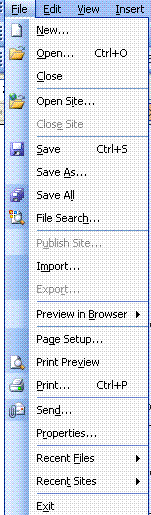
2) Pull-Down Menu. This type of menu is displayed along the top of the
screen, and when the user clicks on an item, a sub-menu appears. The menu is
always present whatever screen the user is looking at in the application.
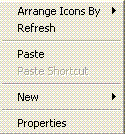
3) Pop-up Menu. The menu pops up in response to, say, a click of the right
mouse button on a particular area of the screen.
WIMP INTERFACE
- WIMP stands for Windows, Icons, Mouse and
Pull-down menus.
- A window is an area on the screen through
which a particular piece of software of a data file may be viewed. The
window may occupy the whole screen, or the user can choose to have several
windows on the screen with a different application running in each one.
Windows can be moved, sized, stacked one top of the other, opened and
closed.
- An icon is a small picture representing an
item such as a piece of software, a file, storage medium (such as disk) or
command. By pointing with a mouse at particular icon and clicking the mouse
button the user can select it.
FORMS
When a user is required to enter data such as sales
invoices or customer names and addresses, it is common to have a 'form'
displayed on the screen for the user to fill in.
The following should be noted when designing forms
of this type:
- The display should be given a title to
identify it.
- The form should not be too cluttered. Spaces
and blanks in a display are important.
- It should give some indication of how many
character can be entered in each field of data.
- The user should be given a chance to go back
and correct any field before the data is accepted.
- Items should appear in a logical sequence to
assist the user.
- Default values should wherever possible be
pre-written onto the form so that a minimum of data entry is required.
- Full exit and help facilities should be
provided. For example, the user could enter '?' in a field if he requires
more information.
- Lower case in a display is neater and easier
to read than upper case.
- 'Attention-getting' devices such as blinking
cursors, underlining etc should not be over-used.
DIALOGUE BOXES
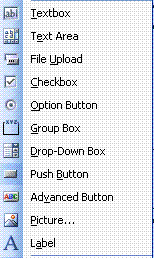
- Dialogue boxes are a special type of form
associated with the Windows environment: an example: open MS WORD, <FILE>,
<PRINT>. Try on your own (DIY). Or open MS FrontPage, <INSERT>, <FORM>,
<CHECKBOX> OR <OPTION BUTTON>.
COMMAND-DRIVEN INTERFACES
- With this type of interface very little help
is given to the user who has to type a command such as, for example using
MSDOS PROMPT: <DELETE FILE1> to delete a file. DIY!
- Commands enable a user to quickly and
concisely instruct the computer what to do but they do require the user to
have a knowledge of the commands available and the syntax for using them.
Resource: P M Heatcote, [A level Computing,
3rd. Edition], Ashford Colour Press Ltd, 1996.