| HOW TO CHANGE MESSENGER SKINS |
| STEP ONE: GET A SKIN: by whatever means it is. (ie. off the net or make your own. you can find or place them in the skins folder found here: "C:\program files\yahoo!\messenger\skins\" some of those that you can get from me have install applications that place them here for you. STEP TWO: OPEN YAHOO! MESSENGER: go to "start\programs\yahoo! messenger\yahoo! messenger". your messenger may be minimized at the bottom of your screen, in the task bar. even if you're logged off. STEP THREE: OPEN THE PREFERENCE WINDOW: once you are logged in, click on the "login" drop-down-window. select "Preferences..." from this menu, or just press "ctrl+P". (see fig. 01) |
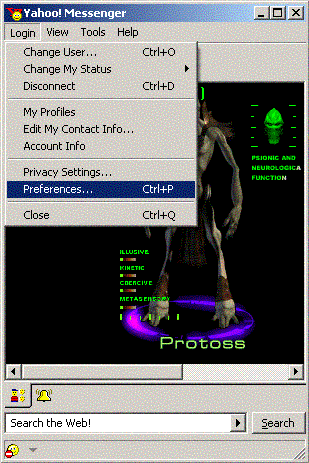 |
| fig. 01 |
| STEP FOUR: CHANGE YOUR SKIN: now you have the preferences window open. select "Appearance" from the list on the left side of this window. it should look something like this. (see fig. 02) |
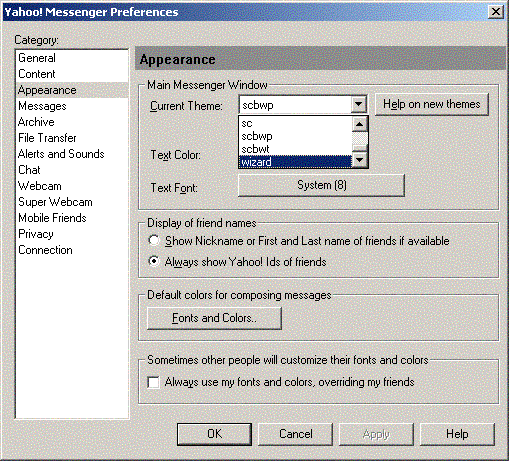 |
| in the drop-down-menu labeled "Current Theme:" you can now select the "current theme" or "skin" that you would like to use. click "ok" or just hit enter. ADDITIONAL INFORMATION: HELP ON NEW THEMES: for help on making new "themes"/"skins", you can either click on the button labeled "Help on new themes" or press "Alt+E". this webpage done by Yahoo! can help you in making your own skins. |
| fig. 02 |