
Lisa's Tutorials
How To Remove Eye Glare From Pet Photos With PaintShop Pro.
Step 2
Use the tools mentioned in part 1 to zoom in or out and move the photo to where you want it.
Left click and hold down your mouse over the first eye and draw a circle around the green glare.
Remember you are only working on the glare not the whole eye.
You don't have to be perfect since we will be adjusting it.
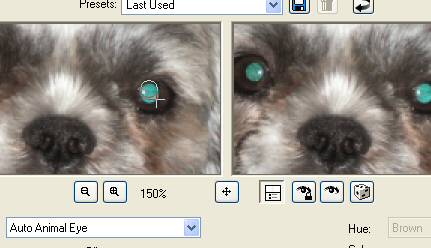
Left click over the circle and hold down over the eye to center your circle.
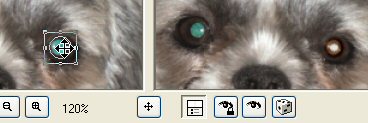
Now you have a square with little squares going around the edge.
Left click and hold and pull up or down or right or left to adjust the eye to where it looks best.
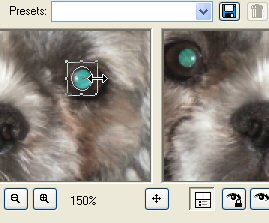
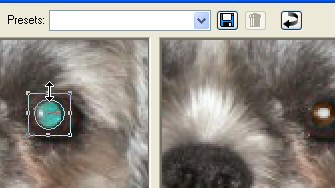
Now continue working on the second eye.
When you are happy with your work hit OK and you're done.
Main Menu
|