
Lisa's Tutorials
How To Remove Eye Glare From Pet Photos With PaintShop Pro.
Cat Eyes
For this tutorial I am using version 8
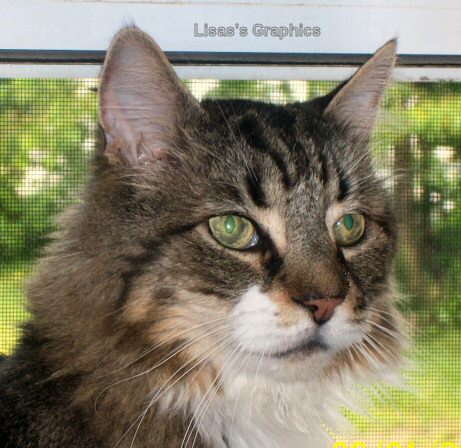
This is the photo we will be using for this tutorial. Save the photo to your computer. Right click and choose Save As.
Meet my cat Tiger :-)
Open PSP and on the top menu choose File and Open.
Find the photo you saved to your computer.
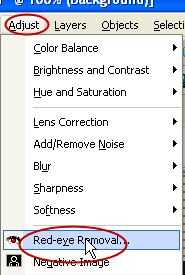
Now from the top tool bar choose Adjust and the Red Eye Removal Tool.
Let me take a moment to explain everything on the screen from left to right.
The photo on your left will be the one you will be working on.
The photo on your right will be your preview photo.
See the hand over the photo on your right?
If you mouse over the photo and left click and hold it you can move your photo around.
Try it and see.
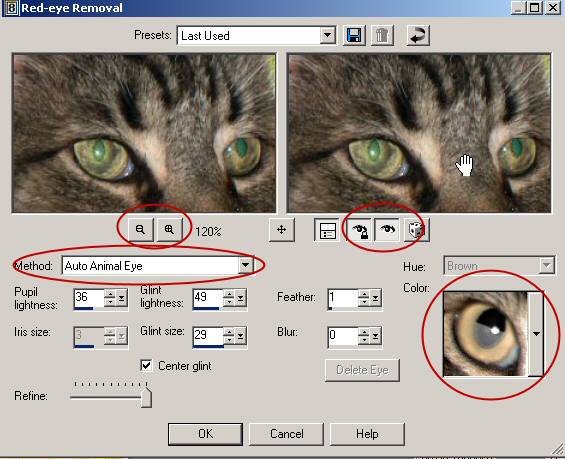
The Eye Glass icon with the + and - sign will zoom your photo in when you hit the + or zoom out when you hit the -
Next to that you see the icons with an eye. Click the icon with the Eye on it. This is so you can proof your work as you are working on your photo.
Method- Choose Auto Animal Eye
Color- I choose the one that is closest to a cat's eye.
Set all the other settings to what I have.
Now that you have everything ready let's work on the photo.
----> Step Two <----
Main Menu
|