
Tutorial
Adding Text To Blank Blinkies

This tutorial will show you how to add text to a blank blinkie.
This is the blank blinkie we are going to create using paint shop pro and animation shop.
1. Unzip the blinkie template and open it in PSP
Zip File Here
Adding Text:
You see three layers.
The first is your text layer
The second and third are your blinkie layers
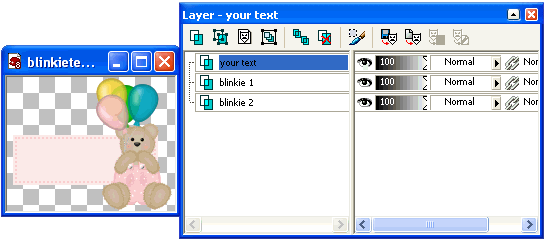
Click on the text layer and choose your text tool.

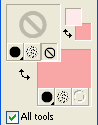
Choose your font and font size

And your font color. I have my foreground color and closed the background color but this option is up to you.
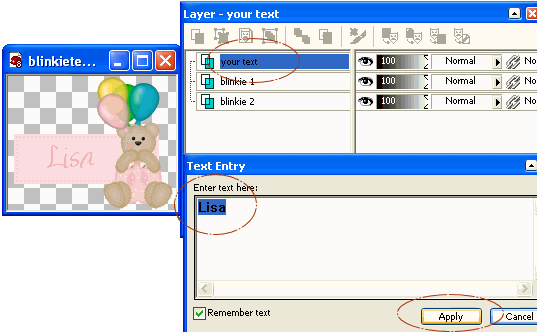
Add your text in the text box and hit the apply button
If you need to center your text choose the mover tool

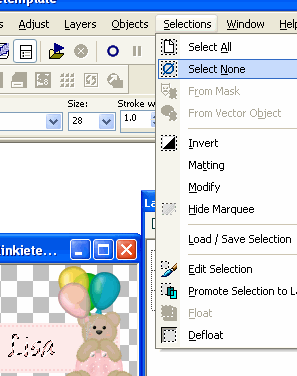
You will see marching ants around your text. Choose Selections and Select None
Now you want to duplicate your Text layer.
Right click on the Your Text layer and choose Duplicate.
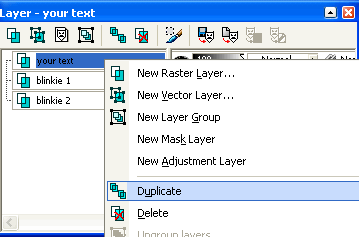
X out the Your Text layer and Blinkie 1 layer
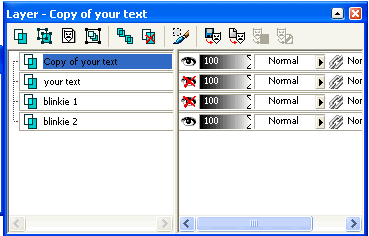
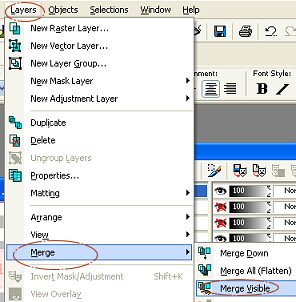
Now choose Layers - Merge - All Visible
You will now see this
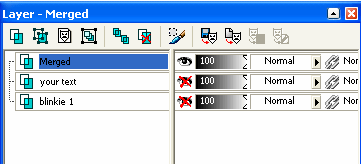
X out the Merged Layer and click on the Your Text Layer
UN - X the Your Text and Blinkie 1 layer
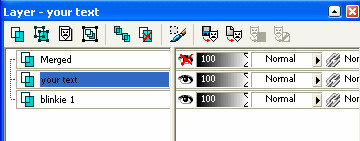
Again choose Layers-Merge- All Visible again.
You will see this
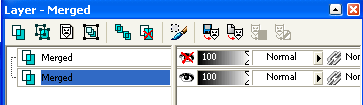
Un X the Merge Layer so both look like this
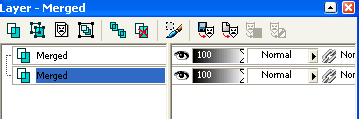
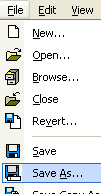
Now choose File - Save As and save it to a folder of your choice.
Example: you can save it in My Documents or create a file called My Blinkies and save it there.
----> On to the animation click here <----
Main Menu