 |
|
|
|
|
|
|
|
|
|
|
|
|
|
| How To Make An Icon | |||||||||||||
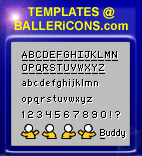
| Tools: Adobe Photoshop 5.0 or higher or Paintshop pro 7.4. You can get these at www.download.com Steps: 1. Aquire the templates below. 2. Import the template into the paint program (remember the size of the image NEEDS to be 50x50 size pixels. This alows the image to show up without the blue border so when you use it it will show up correctlly.). 3. Begin work. You will probably have to zoom in alot (500%) and work pixel by pixel. 4. Now that the image is completed you will need to work at the image at the bottom. You can copy and paste from the template below. If you don't feel like doing the text I advise saving other icons and using the copy and paste feature. Capital Letters are 7 pixels high and 5 pixels wide. Lower case letters are usually 5 pixels high and 4 pixels wide. To create the white shadow you will need to create the black text first. The shadow is DOWN ONE and to the RIGHT ONE for ever black pixel. The underline under the key letter is completely up to you. It is one under the white shadow. In order to align the text (with only one line of text), place the bottom of the black underline up 9 pixels. If the text is too big for one line sqeeze it in as best fit. 5. After completion of the icon you will need to save the image in .GIF format. (PAY ATTENTION HERE, TRANSPARENT BACKGROUND IS VERY IMPORTANT.) In doing so you will need to set the transparency of the background. This part may be a bit complicated but you'll get through this. As you might know when you view your icon without the right transparency, you will see a gray background. This is UNACCEPTABLE. As you save your icon as a .GIF you should be prompted to choose a color to make transparent. Obviously choose the gray. So it will look like a professional icon. |
|||||||||||||
 |
|||||||||||||
 |
|||||||||||||
| The information and the templates are from www.Ballericons.com |
|||||||||||||
 |
|||||||||||||