
Regardless of what method you use to resize your
images, you'll need to follow these two steps:
The Resize dialog box will open up and we can choose the method we want to use for resizing our image
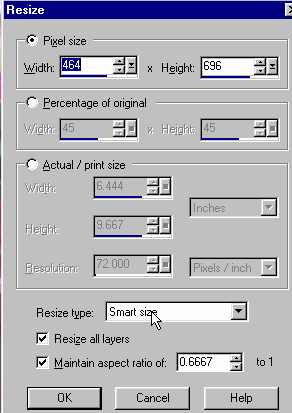 |
We'll be using both Pixel size
and Percentage of original to resize our images. Before you begin you'll want to make sure:
|
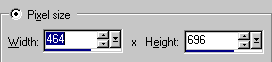 |
Marking the radio button under
Pixel size will allow you to adjust the height and width of your image
in pixels. Now, type in the width or height you want for your resized image. Since we made sure to check Maintain aspect ratio, Paint Shop Pro will automatically adjust the other dimension so the resized image retains the same ratio of width to height as the original. When you've resized the image to the pixel width and height you want, click OK and the image will be resized
|
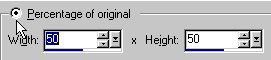
| If you choose Percentage of
original you increase or decrease the image size by a percentage. To decrease the image to half the size of the original, type in 50 percent. To double the size of the original, type in 200. When you're done choosing the size you want, click OK and the image will be resized.
|
 |