 |
|
|
|
|
|
|
|
|
|
|
|
|
|
|
|
|
|
|
|
|
|
|
|
|
|
|
|
|
|
|
|
|
|
|
|
Blending Cuts |
|
|
|
Home Tutorials GFX |
|
|
|
|
|
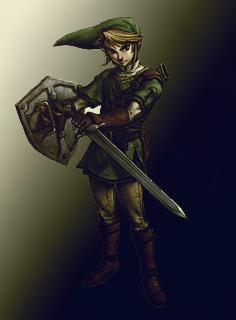
This tutorial will teach you how to blend cuts into their background, to start off set the colours to default(D) and get a stock image as well as background for it. |
|
|
|
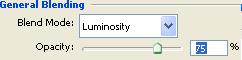
Start off with a document that is the size of what you want the final product to be. and set the background to black. Now use the image put it on the black background and set its blending options to luminosity and 75% as shown in the image. |
|
|
|
 |
|
|
|
 |
|
|
|
|
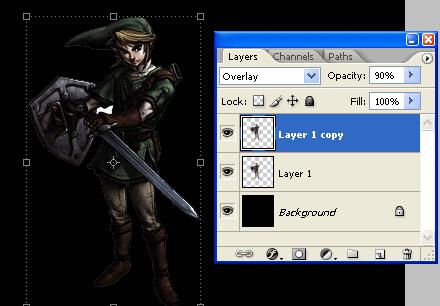
Duplicate the layer, set the mode of it to overlay and set the opacity to something around 90% depending upon how much colour you want from the image. |
|
|
|
|
|
|
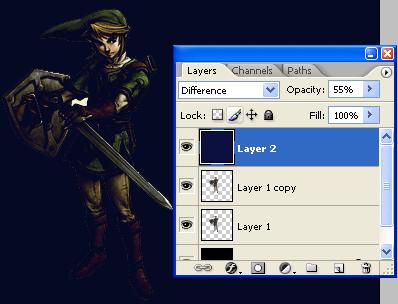
Now create a new layer(ctrl+shift+n), and set the foreground to the colour code of #0B1040 and fill it. |
|
|
|
 |
|
|
|
Change the blend mode to difference and bring the opacity down to around 55-85% depending on what you prefer. |
|
|
|
 |
|
|
|
 |
|
|
|
|
|
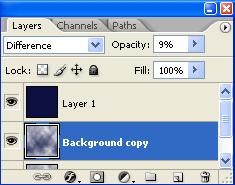
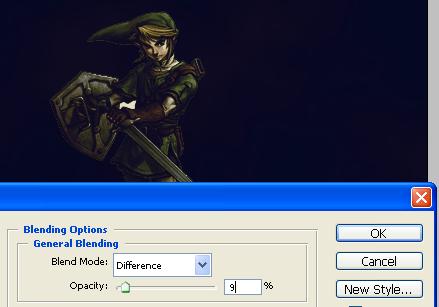
Now create another new layer and,keeping the colours as before go filter>render>clouds, put this behind the blue layer and change the blend mode to difference and opacity to 9%. You can do this more to create a more grungey effect. |
|
|
|
 |
|
|
 |
|
|
|
|
|
|
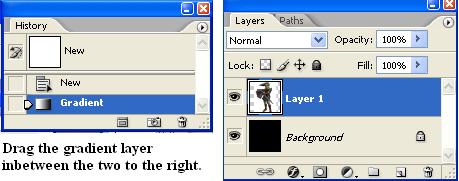
To finish off get the background and put it in between the black layer and the layer of the stock image. And now you've blended an image into it's background. |
|
|
|
 |
|