Create a text file named DEBUG.BAT, containing these lines:
call c:\wxbasic\wxbasic.exe %1
type wx.err
(the first one must reflect your WXBASIC path)
Select from menu:
Options-->
Environment options-->
Execute keys
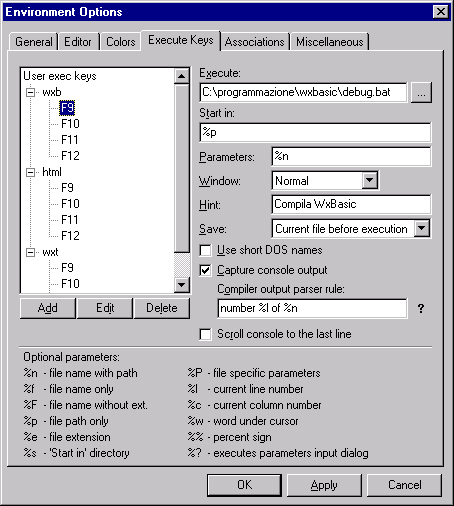
You will see the following dialog box:
To be able to compile your WXB sources by pressing F9:
1. click on ADD button and type WXB;
2. click on F9 and compile fields:
insert debug.bat path into EXECUTE field.
insert %p in START IN field
insetr %n in PARAMETERS field
check CAPTURE CONSOLE OUTPUT
insert number %l of %n in COMPILER OUTPUT PARSER RULE field
Then, in the same way you can associate F10, F11 and F12 keys to WXCONV, WXMENU and wxDialogEditor as you like.
You can also activate the same shortcuts by clicking with mouse over four buttons shown in this figure:
SYNTAX HIGHLIGHTING
You have just to download the
wxbasic higlighter, and put the
wxbasic.chl file into conText/highlighters folder: it will be enabled at next conText startup.