|
|
|
|
|
|
|
|
Fish Eyes Lens Effect Part 2 |
|
|
|
As seen in the Panorama Tutorial, it is possible to get a wide angle photo without a wide angle lens. Here we show another way to make fish eyes lens photo in Gimp, of course, without buying an expensive lens.
|
|
|
|
If something can be done in Gimp, there are usually more than one way to do it.
This tutorial is less complicated than the first one...
|
|
|
|
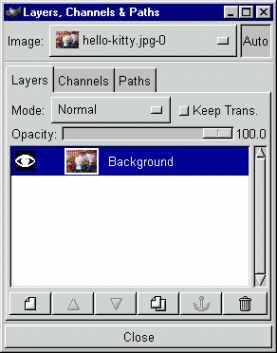
Open up the digital photo in Gimp by clicking on "File->Open". Press Ctrl-L. This opens up the Layers dialog box.
Notice there is only one layer highlighted in blue called "Background".
|
|
|
|
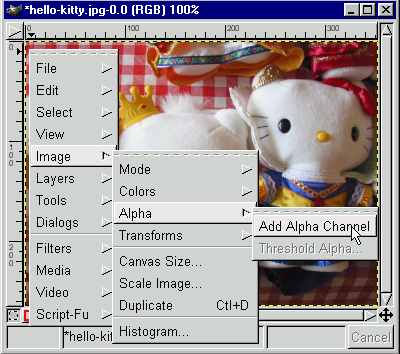
With the cursor placed inside the image window, right mouse click to call up the cascading menu and navigate to "Image->Alpha->Add Alpha Channel".
This will add the alpha channel to the Background layer.
|
|
|
|
|
|
|
|
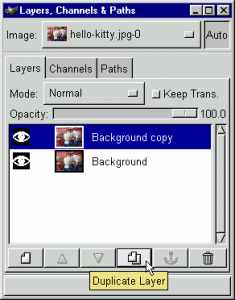
Back to the Layers Dialog Window. Find the duplicate icon at the bottom and click on it. A new layer "Background Copy" is created.
|
|
|
|
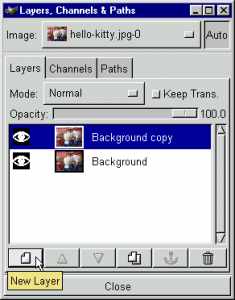
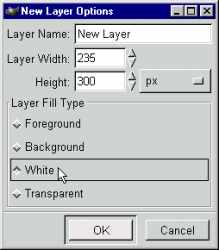
Next find the New Layer icon at the bottom and click on it. A New Layer Box appears. Click on "White" then click "OK". A new white layer is created.
|
|
|
|
|
|
|
|
|
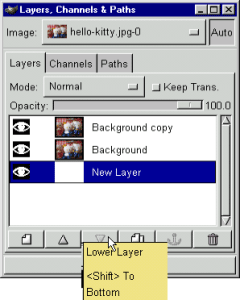
Find the down arrow icon and click two times to move the white layer to tbe bottom.
|
|
|
|
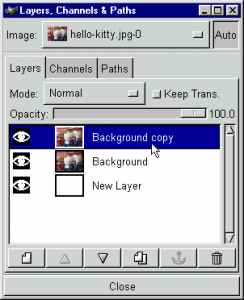
Next, click on the "Background Copy" layer to make sure it is highlighted in blue.
|
|
|
|
|
|
|
|
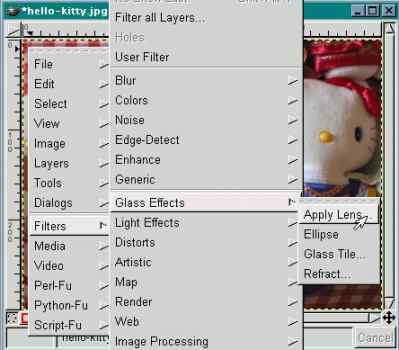
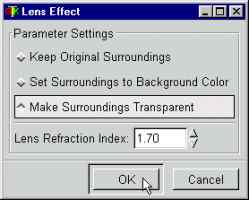
Back to the Image Window and it is time for the fish eyes lens. With the cursor inside the Image Window, right mouse click to call up the cascading menu and navigate to "Filters->Glass Effects->Apply Lens". Click to launch the Lens Effect Dialog Box.
|
|
|
|
In the Lens Effect Dialog Window, click on "Make Surroundings Transparent", enter "1.70" for "Lens Refraction Index" and click "OK" to go. Whoa ! Instant Fish Eyes Lens Effect !!
|
|
|
|
 |
 |
|
|
|
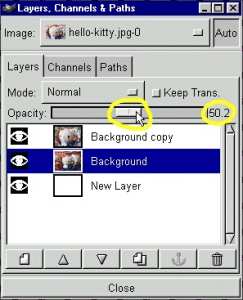
Back to the Layers Dialog Window. Click on the "Background" Layer to make it active. Next click on the Opacity Slider above until it shows "50.2"
This will make the second layer semi-transparent.
|
|
|
|
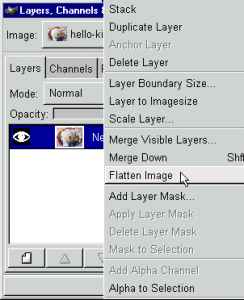
Finally with the cursor on the blue highlihgted layer, right mouse click to call up the layers menu and click on "Flatten Image". This will flatten the three layers into one.
|
|
|
|
 |
 |
|
|
|
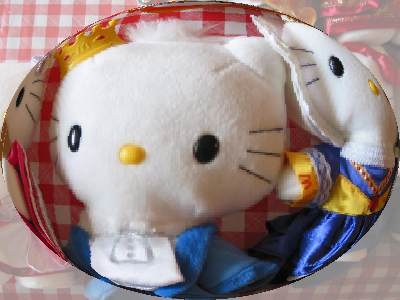
The final fish eyes lens effect is shown below.
|
|
|
|
 |
|
|
|
Images created with 
Copyright by lasm ©2002
|
|
|
|
|
|