VERTIGO DIVIDED TUTORIAL
NEEDED:
- PSP
- Letter Creator
- Tube of your choice, largest side not longer then 320 px
- Divider of your choice or use my divider
http://www.geocities.com/ladyluna37/dividervertigodivided.htm
- Filter Factory D: Vertigo:
http://www.fleursauvage.be/utilitaire/filtres/filtres.htm
LEVEL:
Advanced beginner/Intermediate
PREPARING
- Open tube, height not longer then 380 px.
- Duplicate tube (Shift D) and close original
- Chose a light color from tube and select it as foreground color
in the materialbox
- Chose a darker color from tube and select it as background color
in the materialbox
- Edit - Copy
- Minimize Tube
BACKGROUND
- File - New image: 1280 x 400, transparant
- Selections � Select all
- Edit � Paste into Selection
- Selections � Select none
- Effects � Image Effects � Seamless tiling: at default
- Layers � New layer (raster)
- Floodfill layer with light foreground color
- Layers � arrange � send to bottom
- Layers � Merge � Merge visible
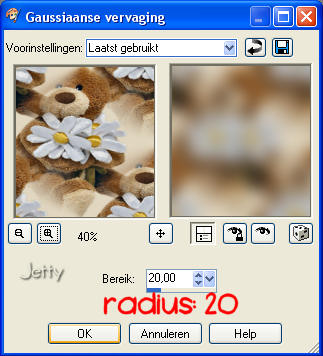
- Adjust � Blur - Gaussian Blur: radius of 20
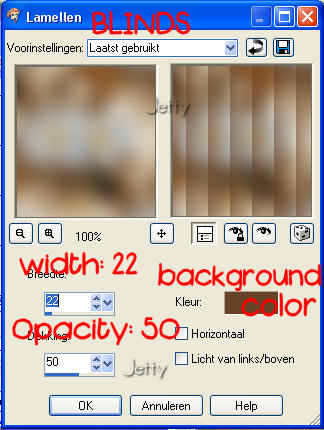
- Effects � Texture effects � Blinds: with the following
settings: Width: 22, Opacity: 50, color is background or
foreground color. Look what suits best.
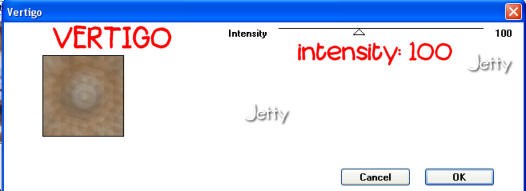
- Effects � Filter Factory Gallery D: vertigo
- Effects � Image effects � Seamless Tiling: at default
- Optional: Effects � Edge effects � Enhance
- Optional: lower opacity to make this background text
friendly.
- Edit � Paste � Paste as a new layer
- With your mover tool move your image to the far left
side and center it. At the left side must be enough place left
to place your divider later.
- Effects � 3d effects � Dropshadow: settings: Horizontal
and Vertical: 4, Opacity: 55, Blur 15
- Your background will be used again later
DIVIDER FRAME
- Open your divider. If the background of the divider is not
transparant: Layers - Promote to layer. Click with your magic
wand (no feather)on the background. If not all of the background
is selected, please click again on the other not selected areas
while pushing on shift. If all is selected around the divider,
hit delete.
- Left click on your background box in your Materialbox
- In your Material Properties box look at the Hue (H)
and Saturation (S) colors and note these down. You will need the
exact numbers later. Then close this box
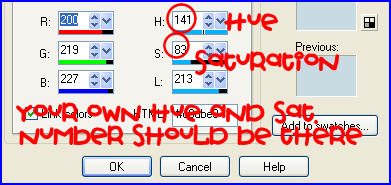
- Adjust � Hue and Saturation � Colorize: settings like you
noted them for Hue and Saturation (for me 141 and 83, for you
different). You see the 'H' and 'S' of Hue and Saturation
- Back to your divider it must be in your backgroundcolor now
- Optional:. If your divider isn�t horizontal to begin with,
but vertical, do this please: Image � Rotate � Rotate a quart
to the left. And please resize to somewhere between 320 � 380
pixels if necessary
- Edit � Copy
- Activate now your background
- Edit � Paste � Paste as a new layer
- Move your divider with your mover tool above your tube
(horizontal) in the left corner of your background
- Layers � duplicate
- Image � Flip
- Layers - duplicate
- Image � rotate � free rotate: 90 % left (nothing checked)
- With your mover tool more your divider to the right of
the tube.
- Layers - Duplicate
- Image � Mirror
- With your mover tool move your divider to the left of the
tube, symmetric with the other divider. Your tube image must
be in the middle. The four dividers must form a kind of
symmetrical square with the tube in the center.
Tip: If you would like the width of your �frame�smaller use
the Deformation Tool (Toolbox) for the top divider and then
duplicate and flip for the bottom.
- Close the visibility (eye) of the bottom layer (background)
- Close the visibility of the tube layer. Activate one of the
other layers if it isn�t activated anymore.
- Layers � Merge � Merge visible
- Effects � 3d Effects � Dropshadow: settings: Horizontal
and Vertical 1, Opacity: 100, Blur: 2. Or use a dropshadow to
your liking
- Click on the eye of the bottom layer with the background
and the tube layer to make your background and tube visible
again
- Layers � new raster layer: add your watermark
- Layers � Merge � Merge all (flatten)
FINISHING
- File � Export � JPEG Optimizer: compression of 20
- In Letter Creator open your background
- In body don�t forget to tile
- Chose a matching color for your text
- Don�t forget your credits in your footer
and another example:
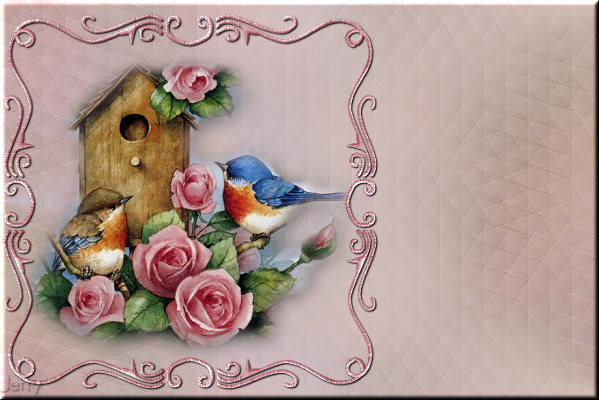
and another example:
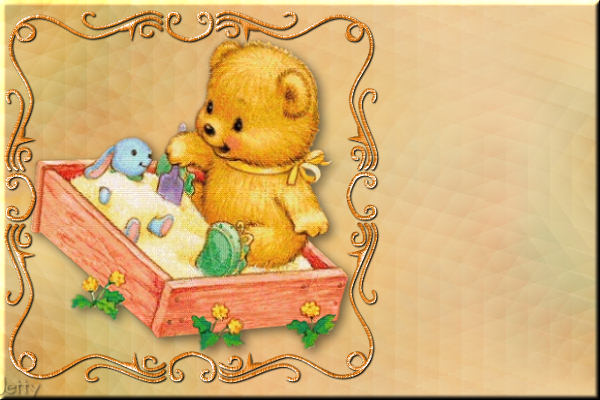
I hope you enjoyed making this letter.
I would love to see the results. You can reach me at:
[email protected]
Please put a link to my group:
http://groups.yahoo.com/group/IMtutorialsbyJetty
Or to my website:
http://www.geocities.com/ladyluna37/index.htm
My tutorials can be found in my groupfiles.
http://groups.yahoo.com/group/cuteIMlettersandtagsbyJetty
or
http://groups.yahoo.com/group/IMtutorialsbyJetty
or at the earlier mentioned homepage
With thanks to the brilliant women who have given me
lessons in PSP and Incredimail.
Many things I learnt have been used by me in creating.
Any resemblance with other tutorials is purely coincidental.
And special thanks my testers for their testing.
You are free to share my tutorials. If you want to use them
for lessons or a groupshare please ask me and please
awknowledge it as my tutorial.
Hugs
Jetty