SHINY SINGLE FLOWER TUTORIAL
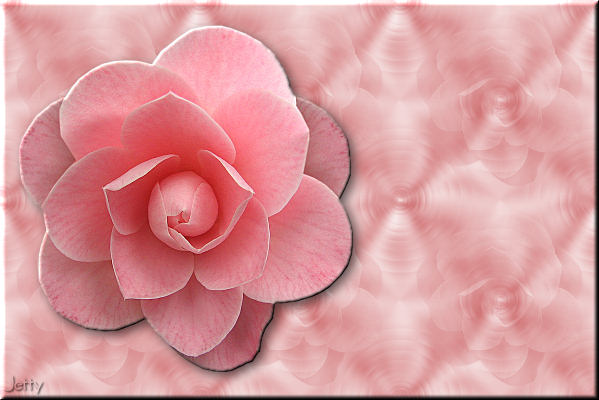
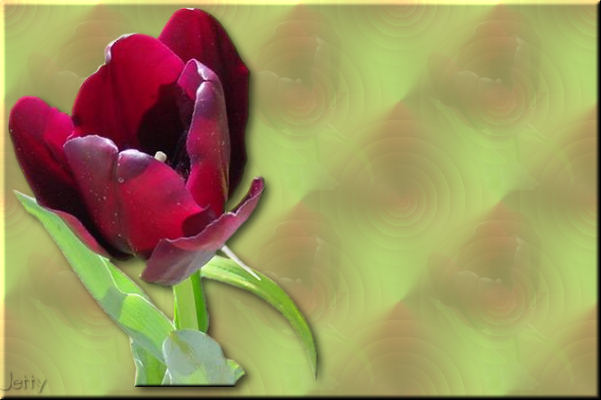
NEEDED:
- PSP
- Letter Creator
- Tube of your choice, simple tube as flower will work best
Filter Factory C: Evanescence:
http://www.fleursauvage.be/utilitaire/filtres/filtres.htm
LEVEL:
Beginner with basic knowledge of Paint Shop Pro, Letter
Creator and working with tutorials.
PREPARING
- Open tube, , height maximum: 380 px. (taller than wider
works the best).
- Duplicate tube (Shift D) twice
- Close original
- Minimize one copy
- Chose a light color from tube and select it as foreground
color in the materialbox
- Edit - Copy
- Minimize also this copy of the tube
BACKGROUND TILE
- File - New image: 200 x 200, transparant
- Selections � Select all
- Edit � Paste into Selection
- Selections � Select none
- Layers � New layer (raster)
- Floodfill layer with light foreground color
- Layers � arrange � send to bottom
- Layers � Merge � Merge visible
- Effects � Image effects � Seamless tiling (default)
- Adjust � Blur � Gaussian Blur � radius of 15
- Effects: Filter Factory C: Evanescence:
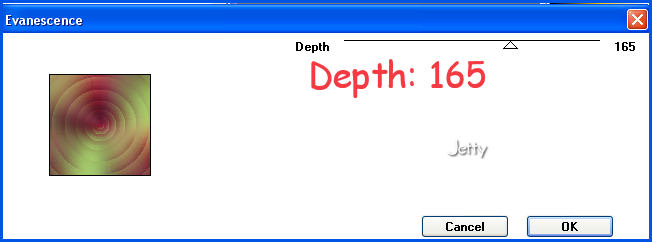
settings: Depth: 165
- Effects � Edge Effects � Enhance (More)
- Effects � Image effects � Seamless tiling: default
- Minimize background tile
- Activate your first tube copy and resize to height of 150
Wide will adjust.
- Edit � Copy
- Activate your background tile
- Edit � Paste as a new layer
- Change the opacity of this new layer to 15-30
- Layers � Merge � Merge all (flatten)
- Your background tile is now ready
- Minimize
BACKGROUND
- File � New Image (1280 x 400, transparent)
- Go to your material pallet and put your background color
(box) to pattern
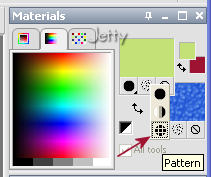
- Chose your settings: angle 0, scale 100
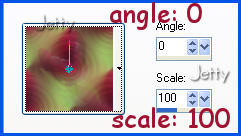
- your background tile as pattern
- Floodfill (floodfill tool in toolbox) background with your
pattern
POINTS 34 � 37 ARE OPTIONAL. LIGHT COLORS DON�T
NEED AN OPACITY LAYER. IF YOUR BACKGROUND TILE
IS LIGHT OF COLOR AND TEXT FRIENDLY ENOUGH,
PLEASE SKIP POINT 34-37 AND CONTINUE WITH 38 !
- Layers � New Raster Layer
- Floodfill with your light foregroundcolor
- Lower opacity of this layer to: 50-80. I used 61
- Layers � Merge � Merge all (flatten)
- Activate your other copy of the tube
- Edit � Copy
- Close this copy
- Activate your background
- Edit � Paste as a new layer
- Move with your mover tool to the left
- Optional: Effects � 3d Effects: Inner bevel of :
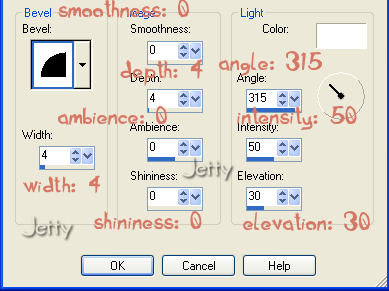
settings:
bevel 2, width: 4, smoothness: 0, depth: 4, ambience: 0
shininess: 0, angle: 315, intensity: 50, elevation: 30
- Effects � 3d Effects: Dropshadow with these settings:
horizontal & vertical: 4, opacity: 65, blur: 12, black
- Layers � new raster layer: add your watermark
- Layers � Merge � Merge all (flatten)
FINISHING
- File � Export � JPEG Optimizer (between 22-26)
- In Letter Creator open your background in Body
- Tile in your Body
- Chose matching color for the text, chose margins
- Don�t forget your credits in your footer
- Finish
Another example: no flower:
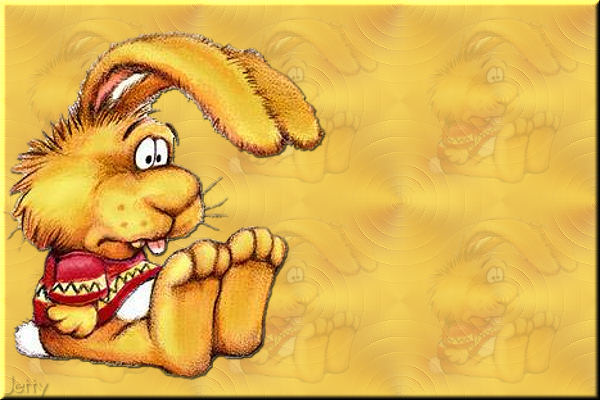
You can also do this tutorial with a different kind of image,
but best is to keep the tube you use simple and rather light.
I hope you enjoyed making this letter.
I would love to see the results. You can reach me at:
[email protected]
Please put a link to my group:
http://groups.yahoo.com/group/IMtutorialsbyJetty
Or to my website:
http://www.geocities.com/ladyluna37/index.htm
My tutorials can be found in my groupfiles.
http://groups.yahoo.com/group/cuteIMlettersandtagsbyJetty
or
http://groups.yahoo.com/group/IMtutorialsbyJetty
or at the earlier mentioned homepage
With thanks to the brilliant women who have given me
lessons in PSP and Incredimail.
Many things I learnt have been used by me in creating.
Any resemblance with other tutorials is purely coincidental.
And special thanks to my testers for their testing.
You are free to share my tutorials. If you want to use them
for lessons or a groupshare please ask me and please
awknowledge it as my tutorial.
Hugs
Jetty
Tutorial created: March 2007 by Jetty, Netherlands