REPTILE SKIN TUTORIAL
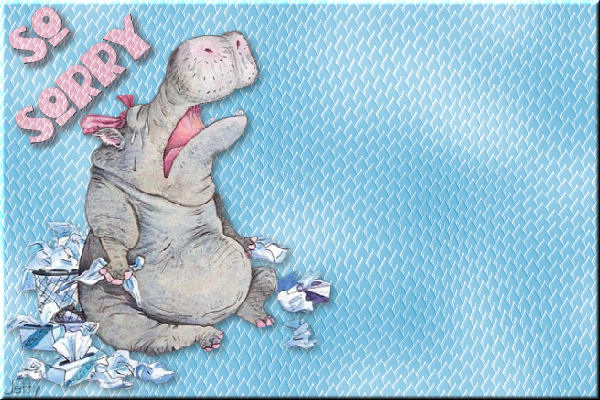
NEEDED:
- PSP
- Letter Creator
- Tube of your choice
- Alien Skin: Eye Candy 5: Textures: Reptile skin:
http://www.alienskin.com/ec5t/index.html
LEVEL:
Advanced beginner with a basic knowledge of Paint
Shop Pro, Letter Creator and plug-ins/filters.
PREPARING
- Open your tube, largest side no more then 380 pixels. If
you want to add text you can better choose a tube of no
more then 340 pixels. Or resize.
- Duplicate tube (Shift D) and close original
- Choose a light colour from tube and select it as fore-
ground colour in the material box
- Edit - Copy
- Minimize Tube
BACKGROUND
- File � New Image: 1580 x 400, transparent
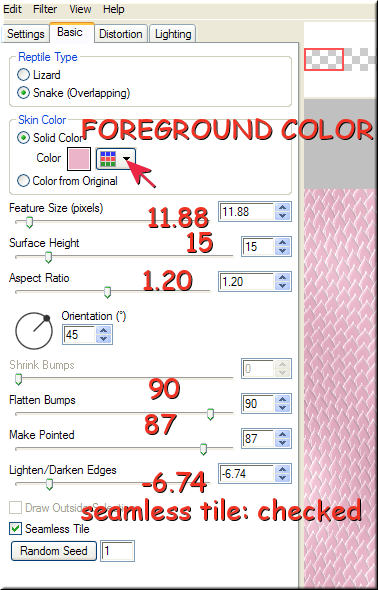
- Effects � Eye Candy 5: Textures � Reptile Skin: settings:
Snake checked, Skin Color: choose your foreground color,
Feature Size: 11.88, Surface Height: 15, Aspect Ratio: 1.20,
Orientation: 45, Flatten Bumps: 90, Make pointed: 87,
Lighten/Darken Edges: -6.74, Seamless Tile: checked
- In your Layer Palette you can lower the opacity of this
background to make it more text friendly if necessary. It
will depend on the color of your background. I didn�t do
this most of the times and once to 90. Try yourself!
TUBE
- Edit � Paste � Paste as New layer
- With your mover tool move your tube to the left
- Effects � 3d effects � Drop shadow: Vertical &
Horizontal: 3, Opacity: 45, Blur: 10 and Color: black
In case your have a misted tube you can skip this step!
TEXT
This part is optional. Only if you want to add text to the letter
to your letter. If not continue at point: 21
- In your tool box activate your text tool
- In your presets: settings: Create as a vector, select a nice
font, Stroke width between 1 and 4, Size at least 36.
- In your Materials box choose one nice color for in both
the foreground and background color box.
- Add your text on a nice spot next to or above the tube.
- Layers � Convert to raster layer
- Effects � Alien Skin Eye Candy 5: Textures: Reptile Skin:
Same settings as before but only put the feature size on 5.
And of course change the solid color to your new chosen color.
- Effects � 3D Effects � Drop Shadow. Vertical & Horizontal: 1,
Opacity: 100, Blur: 1 and Color: Black.
- Effects � 3D Effects � Drop Shadow: Vertical & Horizontal: 3,
Opacity: 40, Blur: 10 and Color: Black
By doing both these drop shadows you make your text more
Visible and blend in nicely at the same time!
- Layers � Merge � Merge visible
- Layers � New raster layer
- Add your watermark
- Layers � Merge � Merge All (Flatten)
- File � Export � JPEG Optimizer: compression of 22
FINISHING
- Open Letter Creator
- In your body open your background
- Tile in your body
- Mention your credits in your footer
- Finish
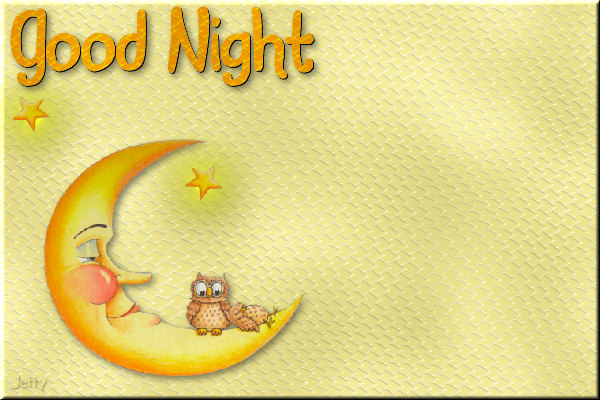
Another example:
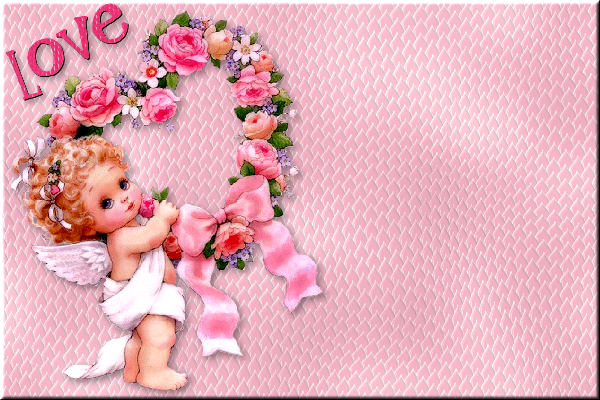
And the last example:
I hope you enjoyed making this letter. I would love to see the results.
You can reach me at:
[email protected]
Please put a link to my group:
http://groups.yahoo.com/group/IMtutorialsbyJetty
For the creatorscommunity, please put a link to my website:
http://www.geocities.com/ladyluna37/index.htm
My tutorials can be found in my groupfiles.
http://groups.yahoo.com/group/IMtutorialsbyJetty
or when they are released in the creatorscommunity at the
earlier mentioned homepage.
With thanks to the brilliant women who have given me
lessons in PSP and Incredimail.
Many things I learnt have been used by me in creating.
Any resemblance with other tutorials is purely coincidental.
And special thanks to my testers for their testing.
You are free to share my tutorials. If you want to use them
for
lessons or a groupshare please ask me and please
acknowledge it
as my tutorial.
Hugs
Jetty