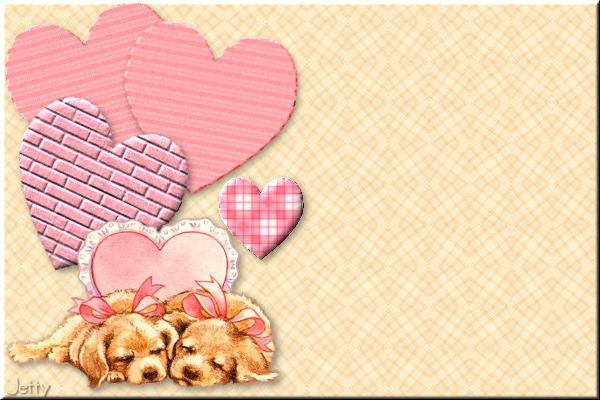
QUICK VALENTINE TUTORIAL
By Jetty, February 2008


A super easy scrap booking tutorial, especially well
suited for cute, love and valentine tubes. There belongs
a small scrap kit to this tutorial.

    PREPARING
  1. Open tube, width/height maximum 350 px.
  2. Duplicate tube (Shift D) and close original
  3. Choose a light colour from tube and select it as fore-
    ground colour in the Materials box
  4. Choose a dark colour from tube and select it as
    background colour in the Materials box
  5. Minimize Tube

    COLORIZING
  6. Open the scrap elements, which you are going
    to use and which you want to colorize into PSP. You
    will need one background and at least two big hearts
    and perhaps one or two small ones. Whatever you
    prefer of course.
  7. Left click once in your foreground color box in the
    Materials box
  8. In the Material Properties box look at the Hue and
    Saturation numbers and note these down
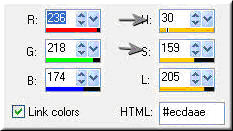


  9. Left click once in your background color box in the
    Materials box.
  10. In the Materials Properties box look at the Hue and
    Saturation numbers and note these down.

    BACKGROUND
  11. Activate your chosen background.
  12. Adjust � Hue and Saturation � Colorize: settings: put
    here the numbers of the light foreground color you noted
    down before. Your background will adjust to your
    foreground color.
  13. Effects - Image Effects - Seamless Tiling: settings:
    Tiling method: Mirror, Direction: Bidirectional, Settings will
    adjust.
  14. File � New image of 1580 x 400, transparent
    If you prefer another Width, you can adjust. Please keep
    Height to 400.
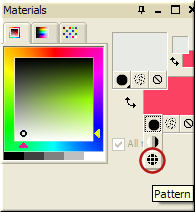
  15. Put your background color box in your Materials box
    to pattern.


  16. Left click once in the color box to go to your Materials
    Properties box.
  17. Select there your just chosen background pattern
  18. Put the settings to Angle: 0, Scale: 100
  19. Activate your Flood Fill Tool
  20. Flood fill with your Flood Fill Tool your new image by
    right clicking in the image
  21. Layers � New Raster Layer
  22. Flood fill with your Flood Fill Tool your new layer with
    your light foreground color by left clicking in the image.
  23. In your Layers Palette lower the opacity of this layer
    to make your background more text friendly, but the
    pattern still visible. I used 74, 82 and 58 in my examples.
  24. Layers � Merge � Merge All (Flatten)
  25. Activate one of your hearts
  26. Adjust � Hue and Saturation � Colorize: settings: put
    here the numbers you noted down before of your back-
    ground color. Your heart will adjust to your background
    color.
  27. Edit � Copy
  28. Minimize the heart
  29. Activate your background
  30. Edit � Paste - Paste as New Layer
  31. Image � Rotate � Free Rotate: to your own likings.
    For instance: Direction: Left, Degrees: Free, 15.
    Rotate single layer around canvas centre: checked.
  32. With your Move Tool move your heart to a nice
    position in the left corner.
  33. Effects � 3D Effects � Drop Shadow: Vertical &
    Horizontal: 3, Opacity: 40, Blur: 10 and Color: Black
  34. Activate another one of your hearts
  35. Adjust � Hue and Saturation � Colorize: settings: put
    here the numbers you noted down before of your back-
    ground color. Your heart will adjust to your background
    color.
  36. Edit � Copy
  37. Minimize the heart
  38. Activate your background
  39. Edit � Paste � Paste as New Layer
  40. Image � Rotate � Free Rotate: to your own likings.
    For instance: Direction: Right, Degrees: Free, 25.
    Rotate single layer around canvas centre: checked.
  41. With your Move Tool move your heart to a nice
    position in the left corner
  42. Effects � 3D Effects � Drop Shadow: Vertical &
    Horizontal: 3, Opacity: 40, Blur: 10 and Color: Black

  43. Activate a small heart
  44. Adjust � Hue and Saturation � Colorize: settings: put
    here the numbers you noted down before of your back-
    ground color. Your heart will adjust to your background
    color.
  45. Edit � Copy
  46. Minimize the heart
  47. Activate your background
  48. Edit � Paste � Paste as New Layer
  49. Optional: Image � Rotate � Free Rotate: to your
    own likings.
  50. With your Move Tool move your heart to a nice
    position close to the other hearts or partly on top of
    them.
  51. Effects � 3D Effects � Drop Shadow: Vertical &
    Horizontal: 3, Opacity: 40, Blur: 10 and Color: Black
  52. With your Move Tool you might want to reposition
    your hearts to have a good looking combination. When
    the Move Tool is activated in your Tool Box you left click
    on a heart, you don�t need to activate the heart layer in
    your Layers Palette, just drag it to it�s wanted position.

  53. Activate your tube
  54. Edit � Copy
  55. Minimize your tube
  56. Activate your header
  57. Edit - Paste � Paste as New Layer
  58. With your Move Tool move your tube to a nice spot,
    Position it nicely on top of the hearts while there must
    still be a part of the hearts showing.
  59. Effects � 3D Effects � Drop Shadow: settings:
    Horizontal & Vertical: 3, Opacity: 40, Blur: 10 and Color:
    Black
  60. Layers � Merge � Merge Visible
  61. Layers � New Raster Layer
  62. Add your Watermark
  63. Layers � Merge � Merge All
  64. File � Export � JPEG Optimizer: compression of 22

    FINISHING
  65. Open Letter Creator
  66. In your Body open your background
  67. Tile in your Body
  68. Mention your credits in your footer
  69. Finish

    Another example:


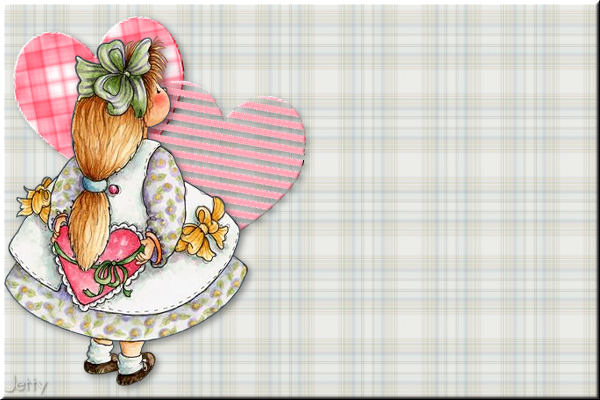
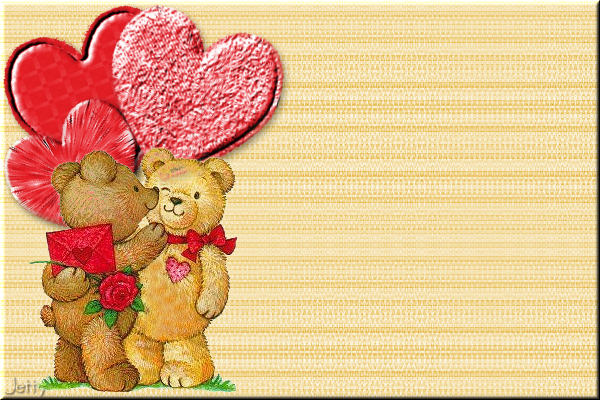
    And the last example:


    I hope you enjoyed making this letter. I would love to see the results.
    You can reach me at:
    [email protected]

    Please put a link to my group:
    http://groups.yahoo.com/group/IMtutorialsbyJetty

    For the creatorscommunity, please put a link to my website:
    http://www.geocities.com/ladyluna37/index.htm

    My tutorials can be found in my groupfiles.
    http://groups.yahoo.com/group/IMtutorialsbyJetty
    or when they are released in the creatorscommunity at the
    earlier mentioned homepage.

    With thanks to the brilliant women who have given me
    lessons in PSP and Incredimail.
    Many things I learnt have been used by me in creating.
    Any resemblance with other tutorials is purely coincidental.
    And special thanks to my testers for their testing.

    You are free to share my tutorials. If you want to use them for
    lessons or a groupshare please let me know and please
    acknowledge it as my tutorial.

    Hugs

    Jetty


    Hosted by www.Geocities.ws

    1