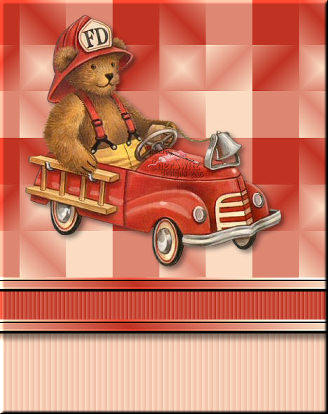
BOXED GRADIENT TUTORIAL
SKILLS/LEVEL
Advanced Beginner/Intermediate
NEEDED
tube of your choice
PSP & Letter Creator
PREPARING
Chose tube: height and width maximum: 380 pixels
Duplicate(shift-D)your tube
Close out original
Chose a light color from the tube for your foregroundcolor box in your materialbox
Chose a darker color for your background color.
Edit - Copy
Minimize tube
BACKGROUND PATTERN
File � New Image: 300 x 300
On the tool task bar chose the Selection Tool with the following settings:
 Chose custom selection with the following settings: top 0, left 0, right 100 and bottom: 300
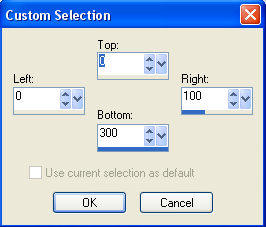 Floodfill your selection with your light foreground color
Selections � Select none
Layers � New Raster Layer (transparent)
On the tool task bar chose the Selection Tool with the same settings as before
Chose custom selection with the following settings: top: 0, left: 200, right : 300, bottom: 300
Floodfill your selection with your darker background color
Selections � Select none
Layers � New Raster Layer
Selection Tool with the following settings: Top: 0, Left: 100, Right: 200, Bottom: 300
We will floodfill this selection with a gradient we are going to make:
In your materialbox set background to gradient (see arrow on image)
Floodfill your selection with your light foreground color
Selections � Select none
Layers � New Raster Layer (transparent)
On the tool task bar chose the Selection Tool with the same settings as before
Chose custom selection with the following settings: top: 0, left: 200, right : 300, bottom: 300
Floodfill your selection with your darker background color
Selections � Select none
Layers � New Raster Layer
Selection Tool with the following settings: Top: 0, Left: 100, Right: 200, Bottom: 300
We will floodfill this selection with a gradient we are going to make:
In your materialbox set background to gradient (see arrow on image)
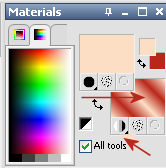 Left click your backgroundbox you can set your gradientsettings in the material properties box.
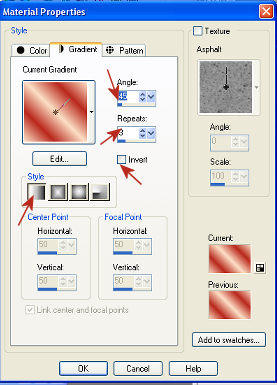
settings: Angle: 45, Repeats: 3, Invert not checked, Style: lineair
You can now floodfill your selection
Selections � Select none
Layers � Merge � Merge Visible
Layers � Duplicate
Image � Free rotate: settings: Direction right, Free 90,00, Rotate single layer around canvas center checked
Change opacity of copy layer to 50
Layers � Merge � Merge All (Flatten)
Image � Resize: Height-Width: 200 pixels � bicubic
Adjust � Sharpness - Sharpen
Your background image is now ready
TOP BORDER
Activate your tube
Image � Canvas Size with the following settings : width 512, height 400, placement center middle.
Layers � New Raster layer
In Material box change the foreground to the just created Background Pattern
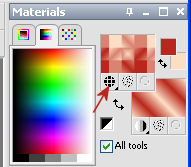
Floodfill Header image with gradient
Layers � Arrange � Send to bottom
Activate top layer with tube
Effects � 3d effects � dropshadow: settings to your liking (I used H/V: 4, Opacity: 45, Blur: 10)
Layers � Merge � Merge visible
Image � Canvas Size � Change width to 1024, Height remains 400 pixels. Placement left center
Layers � duplicate
Image � mirror
Layers � Merge � Merge all (flatten)
Image � Add borders: symmetric unchecked, color white
Top: 0, Left: 0, Right: 0, Bottom: 20
Select border with your magic wand
Floodfill with your gradient
Effects � 3d Effects � Inner Bevel with the following settings:
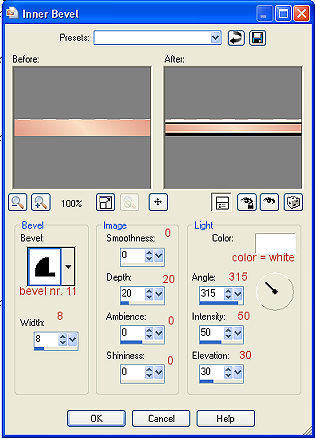
Settings: Bevel: 11, Width: 8, Smoothness: 0, Depth: 20, Ambience: 0, Shininess: 0, Angle: 315, Intensity: 50, Elevation: 30, Color: white
In your toolspalette get your deformation/picker tool and drag the sides of the border out of the image... drag the left side further to the left with the two sided white arrow. And to the right drag with the white double sided arrow further to the right.
Effects � 3d Effects � Dropshadow with the following settings: Vertical and Horizontal 1, Opacity: 100, Blur: 1, color Black, Shadow on new layer checked.
Image � Add Borders � Top, Left, Right = 0. Bottom = 40. Symmetric not checked. Color is dark backgroundcolor.
Optional: (select border with your magic wand first, then)Effects � Texture effects � (Texture) chose a texture if you want
Selections � Select none
Image � Add borders: symmetric unchecked, color white
Top: 0, Left: 0, Right: 0, Bottom: 20
Select border with your magic wand
Floodfill with your gradient
Effects � 3d Effects � Inner Bevel with the same settings as before
In your toolspalette get your deformation/picker tool and drag the sides of the border out of the image... drag the left side further to the left with the two sided white arrow. And to the right drag with the white double sided arrow further to the right.
Effects � 3d Effects � Dropshadow with the following settings: Vertical: 8 and Horizontal 0, Opacity: 55, Blur: 10, color Black, Shadow on new layer checked.
Selections - Select none
Promote background to raster layer (if necessary)
Image - Canvas Size � Width stays 1024, Height change to 1200 Pixels. Placement: Top, middle.
Layers � New Raster Layer
Floodfill with your light color
Optional: Effects � Texture Effects � (Texture) chose a texture if you want
Layers � Arrange � Send to Bottom
Activate top layer
Add new rasterlayer
Add your Watermark
Layers � Merge � Merge all (flatten)
LETTER CREATOR
Export with a compression of 20
Open in your body, tile
Aknowledge credits in Footer
Finish letter
I hope you enjoyed making this letter. I would love to see the results. You can mail them to me at:
[email protected]
My tutorials can be found in my groupfiles:
http://groups.yahoo.com/group/cuteIMlettersandtagsbyJetty
You can also visit my website:
http://www.geocities.com/ladyluna37/
With thanks to the brilliant women who have given me lessons in PSP and Incredimail letters. Many of the things I learnt have been used by me in creating my letters.
Any resemblance to other tutorials is purely coincidental. Special thanks to my testers...
You are free to share my tutorials. If you want to use them for lessons or a groupshare please ask me and please awknowledge it as my tutorial.
Hugs
Jetty