FREE TRAINING IN UNIX and Linux
These instructions are for installing FreeBSD OVER VMware on a computer ALREADY running some version of windows.
This document is available online at:
http://freetraining.getmyip.com/Installing_FreeBSD.html
and in pdf format at:
http://www.kartik.com/Installing_FreeBSD.pdf
and
http://www.kartik.com/Installing_FreeBSD.doc
The information in this document complements the information in:
http://www.kartik.com/FreeUNIXcourse.pdf
The FreeUNIXcourse.pdf file should be read first, it is also available as a Microsoft word document at:
http://www.kartik.com/FreeUNIXcourse.doc
You should read the material in the document mentioned above before starting this document.
You should download and read the FreeBSD handbook: http://www.freebsd.org/docs.html
Please let me know if you find any errors etc in this document.
This document begins with a FAQ (good to read, you may very well save money by just reading the FAQ!!!)
FAQ
What is FreeBSD: FreeBSD is a flavor of UNIX.
What is VMware: VMware is a software program that allows one to install an operating system on a computer which already has an operating system, Essentially, In this case, VMware “fools” FreeBSD and makes FreeBSD believe that it is being installed on a “new” computer. We may save money by not buying an additional computer if the current computer has enough disk space and is “fast” enough to handle the current load + VMware + FreeBSD, most “new” computers are good enough.
What is in this document: This document contains all the steps necessary to get FreeBSD up and running on your computer.
Is my computer good enough: If you have about 10 GB of free disk space, a P4 or even a celeron processor, then you are good to go.
Should I not buy an old PC and install UNIX on it: I recommend that you do so, and please run the old pc and it's price by me. These days one can get a pretty good pc (to learn UNIX on) for less than $50.00
Is VMware spyware: No
Is FreeBSD spyware: No
Is VMware server free: yes, you have to agree to their license agreement to get it to work, you also need to register for a free serial number.
Is FreeBSD free: Yes.
What do I do if I have problems installing the software: Please contact me.
What do I do after I have installed the software: Please read the FreeBSD handbook, please try to complete quiz#2. Quiz#2 is in the FreeUNIXcourse.pdf /.doc file.
Are you going to create a similar document for Solaris: Yes I am, however, you may use this document to understand how to install VMware server and, then use this document http://www.sun.com/software/solaris/howtoguides/installationhowto.jsp from Sun Microsystems to install Solaris.
Do you have a free training document for Linux? The free training in Linux material is here:
http://www.kartik.com/Installing_FedoraLinux.pdf
and
http://www.kartik.com/Installing_FedoraLinux.doc
Are you going to mention or you have mentioned VMware appliances, what are they? VMware appliances are a software package that contains an operating system and the VMware software “joined” together, for example, a VMware FreeBSD appliance already contains FreeBSD and is ready to go on YOUR pc!!!
If VMware appliances exist, why should I install VMware server and FreeBSD? Well, the installation process is also a learning process, besides you will have the satisfaction of knowing that you installed FreeBSD (or Solaris or both)
I am lazy or I already know UNIX, VMware appliance seems like a cool concept, where may I get it?
Please check out http://www.VMware.com/vmtn/appliances/
I have a question that has not been answered: Please email me at [email protected]
This training sucks: I apologize.
How may I save money on software: I recommend that you use Open Source software. Open Source software may be used to substitute for programs like Microsoft Office (word excel power point outlook etc), Open Source software may also be used in place of XP or Vista, for example you could install ubuntu instead of XP. A good list of open source alternatives is at:
http://en.wikipedia.org/wiki/List_of_open_source_software_packages
END FAQ
IMPORTANT THINGS TO REMEMBER:
if
you run into problems, there's no need to re install the VMware
server, simply right click on FreeBSD and close it and or after
highlighting it, remove it from the disk. Removing from inventory
does not delete FreeBSD from the hard disk, you have to choose,
“delete fron disk” to do so.
Rebooting the
computer is good enough rather than reinstalling the server.
While
rebooting your computer, please make sure that you DO NOT have any
bootable CD's (including FreeBSD Cd'sin the cdrom drive because your
computer may start booting from it! you might think that you are
succesfully installing!!! and you may accidentally destroy your
computers data. Please secure all Cd's receipts etc that came with
your computer when you bought it. Please backup ALL data and system.
I will not be responsible for any loss, damage etc. I make no
guarantees of any kind and none are implied either.
Instructions to install VMware on XP (or 2000) and then, to install FreeBSD in VMware:
What you need:
Download and burn the FreeBSD CD#1 and CD#2. Remove all Cd's from your computer.
When burning CD#1 please ensure that you select the “bootable CD” option.
FreeBSD may be downloaded from: http://www.freebsd.org/where.html
Please read the FreeUNIXcourse.pdf /.doc file for more information.
We first install the VMware server over windows. Then, we install FreeBSD in the VMware server.
We therefore avoid buying new hardware.
We do need enough disk space to first install VMware, and then FreeBSD.
Download VMware server from:
http://www.VMware.com/download/server/
You should download the file that says:
VMware Server for Windows Operating Systems. A master installer file containing all Windows components of VMware Server. Binary (.exe)
Please register to get a serial number :
http://register.VMware.com/content/registration.html
After downloading the executable, please double click it.
Setup type: select complete
Setup has detected that Microsoft IIS is not installed…………….: click OK (don’t worry about this)
Select default folder: click next
Let it disable autorun: click next
Click to install
Enter name, organization and serial number
Finish
Restart computer
Go to start -- programs -- VMware server console (if you see a message “VMware tools not installed” – please ignore it)
When computer is up and running. Put FreeBSDCD#1 in an already booted and up & running system (I am assuming that you are running windows)
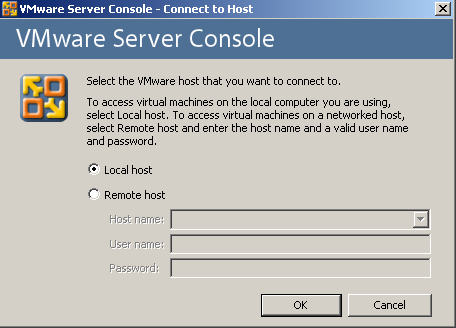
Local host is fine, click ok
Then you see this:
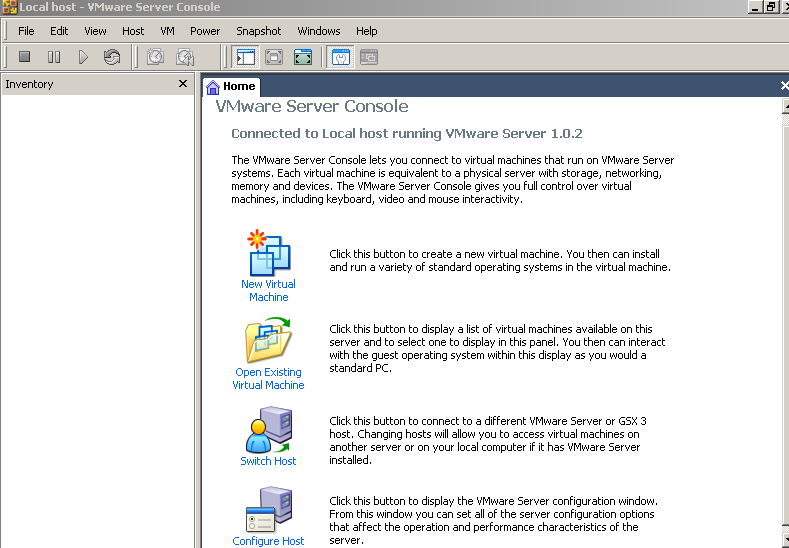
Click “new virtual machine”
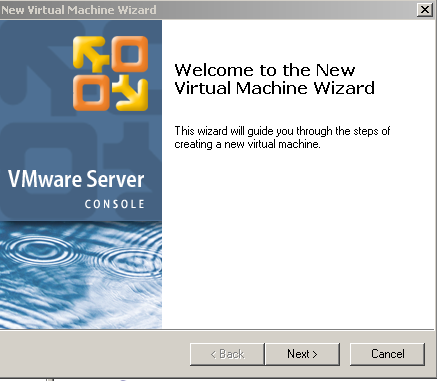
Click next
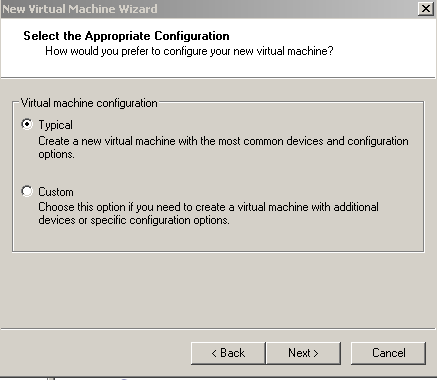
Choose “typical”
Click next
Select “other” for guest operating system. From the drop down select FreeBSD.
If installing Solaris, select Sun Solaris
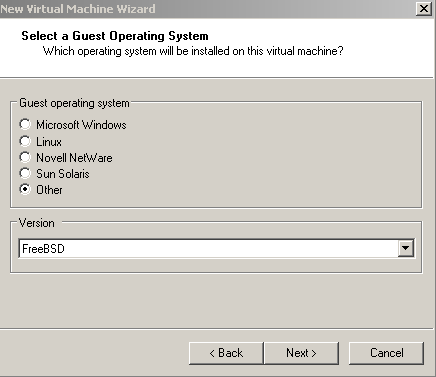
Click next
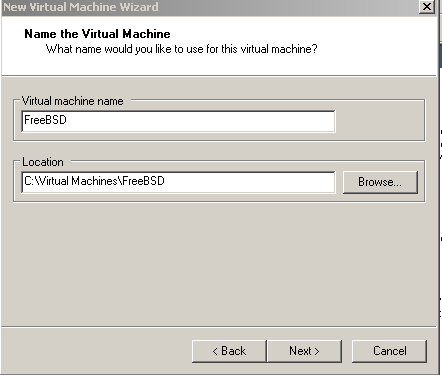
Click
next
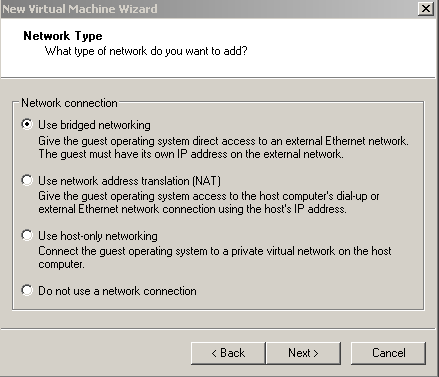
We will select bridged networking for this training. NAT is also a good choice. The VMware web site has a section on technical documents/knowledgebase where the terms “Bridged networking”, NAT etc are explained in detail. If you have any questions, please email me. I am assuming that you are getting a dhcp assigned IP address via cable modem/dsl etc
Click next
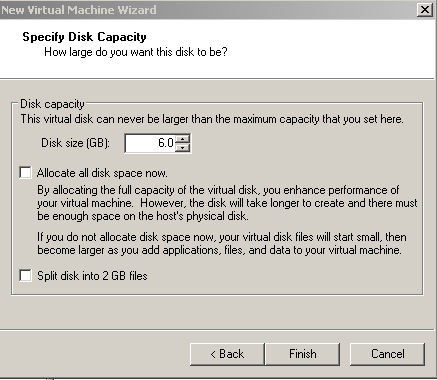
REMOVE the check mark from “allocate all space now”. (you may even check it if you want to allocate space, not a big deal) Change the disk size to, let’s say 6GB (this depends on how much disk space you have free on your computer and also on how much the guest operating system will take 6GB is more than enough for FreeBSD, even when we add applications/programs, you could get away with 4GB or even 1GB!!!!)
Click Finish
Now you see:
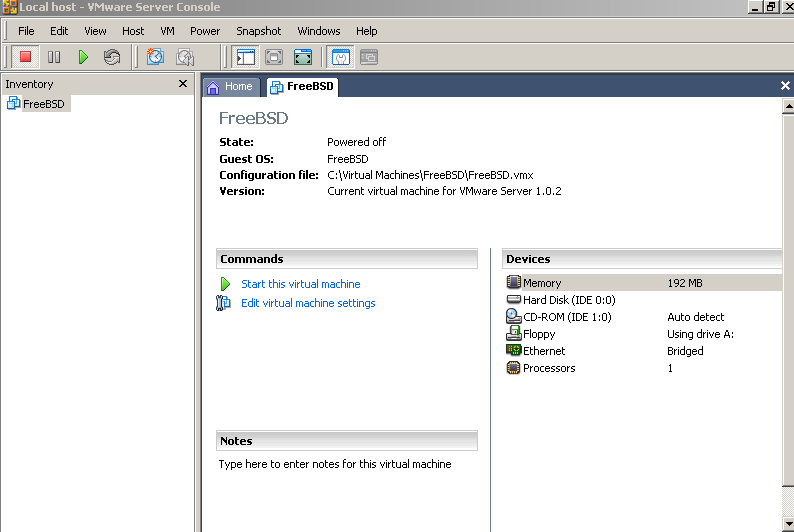
Click on “start this virtual machine”
NOTE: YOU WILL ONLY BE ABLE TO USE THE RIGHT HAND SIDE OF THE SCREEN IN VMware AFTER YOU CLICK IN IT. TO MOVE OUT OF THE VMware SCREEN HIT CTRL-ALT.
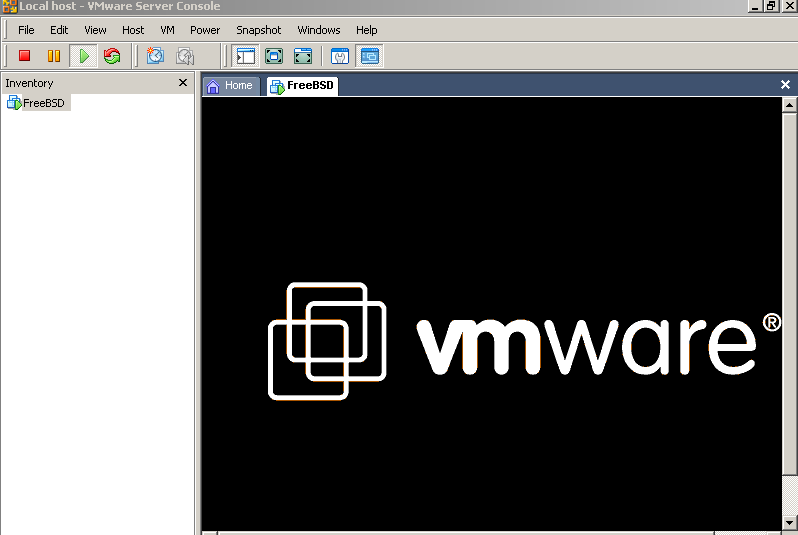
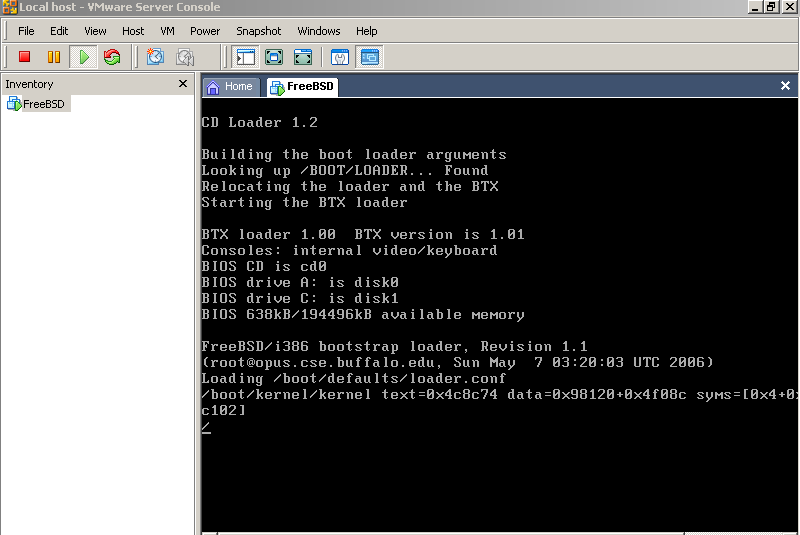
default.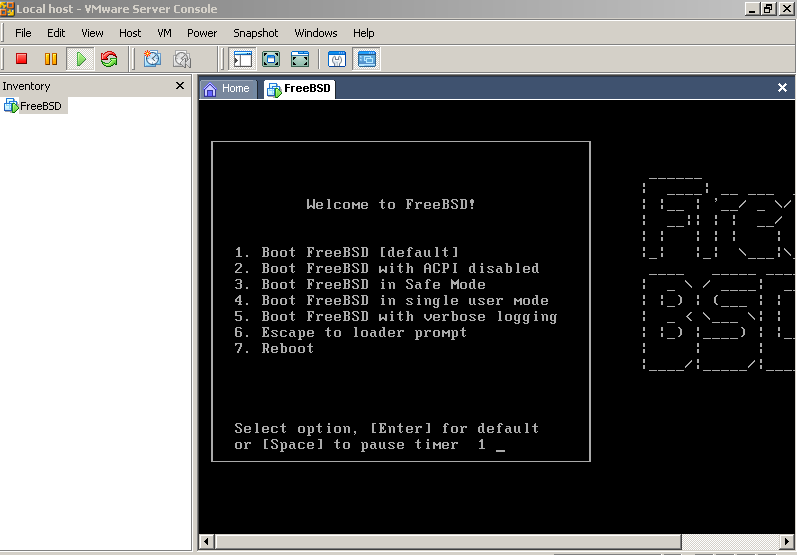
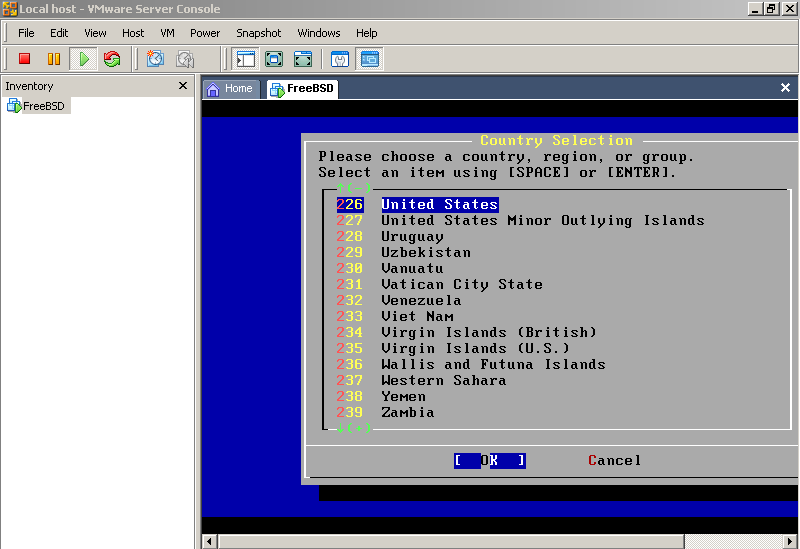
Hit OK
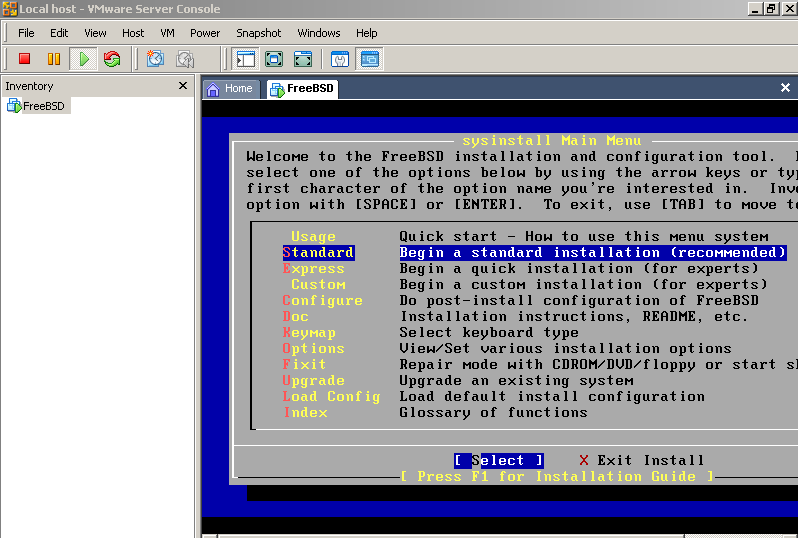
Standard.
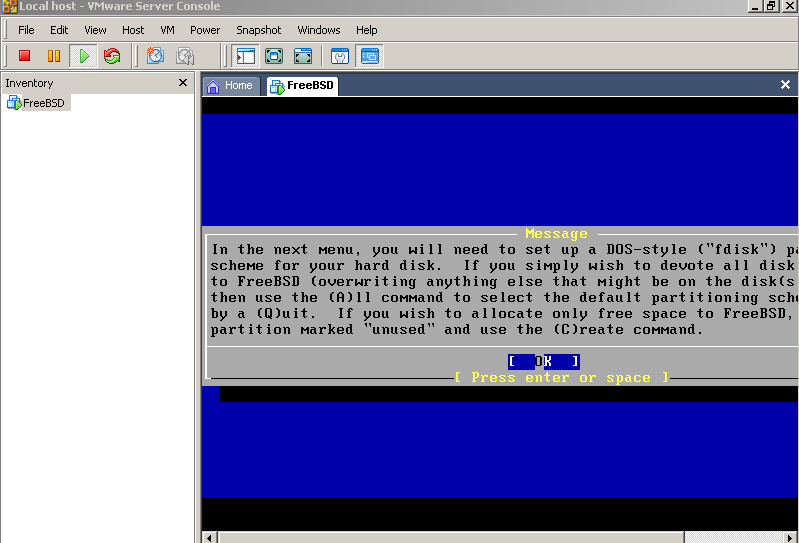
Hit OK above.
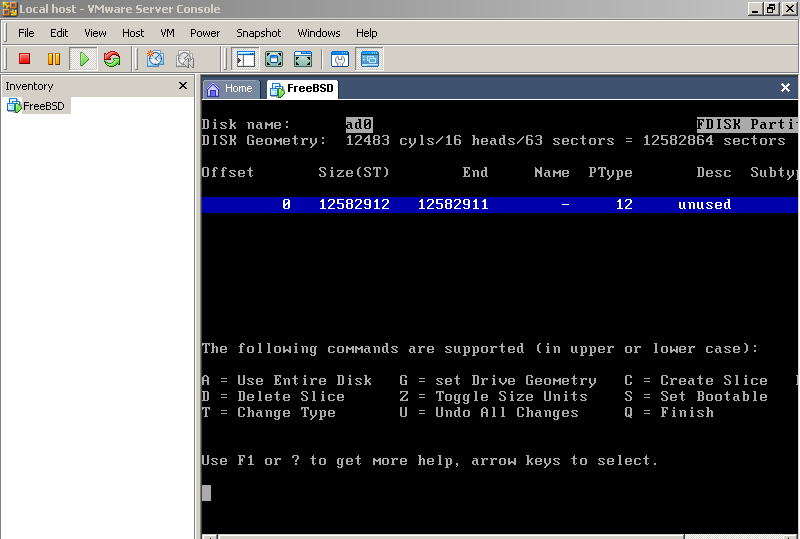
Hit A, then you will see:
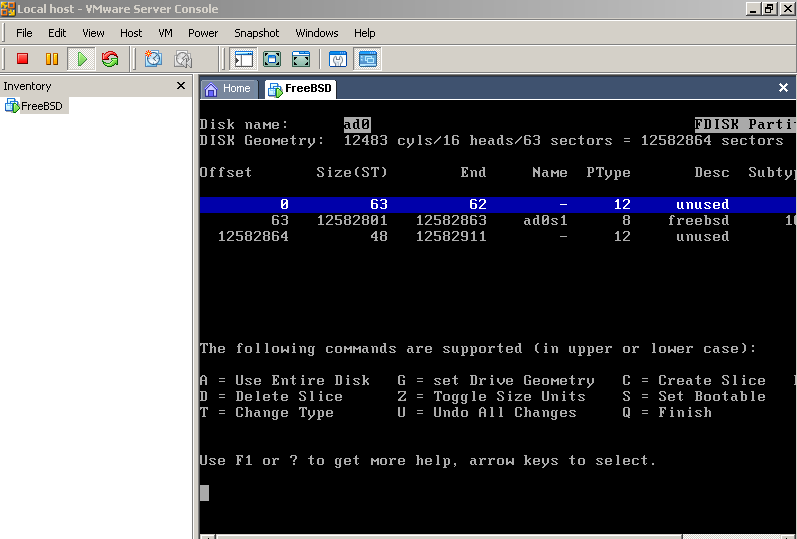
Move down to the middle line using down arrow
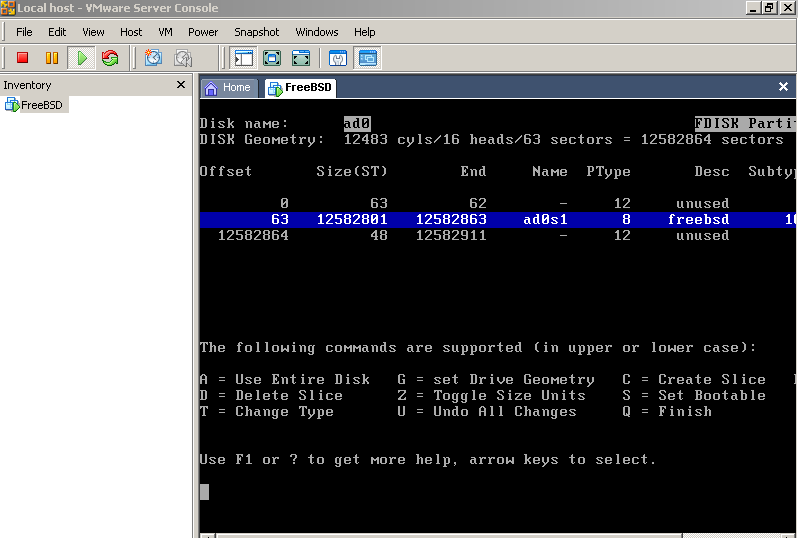
Hit “S” to “set bootable”
Hit “Q” to finish
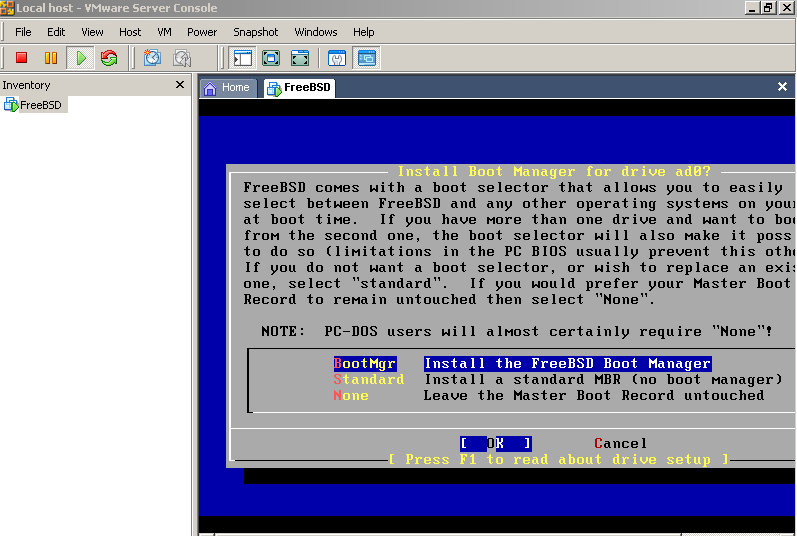
Hit ok
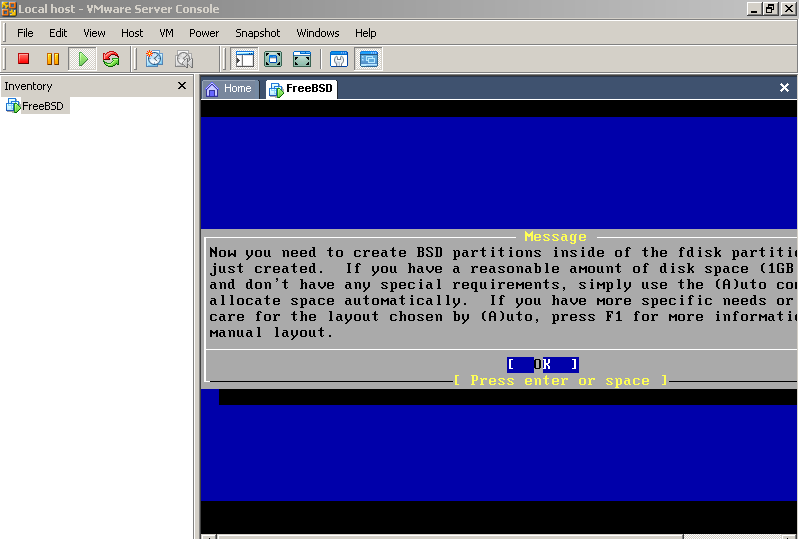
Hit ok
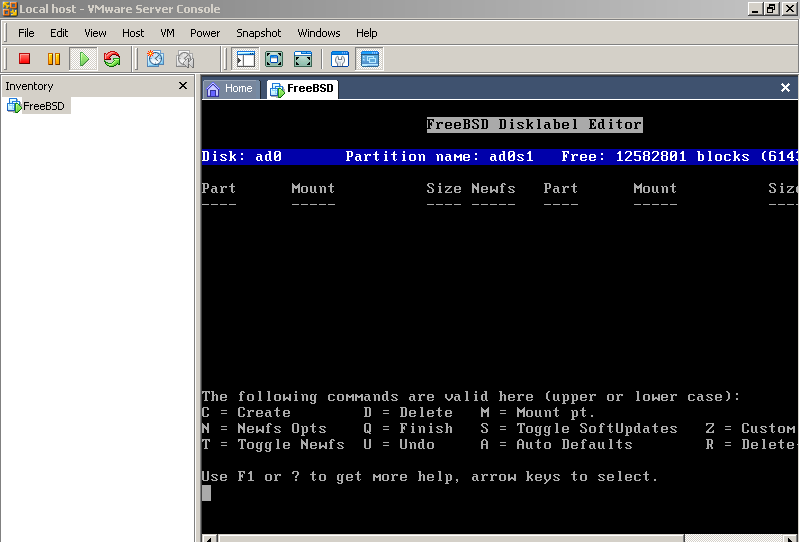
Hit “A” for auto defaults
You should see this:
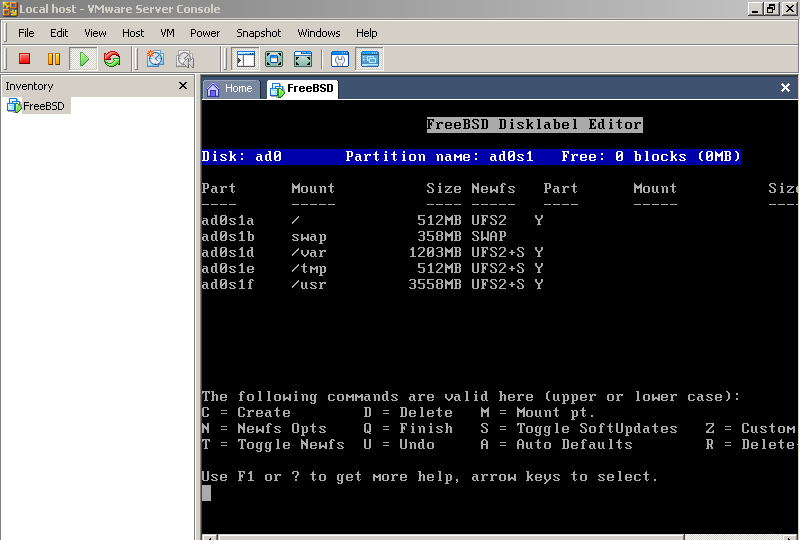
Now hit “Q”
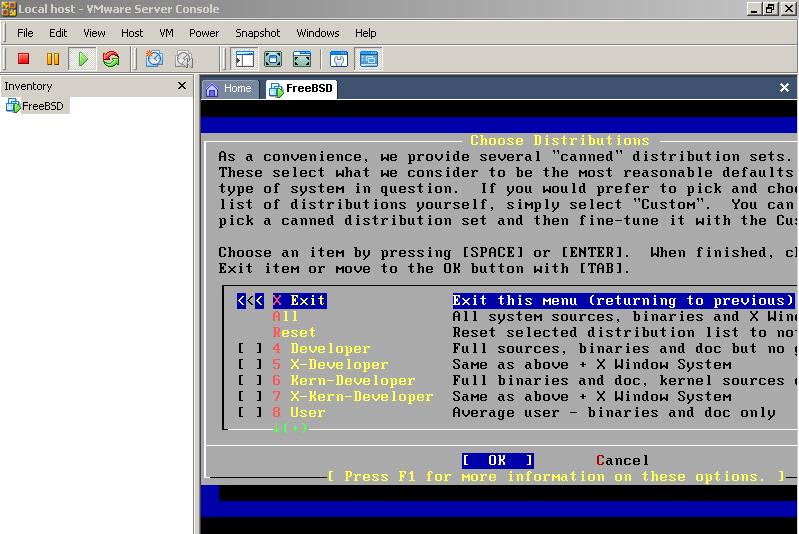
Select “All” using down arrow, you’ll see:
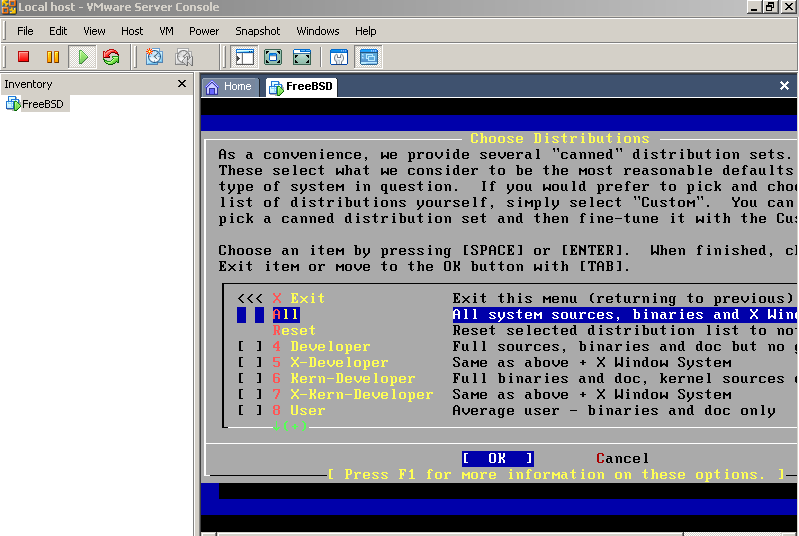
NOW hit OK, you’ll see:
M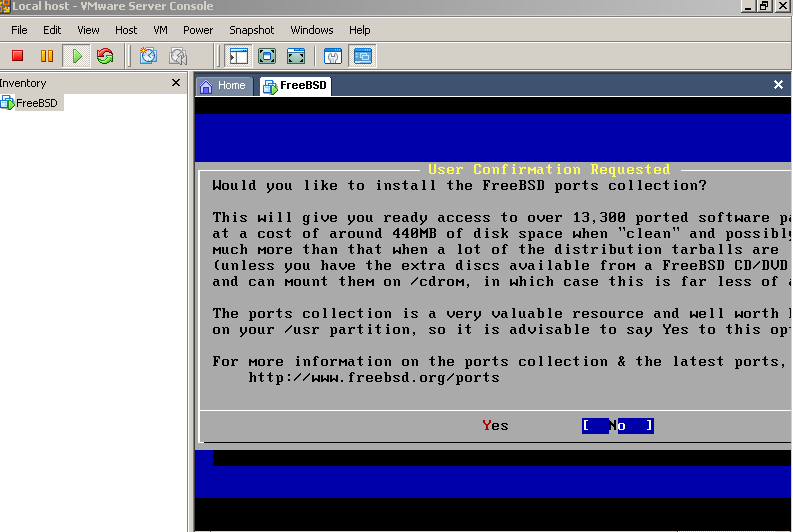
ake
sure you tab to “no” and then hit enter
You see this:
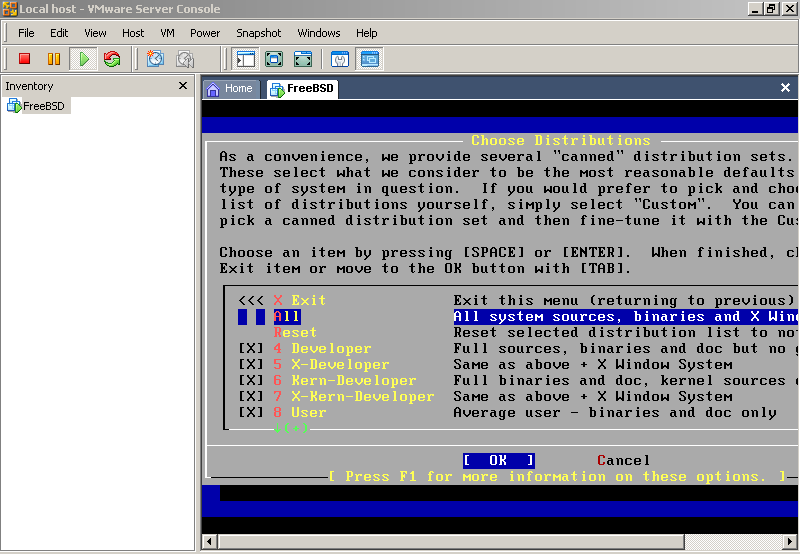
Use the UP arrow to go to the line that says “exit this menu “
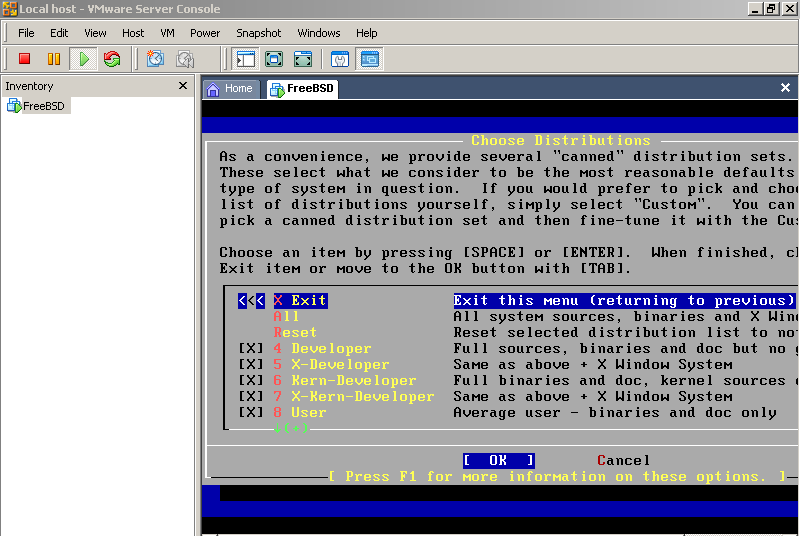
Now hit enter for “ok” you should see this:
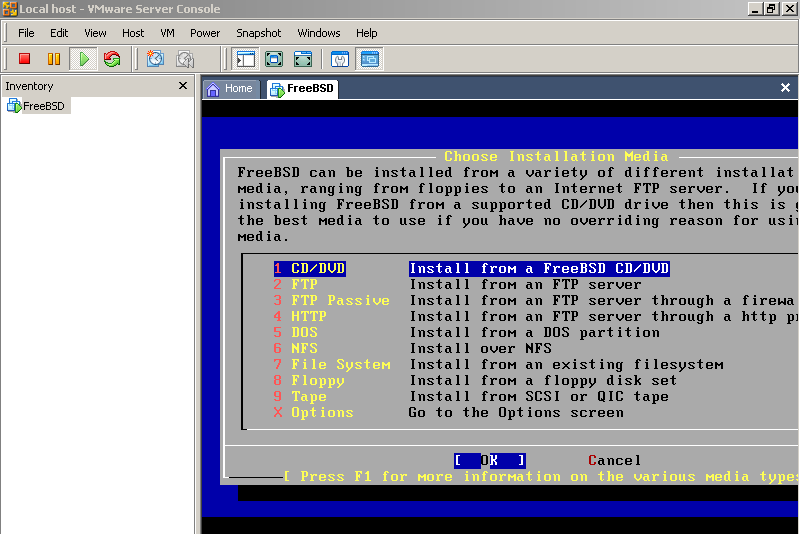
Hit enter
H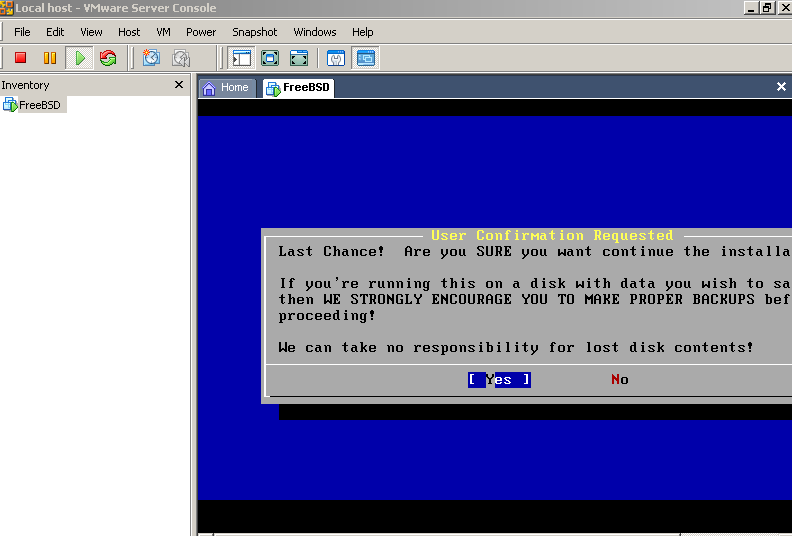
it
enter
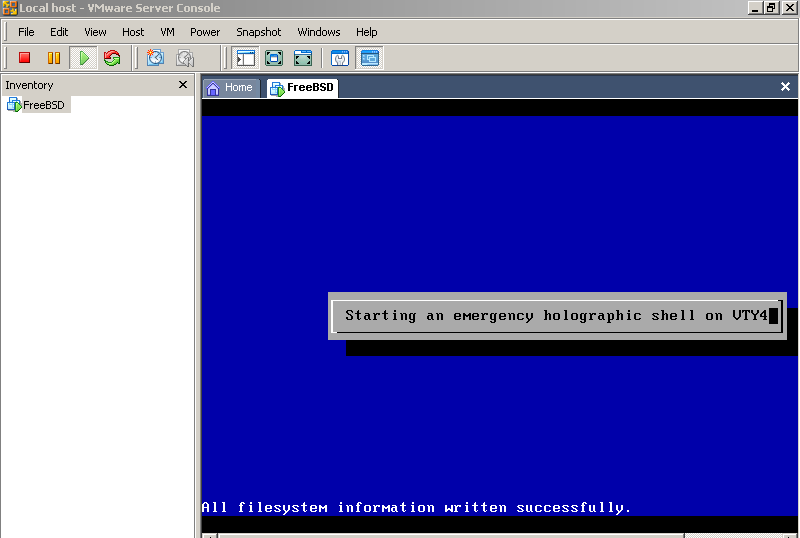
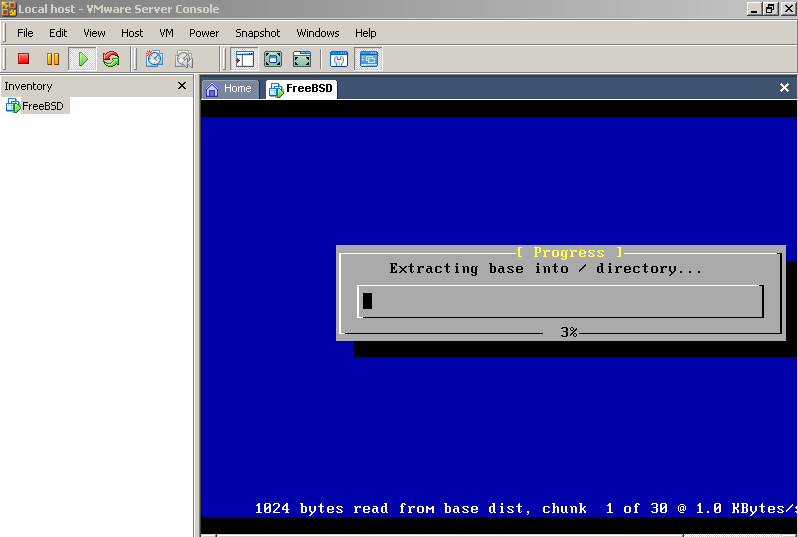
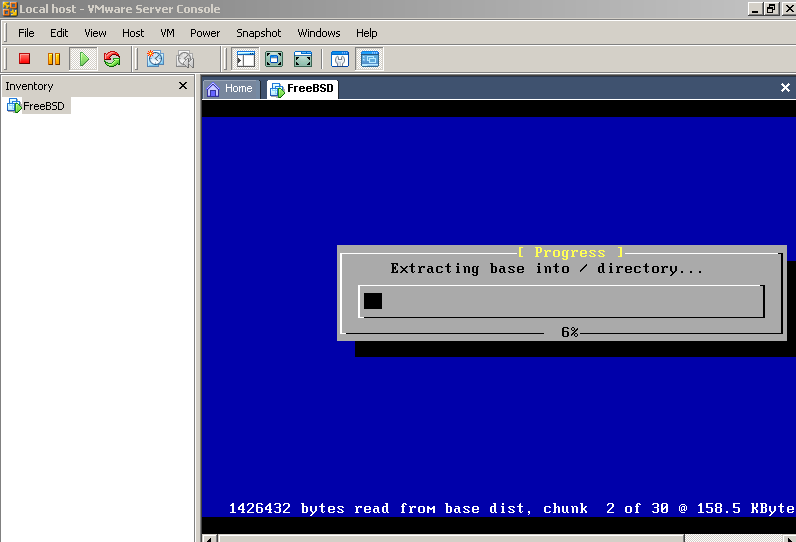
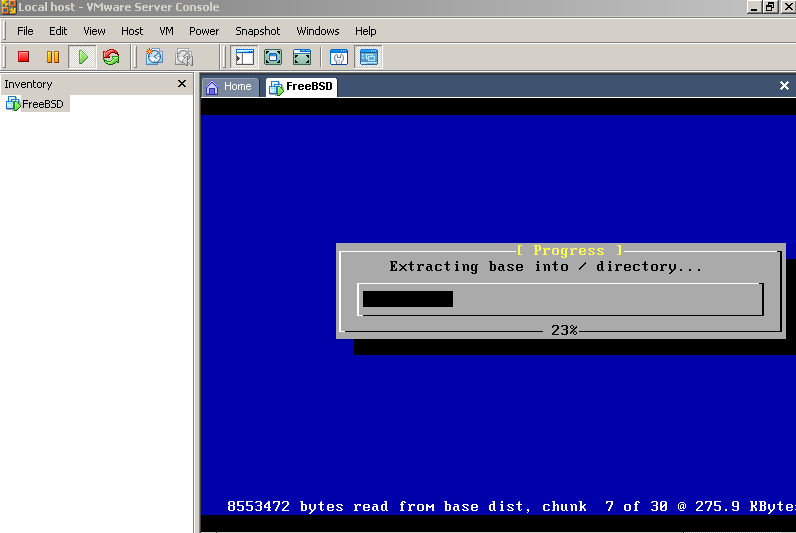
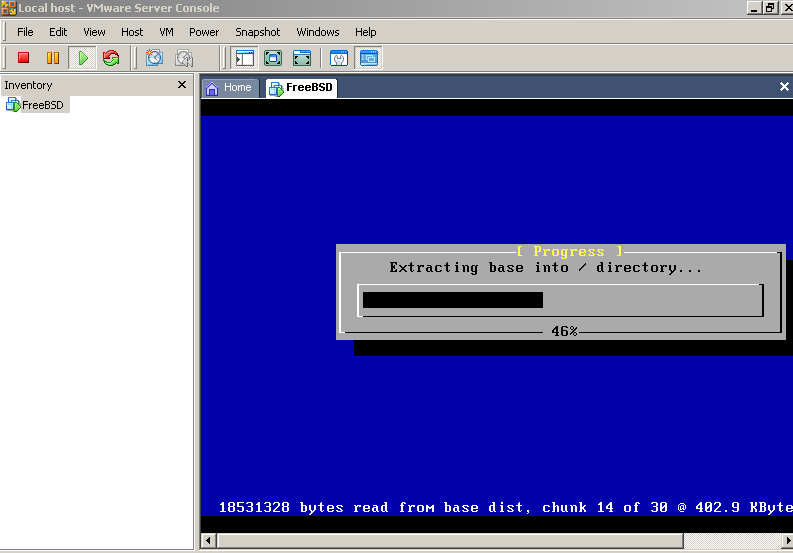
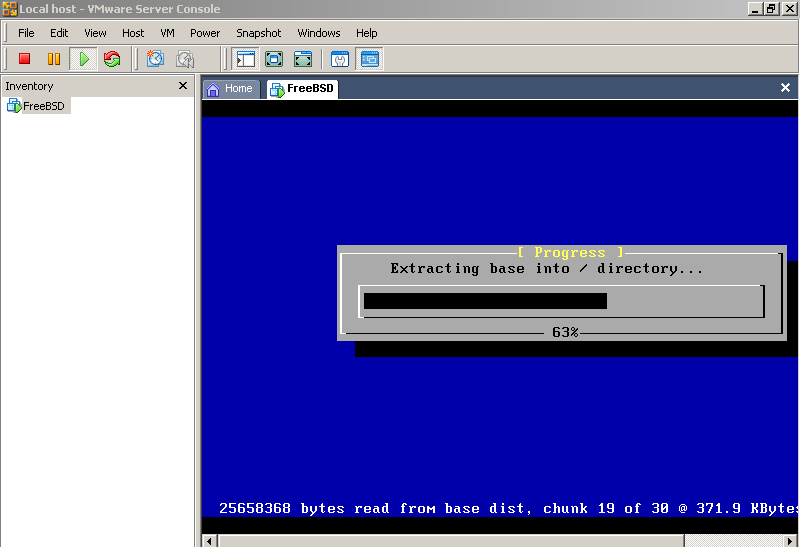
F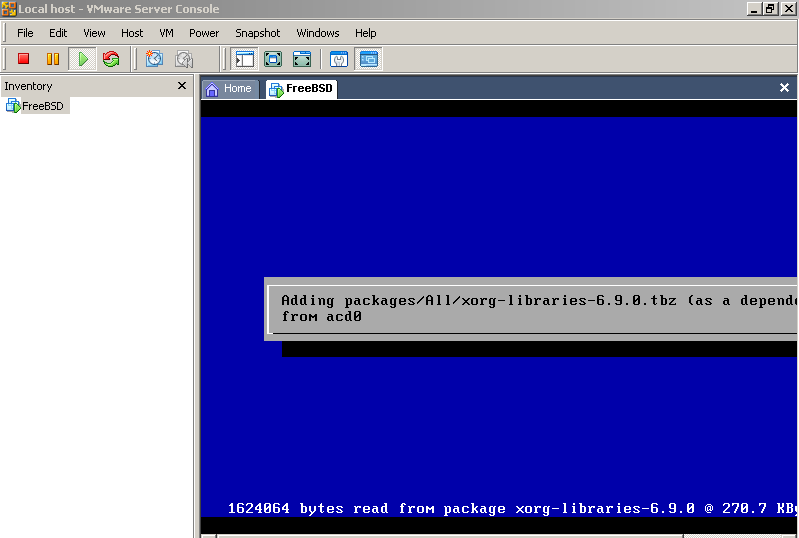
inally
you’ll see this:
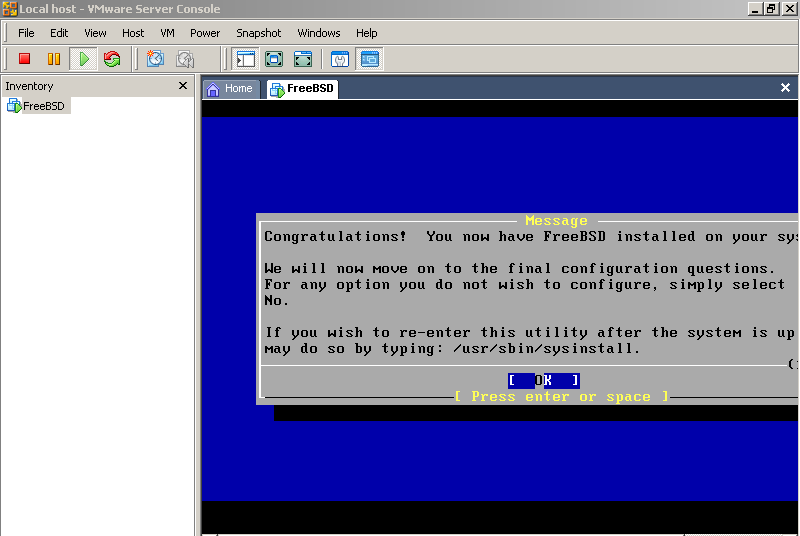
Hit OK
You’ll see this:
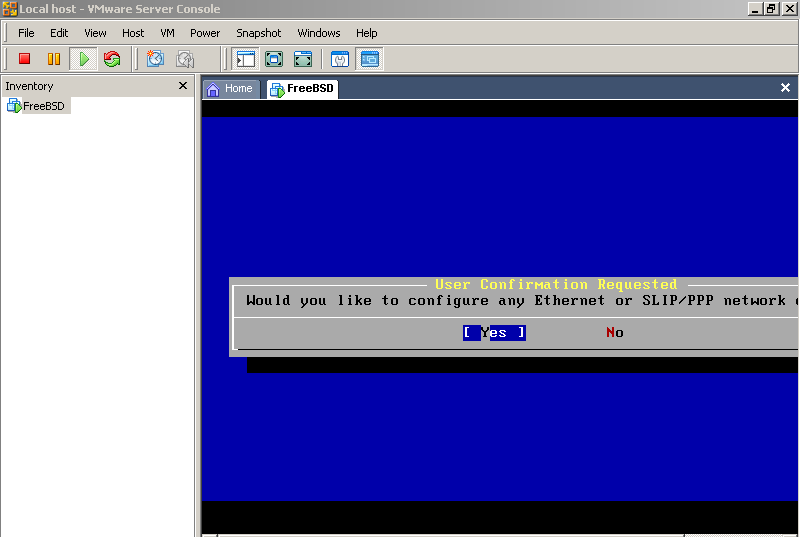
Hit okay(YES)
You’ll see this:
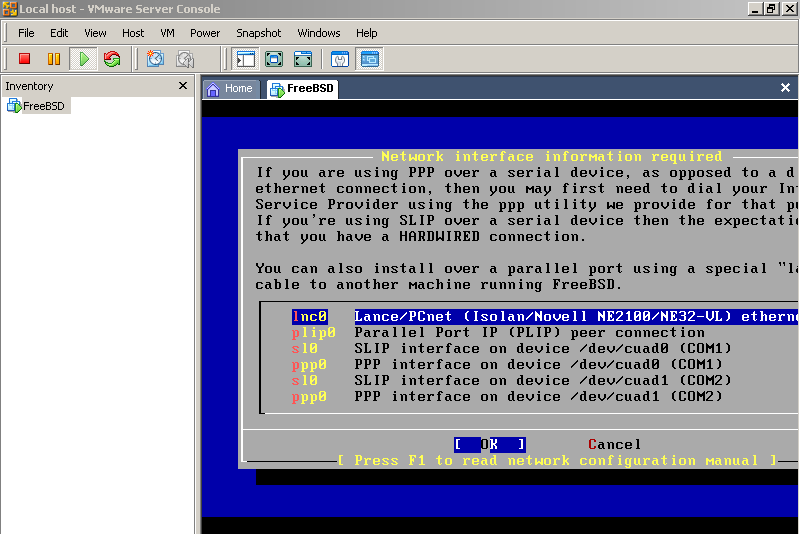
Hit ok (note the lanc0 interface in memory)
You’ll see this:

Hit “no”
You’ll see this:

Tab to “Yes” (I’m assuming that you aregetting your IP address via dhcp, as is, the common practise if your computer is connected to the internet via cable/dsl )
You’ll see this:

Hit “Yes”
You’ll see this after a few seconds:
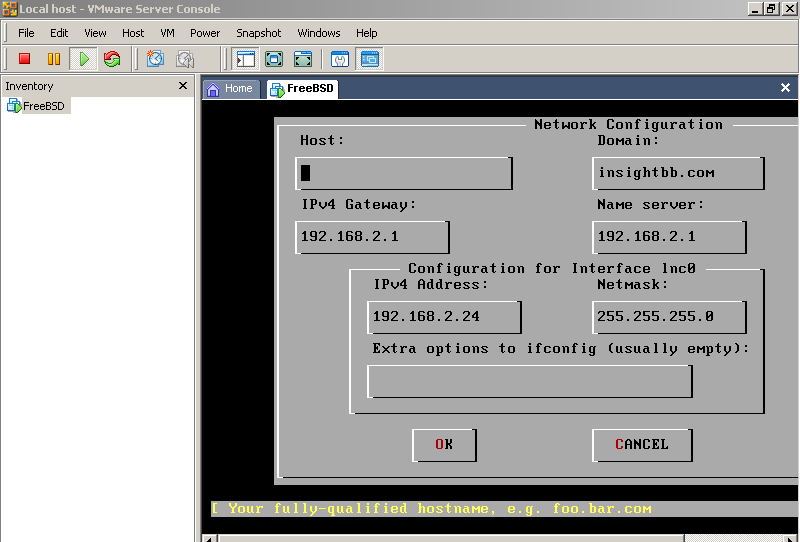
Please go ahead and give your FreeBSD virtual system a hostname, in the host section, type in a name, I’m gonna type: MYFreeBSDonVMware
See:
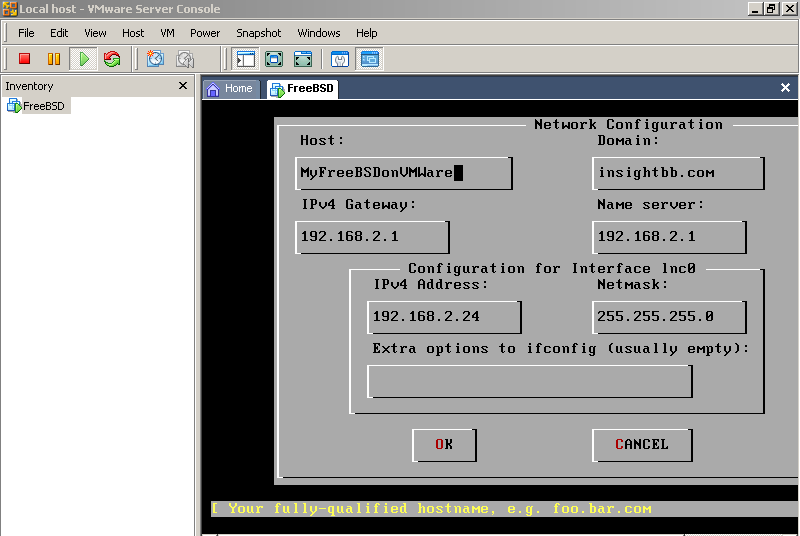
Tab till you have “OK” highlighted, Hit ok, you’ll see:
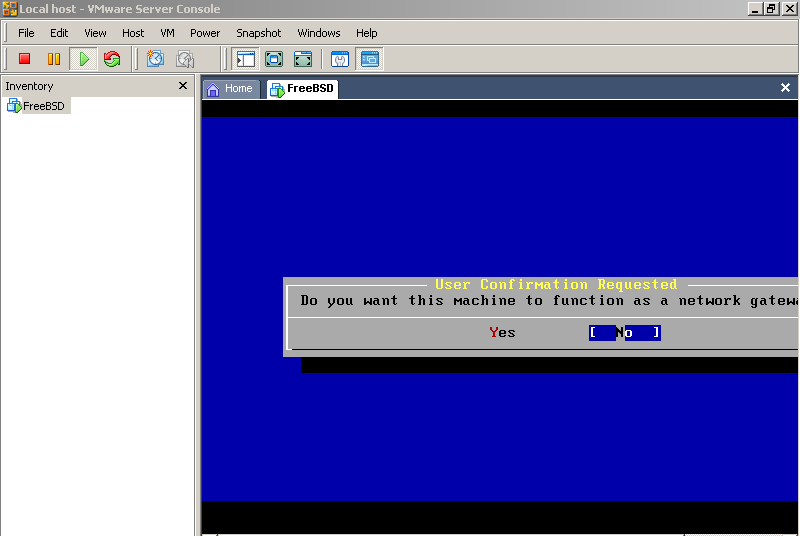
Select “No”, hit enter, you’ll see:
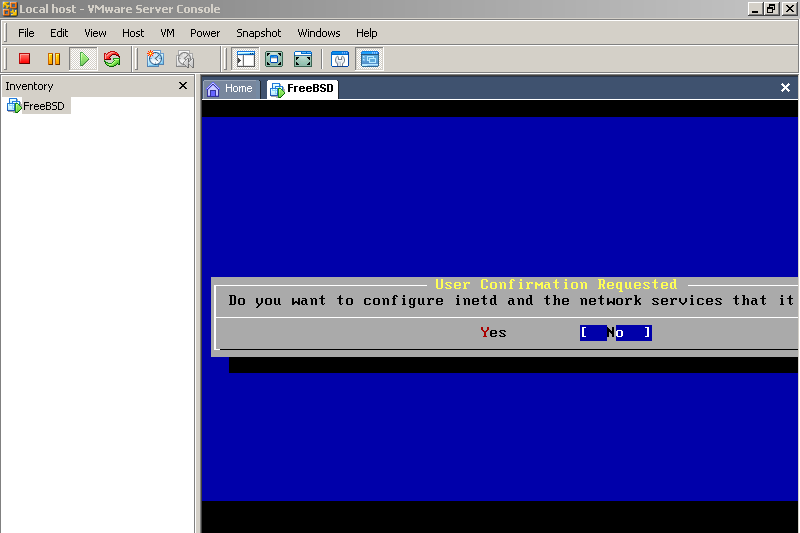
Accept the default “NO” hit enter, you’ll see:
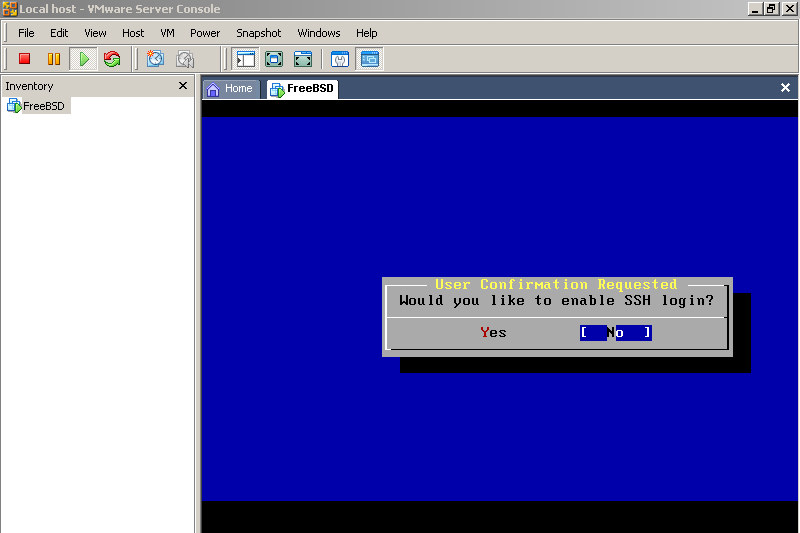
Accept the default “No” (we can enable ssh later on) hit enter, you’ll see:
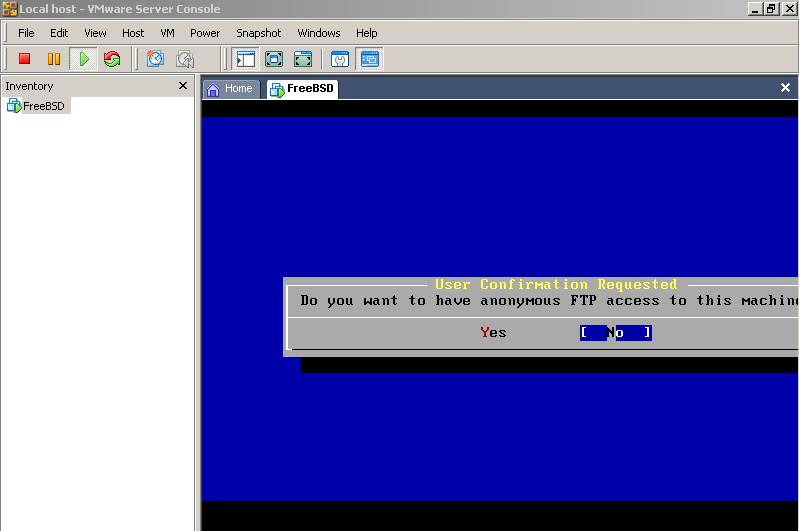
Accept the default “No” hit enter, you’ll see:
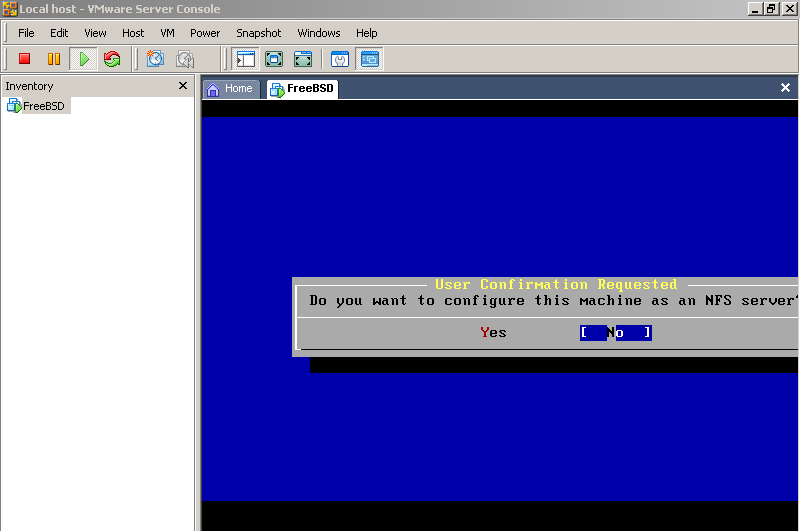
Accept the default. No. Hit enter. You’ll see:
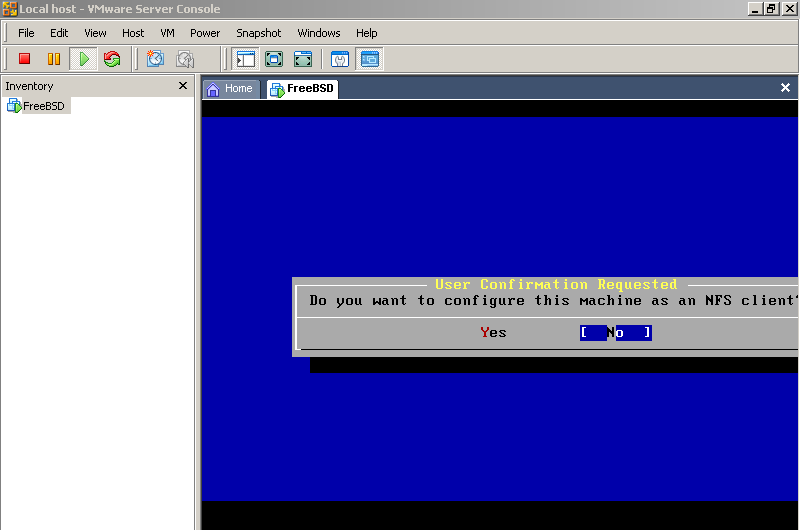
No. Hit enter, you’ll see:
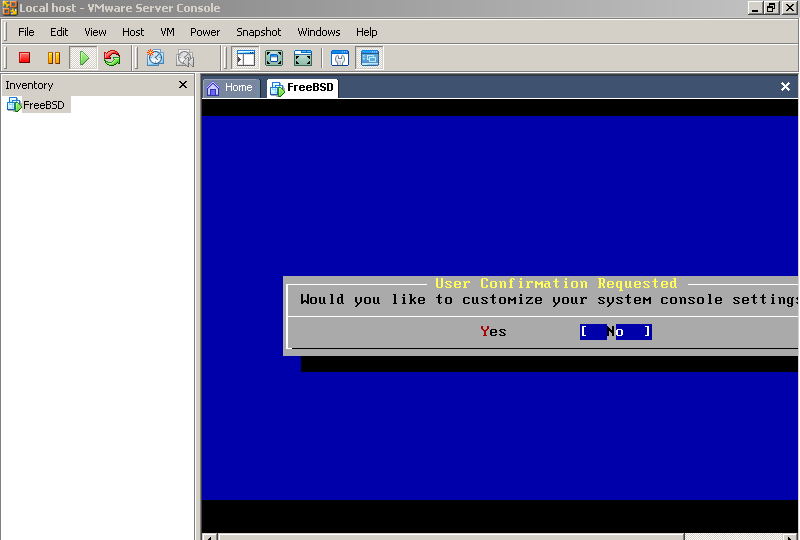
No. Hit enter
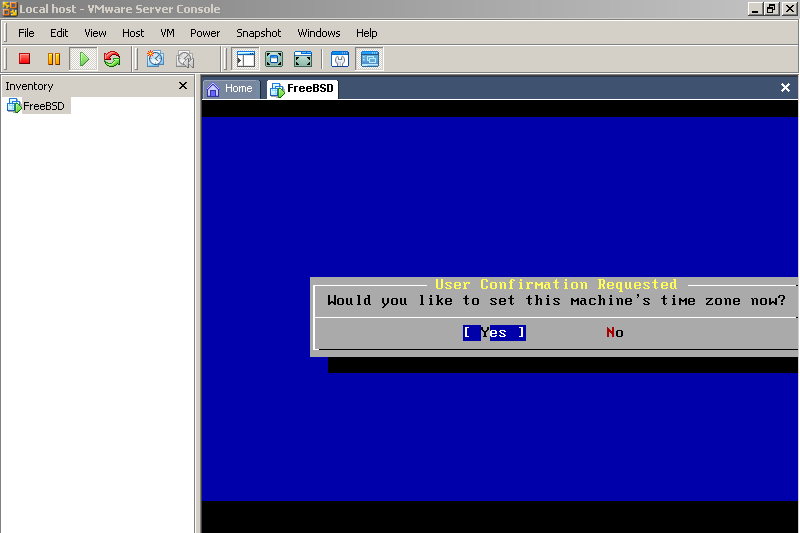
Yes we will set the timezone, hit enter
H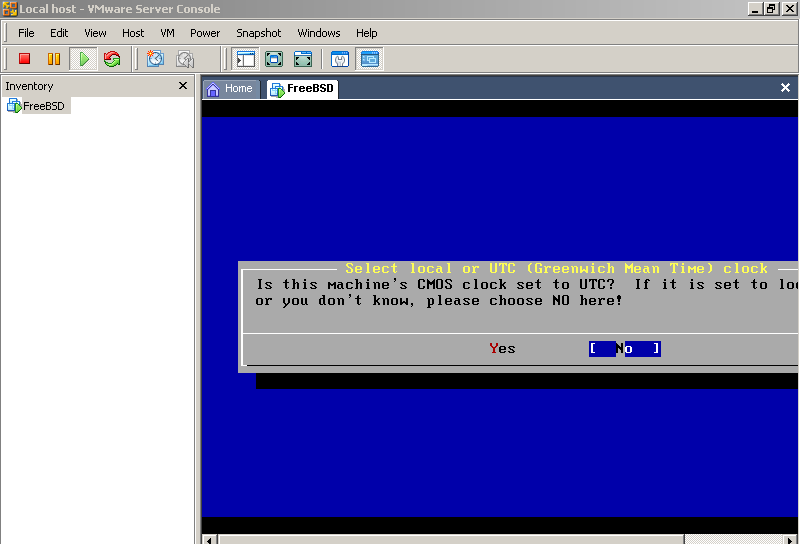
it
No.
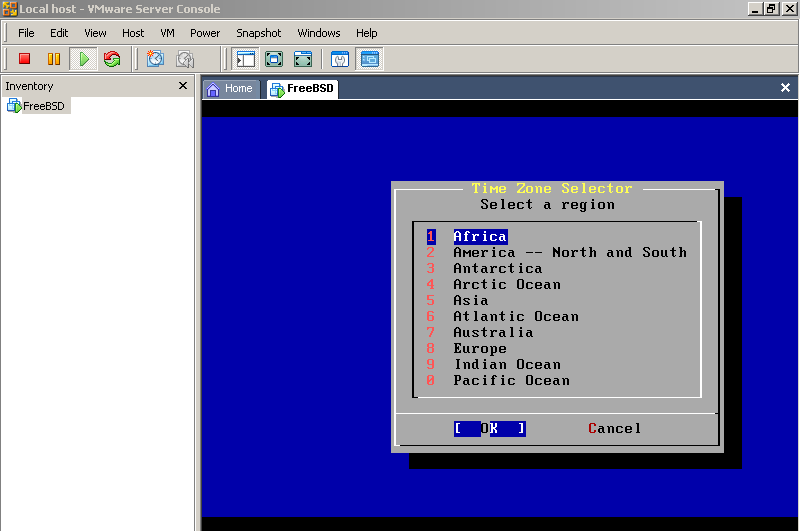
Select your time zone, I’m gonna choose CST
S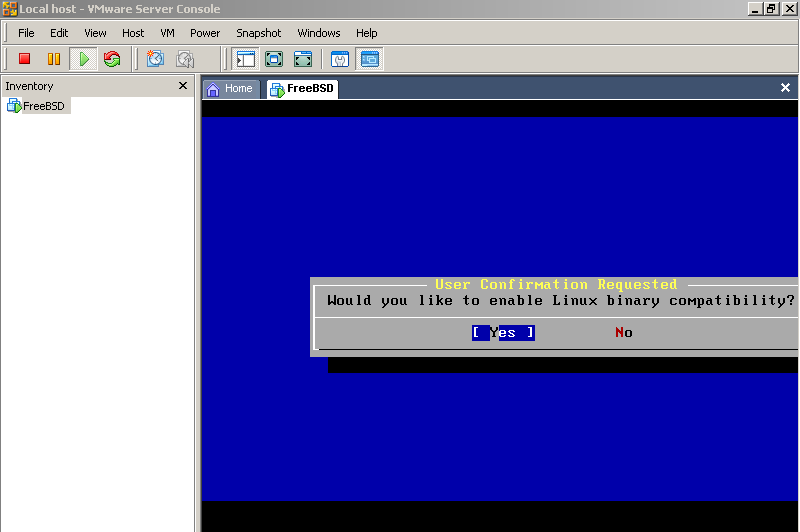
elect
yes for enabling Linux binary compatibility. Hit enter. Then you’ll
see some stuff like this:
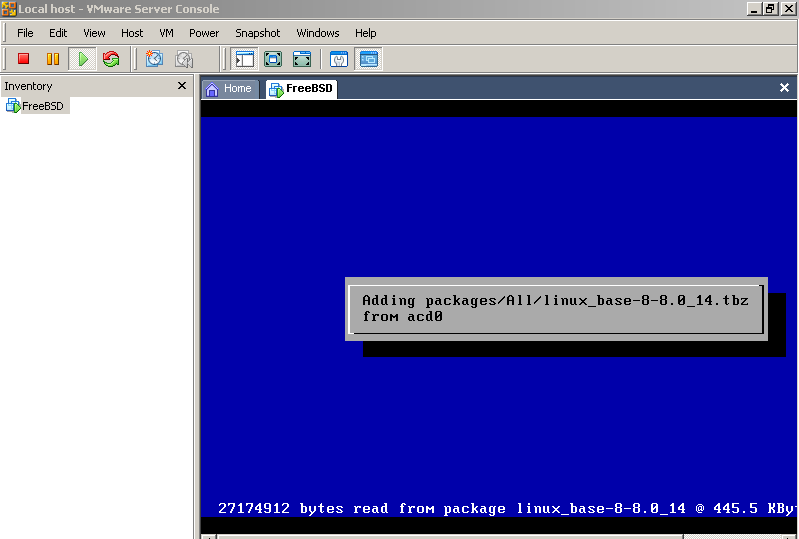
Then you’ll see:
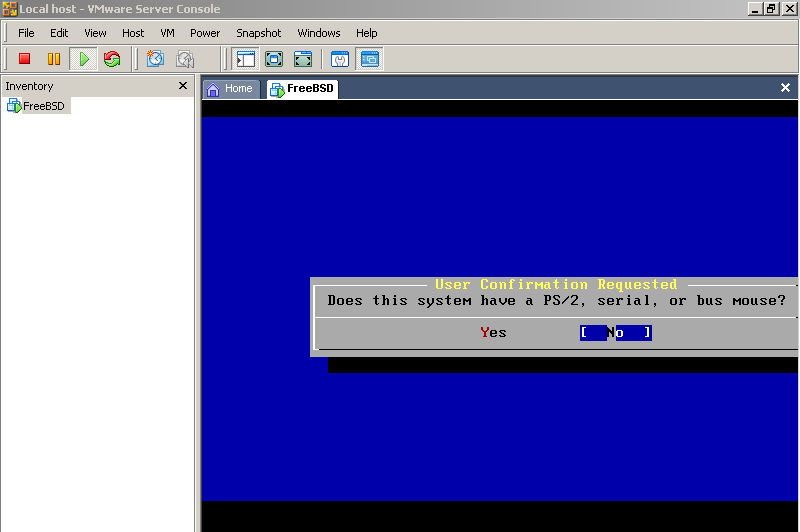
Tab to “Yes” Hit enter, then you’ll see:
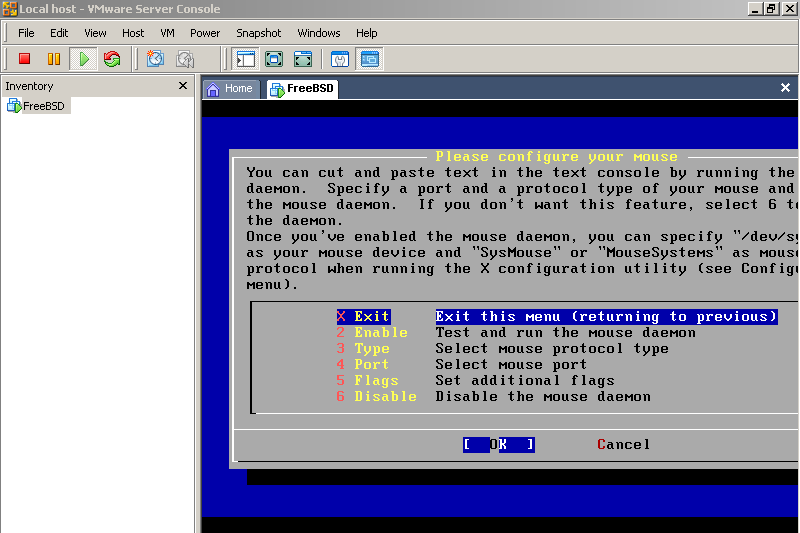
Select “2” We willenable and test the mouse
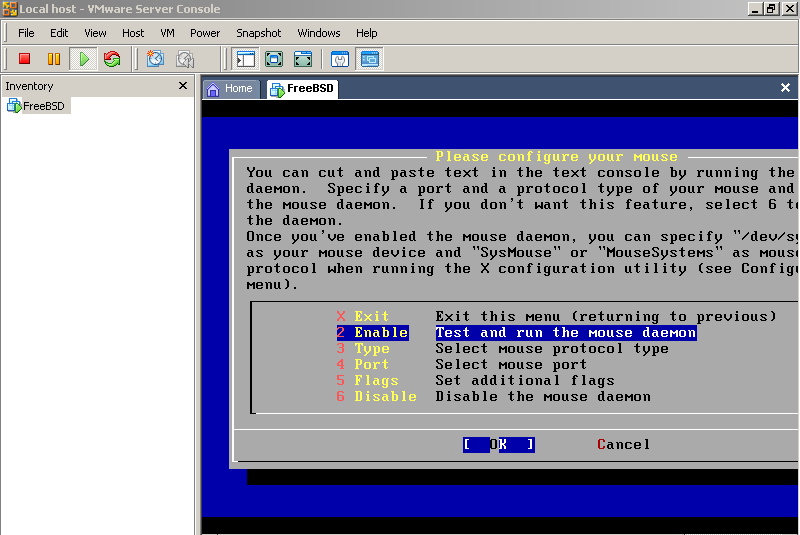
Hit enter
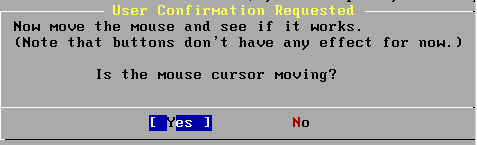
Select yes hit enter
In the next screen, tab to the option #1 which states “Exit this menu returning to previous”. Hit enter. After you hit enter, you’ll see this:
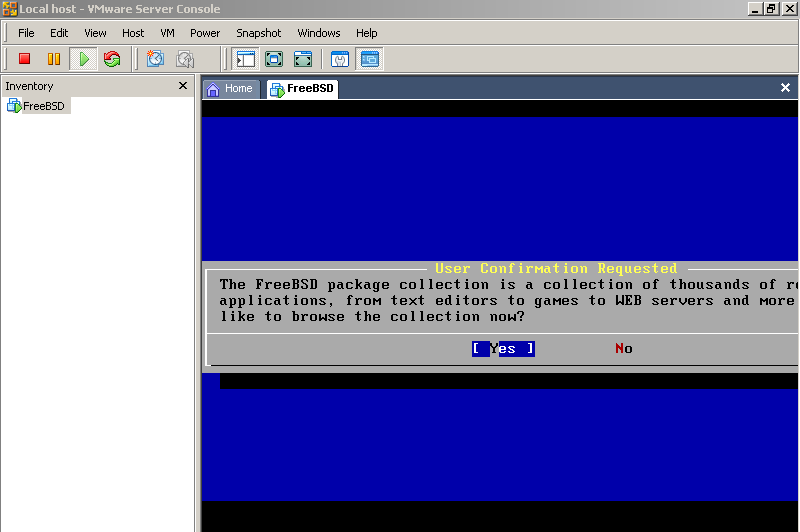
Hit enter at “Yes” you see:
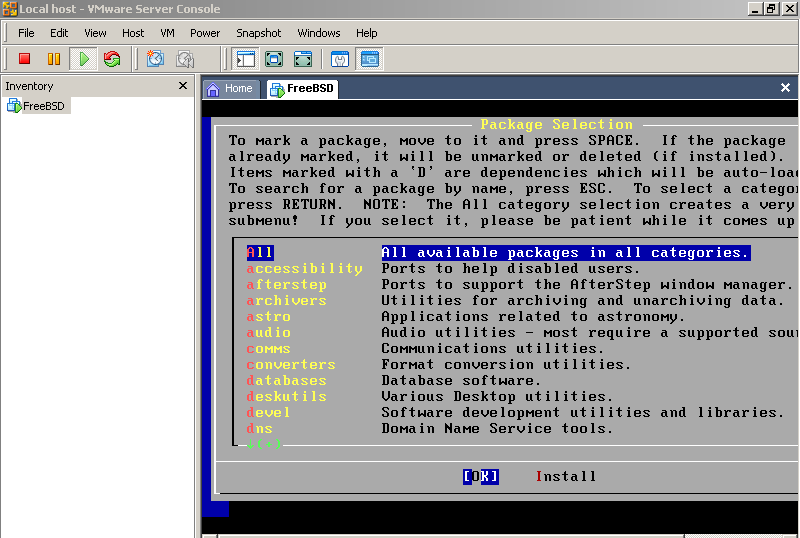
Scroll down to x-11 based clocks (let’s install an X11 clock – you may install any other packages now or later)
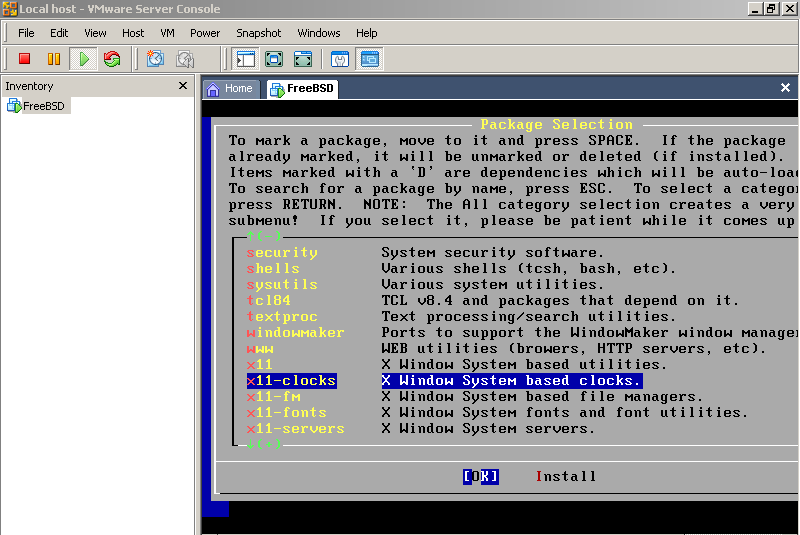
Hit ok
S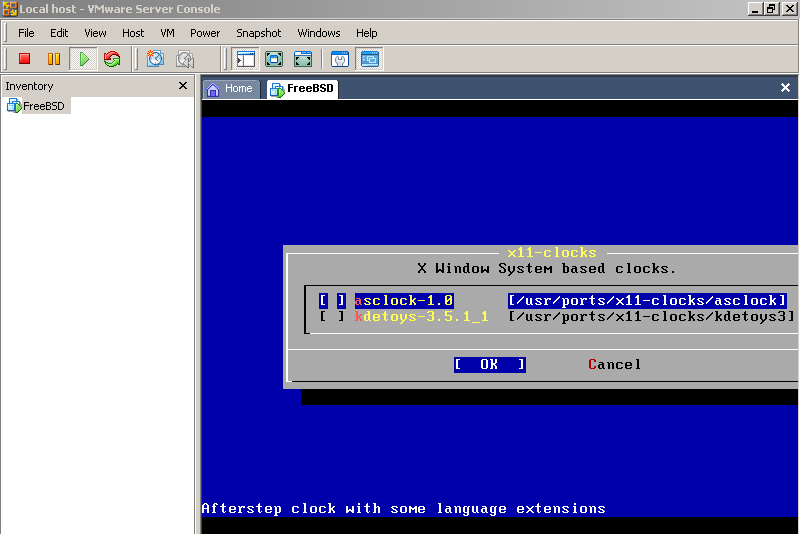
elect
both, you’ll see:
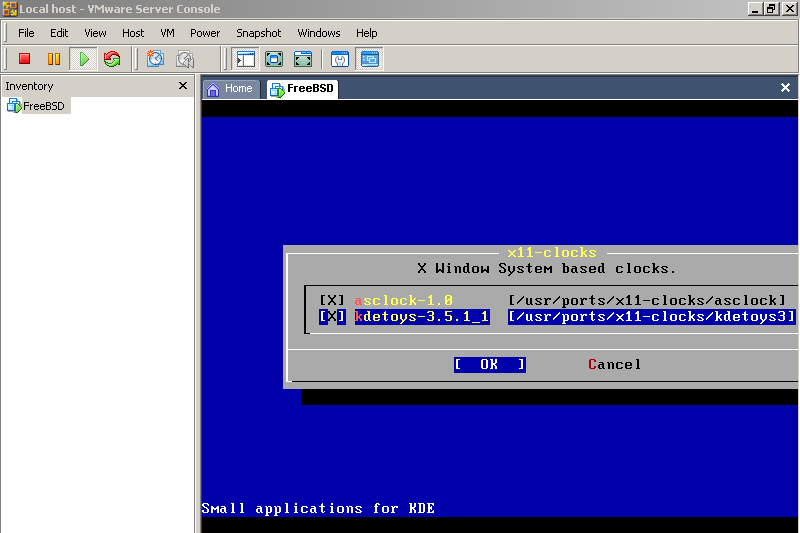
Hit ok. Please make sure “ok” is checked when you hit enter, after hitting enter, you’ll see:
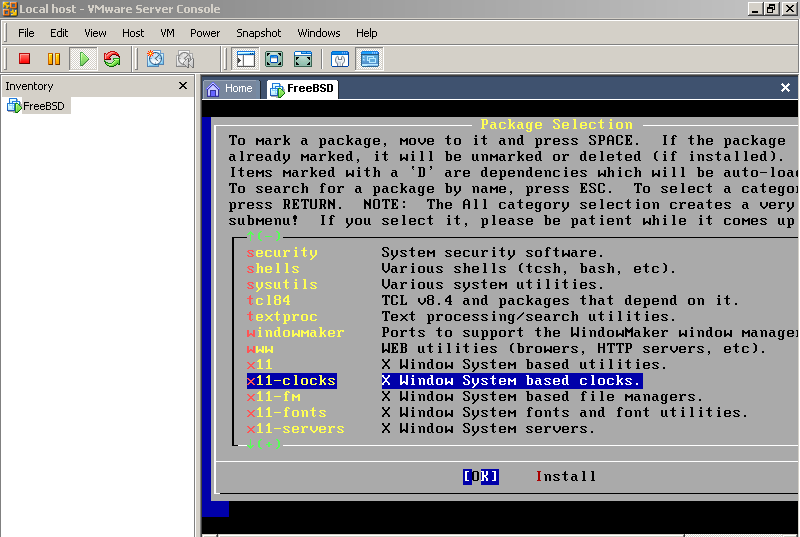
Tab to install, you’ll see:
P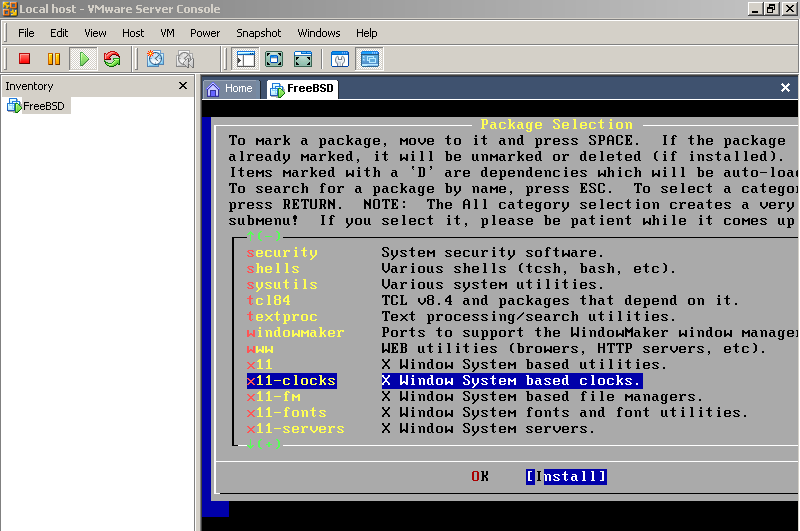
lease
observe how “Install” is highlighted, now hit enter,
you’ll see:
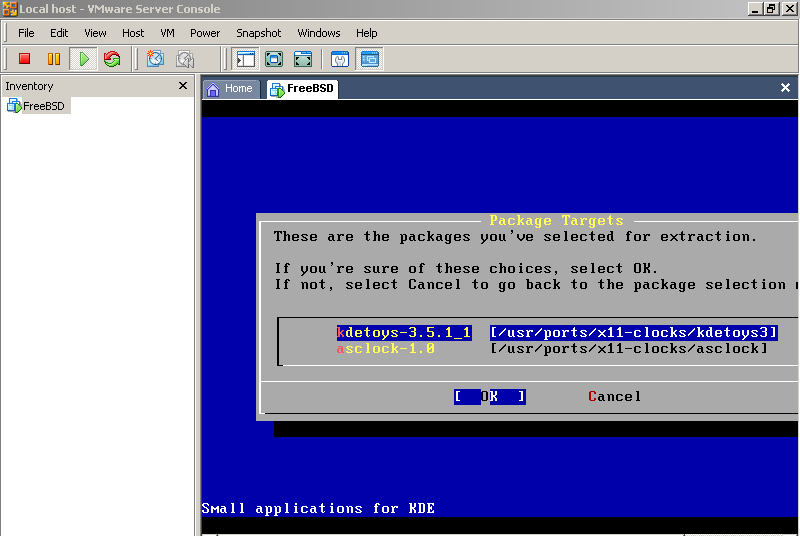
Hit ok, then, you’ll see:
H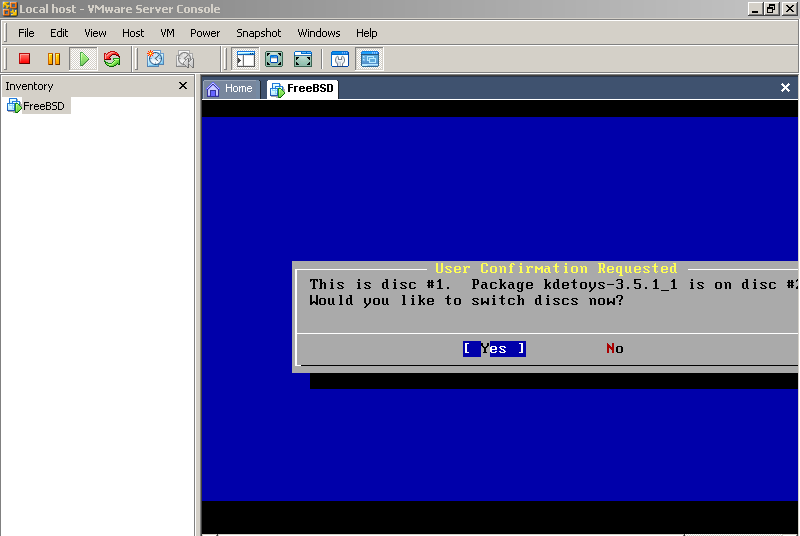
it
enter on ok, then, you’ll see:
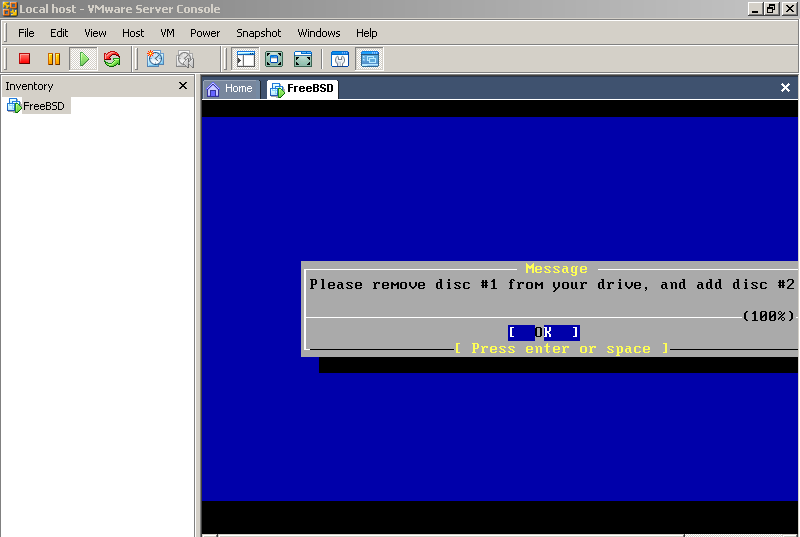
Please remove the CD#1 and put in CD#2. Then, Hit enter on “ok”
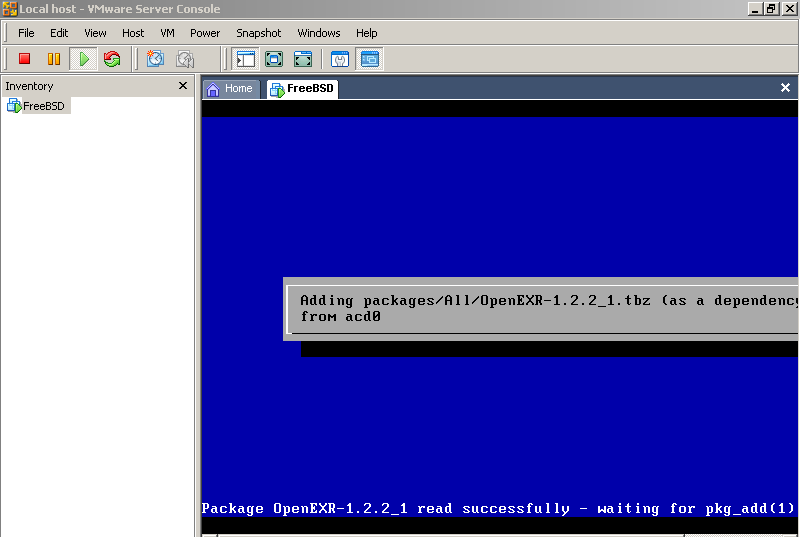
Please observe the bottom right portion of your screen, this kinda shows what is going on in your virtual server, when data is being written to the virtual disk then you’ll see that flickering cdrom etc etc, see below:

Next you see:
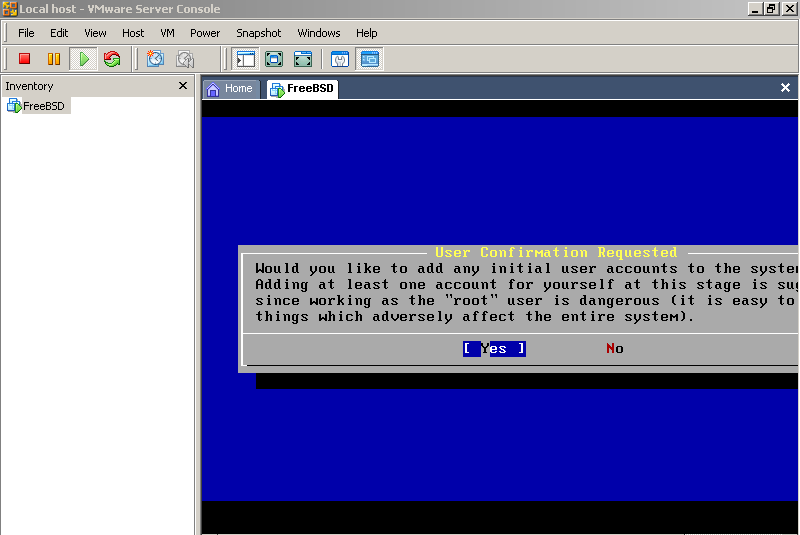
Please accept the default selection “Yes” hit enter, you’ll see:
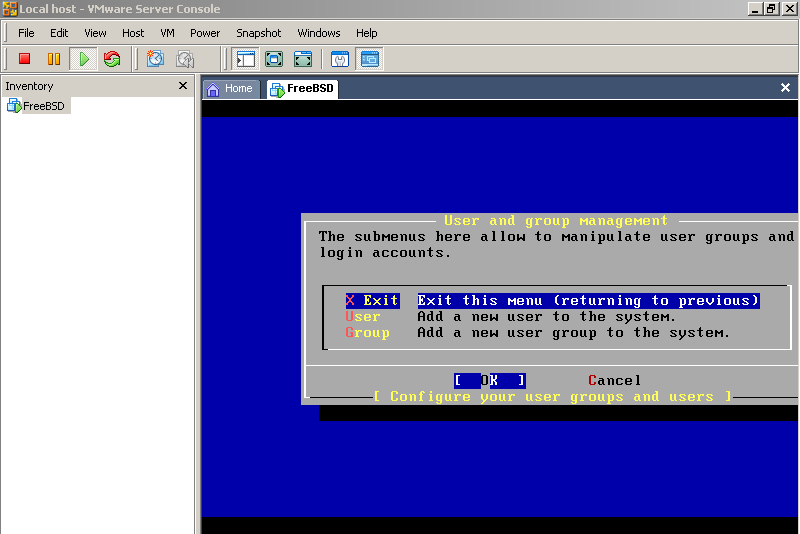
Tab down to “user Add a new user….” And hit enter, after you hit enter, you’ll see:
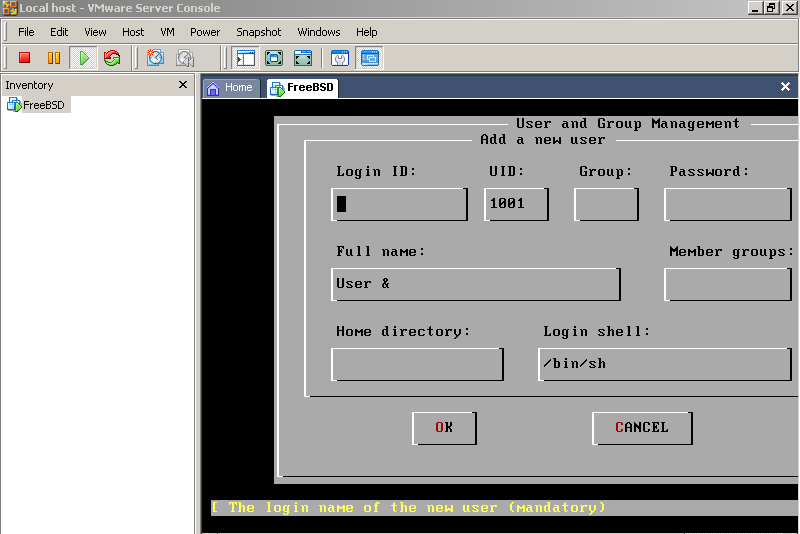
Give yourself a login id, my name is kartik so I’ll use kvashis, see my entries for group etc, you may use what I typed “wheel” for group
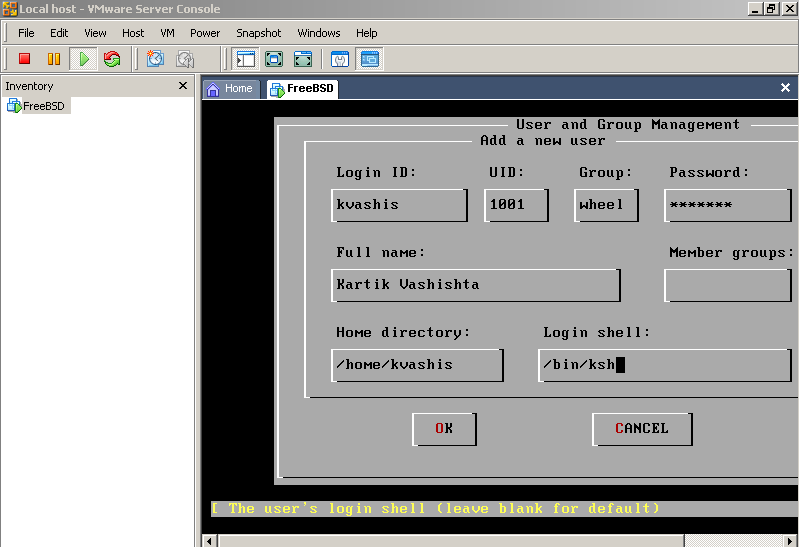
After successfully creating the user we see:
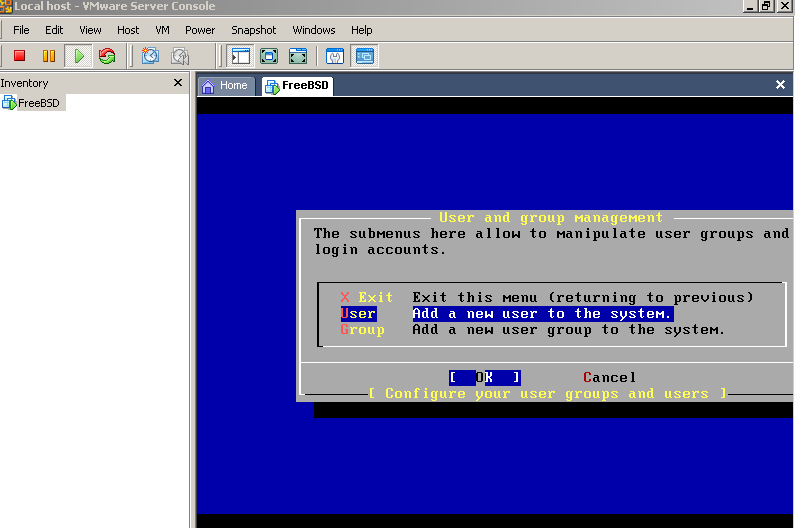
Tab to X Exit Exit this menu……….
And hit enter
We see:
T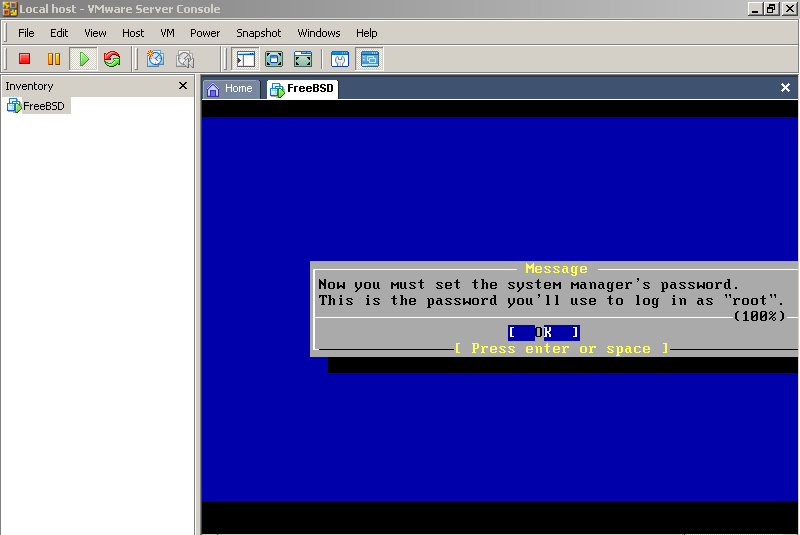
his
is to set the root password on your system. Please think carefully of
a good hard to guess password (DO NOT forget it), hit “OK”
we see:
After you have selected a password we see:
A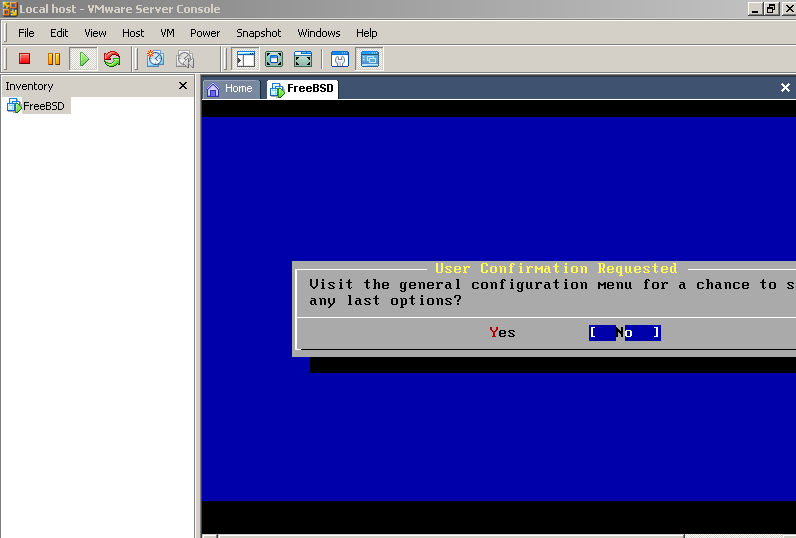
ccept
the default “No” hit enter, then you’ll see:
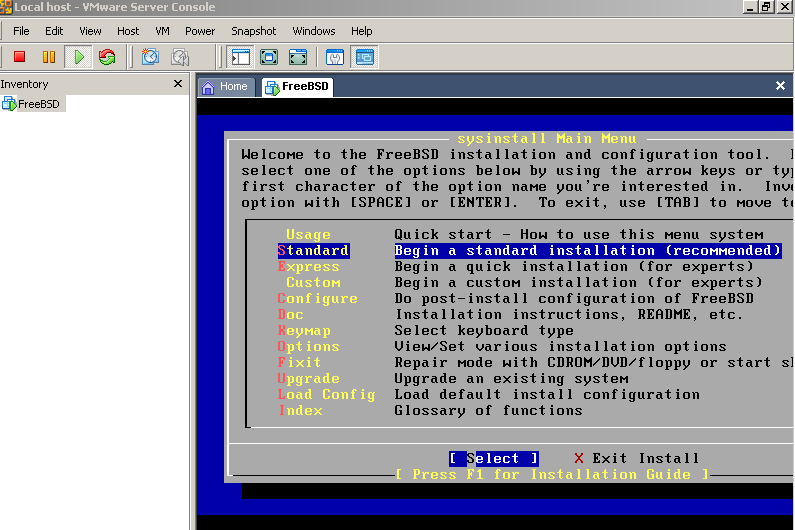
Please tab to X Exit Install (Thank you for being patient)
Then hit enter
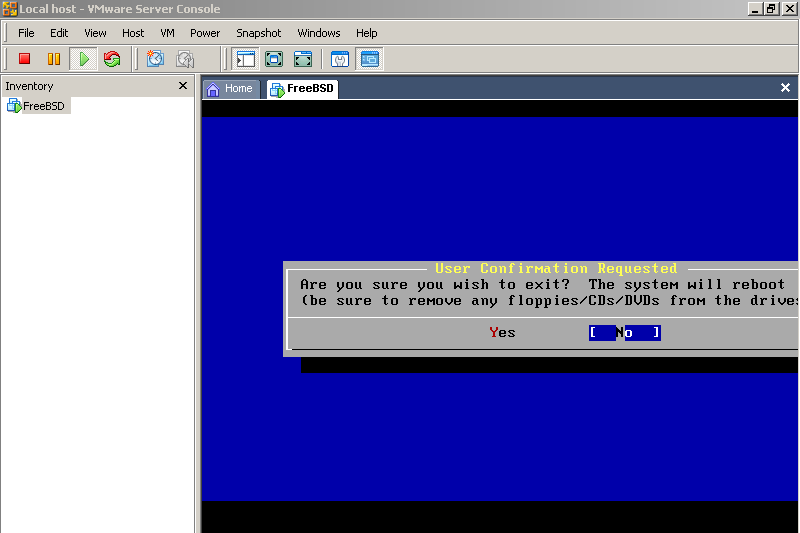
Please remove the CD’s etc tab to yes and hit enter to reboot!
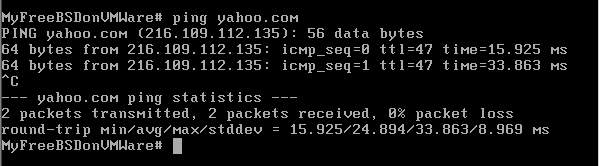
When it reboots (ONLY THE VIRTUAL FREEBSD SYSTEM IS REBOOTING!!!!!!) YOU SEE:
NOTE: Acknowledgment is due, and hereby made to the owners and authors of the software and material used in this course. The course coordinator is grateful to all those whose material is online and used in the course. Acknowledgment is also due to all the good stuff online, from which the course coordinator has learnt and/or been inspired. This training program is dedicated to the teacher.