Spyware
Introduction
This
module will introduce the students to Spyware; what it is, how it is acquired,
Dell’s policy. Participants will be introduced to various spyware and adware
removal programs as well as troubleshooting steps.
Objectives
At the completion of this module you
will be able to describe:
·
What is Dell Doing?
 What
is Spyware and How Can I Acquire It?
What
is Spyware and How Can I Acquire It?
Policy
on Spyware and Virus Support Calls
Determining
whether there is a Spyware or Virus Issue
Troubleshooting
Spyware Issues
Troubleshooting
Virus Issues
Prevention
Call
Handling Procedure
Compliance
·
DellServ Call Profiling
Hours
of Support Operation
What is
Dell Doing?
Changing
Environment
As
representatives who make up our customer service and support teams, it is not
news to you that our customer requirements are changing. Cable and DSL services
have helped bring broadband to about 26.9 million users - the "always
on" nature of broadband has brought productivity, speed and convenience to
consumers but also makes them more vulnerable to cyber threats.
That
said customers are relying more on Dell to help them with electronics,
accessories, wireless connectivity, security issues, and other technical
support beyond just the PC.
Given
the changing requirements of our customers, Dell too must change from time to
time. We are always looking for ways to adapt our service offerings and support
to successfully meet our customers' needs. As part of this effort and to better
serve our customers, we are also moving spyware and virus support to a fee-base
support model. First, let's cover the Security Campaign and then discuss the
new Spyware and Virus Support queue.
Security
Campaign
In
early July, Dell is launching an aggressive PC Security awareness campaign to
educate our Consumer customers on how to protect themselves and their PCs from
worms, viruses, hackers, identity thieves, spam and spies. Our educational
campaign is among several initiatives we are undertaking to create a better
customer experience. As part of the campaign, Dell is:
·
Building a
comprehensive PC Security Web site featuring "how to" articles; tips
for protecting your PC; links to Knowledge Base articles; promos and offers for
firewall, anti-virus and anti-spyware solutions; a PC Security Glossary; links
to partner Web sites, and other helpful resources. The site will be available
to customers in mid-July.
·
Promoting PC Security
solutions in our catalog that reaches tens-of-thousands of homes.
·
Leveraging opt-in email
updates to customers and other customer communications.
·
Providing updates and
alerts to customers via Dell Support - expected to serve more than 20 million
computers by end of year.
·
Partnering with
Microsoft to promote and support Service Pack 2 when available. To make
security software more affordable and robust for customers Dell is working
closely with our partners including McAfee, Norton and SunBelt.
·
Dell is also developing
additional PC service offerings with even more security in mind.
So
why are we doing this?
More
than 30 percent of the calls CTS receives from Dimension desktop owners are
non-Dell hardware related. Spyware and viruses make up the vast majority of
these calls and represent at least 15 percent of our total call volume, more
than 40,000 calls per week. In August of last year, spyware-related calls began
to spike, and spyware has been the No. 1 call driver to CTS since early 2004.
PC Security issues are a big problem for customers, and for Dell, and are going
to stay that way for awhile. Approximately 100,000 viruses exist and about 250
are considered "in-the-wild" at any given time. (Source: PC World,
June 2004). Protecting yourself from viruses should be Dell's No. 1
recommendation to its customers. According to an anti-virus vendor, the number
of new viruses released on the Internet reached a 2-and-a-half year high in May
2004.
When
Sasser hit May 1, calls to CTS were almost 200% above forecast for 48 hours.
About 50 percent of customers calling Dell support have owned their computer
for more than one year and are probably vulnerable to cyber attacks due to
outdated security software/settings.
Many
consumers are not keeping their security software up to date and are not
following instructions when they receive updates, notices or patches from Dell
or their software providers. 62% of people have not recently updated antivirus
software and 91% of people have spyware on their computers (Source: National
Cyber Security Alliance, May 2003).
Expanding
Support for Customers
Consumers
are more at risk to cyber threats today than they have been previously, due in
large part to increased use of high-speed Internet access. That said, Dell is
expanding its current Software and non-Dell Accessories Support suite to
include PC Security support. We will also be announcing, before the holidays,
an even more comprehensive "Help Desk" service for customers.
Out-of-scope
issues including troubleshooting for slow performance/spyware has been moved to
fee-based phone support. As always, customers can "self help" on
support.dell.com at no cost.
Dell currently offers Software and non-Dell Accessories Support to provide
customers with technical and "how-to" support on third party software
and accessories whether they bought them from Dell or not.
Effective mid-July 15th, fee-based phone support for PC Security issues will be
available to customers and marketed as part of our existing
"one-stop" support approach for non-Dell technical and "how
to" issues. If initial troubleshooting determines that the customers'
issue(s) is virus or spyware related. Customers' will have a few options:
·
Purchase phone support
to remedy their issue. In line with the industry Dell will charge a per
resolution fee. (Dell security software partners also charge for support.
·
Symantec Norton
Internet Security 2004 is supported via phone for $69.95 per incident.
·
Gateway=$2.95 per
minute.
·
HP=$40 per incident.
·
Best Buy=$59 to
diagnosis and additional $39 each for spyware and virus support.
·
Visit the new and
enhanced security site for self help.
Contact their security software vendor for assistance.
By
moving out-of-scope calls to fee-based software and accessories phone support,
Dell service levels will improve dramatically - hold times will decrease and
customers will get their issues resolved more quickly.
Support
Plan Offering
Customers
will be required to pay a $39 fee per support resolution. Or as part of the 1
year and 2 year Help Desk Support Plans
Policy
on Spyware and Virus Support Calls
Spyware
is considered 3rd party software, as it is included in applications and
programs installed by the user after the unit ships. Use of spyware removal
applications are limited to support from the manufacturers of the applications
themselves.
Dell
provides limited technical support for the system and any
"factory-installed" software and peripherals. Support for third-party
software and peripherals is provided by the original manufacturer, including
those purchased and/or installed through Dell Software & Peripherals
(Dellware), Readyware and Custom Factory Integration (DellPlus). Third Party is
described as "Software and Peripherals including any peripheral, accessory
or application sold by Dell not under the Dell brand (e.g., printers, scanners,
cameras, games, etc.). Support for all third-party software and peripherals are
provided by the original manufacturer of the product."
Dell
fee-based technical support will be available for customer assistance for both
acquiring and using spyware and virus software, on a per resolution basis.
The
Technical Support Policy can be viewed here or entered manually
at: http://support.dell.com/us/en/ts_policy.asp
Facilitator: In groups of 4-5 have participants use Flipchart paper and draw
their definition of spyware, what it is and how it affects the users
system. Use only pictures (no words) to
describe spyware.
Purpose: To find different peoples impressions of what spyware is
before moving on to the textbook definition and to also help them communicate
in different ways.
Call Profiling in
DellServ
In DellServ profile the
original call as below:
1) Select Inbound Call for the Contact Type
2) Select Software for the
Issue Type
3) Select Other Generic Apps for the Category
4) Select Other Applications for the Component
5) Select Virus Cause
6) Select Virus for the
Reason
If the customer calls back
after the initial call reset the Call Profile and use the following:
1) Select Inbound Call for the Contact Type
2) Select other for the Issue Type
3) Select Dialed Number/Extension for the Category
4) Select Dialed Number/Extension for the Component
5) Select Personal for the Cause
6) Select Personal for the Reason
Spyware, Adware, Malware
What
is Spyware and How Can it be Acquired?
Some
free software applications (like file-sharing applications) that are downloaded
from the Internet may have additional unwanted third-party software (sometimes
called “adware” or “spyware”) pre-packaged with it that will launch and run on
your system. These software applications can degrade the performance of your
system, block or disrupt internet access, and open the door to Identity Theft.
Essentially,
it is technology that assists in gathering information about the computer user
or organization without their knowledge. On the Internet, spyware is a program
that runs on someone's computer, secretly gathering information about the user
and relaying it to advertisers or other interested parties. As such, spyware is
cause for public concern about privacy on the Internet.
Users
are subject to spyware in many ways:
·
By simply visiting
spyware propagating web sites.
·
By accepting free
programs on the internet.
·
By installing some
music or Peer-to-Peer file sharing software.
·
By closing a pop up
incorrectly.
·
By opening spam.
Determining if the Problem is Spyware, Virus, O/S
Corruption?
Don’t assume it is spyware just
because someone in sales or triage says its spyware. Ask questions and
determine for yourself.
Proper questioning of the customer is essential to determining possible issues
indicative of spyware activity. Take care to properly troubleshoot the system
before making the determination to transfer the customer for possible
spyware/virus symptoms.
If spyware appears to be the cause, run various anti-spyware programs such as Ad-Aware,
Spybot, and Pest Patrol.
Note: In the absence of Spyware
detection tools, consider the following list of symptoms. If any number of
symptoms exists, make the customer aware of the potential existence of spyware
on the box, explain the 3rd party support policy to the customer, and offer
self help
Adware Symptoms
·
Pop-up advertisements
that appear when you are not on the Internet. This issue certainly indicates
the installation of adware on a system.
·
You have new toolbars
or side bars in Internet Explorer that you did not explicitly download and
install. This is almost always the result of a program containing spyware
and/or adware installing itself.
·
Certain web sites such
as antivirus, search, and shopping pages do not appear to exist or look
different than they do on other systems and may return invalid results. Other
web sites display normally. Usually this results in certain viruses or spyware
modifying the hosts file to block access to sites that could be useful in
cleaning them. Or it could be an issue with the Internet Service Provider or
the web site itself.
·
Your home page was
changed to something else without your permission. Spyware and viruses can do
this when clicking on a helpful pop up that requests a change to your home
page, they often install spyware applications. So can anyone else using the
computer.
·
There are unfamiliar
applications launching on system start up or unfamiliar icons in the system
tray. This has been seen as a symptom of certain worms and spyware. This could
just as easily be part of a corrupt program install.
·
The system dials the
phone when you did not tell it to, or dials phone numbers that you do not
normally dial. Classic auto dialer scenario, especially when the numbers being
dialed are 900 or 800 numbers May also be a recurring fax job, or the system
accepting incoming calls.
·
Internet Explorer gets
“Page cannot be displayed” errors on known good web sites. Other Internet
programs may or may not work. This is usually the result of connection problems,
which may be caused by spyware/viruses. This could also be the result of
firewall settings, which generally have nothing to do with spyware. May also be
caused by a damaged connection, a flaky modem, bad network cables, ISP issues,
etc. If resetting the TCP stack fixes it, a check for spyware should be
performed.
·
Web sites in the
Favorites list that did not come installed on the computer originally or were
not put there by the user.
·
Programs load after you
log in that you do not remember installing. This can also be caused by the user
not remembering what they have installed.
·
There are programs
found in the Add/Remove Programs list that Dell did not install.
·
System responds slowly
or erratically to user input.
Virus Symptoms
·
You cannot access
certain websites
·
You cannot open certain
programs – particularly antivirus programs or diagnostic and configuration
programs (msconfig, regedit, etc).
·
Virus Scanners keep
disabling themselves.
·
You receive emails
stating that you’ve sent someone a virus.
Although this may happen if you are in someone else’s address book and
they have adware, spyware or a virus.
·
Your system slows down
and you may notice internet activity on your system even when you are not
running any programs.
System responds slowly or erratically to user input. This can be caused by
buggy software, broken hot fixes, having too little memory, and a whole host of
other issues.
Operating System Corruption
·
Intermittent errors
such as Invalid Page Fault in module unknown.
·
Loss of functionality,
for example a Windows application has ceased to function (with or without
generating errors).
·
Any unknown or odd
behavior that cannot be linked to anything else in particular. If you Google
the error message and cannot find a common cause.
Removal Tools
The customer should be encouraged to
use Ad-Aware and Spybot at least once per week. The customer should keep his
virus scanner (Norton or McAfee recommended) and Ad-Aware and Spybot up to
date. Spyware removal tools are better when used in conjunction with each
other. One can find spyware that the other doesn't. It is always suggested
using them both, but there are some who are curious as to which is the better
program.
Ad-Aware
One thing about Ad-Aware
is the much cleaner user interface. It also clearly tells you what type of
spyware components it finds. Ad-Aware takes longer to first quarantine the
spyware and then delete it. Ad-Aware, like Spybot, also needs to re-run after a
reboot to get rid of the running spyware. Ad-Aware also sometimes leaves some
of the browser tool bars behind.
Note:
Always run Ad-Aware before Spybot. Make sure that the customer updates Ad-Aware
before running it.
Spybot
Spybot could be
downloaded from the internet. The link to download Spybot is http://www.safer-networking.org/en/index.html.
Some of the spyware take over computers so much that they disable their host
computer's internet connection by messing up the network drivers. It's nice to
see that Spybot fixes such problems.
Spybot considers multiple parts of the same program as one. Spybot
cleans most of the spyware but does not pick up certain things. Spybot does not
remove Weatherbug from the system. Some say that Spybot does not remove some of
the browser tool bars as well, for example: My Search Bar.
Spybot comes with a built
immunizer for Internet Explorer that will block known spyware and adware
objects. It also has a registry monitor call Tea Timer.
Note: Make
sure the customer updates Spybot before running it. Be sure and reboot the computer after running Ad-Aware and
Spybot. If the customer cannot logon
(his system immediately logs him back off), then perform the wsaupdater repair
Bazooka
Bazooka can be downloaded from
http://www.kephyr.com/spywarescanner/. Bazooka allows you to scan for spyware and
gives you instructions to uninstall the objects manually. When you download and open Bazooka for the
first time you will be prompted with a screen to perform an update, it is
highly recommended to do the update. Once you click on OK, you will be
presented with a screen asking you to be patient while the updates are
downloaded, click on OK to proceed.
After it completes the update you will get a window stating the updates
are done and asking if you want to scan the computer, click the YES button to
scan the system.
Once you click YES on the
window you will get the main window for Bazooka. You have the option to Scan, Update, Generate log, and Help.
When you click on scan it
starts the scanning process and it may take a while depending on how big the
hard drive is and what is installed on the drive.
Once the scanning process is
completed you will get a window that lists the objects found in the
system. If you click on each of the
objects, it will take you to a website which will give you step by step
instructions to uninstall the object.
Pest
Petrol
PestPatrol is a powerful
security and personal privacy tool that detects and eliminates destructive
pests like Trojans, spyware, adware and hacker tools. It complements your
anti-virus and firewall software, extending your protection against non-viral
malicious software that can evade your existing security software and
invade your personal privacy.
CWShredder
CWShredder
finds and destroys traces of CoolWebSearch. The software requires constant
updating, because the CoolWebSearch spyware is continuously being changed.
Note: This
tool is the fastest way to fix particular problems, generally specific browser
hijacks. (LOP, ABOUT-BLANK, ETC.)
Hijack This
HijackThis is a
tool that lists all installed browser add-on, buttons, and startup items and
allows you to inspect, and optionally remove selected items. The program can
create a backup of your original settings and also ignore selected items.
Additional features include a simple list of all startup items, default start
page, online updates and more. (Intended for advanced users)
Note: Use
this tool when it is necessary to remove a recurring problem. Some spyware will re-install itself when the
computer reboots. Hijack This is the best way to get rid of these problems, or
if you cannot run Ad-Aware or Spybot due to large spyware/adware infections. Hijack
This will often allow you to disable many viruses and spyware processes. This
may then allow you enough access to use Ad-Aware and Spybot, Etc. to finish the
job.
Norton Antivirus or McAfee Antivirus
Note:
Update the customer’s virus scanner and then have them run a scan in safe-mode
if you suspect a virus. Start it
scanning then offer a callback.
Trend Micro’s House Call Online Virus Scan
Note: In
the event that the customer’s virus scanner has been disabled by a virus try
running the online virus scanner at housecall.trendmicro.com
This may fix the problem enough to allow you to get their virus scanner
functioning and also to run Ad-Aware and Spybot, Etc.
Troubleshooting Spyware Issues
Spyware Checklist and Troubleshooting
Web Site
This
site can be used when troubleshooting spyware calls to aid in what actions you
should take. The site acts as a flow chart for the steps to take. http://spyrus.redirectme.net/
Problems Installing Removal Software
Occasionally,
third party software may corrupt certain key elements of the Operating System
that make consistent Internet access difficult if not impossible. This
condition can impair the ability to download and install applications such as
Spybot and Ad-Aware, and may require the use of specialized steps in an attempt
to restore access to the system temporarily. The following steps should be in
an attempt to get anti-spyware software installed operating properly if they
will not install normally.
1) Click the Start button.
2) Click Run. The Run window appears.
3) In the Open: box, type the following: msconfig
4) Click the OK
button. The System Configuration Utility window appears.
5) Click the Services (Windows XP Only) tab.
6) Check the box at the bottom labeled Hide all Microsoft Services.
7) Uncheck all items where the Manufacturer is not Symantec, Norton, McAfee or
Microsoft. Note: Norton, Symantec, and McAfee startup items
are usually associated with Anti-Virus and should only be unchecked if all
other steps have failed. Leaving the system unprotected is not an ideal
situation to leave the customer in.
8) Click the Startup Tab.
9) Click the Disable All in the lower right.
10) Click the Apply button.
11) Click the OK button.
12) Click the Restart button. The system will reboot at this time
Using HIJACK THIS
The steps below describe how
to work with a customer using Hijack this to scan, analyze and determine what
entries should be removed and what entries should be left alone.
·
Create a folder on the
desktop for Hijack This.
·
Run Hijack
This.
·
Click SCAN.
·
Click SAVE LOG.
·
Select the newly
created folder and click SAVE.
·
Don not close Hijack
This, open the folder where the log file was saved.
·
Double click the log
file and it should open in Notepad.
·
In Notepad click on EDIT then click on SELECT ALL.
·
Then click on EDIT then click on COPY.
·
Have the customer type
the following into the address bar of their browser:
www.hijackthis.de
·
Go down the page to
where it says “You can copy a log file in this textbox”.
·
Left-Click
once inside the textbox.
·
Right-Click
and select PASTE.
·
Click of the word ANALYZE.
·
Move to the bottom of
the page and click on SAVE ANALYSIS.
·
Have the customer read
the URL of the new page that appears of their
screen.
·
Open your browser and
type in the customer’s URL. You should now see the customer’s analyzed log
file.
·
Anything with a GREEN CHECKMARK is OK.
·
Anything with a RED
EXCLAMATION MARK is usually BAD or
should at least be looked into.
·
Anything with a YELLOW QUESTION MARK use Google to
determine if it is good or bad.
·
Inform the customer
that there is no guarantee that this
will work, but it is still a good troubleshooting step.
·
The first entries in
the log file are running processes. The entries that will match in Hijack This
from analyzed log file will start with 01, 02, etc.
·
Walk the customer
through check marking the bad items.
·
Click on FIX CHECKED.
·
Now try to download Ad-Aware
and Spybot or perform an online-virus
scan.
Recommended Minimal Security Settings for
Internet Explorer
It is important to have these settings for internet explorer. This is because
when you access a page you will be prompted to install scripts and other spies
which are automatically downloaded from the web site to your computer. Close all instances of Internet Explorer, Outlook
Express and Outlook and perform the following steps:
1) Open the Control Panel. Double click on Internet Options.
2) Click on the Click on the "Security" tab.
3) Highlight the "Internet" icon and click "Custom
Level".
4) Locate the following options and set them to the choices listed below:
- "Download signed ActiveX scripts" = Prompt
- "Download unsigned ActiveX scripts = Disable
- "Initialize and script ActiveX not marked as safe" =
Disable
- "Installation of Desktop items" = Prompt
- "Launching programs and files in a IFRAME" = Prompt
- "Navigate sub-frames across different domains" = Prompt
5) Click on the "Content"
tab. Click the "Publishers" button.
6) Highlight and click the "Remove" button for anything listed
as “Unknown”.
7) Click Ok. Why this is so important?  [read this]
8) Click on the "Advanced" tab and uncheck "Install on demand (Other)" under
the Browsing section, click Apply
then click Ok.
9) To test your setup after making the above changes [click here]
Uninstall
Peer-to-Peer File Sharing Applications
Many common Peer-to-Peer File Sharing Applications contain bundled applications
that can be referred to as spyware or adware. Generally the application can be
uninstalled without losing the user's files, but be sure to get the customer's
consent before you begin to uninstall these programs. Below is a list of
Peer-to-Peer Applications that are known to contain third party applications.
These applications can be uninstalled through Add/Remove Programs located in
the Windows Control Panel. Some may require the location of an uninstall link
in the Start Menu.
·
KaZaa (offers a paid
version without spyware)
·
Limewire
·
Audiogalaxy
·
Bearshare (offers a
paid version without spyware)
·
Imesh
·
Morpheus
·
Grokster
·
Xolox
·
Blubster 2.x aka Piolet
·
OneMX
·
FreeWire
·
BitTorrent (Only the
Unify Media version)
To
see a more current version of this list, please visit: http://www.spywareinfo.com/articles/p2p/
Disable
Third Party Browser Extensions
Internet Explorer contains the ability for other
applications to install extensions into the browser, providing flexibility for
the browser's features to be utilized by other applications and for those
applications to enhance the browser's capabilities. Unfortunately, it is also
possible for spyware and adware to utilize this feature for malicious toolbars,
pop-up generators, and other unwanted symptoms. Disabling the ability of
Internet Explorer to accept these third party extensions can allow you to
disable those applications that are hindering the customer's ability to install
a full anti-spyware suite.
To
disable Third Party Extensions, follow these steps:
1) Close all open Internet Explorer Windows.
2) Open the Control Panel.
3) Double-click the Internet Options button.
4) Click the Advanced Tab.
5) Uncheck Enable Third Party Browser Extensions (requires restart).
6) Click the Apply button.
7) Click the OK button.
Troubleshooting
Without Internet Access
The following 8 steps are
suggestions for troubleshooting spyware if the customer is unable to access the
internet because of a spyware issue.
1.
In MSCONFIG remove all
startup items and disable all non-Microsoft services.
2.
Run a system restore to
a date the unit was able to access the internet and update spyware removal
tool.
3.
Run “Last Known Good Configuration” if the
unit will not boot to windows.
4.
CSP could look for
manual removal tool online and help customer remove spy-ware.
5.
Open the” downloaded program
files “folder and remove any extensions that are listed as unknown.
6.
If the customer has DSL
or Cable Modem, have the customer boot to the start up menu and choose “Safe
Mode with networking support” and connect to the web and download the spy ware
removal tool.
7.
In Add/Remove programs
validate each program listed and remove any spy ware programs. ( Verify the
programs by using your web resources)
8. In a last resort after everything
has been tried reinstall the Operating System.
Repairing your Winsock Connection
If you have lost your Internet
connection after removing spyware (such as NewDotNet, and Commonname) the
following steps will help restore your connection.
·
Repairs
Winsock 2 settings: http://www.cexx.org/lspfix.htm
·
WinsockFix.exe
(By: Option Explicit) (site1) (site2)
·
How to Reset
Internet Protocol (TCP/IP) in Windows XP
Note: If the customer cannot access the internet on their computer but has
access to another computer with internet access they can download ToolbarCop
2.6, to a floppy disk and transfer to the affected machine.
The Window’s HOSTS File
Using the Windows HOSTS File Correctly
The Hosts file contains the mappings of IP addresses to host names. This file
is loaded into memory at startup, then Windows checks the Hosts file before
it queries any DNS servers, which enables it to override addresses in the DNS.
This prevents access to the listed sites by redirecting any connection attempts
back to the local machine. Another feature of the HOSTS file is its ability to
block other applications from connecting to the Internet, as long the entry
exists.
You can use a HOSTS file to block ads, banners, cookies, web bugs, and even
most hijackers. This is accomplished by blocking the Server that supplies these
little gems. Example - the following entry 127.0.0.1 ad.doubleclick.net
blocks all files supplied by the DoubleClick Server to the web page you are
viewing. This also prevents the server from tracking your movements.
In many cases this can speed the loading of web pages by not having to wait for
these ads, banners, hit counters, etc. to load. This also helps to protect your
Privacy by blocking servers that track your viewing habits, known
as ”click-thru tracking".
Download: hosts.zip
(right-click and select: Save Target As). Unzip and place in the appropriate
installed location.
Note: the below locations are for the default paths, edit as needed.
For
more information on the Hosts file, you can visit this web site:
http://www.mvps.org/winhelp2002/hosts.htm
Host File Location:
Windows 95/98/Me: C:\Windows\Hosts
Windows 2000: C:\WINNT\SYSTEM32\DRIVERS\ETC
Windows XP: C:\Windows\System32\Drivers\etc\Hosts
Note: You will need to make sure
that Windows is set to show Hidden Files and Folders when searching for the
HOSTS file or browsing to it.
There is no need to install, turn on, or
change any settings. Windows automatically looks for the existence of a HOSTS
file and if found, checks the HOSTS file first for entries to the web page you
just requested. The 127.0.0.1 is the location of your computer, so when the
entry "ad.doubleclick.net" is requested your computer thinks
127.0.0.1 is the location of the file. When this file is not located it skips
onto the next file and thus the ad server is blocked from loading the banner,
Cookie, or some unscrupulous JavaScript file. In case you're wondering ... this
all happens in microseconds, which is much faster than trying to fetch a file
from half way around the world. Another great feature of the HOSTS file is that
it is a two-way file, meaning if some parasite does get into your system
(usually bundled with other products) the culprit can not get out (call home)
as long as the necessary entries exist. This is why it's important to keep your
HOSTS file up to Date. In some rare cases it's been reported that a large HOSTS
file tends to slow down the machine. This usually only happens in W2, but may
occur in XP.
To resolve this issue perform the following steps:
Open the "Services Editor":
1) Click on Start, then Run.
2) Type services.msc and press
Enter.
3) Scroll down to "DNS Client", right-click and select Properties.
4) Click the drop-down arrow for "Startup type".
5) Select Manual, click Apply then Ok.
6) Restart the computer for the changes to take effect.
Viewing
the Hosts File
To
edit the file simply open it in Notepad.
Note: Normally Hosts is hidden, and
may require additional configuration changes to view the hidden files. If you
discover that changes to the Host file are necessary, please create a backup
copy first.
When editing the HOSTS file keep the following in mind:
·
You must maintain the
proper format or else the entry will be invalid.
·
Entries are invalid if
they contain "http:" or an ending "\" slash.
·
In the event you need
to rename the file, use the below batch file.
·
Remember that the HOSTS
file must be in capital letters. [more info]
·
If you wish to disable
an entry place a "#" in front of the line.
Note: HijackThis can detect invalid entries or a "redirection" entry.
[more
info]
Editing
the HOSTS File
1) Click the Start button.
2) Click Run.
For Windows XP Home: type "Notepad C:\Windows\System32\Drivers\etc\Hosts
For Windows XP Pro and Windows 2000: type "Notepad
C:\WinNT\System32\Drivers\etc\Hosts"
For Windows 95/98/Me: type "Notepad C:\Windows\Hosts"
3) Verify the Integrity of the file.
Note: A healthy hosts file will typically only contain one valid entry of
"127.0.0.1 localhost". There may be comments as well (designated by a
# sign) that can be safely left alone. Keep in mind that the HOSTS file can be
updated to block known spyware sites so there may be additional entries which
are considered valid.
4) Remove any unnecessary lines from the
hosts file, leaving any comments (designated with a # sign) and the
"127.0.0.1 localhost" entry.
5) Save the Hosts file, and reboot the system
Tips When Dealing with the HOSTS File
Norton
If you are using a HOSTS file now, check to see if there are any needed entries
before you replace it with the new download. Several users have reported
overwriting their entries for Norton's Email Protection.
Below is a listing of Norton’s valid HOSTS file entries and should be left as
is:
127.0.0.1 pop3.norton.antivirus
127.0.0.1 pop3.spa.norton.antivirus
Why do I see an Action Cancelled message?
The Action Cancelled message is generated by Internet Explorer when
entries in the users HOSTS file are preventing access from one or more servers
designated in the web page. In most cases this occurs from 3rd party ad servers
such as "double-click", where the "Action Cancelled"
message replaces an ad banner in a hidden frame within the viewing page.
To determine if this is the case, right-click the Action Cancelled message and
select: Properties. Look at the entire "path", (URL) you
should see the listed entry. Chances are the URL is not the same as the website
and is being blocked. You can cross reference the URL versus the HOSTS file to
see if it is being blocked.
In other cases the message Page Cannot Be Displayed is shown when a user clicks
a link in a page that routes them thru a tracking service, or attempts to
connect to a listed hijacker, parasite, etc. and this culprit is listed as an
entry in the HOSTS file.
On some sites these entries will also cause the "red X" (missing
image). The following is a link to Microsoft’s website to troubleshoot this
issue: Pictures
Are Not Displayed on Web Sites in Internet Explorer
Safely Rename the
HOSTS file
In the event you can not access a site and you believe it may be due to an
entry in the HOSTS file. Check the URL first! It may be taking you to
somewhere you don't want to go! Yes webmasters can fudge the URL displayed
in the lower left corner of your browser. When you are not sure - right-click
the link and select: Copy Shortcut - paste to Notepad. You can use the HOSTS Editor
to see if that server is listed. If it's listed, many times you'll see a
"comment" next to the entry for example: #[Adware.StopPopupAdsNow] (Links to Norton’s Knowledge Base.
You can use a simple batch file to rename
the HOSTS file "on-the-fly". The batch works for Windows 98\ME\2K\XP.
Download: RenHosts.bat
(right-click and select: Save Target As)
Place RenHosts.bat in your Windows folder. Create a Desktop or Quick Launch
shortcut to RenHosts.bat. You can also place a shortcut in your Favorites if
needed.
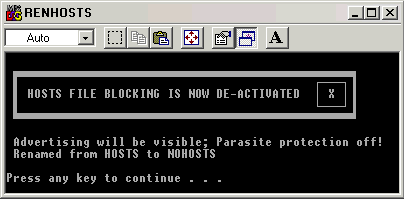
·
To use: click (the shortcut) once to rename HOSTS to NOHOSTS
Click again to rename NOHOSTS back to HOSTS
Note: you will see the above small on-screen message as to the status.
Locking the HOSTS File
There are many of these hijackers
that add their own entries to your HOSTS file. This is commonly known as
redirects. To add a level of protection you might want to consider making your
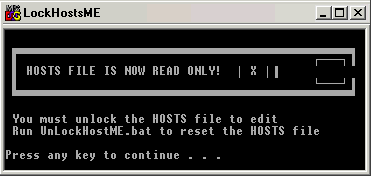
HOSTS file "Read Only". You can download a small batch file to
accomplish this:
Windows 2000 and XP
lockhost.bat
(right-click - select: Save Target As) to lock the HOSTS file.
unlockhost.bat
(right-click - select: Save Target As) to unlock the HOSTS file.
Windows 98 and ME
LockHostsME.bat
(right-click - select: Save Target As) to lock the HOSTS file.
UnlockHostME.bat
(right-click - select: Save Target As) to unlock the HOSTS file.
To use the batch files place them in your Windows folder, create a shortcut to
each and place the shortcut on the desktop for easy access.
|
|
Removing Unwanted Internet Explorer Menu Items
The first
thing to try is scanning the system with
Ad-Aware or SpyBot. If that fails to resolve the issue you can also run
HijackThis and select the items you want removed. (more
info). If these steps do not resolve the issue you can also try manually
removing them from the registry.
Note: Always backup the Registry before making any changes.
To manually remove from the Registry
1) Click on Start, then Run. Type in regedit
and click OK.
2) Browse to the following key: HKEY_CURRENT_USER\Software\Microsoft\Internet
Explorer\MenuExt
3) Open the MenuExt key and click on the desired Menu Extension key
(folder)
4) Make a note of the HTM file listed in the right side window (you will need
the HTM file name later)
5) Right-click the desired Menu Extension key and select Delete
6) Close regedit and then do a search on the computer for htm file that may have
been listed in step 4.
7) Delete the HTM file if found and then empty the Recycle Bin.
Cleaning the Registry
The Windows registry is a
database repository for information about a computer's configuration. The
registry keeps growing when you use Windows. As it does so, it attracts
obsolete and unnecessary information, and gradually becomes cluttered and
fragmented. With the growing of the registry, it can degrade the performance of
the whole system and cause many weird software problems. There are various
programs that can be downloaded and installed that will clean the registry for
you. Once you have the files downloaded to use them just right click the file
and select Merge.
Registry Clean Expert scans the Windows registry and finds incorrect or
obsolete information in the registry. By fixing these bits of obsolete
information in the Windows registry your system should run faster and error
free. The backup/restore function of the tool let you backup the whole Registry
and also you can use it to restore the registry to the current status in case
you encounter any problems. The Startup
and BHO (Browser
Helper Objects) Organizer feature lets you manage your Windows Startup and
Internet Explorer BHO items with ease, and you can control the programs started
with Windows and IE more handy with this feature!
RepairIE4XP.reg Right-click and select Save Target As and save it to
the desktop. This file restores the Internet Explorer search URLs, HTTP
prefixes, and many others.
RepairDefaultPrefix.reg
Right-click and select Save Target As and save it to the desktop. This file
repairs the corrupted or altered (spyware) HTTP prefixes
Note: HijackThis can also repair the DefaultPrefix entry (more
info).
RepairTabs.reg
Right-click and select Save Target As and save it to the desktop. This file
restores missing Tabs in Internet Explorer (usually spyware related). It also
unlocks the grayed-out Home Page section as well as removes the Administrator
message in Internet Options.
Note: HijackThis can also repair the "Missing Tabs"
restriction (more info).
UnlockNoBrowserOptions.reg Right-click and select Save Target As and save it to
the desktop. This file removes the Administrator message in Internet Options
Note: SpyBot also has this option in
the Immunize section (more info).
EnableRegistryTools.reg Right-click and select Save Target As and save it to
the desktop. This file unlocks the "Disable Regedit" entry in the
Windows Registry.
Note: HijackThis can also perform
this function (more
info).
UnlockHomePage.reg Right-click and select Save Target As and save it to
the desktop. This file unlocks the grayed-out Home Page section on the General
Tab
Tip: Prevent
your "Homepage" setting from being Hijacked
Top Calls for Spyware
and Virus Removal
How to Remove the SASSER Virus
1.
Disconnect
the computer from the network/Internet connection. (Disconnect the cable if
necessary)
2.
Restart the
computer.
3.
As soon as
Windows opens and you see the Windows desktop, click Start > Run.
4.
Type: cmd and press Enter.
5.
Type: shutdown /a and press Enter.
6.
In the Remote
Shutdown Dialog that opens, do the following:
Click Add and type your computer name into the appeared window. Then click OK.
In the "Display warning for <number of seconds> Seconds" field,
type 9999 in place of the default value of 20.
Type any message in the Comment box.
Click OK.
7.
Reconnect
the network/Internet connection.
8.
Connect to
the Internet, and get the patch. Then continue with the steps described below.
9.
This gives
you about three hours to get the patch installed, update the definitions.
10. When you have patched for and removed the
threat, you can re-enable the 20 second default warning if you want to.
11. To be sure that the worm is gone, go to www.sarc.com and select Removal Tools and
Select W32.sasser and download the tool.
Reboot the computer into Safe Mode.
12. Then run the tool. Then reboot into normal mode.
How to Remove WildTangent
In order to uninstall, please follow
these steps:
1.
Go to START >
Settings > Control Panel
2.
Double click Add/Remove
Programs, Select WildTangent , Click uninstall or add/remove, follow the on
screen instructions.
3.
Open the
registry editor (Click Start > Run, type regedit). Locate the following key:
HKEY_LOCAL_MACHINE\Software\Microsoft\Windows\CurrentVersion\Run
In the right pane, find and delete the following entries ( if they exist):
wcmdmgr
wt gamechannel
ddcm
4.
Close registry editor.
5.
Restart your computer.
6.
Open your Window
directory ( for example: c:\windows), then open the wt folder,
delete all the files in it.
WSAUPDATER: Windows XP Logs In and Then Logs Back Out
1) Place the Windows XP CD in the CD-ROM.
2) Turn off the computer.
3) Turn the computer back and have it boot from the CD.
4) When it gets to the menu, press R for the Recovery Console.
5) Type cd system32 and press Enter.
6) Type copy userinit.exe wsaupdater.exe
and press Enter.
7) Type exit and press Enter.
8) Reboot the computer and
tap F8 to bring up the Windows Start Menu and select Safe Mode.
9) Click on Start, Run and type in regedit
and click on OK.
10) Backup the Registry.
11) Navigate to HKEY_LOCAL_MACHINE\Software\Microsoft\WindowsNT\
CurrentVersion\Winlogon.
12) Make sure the Value: Userinit is equal to the following:
Data:
%system32%\wsaupdater.exe
13) Reboot the computer. The
problem should be resolved.
W32.BEAGLE
1) If you can get online, go to www.sarc.com and select REMOVAL TOOLS.
2) Download the W32.BEAGLE removal Tool and run it in safe mode.
3) If this fails then perform the following:
Manual Removal Procedure
1) Disable System Restore (Windows Me/XP).
2) Update the virus definitions.
3) Reverse the changes that the worm made to the registry, and then restart
computer.
4) Run a full system scan and delete all the files detected as W32.Beagle.C@mm
and W32.Beagle.A@mm.
Note: When you are completely finished with the removal procedure and
are satisfied that the virus has been removed, re-enable System Restore.
5) Click Start, and then click Run.
6) Type regedit then click OK.
7) Backup the Registry then make the following changes:
8) Navigate to the key:
HKEY_CURRENT_USER\SOFTWARE\Microsoft\Windows\CurrentVersion\Run
In the right pane, delete the value:
"gouday.exe"="%System%\readme.exe"
10) Navigate to the key: HKEY_CURRENT_USER\SOFTWARE\DateTime2
In the right pane, delete the values:
"uid"="[Random Value]"
"port"="2745"
"frun"="1"
11) Exit the Registry Editor.
12) Restart the computer.
13) Start your antivirus program and make sure that it is configured to scan
all the files.
14) Run a full system scan.
15) If any files are detected as infected with W32.Beagle.C@mm and
W32.Beagle.A@mm, click Delete.
Common Fixes
1. The customer states that when they try to open some
web page it is redirecting them to some other page that they do not
recognize.
Fix: This is usually because that there is some
entries in the host file which is redirecting them to certain web sites. What we can do is to follow the instructions
above and clean the host file. If you
have some entries in host file, none of the anti-spyware software will pick it
up. We will have to manually go and
edit the host file to get the issue fixed.
2. The customer is not able to type anything on the
address bar when they open internet explorer.
When they open internet explored it crashes or they get a lot of pop up
windows. They are not able to type
anything in the address bar. When they
click on the address bar something automatically types some information.
Fix: Open My
Computer or My Documents and type the address on the address bar. This does not connect to the internet but
will give you the option to type in the address bar. We can also type the address from the run command (Start>Run
>type www.google.com). This will allow you to get on to the
internet and download an anti-spyware program to clean the spyware on the
system.
3. You are not able to change the home page or the
settings change when you restart the computer.
Fix: Your
computer has been infected with a virus that changed your Internet Explorer
home page. For example, the IRC.Becky.A
worm and Trojan.JS.Clid.gen Trojan horse viruses change the Internet Explorer
home page. You installed third-party
software that changed the Internet Explorer home page. These are some of the reasons why you are
not able to change the home page.
Microsoft has provided an article on this issue and
it seems to work all the time. This
fix involves editing registry. Backup
the registry before you make any changes to it. The article number is 320159.
4. You get “Page cannot be displayed” or “Action
Cancelled” message when you open internet explorer even when you are connected
to the internet.
Fix: This is
usually because some of the spyware have damaged the Winsock files. Microsoft provides and article on how to fix
this issue. The article number is 817571.
5. You get an error message from Spybot about
WDENGINE.DLL.
Fix:
Wdengine.dll is a component of WildTangent.
We have to manually uninstall WildTangent from Add/Remove programs and
then delete the WildTangent folder in the windows directory.
6. After you have installed Ad-Aware or Spybot and
cleaned all the spyware and reboot the system, the system logs off as soon as
you log in the system. You will have
the same issue if to try to login to safe mode.
Fix: We need to
have the windows cd. Boot with the cd
and you will get a message saying to press ‘Enter’ to setup and press ‘r’ to
repair using recovery console. We will
press ‘r’ to go into recovery console.
It will take you to a command window.
Type “cd system32” and press ‘Enter’.
Then type “copy userinit.exe wsaupdater.exe” and press ‘Enter’. Then type “Exit” and press ‘Enter’. This will restart the system and you will be
able to login to the system.
7. Internet explorer gives “about:blank” page and you
are not able to change it.
Fix:
Please follow this web link to fix this issue. You can download Ad-Aware away from the
following link http://www.adwareaway.com/aboutblank.htm. This also gives the troubleshooting for
different operating systems.
8. When you try to view a secure page, you are getting
the message “You are not authorized to view this page”.
Fix: Even if you restore the defaults or change
the security settings, you will still have the same issue. Click on Tools>Internet
Options>Advanced. In the advanced
tab there is an option that says “Show Friendly HTTP error messages”. If you disable this option, it seems to solve
the issue.
How Does the Customer
Prevent Spyware?
The first thing you must remember is
that anti-adware and anti-spyware tools are basically for removal after
the fact. The trick is "layered protection" for maximum prevention!
The biggest hurdle in preventing spyware issues is getting the customer
educated on adware and spyware, what they are and how it can get onto their
systems.
The
most effective way to prevent infection by threats of any kind, whether virus
or spyware related, is to keep your detection and removal software current, and
to update frequently, at least once per week. As new technology is developed by
virus and spyware creators new programming must be developed to counter these
threats. Checking for security, spyware, and virus risks often decreases the
chance of ever acquiring them.
Below are some tips to
provide customers when educating them about spyware:
·
Research the software
and check for reviews before downloading any software. The reviews will generally mention if the
software contains any spyware or adware.
·
Do not click on any
popups. Just click the close button in the upper right hand corner of the
popup. Be careful, many popups place a fake close button in the upper right
corner. Make sure you are clicking the close button in the uppermost right
corner.
·
Use a HOSTS file and keep it
updated!
·
Make use of the
Internet Explorer Restricted
Zone
·
Install a firewall
(more info: Security
Issues)
·
Install an Antivirus
program (more info: Security Issues)
·
Add a Startup Monitor
(freeware) to protect your system (more info)
·
Improving
the security of your computer (Microsoft)
Additional Information
Operating System Reinstallation
If you have to perform a
reinstallation, approach it in a positive manner.
For example: Viruses will be gone. Adware will be gone, etc. System will be
back to normal speed. But be sure and let them know that they must backup their
data first or they will lose it. Offer AOS Backup support.
Be sure and educate the
customer about why they need a reload, and how they can prevent this in the
future.
Anti-Spyware\Security Download and
Information Links
Adware/Malware Removal
Programs
·
http://www.pestpatrol.com/ -- Home page
of Pest Patrol, a popular commercial adware/malware detection and removal
program.
·
http://www.safer-networking.org/
-- Home page of Spybot, a popular donatewarre adware/malware detection and
removal program.
·
http://www.lavasoft.de/software/Ad-Aware/
-- Home page of Ad-Aware – a popular commerrcial adware/malware detection and
removal program.
·
http://www.google.com/search?q=spyware+removal
– Google search for spyware removal programs and instructions.
Firewall Software
·
http://www.tinysoftware.com/home/tiny2?la=EN
– Tiny Software Personal Firewall
·
http://www.zonelabs.com/store/content/catalog/products/sku_list_za.jsp
-- Zone Alarm Firewall.
·
http://us.mcafee.com/root/faqs.asp?search=dell_specific
– McAfee Security Center Dell-Specific Pages
·
http://msdn.microsoft.com/library/default.asp?url=/library/en-us/ics/ics/about_internet_connection_sharing_and_internet_connection_firewall.asp
-- Microsoft’s webpage about the Internet CConnection Firewall. It gives
some nice background information on how it works and how to configure it.
·
http://www.google.com/search?q=firewall+software
– Google search for firewall software
General Security Info
·
http://www.microsoft.com/technet/mpsa/start.asp
-- Windows Security Checker. This pagge checks some aspects of your
Windows installation to see if you are vulnerable.
·
http://www.pacs-portal.co.uk/startup_content.php
-- Instructions on how to examine and modiffy all the programs that start when
the system is booted. Contains a lengthy list of startup items and what
programs they are a part of.
·
http://www.yourtechonline.com/virus.shtml
-- How Not to get an email virus
·
http://www.google.com/search?q=%22spyware+list%22
-- Google search for Web pages containing lists of spyware.
·
http://www.google.com/search?q=windows+security+information
– Google search for windows security information.
Informational
links
A general starting point for
keeping up to date on current hot topics, as well as building knowledge of how
specific Spyware and Adware exploits work. Particularly useful is the
collection of articles available by clicking "More Links" on the main
page and choosing "Articles."
http://www.mvps.org/winhelp2002/unwanted.htm
Use the "Select a
Tip" pull-down menu at the top to browse various articles containing
specific tips for removal of malicious software. This link includes suggested
Internet Explorer security settings and registry quick-fixes to be used when
other methods fail to resolve the issue.
http://spyware.surferbeware.com/spyware-tips.htm
This is a great link to send
to customers about some 'best practices' and information on blocking future
infections. Sites like these can be biased about what applications to use, but
still contain useful tips to reference for future use.
Possibly your greatest resource for help when you are
unable to find an answer elsewhere. Besides a powerful web search, you can also
utilize Google Groups to search for those who have experienced similar symptoms
and have found a resolution. Effective keyword searching is a valuable skill
and can aide your searches greatly.
Scenarios
Scenario 1 Misses
Smith calls up because she cannot get access to her online banking.
Step 1: Do you have internet
access: yes or no
Answer: Yes
Step 2: Can the customer
access all sites?
Answer: No
Step 3: Disable all firewall
and internet security programs including Windows
Firewall (XP). Check the host file for extra entries, only entry should be in
the host file 127.0.0.1 local host. If the host file was OK, check the registry
key and a virus/spyware has not changed the location of the host file.
Step 4: Follow Microsoft
Article # 813444, except register dll first.
Step 5: Run Ad-Aware and
Spybot in safe mode.
Step 6: If you are having
installation errors or cannot download, then run the online virus scan at www.trendmicro.com .
Step 7: If you cannot run
the virus scan then download and run Hijack This.
Step 8: If you still cannot
access sites and the customer has Norton Internet Security, then uninstall and
reinstall Norton Internet Security.
Step 9: If you cannot still
access sites then Reload.
Scenario 2 Mr.
Bob is calling because his computer is freezing up.
Step 1: Do you have internet
access : yes or no
Answer: Yes
Step 2: Can the customer
access all sites?
Answer: Yes
Step 3: Safe Mode with
Networking and run Ad-Aware and Spybot.
Step 4: Could not Download –
system freezes when trying to download.
Step 5: Run Add/Remove
Programs and remove any spyware related program (e.g. Kazaa)
Step 6: Download Ad-Aware
and Spybot with FTP
Step 7: Cannot download
using FTP then perform an online virus scan.
Step 8: Still freezing up.
Perform an Operating System Reinstallation.
Scenario 3 Mrs.
Thomas calls up because of the power storm last week she cannot connect to the
Internet.
Step 1: Problem is recent so will RUN SYSTEM RESTORE
if it is enabled
Inform the customer that any
program and settings she is changed since the system restore date will have to
be reinstalled but any documents and e-mails will not be lost.
Step 2: Is the customer able
to access any sites?
Answer: No
Step 3: ADD/REMOVE PROGRAMS. Remove any programs containing spyware, for
example Kazaa.
Step 4: Disable startup items in MSCONFIG
Step 5: Disable Firewalls and Internet Security Programs.
Step 6: Is your Internet Connection Hi-Speed?
Answer: Yes
Step 7: Check Physical Connections.
Step 8: Unplug Modem/Router, Delete temporary internet files, Delete cookies,
Reset Browser Defaults, Disable third party browser extensions, Plug
Modem/Router back in. Test Connection
Step 9: Which Operating System is the customer using?
Answer: Windows XP
Step 10: Repair Winsock: Delete Registry Keys, Reboot, Replace TCP/IP, Reboot
Step 11: Release/Renew IP Address
Step 12: If Internet not working, reinstall the
Operating System. Otherwise Run Ad-Aware/Spybot.
Spyware & Virus
Support Queue F.A.Q.’s
Q. Will the Spyware & Virus Support Queue help in
reinstall the O.S. if Spyware removal is not possible?
A. Yes. If that is the only
resolution and nothing else is possible. However, we would try our best to
remove Spyware from the system using third party software viz. Spybot &
Ad-aware.
Q. Does Dell provide additional software to the
customer for Spyware removal?
A. No. Dell will not provide
any additional software to the customer for Spyware removal. We can suggest the
customer to purchase Spyware removal software directly from the vendor.
Customers can also download free versions of Spybot & Ad-aware from the
internet.
Q. Can we transfer calls to the Dell CTS queue for
O.S. Reinstallation?
A. No. We would need to help
customers with a format reinstall if it comes to that. We would not transfer
the customer for O.S. Reinstallation.
Q. When can we offer refunds to a customer?
A. We can offer refunds to a
customer for customer satisfaction issues. This would only be a last resort to
resolve Customer Experience. Please refer to your Team Manager for the latest
procedure. Refunds are processed by the Sales team.
Q. If the process of troubleshooting for Spyware, a
hard drive dispatch needs to be made or if there is a need of dispatching the
operating system or the resource c.d., will we dispatch the same?
A. No. We do not have the
ability to dispatch in DellServ. In this case you would transfer the customer
to the Hardware queue.
Q. Will the fee that the customer pays for the
support plan guarantee Spyware removal from the system?
A. No. Both the sales and the
general queue script, it is mentioned that there is no guarantee. In addition
there will be terms/conditions posted on the support web site soon that will
also reiterate this.
Q. Can we log calls under the order number in DellServ?
A. No. We would be logging
calls normally under the service tag.
Q. How will we know whether the customer has paid for
Spyware removal?
A. Firstly, we would get
calls only when the customer has paid the amount to sales. We would need to
verify that too by verifying the customer’s entitlement for a support plan.
Q. What if the customer has already received support
(issue resolved) for a one time support plan and calls back using the same
order number?
A. We can track this only by
referring to the previous call logs which would state whether the customer’s
issue was resolved or not. If the customer is calling back for a second or
third time for Spyware issues, he will have to pay the one time again to get
support or purchase a yearly support plan.
Q. Can we profile calls under ‘hardware’ for this
queue?
A. Yes. In the event that a
dispatch for hardware (e.g. hard drive, etc.) has to be made, we can profile
the case under hardware.
Q. Do we follow the VCI policy in this queue?
A. Yes. VCI would need to be
done in all Dell queues regardless of whether they are free support or paid
queues. All other policies would remain the same too.
Q. What would happen if a customer gets disconnected
before VCI is done?
A. Unfortunately the
customer would need to call back into the Dell CTS queue and then get
transferred to sales and then to the Help Desk queue.
Q. What can we mention in the P:D:S to identify
S&V support queue?
A. We can mention ***
SPYWARE & VIRUS SUPPORT AGENT *** in the description line to identify that
the customer has called in for support. This would also help in verifying that
the customer has already received support for the same.
Q. Can the Spyware queue escalate calls to any other
higher level of support?
A. No. If you find an issue that cannot be
resolved and requires technical escalation.