Anti Virus
Applications
Introduction
This module will cover two main anti virus programs
Norton and McAfee. Within this module setup requirements and uninstall
procedures will be covered for both as well as the basic functions of each
application. A detailed view on how to use the Help files and some tips on how
to troubleshoot the applications.
Objectives
At the
completion of this module you will be able to:
 Identify different viruses and what they do
Assist in the setup and installation Norton
Create emergency disks
Explain what Norton does when a virus is found
Assists customers with troubleshooting issues
with Norton
Use the online Help for Norton
Assist in the setup and installation of McAfee.
Create a rescue disk
Explain what McAfee does when a virus is found
Assists customers with troubleshooting issues
with McAfee
Norton AntiVirus
Viruses
A virus is a piece of
programming code usually disguised as something else that causes some
unexpected and usually undesirable event. A virus is often designed so that it
is automatically spread to other computer users. Viruses can be transmitted as
attachments to an e-mail note, as downloads, or be present on a diskette or CD.
The source of the e-mail note, downloaded file, or diskette you've received is
often unaware of the virus. Some viruses wreak their effect as soon as their
code is executed; other viruses lie dormant until circumstances cause their
code to be executed by the computer. Some viruses are playful in intent and effect
("Happy Birthday, Ludwig!") and some can be quite harmful, erasing
data or causing your hard disk to require reformatting.
Generally, there are three main classes of
viruses:
File infectors
Some file infector viruses attach themselves to program files,
usually selected .COM or .EXE files. Some can infect any program for which
execution is requested, including .SYS, .OVL, .PRG, and .MNU files. When the
program is loaded, the virus is loaded as well. Other file infector viruses
arrive as wholly contained programs or scripts sent as an attachment to an
e-mail note.
System or boot-record infectors
These viruses infect executable code
found in certain system areas on a disk. They attach to the DOS boot sector on
diskettes or the Master Boot Record on hard disks. A typical scenario (familiar
to the author) is to receive a diskette from an innocent source that contains a
boot disk virus. When your operating system is running, files on the diskette
can be read without triggering the boot disk virus. However, if you leave the
diskette in the drive, and then turn the computer off or reload the operating
system, the computer will look first in your A drive, find the diskette with
its boot disk virus, load it, and make it temporarily impossible to use your
hard disk. (Allow several days for recovery.) This is why you should make sure
you have a bootable floppy.
Macro viruses
These are among the most common
viruses, and they tend to do the least damage. Macro viruses infect your
Microsoft Word application and typically insert unwanted words or phrases.
The best protection against a virus is to
know the origin of each program or file you load into your computer or open
from your e-mail program. Since this is difficult, you can buy anti-virus
software that can screen e-mail attachments and also check all of your files
periodically and remove any viruses that are found. From time to time, you may
get an e-mail message warning of a new virus. Unless the warning is from a
source you recognize, chances are good that the warning is a virus hoax.
Norton Anti Virus Hardware requirements
Windows 2000 Professional
·
Intel Pentium processor
at 133MHz or higher
·
64 MB of RAM
·
50 MB of hard disk
space
·
Internet Explorer 4.01
service pack 1 or higher
·
CD-ROM or DVD-ROM drive
Windows XP Home Edition/Professional
·
Intel Pentium processor
at 300MHz or higher
·
128 MB of RAM
·
50 MB of hard disk
space
·
Internet Explorer 4.01
service pack 1 or higher
·
CD-ROM or DVD-ROM drive
Setup and Installation
Prepare
your computer
If you have a version of Norton AntiVirus 2000-2002,
the new version automatically removes the older version. If your version is
older than 2000 you must uninstall it before installing the new version. If you
have Norton AntiVirus 2002, you can transfer your existing option settings to
the new version of the program. If you have any other antivirus programs on
your computer, you must uninstall them and restart your computer before
installing Norton AntiVirus. Close all other Windows programs before installing
Norton AntiVirus, including those programs displayed in the Windows tray
Installation
Procedure:
To install Norton AntiVirus follow the steps listed
below:
1.
Insert the Norton
AntiVirus CD into the CD-ROM drive.
2.
In the Norton AntiVirus
window, click Install Norton AntiVirus.
If your computer is not
set to automatically open a CD, you will have to open it yourself
3.
If you are installing
in Windows 98, 98SE, or Me, Norton AntiVirus scans your computer’s memory for
viruses before installing. If a virus is found, you are prompted to use your
Emergency Disks to remove the virus before continuing.
4.
The opening
installation window reminds you to close all other Windows programs
5.
Click Next.
6.
Read the License
Agreement and click I accept the license agreement. If you decline, you
cannot continue with the installation.
7. If you
are upgrading from Norton AntiVirus 2002, you can keep your option settings.
Click Yes to keep the settings.
8. Select a
folder into which you want to install Norton AntiVirus.
9. Click Next.
10. Confirm the installation location, and then click
Next.
11. After Norton AntiVirus is installed, scroll
through the Readme text, and then click Next.
12. Click Finish to exit the installation.
Uninstalling
Norton AntiVirus
Like most programs there is more than one way to uninstall
it. You can use the built in Norton uninstaller by clicking Start, then go to All Programs, and then Norton AntiVirus.
Next click Uninstall Norton AntiVirus. In the Application Maintenance
window, click Remove.
You can also use the Windows Add\Remove Programs
feature in the Control panel.
Note: If you have no other Symantec products on your
computer, you should also uninstall LiveReg and LiveUpdate.
Emergency
Disks
Emergency Disks are used to start your computer and
scan for viruses in case of a problem. If your computer can start from a CD,
you can use the Norton AntiVirus CD in place of Emergency Disks and do not need
to create them.
If you cannot start your computer from a CD, you can
use these instructions to create Emergency Disks on another computer or go to
http://www.symantec.com/techsupp/ebd.html and
download the Emergency Disk program. Follow the instructions included in the
download to create the Emergency Disks:
You will need several formatted 1.44 MB disks.
To create Emergency Disks from the CD
·
Insert the Norton
AntiVirus CD into the CD-ROM drive.
·
Click Browse CD.
·
Double-click the Support
folder.
·
Double-click the Edisk
folder.
·
Double-click NED.exe.
·
In the welcome window,
click OK.
·
Label the first disk as
instructed and insert it into drive A.
·
Click Yes.
·
Repeat steps 7 and 8
for the subsequent disks.
·
When the procedure is
complete, click OK.
·
Remove the final disk
from drive A and store the Emergency Disk set in a safe place.
Virus Found
If Norton AntiVirus finds a virus on your computer,
there are three possible resolutions to the problem:
·
Fix the file. This removes
the virus from the file
or if the threat is a
worm or Trojan horse, deletes the file.
·
Quarantine the file.
This makes the file inaccessible by any programs other than Norton AntiVirus.
You cannot accidentally open the file and spread the virus, but you can still
evaluate it for possible submission to Symantec.
·
Delete the file. This removes
the virus from your computer by deleting the file that contains the virus, worm
or Trojan horse. It should be used only if the file cannot be repaired or
quarantined.
Troubleshooting Norton AntiVirus
problems
Keep Being
Re-infected after a Norton Scan and Removal
I have scanned and removed a virus, but it keeps
infecting my files. How come?
There are four possible reasons a virus could be
reappearing.
The virus might be in a program file with an unusual
extension for which
Norton AntiVirus is not configured to look.
To reset Norton AntiVirus scanning options
·
Start Norton AntiVirus.
·
In the Norton AntiVirus
main window, click Options.
·
In the Options window,
under System, click Manual Scan.
·
Under the section Which
File Types to Scan for Viruses click Comprehensive file scanning.
·
Click Manual Scan >
Bloodhound.
·
Ensure that Enable
Bloodhound heuristics is checked, and click Highest Level of Protection.
·
Click OK.
·
Scan all of the disks that you use and repair
all infected files.
The source of the infection could also be a floppy
disk. Scan all of the floppy disks that you use to ensure that they are free of
viruses.
Another reason could be that the virus is remaining
in memory after you remove it from the boot record. It then re-infects
your boot record. Use your Rescue Disks to remove the virus.
If the problem is a Trojan horse or worm that was transmitted
over a shared network drive,
you must disconnect from the network or password protect the drive to let
Norton AntiVirus delete the problem.
Norton
AntiVirus cannot repair my infected files
The most common reason that Norton AntiVirus cannot
repair your infected files is
that you do not have the most current virus protection on your computer. Update
your virus protection regularly to protect your computer from the latest
viruses.
If after using LiveUpdate the virus still cannot be
repaired, the file may be corrupted, or contain a new virus. There are two
additional options:
·
Quarantine the file and
submit it to Symantec.
·
If a non-infected copy of the file exists,
delete the infected file and replace it with the non-infected file.
I can’t
receive email messages
There are possible solutions to this problem.
Temporarily disable email protection. This might
allow the problem email message to download so that you can once again enable
email protection. You are protected by
Auto-Protect and Script Blocking while email protection is disabled.
To temporarily disable incoming email protection:
·
Start Norton AntiVirus.
·
In the Norton AntiVirus
main window, click Options.
·
In the Options window,
under Internet, click Email.
·
Uncheck Scan
incoming Email.
·
Click OK.
·
Download your email
messages.
·
Re-enable incoming
email protection.
Your email client may have timed out. Make sure timeout protection is enabled.
If you continue to experience problems downloading email messages, disable
email protection.
To disable email protection
·
Start Norton AntiVirus.
·
In the Norton AntiVirus
main window, click Options.
·
In the Options window,
under Internet, click Email.
·
Uncheck Scan
incoming Email.
·
Uncheck Scan
outgoing Email.
·
Click OK.
I can’t
send email messages
If you get the message, Norton AntiVirus was unable
to send your email message because the connection to your email server was
disconnected, your email client may be set to automatically disconnect after
sending and receiving mail.
For Norton AntiVirus to scan outgoing email messages
for viruses, it intercepts and scans the messages before they are sent to your
email provider. To resolve this issue, turn off this option within your email
client.
Consult your email client manual for instructions on
how to do this, or disable Norton AntiVirus outgoing email scanning.
To disable outgoing email scanning:
·
Start Norton AntiVirus.
·
In the Norton AntiVirus
main window, click Options.
·
In the Options window,
under Internet, click Email.
·
Uncheck Scan
outgoing Email.
·
Click OK.
Using online Help
Help is always available throughout
Norton AntiVirus. Help buttons or links to more information provide information
specific to the task you are completing. The Help menu provides a comprehensive
guide to all product features and tasks you can complete.
To access
the Help menu:
·
Start Norton AntiVirus.
·
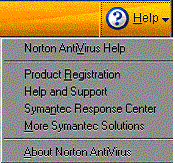
At the top of the
Norton AntiVirus main window, click Help.
·
On the main Help menu,
click Norton AntiVirus Help.
·
In the Help window, in
the left pane, select a tab. Your options are:
Contents. This Displays the Help subjects by topics.
Index. This lists Help topics in alphabetical order by key word.
Search. This opens a search field where you can enter a word or
phrase.
Help for
Norton AntiVirus dialog boxes
·
When you request Help
while working in Norton AntiVirus the Help displayed is specific to the section
of Norton AntiVirus your are currently in.
About
Norton AntiVirus on the Web
The Symantec web site provides extensive information
about Norton AntiVirus, virus protection, antivirus technology, and other
Symantec products. There are several ways to access the Symantec Web site. To
access the Symantec Web site from the Norton AntiVirus main window
·
Click Help.
·
Select the solution
that you want. Your options are:
Help and Support. Takes you to the technical support page of the
Symantec web site, from which you can search for solutions to specific
problems, update your virus protection, and read the latest information about
antivirus technology.
Symantec Response Center. Takes you to the Symantec security
response page of the Symantec web site, from which you can get the latest virus
threats and security updates.
More Symantec Solutions. Takes you to the Symantec store
page of the Symantec Web site from which you can get the latest product
information and shop for Symantec products.
The Reports
pane of Norton AntiVirus contains a link to the Symantec online virus
encyclopedia. To access the Symantec Web site from the Reports page
·
Start Norton AntiVirus.
·
In the Norton AntiVirus
main window, click Reports.
·
In the Reports pane,
next to the Online Virus Encyclopedia heading, click View Report.
There is a link to the Symantec web site on the Windows
Explorer toolbar once Norton AntiVirus has been installed. To access the
Symantec Web site from Windows Explorer
·
Open Windows Explorer.
·
On the toolbar, on the
Norton AntiVirus menu, click View Virus Encyclopedia.
This option connects you to the Symantec security
response Web page, from which you can search for information on all types of
viruses.
Explore
online tutorials
Symantec provides online tutorials that you can use
to review many common tasks that Norton AntiVirus performs. To explore the
online tutorials
·
Point your browser to
www.symantec.com/techsupp/tutorials.html
·
On the tutorials Web
page, select the product and version for which you want a tutorial.
·
Click continue.
·
In the list of
available tutorials for the product, select the one that you want to review.
Troubleshooting
Virus Issues
There
are three scenarios which Symantec typically runs across when dealing with
viruses, Trojan horses, worms and expanded threats on a day-to-day basis. These
break down into:
1. Customer suspects a virus or other threat
2.
Customer has been
infected with a virus without Norton AntiVirus installed
3.
Customer has been
infected with a virus with Norton AntiVirus installed
If
a customer simply suspects the computer has been infected with a virus, worm or
Trojan, the steps in the following document should be followed:
Customer
Suspects.
Follow the steps from Norton’s article: "What to do if you suspect that your computer is
infected with a virus, worm, or Trojan"
If
a customer has been infected with a verifiable viral infection without NAV
installed, the following document will provide information on
addressing/removing the virus:
No
Virus Software Installed. Follow the steps from Norton’s article: "Removing a virus from your computer when Norton
AntiVirus is not yet installed"
If
a customer has been infected with a virus, but has NAV installed, the following
document will provide thorough detection and removal instructions:
Customer
Has Norton's Anti-Virus Installed. Follow the steps from Norton’s article: "Scanning your computer for viruses using Norton
AntiVirus 2003/2004"
Online
Options for Viral Detection
Symantec
offers online virus detection tools for our customers, completely free of
charge. If a technician is unable to manually identify a virus on the operating
system or cannot run a Norton Anti-Virus scan, the following tools will assist
in identifying a virus or other threat and will provide information on removing
this infection.
Symantec's Automated Support Assistant Virus Check
This
is a version of the Symantec Automated Support Assistant which quickly
identifies the top viruses and threats (typically the top 30-50) in the wild
based on specific registry information which a virus may have put on a machine.
This scanner runs through a user-accepted ActiveX. If this detection locates a
virus or other threat, it will provide the customer with information on how to
remove the virus and/or a removal tool.
On
high-speed internet, this generally runs and completes in less than 90 seconds.
Symantec Security Check Virus Detection Scanner
This
is a full-blown AntiVirus scanner. It is an ActiveX control which will download
and install updated Symantec Virus Definitions to the users machine and will
then scan the local hard drive on the customers machine for viral content. At
this point, this scanner does not have the ability of removing the infected
content but will provide the user with the information and/or removal tools on
how to remove the infection in its entirety. Symantec is looking forward to
having this scanner capable of removing viral content in the future.
This
scanner can take longer than the Automated Support Assistant, anywhere from 15
minutes to 90 minutes, depending on connection speed and size of hard drive.
Referring
customers to Symantec for Virus Assistance:
Symantec
will assist customers who are infected with virus removal.
From a support standpoint, Symantec would prefer to have the customer try the
online support options in order to identify and/or remove the virus before
calling into Symantec's Virus Removal Assistance. The online support options
listed above are steps that will recommend the customer go through, in order to
circumvent having to charge the customer to "manually" identify a
virus on the operating system.
Please
note that for virus removal assistance, Symantec charges a "Virus Removal
Assistance" fee, which breaks down as follows:
Standard
Consultation:
(877) 832-2811 Standard
Consultation is a managed, "do-it-yourself" option that includes
diagnosis and a plan of action. $39.95 US
Premier
Consultation:
(877) 832-2811 Premier
Consultation is a full-service option that includes a diagnosis and plan of
action, plus step-by-step assistance through the process. $69.95 US
Per
Minute Consultation:
(900) 646-0004 Access
Premier Consultation services at the rate of $4.95 per minute, charged to your
telephone bill. For Norton AntiVirus for Macintosh, call 900-646-0034
McAfee VirusScan
System requirements
·
Microsoft®
Windows 98, Windows Me, Windows 2000, or Windows XP
·
Personal computer with
Pentium 133 MHz or higher processor
·
32 MB of RAM
·
35 MB of free hard disk
space (for installation)
·
Microsoft® Internet
Explorer 5.0 or later
Installation
Guidelines
To do so, go to the McAfee web site, and create an
account with a password and billing information to sign up for the service. Before
installing VirusScan, save all of your work and close any open applications before
you continue with the following installation steps. After installing VirusScan,
you might be prompted to restart your computer.
If you are upgrading from a previous version of
VirusScan, it automatically uninstalls the previous version before it installs
the current version. You must restart your computer if the Installation
Wizard prompts you. After your computer restarts, the current version of
VirusScan installs.
Create a
Rescue Disk
On a non-infected computer, insert a non-infected
floppy disk in drive A. You might want to use Scan to ensure that both the
computer and the floppy disk are virus-free.
·
Right-click the McAfee
icon, point to VirusScan, then click Create Rescue Disk.
The Create a Rescue
Disk dialog box opens
·
Click Create to
create the Rescue Disk.
Note: If
this is your first time creating a Rescue Disk, a message tells you that Rescue
Disk needs to download the
image file for the Rescue Disk. Click OK to download the component now,
or click Cancel to download it later. A warning message tells you that
the contents of the floppy disk will be lost.
·
Click Yes to
continue creating the Rescue Disk. The creation status appears in the Create
Rescue Disk dialog box.
·
When the message
“Rescue disk created” appears, click OK, then close the
Create Rescue Disk dialog box.
·
Remove the Rescue Disk
McAfee finds a virus
For most viruses, Trojans, and worms, Scan
automatically tries to clean the file. You can then choose how to manage
infected files, including whether to submit them to the McAfee AVERT labs for
research. If VirusScan cannot clean the virus, you can quarantine or delete the
file. After VirusScan has run you will have a few choices as to what action to
take.
1 If a
file appears in the list of infected files, click the checkbox in front of the
file to select it. If more than one file appears in the list, you can select
the checkbox in front of the File Name list to perform the same action
on all of the files. You can also click the virus name in the Virus list
to view details from the Virus Information Library.
2 If Scan
cannot clean the virus, you can click Quarantine to encrypt and temporarily
isolate infected and suspicious files in the quarantine directory until an
appropriate action can be taken.
3 If Scan
cannot clean or quarantine the file, you can do either of the following:
Click Delete
to remove the file.
Click Cancel
to close the dialog box without taking any further action.
If Scan cannot clean or delete the virus, consult the
Virus Information Library at http://mast.mcafee.com/default.asp for
instructions on manually deleting the virus.
If the virus prevents you from using your Internet
connection or from using your computer at all, try using a Rescue Disk to start
your computer. The Rescue Disk, in many cases, can start a computer if a virus
disables it. For more help consult McAfee Customer Support at
http://mcafeehelp.com/.
Troubleshooting Issues with McAfee
Vshield Won't Load
This issue is usually caused
because the NAIFiltr.inf is not installed. This may be caused by repairing your
VirusScan installation on Windows XP. This issue can also be caused by the Klez virus or other viruses. Make sure that
VirusScan is updated and that you are virus free.
Resolution
·
Insert the CD and close
the 'Welcome to McAfee' window that pops up.
·
Open MyComputer | CD
Rom Drive | VSP or VSC.
·
Look for a file called
NAIFiltr.inf, or just NAIFiltr. (NOTE: Do not open the XP folder to find this.
It will be directly in that VSP or VSC folder).
·
Once located, right
click on the file, and then left click on Install.
·
You will get an
hourglass for a minute, but won't see anything really happen.
·
After the computer
seems to be done, close all windows, and take out the CD.
·
Re-enable the
VirusScan, and then restart the computer.
·
Your VirusScan should
load just fine now.
McAfee VirusScan Locks Up While Scanning
This is
usually caused due to the temporary files from Internet Explorer. More
specifically the files that have long file names.
Windows NT/2000/XP Users
Open Internet Explorer.
Click on the Tools pull-down menu.
Choose Internet Options.
In the middle of the new options menu, select the 'Delete Files' button.
Click ok.
Your temporary internet files will be removed. Close the Options window as well
as Internet Explorer.
Open VirusScan and click the link which says 'Scan for Viruses Now'.
Click 'Scan' (in the bottom right corner).
The scan should now be able to complete without locking up on a long filename.
How to disable VirusScan's 'Joke Program'
detection option
What is a Joke virus
A ''Joke'' is a harmless program
that attempts to display something humorous or mimic the characteristics of a
computer virus. Such characteristics could include, but are not limited to the
following:
·
Unexpected screen
savers or restarting of the computer.
·
A joke will appear to
attempt to destroy a hard disk by erasing files or to attempt format the disk.
·
It may attempt to
access an e-mail client's address book (such as Outlook or Outlook Express) and
forward messages to all of its contacts.
·
McAfee VirusScan
displays ''Virus Alert'' messages.
From the user's perspective, a virus appears
to be present. Though often annoying, jokes are not dangerous. In addition,
because a joke maintains virus-like symptoms all McAfee products with
virus-scanning software detect that a virus is present. However, because a
''Joke'' is a hoax and does not maintain the definitions of a true virus,
McAfee's virus scanning engine is not able to clean or remove a Joke from the
computer.
Disabling Joke detection option
1.
Click Start.
2.
Click Find.
NOTE: Windows ME, 2000, and XP the option is Search
3.
Click on Files or
Folders.
4.
In the Named field
please type: Default.vsc
5.
Make sure the Look in
field is your Hard drive or C:
6.
Click Find Now.
NOTE: Windows ME, 2000, and XP the option is Search Now.
7.
Once the file is found
right mouse click while holding the Shift key on it.
8.
Left click 'Open With'. Search through the list that
opens up and choose Notepad.
Anti-virus software vendors:
o
http://www.symantec.com/avcenter/ --
Symantec’s Virus Response page. Symantec is the maker of Symantec
Antivirus and Norton Antivirus.
o
http://us.mcafee.com/virusInfo/default.asp
-- McAfee’s Virus Response page. McAAfee is the maker of McAfee Anti-Virus
and McAfee Security Center.
o
http://www.trendmicro.com/vinfo/
-- Trend Micro's Virus Response page. p; Trend Micro is the maker of
PC-Cillin.
o
http://www.google.com/search?q=antivirus+software
– Google search for antivirus software.