To change your screen resolution
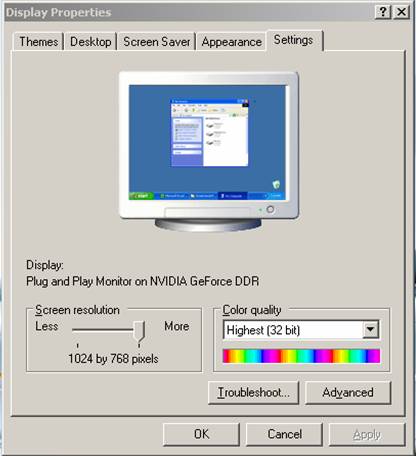
- Open Display in Control Panel.
- On the Settings tab, under Screen resolution, drag the slider, and then
click Apply.
- When prompted to apply the settings, click OK. Your screen will turn black
for a moment.
- Once your screen resolution changes, you have 15 seconds to confirm the
change. Click Yes to confirm the change; click No or do nothing to revert to
your previous setting.
Notes
-
To open Display, click Start, click Control Panel, and then double-click
Display.
- A higher screen resolution reduces the size of items on your screen and
increases the relative space on your desktop.
- You can switch your screen resolution temporarily to 640 X 480 if you have
games or other programs that are set to run at that resolution. To switch,
right-click the game or program (on the desktop or on the Start menu), and
then click Properties. Click the Compatibility tab, and then select the Run
in 640x480 screen resolution check box. Your display reverts to its default
resolution when you close the program.
- Your monitor and video adapter determine how much you can change your
screen resolution. You may not be able to increase the resolution above a
certain level.
- Changes to screen resolution affect all users that log on to the computer.
- Only the recommended screen resolutions are listed. For additional
settings, click the Advanced button on the Settings tab, click the Adapter
tab, and then click List all Modes. Select the resolution, color level, and
refresh rate you want.
Terug naar
beginpagina