UDP source examples can can be downloaded here.
Winsock explained.

Both of the protocols we have been discussing, can be implemented on Windows based systems with relative ease,
while using the windows socket ActiveX control Winsock.

Winsock’s Functions.

Accept	         Accept an incoming connection.
Bind             Bind to a local port.
BytesRecieved    Return the number of bytes received.
Close            Disconnect an open socket.
Connect          Connect to a host.
GetData          Retrieve buffer from host.
Index            Index number of the array.
Listen           Listen for connections on a port.
LocalHostName    Return the local name of the host.
LocalIp          Get the local IP Address.
LocalPort        Set/Get the local port you are using.
Name             Returns the name of the object.
Object           Returns an object in the control.
Parent           Returns the object that the control is on.
PeekData         Read the in buffer without taking it out.
Protocol         Get/Set the protocol to use (UDP or TCP)
RemoteHost       Get/Set the remote host to connect to.
RemoteHostIp     Get the IP of the host you are connected to.
RemotePort       Get/Set the port you are connecting to.
SendData         Send messages to the host.
SocketHandle     Get the socket handle.
State            Get the state of the control.
Tag              Get/Set a variable with extra data.

Winsock’s Functions.

Close
Connect
ConnectionRequest
DataArrival
Error
SendComplete
SendProgress


Making a TCP Client.

Open up Visual Basic, select Standard Exe as the new project type. Once the form pops up on the screen hit ctrl+t,
scroll down till you find Microsoft Winsock Control 6.0. Check the box beside the control. You should see an icon
in your control box of two computers with a link between them. Add one of the controls to the form. Now name the control
“client” without the “s.  Now open the coding window, under “Private Sub Form_Load()”. In the load function add the
following lines of code.

Client.remotehost = “freechess.org”
Client.remoteport = 5000
Client.connect

Now go back to the form, and double click on the winsock control that you added. A coding windows should pop up listed as

Private Sub client_Error(ByVal Number As Integer, Description As String, ByVal Scode As Long, ByVal Source As String, ByVal HelpFile As String, ByVal HelpContext As Long, CancelDisplay As Boolean)

In that function add the following lines of code.

Msgbox “Error number: “ & number & vbcrlf & “Description: “ & description

Client.close

Okay, since that is entered now go into  Private Sub Client_Close(), and put   client.close in that function.

Next, go into the Client_Connect() function and add a popup box like msgbox “Connected!”

Only one more function left :). Client_DataArrival(ByVal bytestotal as long) In this function enter the following lines of code.

Dim mydata as string

Client.GetData mydata

Msgbox mydata

Now run the program, the program should connect to the DNCS test server, and give you the welcome screen and the login prompt.
You could add more to the program so that when it connect you could use  Client.SendData “guest” & vbcrlf & vbcrlf
Then you would be logged into the FICS chess server as guest.

TCP Server

Make a new project like you did in the last example, except this time put two of the winsock controls on the form. Name one of the
controls “server1” and the other “server2”. Put a text box on the screen and name it “response” set the properties of multi-line to
1 and add scroll bars. Go into the Form_Load() function again and enter the following lines of code.

Server1.localport = 31337
Server1.listen

Now go into the Server1_ConnectionRequest() function and add the following lines of code.

Server2.close
Server2.accept requestID
Response = Response &  server2.RemoteHostIp & “ Connected.” & vbcrlf

Okay now go into Server2_Connect().

Server2.SendData “Welcome!” & vbcrlf

Now the Server2_DataArrival() function

Dim mydata as string
Server2.GetData mydata
Response = response & mydata & vbcrlf

Also you should add the line server#.close into the error and close functions of both winsock controls. Remember to substitute the
number 1 or 2 in place of # and put them in the correct functions!

Run the program and connect to localhost using telnet or your own TCP client.
Congrats, you just made a TCP Echo client.


UDP Server

Okay, create a new project like you did in the last two projects. Add a winsock control to the form. Name the control “server”.
Add a text box to the form, leave it as text1.

Open up the coding window and do the following.


Private Sub Form_Load()
server.LocalPort = 4001
server.Bind Winsock1.LocalPort
End Sub

Private Sub server_DataArrival(ByVal bytesTotal As Long)
Dim mydata As String

server.GetData mydata

server.SendData mydata

Text1 = Text1 & server.RemoteHostIP & " " & mydata & vbCrLf
End Sub

Private Sub server_Error(ByVal Number As Integer, Description As String, ByVal Scode As Long, ByVal Source As String, ByVal HelpFile As String, ByVal HelpContext As Long, CancelDisplay As Boolean)
MsgBox Description
End Sub

Okay, now run the program, of course you don’t have a client to connect to it yet so let’s start that.

Note: There is a little bug in the UDP server, it tries to send the data before it’s supposed to. It’ll give you something to try to fix.

UDP Client

Start a new project as standard exe. Load the winsock control, and drop one on the form. We’ll leave it named winsock1 this time.

Make the form look something like this.
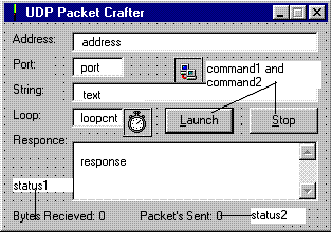
Now here is the code.

Dim num As Integer
Dim bytesrecv As Integer
Dim packetssent As Integer

Private Sub Command1_Click()
On Error GoTo errno:

Winsock1.RemoteHost = Trim(address)
Winsock1.RemotePort = Trim(port)
Winsock1.Bind 50

Timer1.Interval = 1

errno:
If Err.Number > 0 Then
If Not Err.Number = 40020 Then MsgBox "Couldn't send packets"
Timer1.Interval = 1
End If
End Sub

Private Sub Command2_Click()
Timer1.Interval = 0
num = 0
End Sub

Private Sub Form_Load()

End Sub

Private Sub Timer1_Timer()
num = num + 1
Winsock1.SendData text

If num = Trim(loopcnt) Then
num = 0
Timer1.Interval = 0
End If

packetssent = packetssent + 1
status2 = "Sent Packets: " & packetssent
End Sub

Private Sub Winsock1_DataArrival(ByVal bytesTotal As Long)
Dim mydata As String

Winsock1.GetData mydata

response = response & mydata & vbCrLf

bytesrecv = bytesrecv + bytesTotal

Status1 = "Bytes Recieved: " & bytesrecv
End Sub

Private Sub Winsock1_Error(ByVal Number As Integer, Description As String, ByVal Scode As Long, ByVal Source As String, ByVal HelpFile As String, ByVal HelpContext As Long, CancelDisplay As Boolean)
MsgBox Description
End Sub

Run both the server and the client, send messages from the client to the server. Note: (Don’t spam yourself out)

We’ve covered quite a bit in this tutorial. I hope it will help you with your winsock development in the future.
I wrote this tutorial because I found the internet is lacking tons of winsock tutorials. So here it is :).
If you find any errors/suggestions please email me ([email protected])

Thanks!

-stderr
Note: I found this article a while back, and no longer program in VB (Thank goodness).
So, it's kinda doubtful that I can help out very much, but I will do what I can.
I have some bots and stuff that I wrote in VB if you want the code just drop me an email.

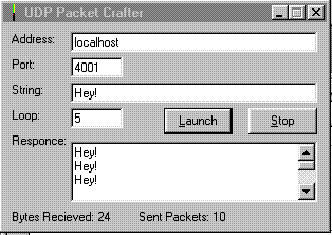
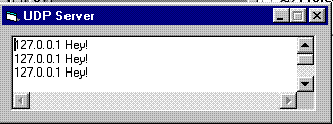
Here is what the end product should look like for the UDP applications.