|
1. Open a new image, 10x10. Make sure the canvas is white. This is going to be the image we are going to define our pattern on. 2. Zoom in to 1600% so you can see clearly. |
|
 |
3. Select the Rectangular Marquee Tool  and make a selection 1 pixel wide on the left side of the image. and make a selection 1 pixel wide on the left side of the image.4. Now hold the �shift� key on your keyboard and you will see a �+� appear next to your cursor. This means it is going to add to the selected area. Holding the �shift� key, make a selection on the top of the image 1 pixel wide, and you should be left with what is pictured to the left. |
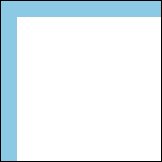 |
5. Select your Paint Bucket Tool  and select any color (ie: #8CC9E5). and select any color (ie: #8CC9E5).Now fill the selected area. Now hit �ctrl+D� on your keyboard to de-select the area, and you should be left with what is pictured to the left. |
|
6. Now we are going to define the pattern. Edit>Define Pattern� Name your pattern Grid Lines and hit OK. 7. Open a new image, 225x150. |
|
 |
8. Edit>Fill� Open the custom fill pallet (circled in red) and select the pattern you just made (it should be last in the list). |
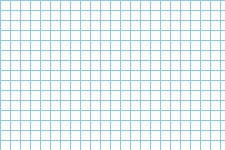 |
9. Hit OK and you should be left with the finished product pictured to the left. |