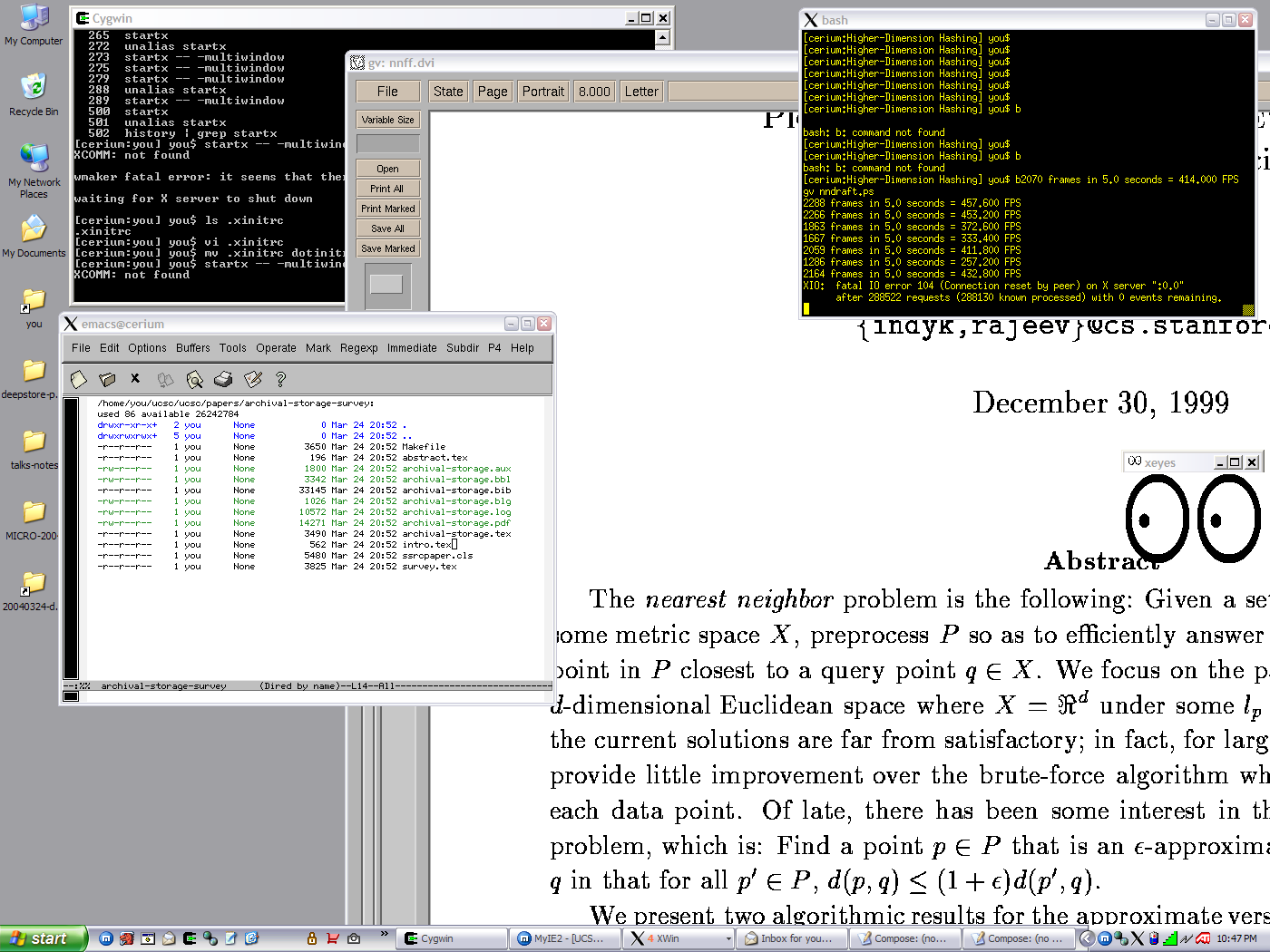
Notes for installing and using Cygwin. I use Cygwin for a lot of my work
because my laptop is more versatile running Windows XP as its main operating
system but I would still like to use Unix programs like X11, Emacs, LaTeX and
gcc. The Cygwin X11 server also runs much faster than running X11 on VMware even
though they are built from very similar X11 (XFree86 or X.org) sources. Also,
SSH in the Cygwin environment is nearly identical to the way it is used on Unix,
allowing me to use xterm and ssh instead of PuTTY, a fine SSH/terminal
standalone application.
Updated: March 13, 2005
Uninstall Cygwin you have to:

rmdir /s /q C:\cygwin
regdit -s rmcygwin.reg

[rmcygwin.reg]
REGEDIT4

[-HKEY_LOCAL_MACHINE\SOFTWARE\Cygnus Solutions]
[-HKEY_CURRENT_USER\Software\Cygnus Solutions]
Basically here are the steps I used to get started:
C:\cygwin, a folder on the Windows boot disk. I will call this
the Cygwin directory from now on. This
will also contain the user home directories within it. You should be able to
use either an NTFS disk or FAT32 disk. C:\cygwin and
use it from there.C:\cygwin as your root (Cygwin) directory, install for
All Users, and use
Default Text File Type of
Unix (which is the 0x0A
line termination character instead of the Windows convention of using two
characters, 0x0D 0x0A).C:\cygwin\Latest for the local package directory. This is
a cache directory of binaries. You can always clean it out once you've
installed a package.C:\cygwin). You can elect to
Create Icons, but I usually get rid of it. The only front-end that I
use is are C:\cygwin\cygwin.bat and C:\cygwin\usr\X11R6\bin\startxwin.bat.
I created a shortcut to those scripts in my Windows XP Quick Launch bar.
Your home directory is different from the Windows
My Documents directory and should be
located in C:\cygwin\home\username.
Your username is likely to
have a space in it because XP will use "firstname
lastname". You can usually use symbolic or Windows links (I'm not sure
which) to get around this problem. After I discovered this quirk, I found out
that it was better to first create a Windows XP user using a single name which
is my preferred Unix login/home directory name without spaces. After the step
of completing the Windows XP setup or adding a new Windows user was complete, I
renamed my Windows user world-visible name to my full name. You can do this by
going to Start>Control Panel>User Accounts>Change an account>Change my name.
I also created some symbolic links within Cygwin for often-used directories like
this:
ln -s "/cygdrive/c/Documents and Settings/username/My
Documents/" ~/My_Documents

ln -s "/cygdrive/c/Documents and Settings/username/Desktop"
~/Desktop

ln -s "/cygdrive/c/" /c
The more elaborate installation involves adding the packages like emacs, X11,
OpenSSH, etc.
I upgrade packages every two to three months when it is convenient. Sometimes
bugs are fixed; less frequently, bugs are introduced for a short period of time.
In general, small improvements are made all the time. I choose to upgrade when I
have the time to make a quick backup and a possible (temporary) revert to known
packages if I sense a problem.With the Cygwin installer use the "Partial" view
to see what packages have been updated.
After you have upgraded your packages, you might find it useful to learn what
has changed. You can find a Cygwin-specific README in /usr/share/doc/Cygwin. A
simple command to see the most recent READMEs is
ls -lt /usr/share/doc/Cygwin | head
Or if you are an Emacs user,
emacs /usr/share/doc/Cygwin
and then press "s" to sort files by modification dates in the dired buffer.
If you are interested in reading notes from the original source package, they
are usually included in the Cygwin binary packages. Typically you will need to
first use the cygcheck command, find the package-specific README
file and then locate the file manually. You might use something like this:
cygcheck -l packagename
Some man pages are missing, for instance, "tar". I don't know where they are
or why they don't get installed. Another friend of mine who has been using
Cygwin for about as long as I have discovered the same but we never had time to
figure out what to do to fix it.
Cygwin works pretty well. I have been doing lots of work on it as a client
system instead of using a separate Linux or FreeBSD machine. One drawback is
that you depend on the underlying file system, so sometimes there is behavior
that is not like Unix. For intance, files often get created with "chmod 777"
even though they are not executable and it's more reasonable for them to be 666
or 644.
I have not needed to build any programs from source, but the installer gives you
the option to download and build them from source instead downloading and
installing them as a pre-built binary package.
If you are using Emacs in the clumsy Windows "Command" window (command.exe),
you might benefit from setting the terminal type so that more control characters
work. Do this by changing the startup script,
cygwin.bat, to contain the following commands, setting the CYGWIN
tty and binary modes. For example:
@echo off


  C:
chdir \cygwin\bin
set CYGWIN=tty binmodebash --login -i
Some answers can be found in
[Google]
Even better, if you would rather not use the TTY mode in the "Command" window
(command.exe), you can use the rxvt VT102
terminal emulator.
To use rxvt for your terminal program for
use with Cygwin simply do these steps:
cygwin.bat startup script in your Cygwin root
directory, e.g. C:\cygwin\cygwin.bat to C:\cygwin\cygwin-rxvt.batcygwin-rxvt.bat @echo off
C:chdir C:\cygwin\bin
set SHELL=/bin/bashrxvt --loginShell -sr#bash --login -iYou can set the font using the rxvt "-fn"
option (see man rxvt) or change them on the fly using Shift-keypad-plus and
Shift-keypad-minus.
To use the Windows clipboard with rxvt:
This is a FAQ. You can search for the words
cygwin.bat rxvt.
I prefer to use Unix line termination
characters (LF/0x0A), also known as the
newline character. This is a setup.exe configuration option. If you're
using Unix-like tools and move files between your Cygwin directories and a Unix
machine, keeping the Unix line termination characters is easier than dealing
with the DOS convention (CR LF/0x0D 0x0A). If you need to view a Unix file on
Windows, use anything but NotePad. WordPad works well. Use "unix2dos [--help]"
or "dos2unix [--help]" to convert between the two formats. Also see
Emacs Text Files and Binary Files or Emacs
Specifying a Coding System. A good Windows editor that has little difficulty
moving between different file formats (including comparing files with different
formats) is the CodeWarrior IDE.
To change the current Emacs buffer to Unix (0x0A):
C-x <RET> f unix <RET>
To change the current Emacs buffer to DOS (0x0D/0x0A):
C-x <RET> f dos <RET>
When files are created by Cygwin applications on an NTFS, they usually have
the owner and permissions that you would expect. But if you create a file from a
Windows program, data files will often have their "x" (executable) bits set even
though they are not executable. Clearing the "x" bit (e.g. chmod -x
document.txt) will fix the problem and leaving it that way does not seem
to interfere with NTFS behavior. (This is most annoying when I accidentally
check in source files with Perforce; the files have a type of "xtext" instead of
"text".)
I haven't used Cygwin with FAT32.
The rest of this document includes hints that come from an email I sent to
someone else who set up their X environment. As of early 2004, there has been a
number of small but significant changes to improve the X11 server.
Update (4/2004): The X11 server used on
Cygwin is no longer XFree86; it is now based on the x.org sources.
This is a good guide from the Cygwin site. It probably has answers to most of
your questions:
http://xfree86.cygwin.com/docs/ug/cygwin-x-ug.html
http://x.cygwin.com/docs/ug/cygwin-x-ug.html
FAQ:
http://x.cygwin.com/docs/faq/cygwin-x-faq.html
And there are probably others...
[Google]
If you want to run programs remotely but display the user interface locally,
then you would use this configuration: the X11 server runs locally, for instance
on your Windows XP laptop running Cygwin, and the X11 client program runs
remotely, for instance, Mozilla on Linux.
I recommend using a 3-button wheel mouse. If your wheel works with Windows,
it should automatically work with X11. Some applications like X11 Emacs might
need a customized configuration.
Programs running remotely but displayed locally will need to start up with an
environment that includes the DISPLAY environment variable. This question is
asked frequently.
[Google]
Someone asked me:
> I have installed cygwin with all packages in
my home machine.
> I got a few questions about the X:
>
> 1. I start the X by using command "startx".
It works and shows
> a desk with several terminals. However, when
I login in
> cse account and using xterm or gv, it says "Unable
to open
> the display. How to config it?
When you say "login in a cse account" you probably are wondering how to use X11
forwarding so that you can view windows on your local (Cygwin) machine that is
running its X11 server while executing the programs remotely on the remote Unix
host. Normally you have to set up your DISPLAY environment variable so that the
X client program (e.g. xterm/gv) knows which X11 server to use. You can use "export
DISPLAY=my-windows-xp-hostname:0.0" if you use bash (or setenv if you use csh/tcsh).
This can be a nuisance because you have to do this each time you log in on the
cse machine.
Also, you must set up your X11 server to enable remote hosts, so you say "xhost
+" (all machines can open a window on your server) or if you're more paranoid
you can use something like "xhost + someworkstation.cse.ucsc.edu". I don't think
it is necessary to be so specific so I just use the "xhost +" form.
When I work off campus I have to use ssh in order to connect to cse machines, so
I use something like this:
cygwin> xhost +

cygwin> ssh -Y someworkstation.cse.ucsc.edu

someworkstation> xterm & # this opens a window on cygwin's X11 server
If you get an error message that says
X protocol error: BadWindow (invalid Window parameter) on protocol request
38
then read this part of the
Cygwin/X Frequently Asked Questions ("X11Forwarding does not work with
OpenSSH under Cygwin").
[Google]
Before I started using the rootless version of X11, someone asked me about
the X11 desktop I was using, i.e. with a root window that covered the entire
Windows desktop. The standard X11 desktop is the same one that has been around
ever since I can remember. It looked the same when I first used X11 on MicroVAX
and Sun workstations as it does now. I used to use a "rooted" X11 with
WindowMaker but today (summer 2004) the standard Cygwin version starts rootless
by default. X11 rootless windows are each displayed as individual Windows (GDI)
windows.
> 2. The default desk is ugly. What package are
you using
> now? I remember it looks pretty good. Are
there any window
> managers that can be used under cygwin? Or we
need a special package
> for cygwin?
I agree, the default (rooted) desktop is ugly. I use WindowMaker... I used to
use the default package for the
WindowMaker window manager (desktop) It is available for installation if you
run the Cygwin setup.exe program and here are instructions for
using that window manager if you want to have an X11 desktop mode that you can
switch in and out of. (Recently, I have switched to using the -multiwindow
option, which implements X11 windows as Windows (Win32 GDI) windows.)
Once you install the package (binaries) you will either need to start
wmaker. This is a simple startup script that will get executed as a
side-effect of using the startx command:
create a file called ~/.xinitrc:
#!/bin/sh

exec wmaker
Then when you startx it will launch the WindowMaker desktop instead
of fvwm (the default and antiquated X11 desktop).
The last thing I do is to use startx with the following server options: "-nowinkill
-nodecoration". You might also conssider '-rootless' or '-multiwindow' if you
want to mix X11 windows with Windows 2000/XP windows.
To start with the options more easily, I use an alias which is set in
.bashrc looks like this:
alias startx='startx -- -nowinkill -nodecoration'
You can find out more about the X11 server command line options under
XWin.exe (this is the
Windows-specific application binary that contains the XFree86 or x.org server).
The man page can be viewed with the "man XWin" command.
I choose to use WindowMaker over KDE or Gnome because it is fast, lean, and does
not require a lot of extra goofy libraries.
It took me a little while how to customize the WindowMaker desktop. There are a
couple features that I find useful:
multiple desktops: use the icon in the upper left corner to switch back and
forth or use "ctrl-alt-leftarrow" and "ctrl-alt-rightarrow"
If you like having some of the applications open when you launch the desktop,
use the Workspace>Save Session command.
As of spring 2004, the "-multiwindow" option is now the default. You can see
a screenshot
here. This option should be the default now when you run startx or
startxwin.bat. Make sure that you do not try to start another window manager in
~/.xinitrc. Also, remove any aliases that
you might use to set the window options.
Normally you can use the Windows Alt-Tab shortcut to switch between recent
windows, including X11 windows (if you are using the rootless mode).
Unfortunately you might not have enough context from the window title alone. See
the
section on setting your xterm window title to your current directory.
Better yet, the
Windows XP Power Toy called "Alt-Tab Replacement" will let you see a small
thumbnail image of the window (much like Command-Tab on OS X) . It works great
with Cygwin/X11.
By default, you can easily kill the X11 server by using Control-Alt-Backspace.
Sometimes this is desirable behavior and other times the accidental keypress can
terminate your session inadvertently. The XWin server behavior has changed
during 2004 and -nounixkill may not do exactly as you would expect. It used to
be that this would prevent the server from being killed. But the keypress can be
intercepted by other layers separate from the X11 server. Searching for "xmodmap"
and "keycode 22 = BackSpace" might be helpful:
[Google].
My solution is to use the XWin command-line option, "-unixkill" instead of the
default "-nounixkill". With the current rootless X11 server, when
Control-Alt-Backspace is pressed, a dialog box will be displayed first, before
killing the server. To set this up, modify the script that starts XWin to
include "-unixkill" e.g.
/usr/X11R6/bin/startxwin.bat (or type which startxwin.bat to find
this):
run XWin -multiwindow -clipboard -silent-dup-error
-unixkill
The default window title is "xterm". If you are using the bash shell, add the
following line to your .bashrc file. It will display
username@hostname: /current/bash/directory instead.
PROMPT_COMMAND='echo -ne "\033]0;${USER}@${HOSTNAME}: ${PWD}\007"'
Another trick I use is to start "xwinclip" in an xterm if you want to copy
and paste between X11 and Windows. It is not perfect but it works pretty well. (This
feature is now built into the Cygwin/X11 server.)
When I used WindowMaker for my desktop (before the rootless X11 server became
very useful), I installed a couple dock applications that were useful, "wmcpuload"
and "wmmemmon". These give you an idea of CPU and memory usage. I downloaded
these in source form and used "make install" to build and install them.
Cygwin has a lot of features and packages that make it useful as a substitute
for a Unix or Linux environment. I have been using these tools to write papers
and run experiments on my laptop.
Installing LaTeX on Cygwin can be slightly different from the site
installations of LaTeX.
If you want to use TeX on Cygwin, it works great. Just install all of the
teTeX
packages. The only thing you need to do is to make sure you use the
texconfig program and set up the paper
size to be 'letter' otherwise you will end up generating pages that are 'a4'
paper size.
At one time, I had trouble getting texconfig
to work with the Cygwin terminal. This doesn't seem to be a problem anymore.
Here's what I wrote:
I use the "ispell" spell checker on other platforms, but it is not available
as a binary package. Instead, I use "aspell" on Cygwin, an easy-to-install
replacement. From
http://aspell.net/man-html/manual.html
"The easiest way to use Aspell with Emacs or Xemacs is to add this line:
to the end of your .emacs file."
I use the rsync program to keep a local directory containing HTML in sync
with a remote machine's directory (~/.html) that is readable from a web server.
My local directory name is ~/www. My remote directory name is (~/.html) I use
the following command to sync to the remote directory:
alias rsync-get-www='rsync -avuz -e ssh --delete xxxx.cse.ucsc.edu:/csl/grads/you/.html/
/home/you/www/'
and the following alias to sync from the remote directory to my Cygwin
directory:
alias rsync-put-www='rsync -Cavuz -e ssh --delete /home/you/www/
xxxx.cse.ucsc.edu:/csl/grads/you/.html/'
With my Cygwin copy being the master, I copy up my local changes to the
remote by using "rsync-put-www". If I make changes remotely, I use "rsync-get-www".
I use the "--delete" option which will force deletion on the destination
directory. You might not want this type of behavior. Read the rsync man page to
understand how this works.
I use the
command-line version of Perforce ("p4") with Cygwin. I have found it best to
keep Perforce clients on Cygwin separate from Perforce clients on Windows. The
reason is that the Unix-like tools work best on Cygwin and Windows-like tools
work best on Windows. More importanly, there are a couple problems that make
life difficult if you try to switch between tools in the two environments on a
regular basis:
Jam, a free make replacement tool from the people at Perforce, is a great
program that works well in multiple environments. There might be pre-built
binaries available, or you can build it from source code.
These instructions are for p4 (Perforce client) users:
If the bin.cygwinx86 directory
was not created, then it means your version is not built specifically for the
Cygwin environment. The Jam tool will still work, but it will not be aware of
some idiosyncracies of Cygwin.
To test for the Cygwin platform in a Jamfile, test for $(OS) = CYGWIN.
The following example says to use "g++" as the linker which seems to be
necessary for linking C++ programs.
if $(OS) = CYGWIN

{

    LINK = g++ ;

}
Note that $(UNIX) is true, but
$(NT) is not. You can verify which
OS is set by Jam by using the -d 7
command-line option. If it says UNKNOWN
then the version you are using is not aware of the Cygwin environment and it can
lead to strange problems with $(SUFEXE) not being set.
Linking with Cygwin/cc (ld), produces files with
.exe suffixes. You can set the
SUFEXE explicitly:
SUFEXE = .exe ;
and then make sure to set the list of libraries against which to link in this
manner (assumes HelloWorld is C++ and uses the crypto library):
LINKLIBS on HelloWorld$(SUFEXE) += lstdc++ -lcrypto ;I found a bug in Jam that prevented Cygwin libraries from being re-linked
property. When a single object file changed, the entire library would be
recompiled even though all of the other object files worked. The Perforce change
on the public depot is
here. As of 2005-03-13 it had not been integrated into the main line.
There are a few ways to start Windows applications from a Cygwin shell. I
prefer the "cygstart" method but experimented with the others until I learned
about the command.
If you want to open a document, use cygstart documentname.extension
for example, cygstart 'User Guide.pdf'
For cross-platform compatibility with Mac OS X which has an "open" command, put
this into your .bashrc:
alias open='cygstart'
Another method is to let the Windows Explorer program, explorer.exe,
try to open your files. For instance, explorer 'User Guide.pdf' or
explorer.exe 'User Guide.pdf' will work. This does not seem to work as
well if the application (such as Acrobat Reader) is already running.
Another way to run a program is to just use an alias to the application. From
Bash you might use something like this:
alias acroread='/cygdrive/c/Program Files/Adobe/Acrobat 6.0/Acrobat/Acrobat.exe'
This is obviously awkward.
To add ~/bin to your command path, in ~/.bash_profile (or
~/.bashrc, depending on how you have this set up):
export PATH=$HOME/bin:$PATH
ln -s '/cygdrive/c/Program Files/Adobe/Acrobat 6.0/Acrobat/Acrobat.exe'
~/bin
Here's a list of tricks and tips for using Cygwin.
Source : http://www.cse.ucsc.edu/~you/notes/cygwin-install.html#mozTocId23524