Project 004 - Composite materials and Transparencies - August 2006 One of the issues with building Menchi in Project 003 was that I would have to model an eye, and I would probably want it to change according to the expression I wanted Menchi to convey. Since Menchi has been oblitifried by a HDD failure, I can't use that model any more, but I still want to take this further. Rather than modeling an eye, I had decided I was simply going to make a composite material. A composite material is a combination of several materials with varying levels of opacity. It was my plan to have the eye with a transparency around it, so that I didn;t need to do anything too complex with the opacity. Step 1: My transparent material First off, I created my material in photoshop... Creating a standard material with a diffuse map willl not do, however, and you'll need to create a opacity map with the same image as illustrated below.
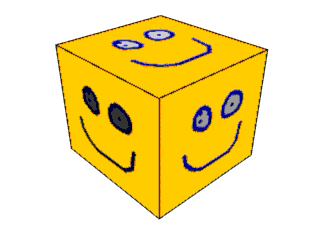
The image should now show its transparency! After I had done this I created a simple Ink 'n Paint material in a new material slot, and a composite material in another material slot. Simply by dragging the materials into the composite materials Base material and Mask 1 slots I was able to create a new material with both Ink 'n Paint and a Standard material. I then assigned it to a simple box I'd created and did a render.
More information and the help I received can be viewed here. Big thanks to gnome at the Threedy forums for the assistance on this one! |