| Working with Standard Controls | |||||
| We naturally want to learn to do a little more with Visual Basic. So what else? | |||||
| The CheckBox | |||||
 |
The
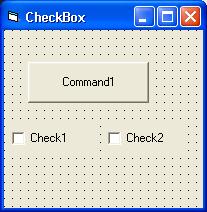
Checkbox controls are useful for allowing a person to select different
options. Create a form that looks like the one I have to the
left. You can do this by drawing two checkboxes  and a button (AKA CommandButton). To change the title bar of the
form from Form1, just alter the Title property of the form like i have
to "CheckBox". I left the names of these controls the
same as the defaults, so the button is known as Command1, and the two
checkboxes are known as Check1 and Check2 respectively. This
program should also have the following code...
and a button (AKA CommandButton). To change the title bar of the
form from Form1, just alter the Title property of the form like i have
to "CheckBox". I left the names of these controls the
same as the defaults, so the button is known as Command1, and the two
checkboxes are known as Check1 and Check2 respectively. This
program should also have the following code... |
||||
| Private Sub Command1_Click() If Check1.Value = 1 And Check2.Value = 1 Then ' both checkboxes are selected MsgBox "Both are selected", vbQuestion, "Both" ElseIf Check1.Value = 1 Then 'just check1 is selected MsgBox "Check1 is selected" ElseIf Check2.Value = 1 Then 'just check2 is selected MsgBox "Check2 is selected" Else 'nothing is selected MsgBox "Nothing is selected" End If End Sub This example will show a few new features of the VB language that you may not be aware of. First of all, the green text are comment marks, (or REM statements or as in C the /* */ ). These statements are only to help explain things in the code, and do not count as part of the finished program. Secondly, there is a function being used often, called the MsgBox (MessageBox). The MessageBox is a windows feature that allows a pop-up button to appear. The format of the MsgBox goes as this (1) Text to show inside the pop-up dialog box, (2) [Optional] any use of a standard msgbox format, (3) [Optional] a title for the message box itself. In the first MsgBox statement in this code, I make the text inside it to "Both are selected", then I have it use a Question mark icon inside the box as well (as you can see when you run the example), and late I make the title of that message box to state "Both". As you can see the other MsgBoxes ignore these last two features and they can be ignored since both are optional. |
|||||
| Working with Text Boxes | |||||
To make a
textbox, you need to draw a textbox on the form by clicking on the  icon on the toolbar. Once you draw it on, a person can enter text
into your program, such as to enter their name.
icon on the toolbar. Once you draw it on, a person can enter text
into your program, such as to enter their name. |
|||||
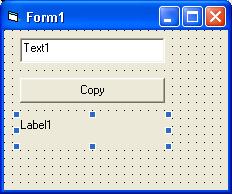 |
Make a form like
the one I have to the left. Name the textbox txtName, name the
button cmdCopy and name the label lblName, the code inside the
cmdCopy_Click( ) should be something like this:
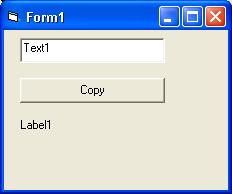
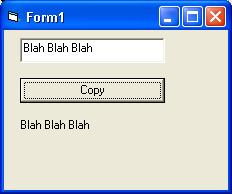
Private Sub cmdCopy_Click() This program will make the label text the same as whatever the user types in the textbox every time you hit the Copy button. An example of what this looks like below. |
||||
 |
 |
||||