| Making your first Visual Basic program | |||||
| Visual Basic is a programming language that mixes visual "paint" like features to a standard programming environment. It allows you to draw controls onto window forms that will look and feel just like any other windows program. Want a huge button that says "Watermelon"? simply draw the button control object on the form really big (just as if you were drawing a rectangle in Microsoft Paint). | |||||
 |
The first thing you need to do is
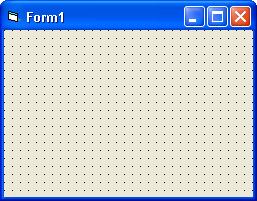
open up a standard .exe application. When you do this, a blank
gray window (form) will pop up.
Now, for your first program lets draw two controls onto the form (from clicking on them in the toolbar):  a label control and a
 button control
 |
||||
 |
So
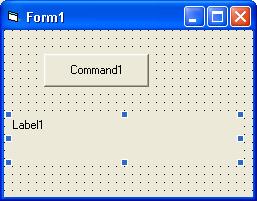
it should look something like this. the button is obviously the
top control, and the label is the bottom control. Buttons are used
for user inputs with mouse clicks of course, labels are used to display
text that cant be altered by the user. If you want to allow the
user to input text you should use a Textbox control instead.
Now its time to make this thing do something. There are a few ways to get to the code. One way is by double clicking on the form itself, or one of its controls. Double click on the button. |
||||
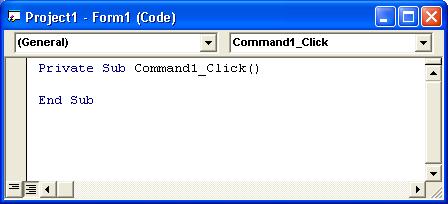 |
When you double click on the button, it brings up the code window for the entire form. It would have been blank, but clicking on the button creates automatically its default event property (click). The click event is what the button will do whenever a person clicks on it with | ||||
| the mouse. The click event is basically nothing more than a subroutine (function) for the button. You can make your own subroutines or even your own events if you desire. Naturally this by itself doesn't do anything, so why not make it do something. But before we do that, you need to know a little more. Namely how to identify controls, rename them and edit their features. You do this by selecting a control on the form (making it the active control - little blue dots surround it when this is the case) and then looking at the property window which is below. | |||||
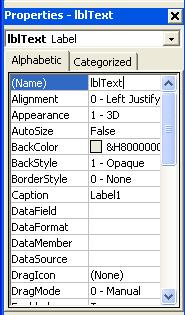 |
This
view of the property window shows the features of the label control you
drew on the form (I highlighted the label). I also clicked in the
box to the right of the Name property and gave it a new name instead of
the default "Label1", I changed it to "lblText", lbl
being a standard in VB for abbreviating label. It is a standard
practice to give the control a 3 letter abbreviation to help tell you
what kind of control it is that you are using.
Want to make the label text be aligned to very right of the control, change the Alignment property to "1-Right Justify". Want to Change the text in the label to say something other than "Label1", change the caption property. Give the label a background color? Change the BackColor property to something other than that gray. (Note: Changing colors come in two forms System colors and Palette colors. Palette colors being the more useful usually. Now go back to the code window for the button. |
||||
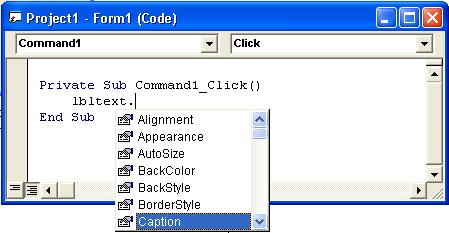 |
Assuming you also changed the name of the label control to what I did, type in lblText followed by a dot just like in the picture to the left. VB comes with an auto-complete feature as you can see here, you can use the arrow keys to move up and down the pop-up menu to select what property you wish to edit in the code, I say | ||||
| edit the caption property now. Like I said above, the caption property sets what the label will show text wise on the screen. What we are going to do is have the user click on the button. Once they click on the button, the Click( ) event is invoked and it will run our code that is inside that subroutine (whatever is between the start "Sub" and the "End Sub"). (also note: You don't have to use the auto-complete, you can simply just type away and enter the property or event you want to enter yourself. but if you do want to use the auto-complete, simply get to the property (or event or object) you want and hit tab and if you want to get to your property quicker simply start to type the first few letters of it and it will jump down to those letters in the menu.) | |||||
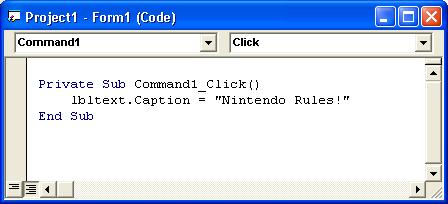 |
The finished product should look something like this. You can type in whatever you want in between the quotes for the caption, but I think it would serve you well to type exactly what I typed! | ||||
Now we need to run the
program. You can do this by clicking on the Run button  .
When you are done with running program and wish to get back to the
programming of it you can either close the running window of that
program or press the Stop button .
When you are done with running program and wish to get back to the
programming of it you can either close the running window of that
program or press the Stop button  .
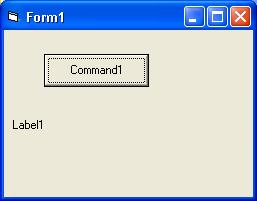
Below shows what will show when you run the program. Basically the
form that you designed will be created in an emulation (which means it
shows you what it will look like inside visual basic before you actually
make it an actual program). The image of the left is what it first
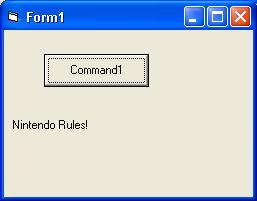
shows when ran. The image on the right shows what happens when the
user clicks on the button with the mouse. It changes the caption
text of the label to "Nintendo Rules!" and you have now,
basically made your first program. And yes, I know this example
doesn't really do much. .
Below shows what will show when you run the program. Basically the
form that you designed will be created in an emulation (which means it
shows you what it will look like inside visual basic before you actually
make it an actual program). The image of the left is what it first
shows when ran. The image on the right shows what happens when the
user clicks on the button with the mouse. It changes the caption
text of the label to "Nintendo Rules!" and you have now,
basically made your first program. And yes, I know this example
doesn't really do much. |
|||||
 |
 |
||||