
Index | Tutorial | Links | Discussion
Index
| Tutorial | Links | Discussion
INTRO
I will be explaining this introduction to programming tutorial for Visual Basic uses... So if
you are using Access then don't worry when I explain how to start a new project, Save,
Open , Add etc.
VB Code is RAD! - No not the slang word "Rad" - an abbreviation for Rapid Application-
Development. VB is very easy to understand and very easy to build, but there is a
consequence, VB runs pretty slow, much slower than C++ or Delphi, so if you are hoping to
eventually make a game, I advise you to make a 2D game RPG game, because VB doesn't
handle movement very well! especially 3D games.
VB and VBA is an Object Orientated Environment. It allows you to get feedback from users
triggering off different parts of code.
Workspace (Adding, Modules, Forms, Projects, Windows)
Objects (Image Boxes, Command Buttons etc.)
Properties (Form and Object properties)
Structure (Subs, Procedures, Scope)
Types (Integers, Strings etc.)
Storing Data (Dimensions, Arrays, Constants)
A Basic Program (Dissect a couple of subs and understand each part)
Outro (Tips, Recommendations)
Workspace
Run your Visual Basic. After the splash screen a menu will come up, choose Standard
Execution then click on Open. On your Tree view (usually on the right side) you should see a Project
called "Project1 (Project1)" and its child "Form1
(Form1)" under "Forms". To add a new file bring down the "Project menu" and
choose what you wish to add, Here is a summary of different types of files:
Projects
This is a New project for your new execution, you will ALWAYS need a project for
anything, VB adds one automatically, you can rename this to anything. Project
files are very handy, they automatically load all your forms, modules, class
modules etc...
Forms
These are the UI (User Interface) of your program, its also like a module (See
below), but has some advantages/ disadvantages.
Modules
This is a template for your code, you can have as many as you want, and name
them anything you want to. Why just use one form? because if you have lots of code,
it would be a mission to find a certain part of code you need to work on, it's
best to sort you code into different modules with an appropriate name.
Making your Execution
If you want to make an stand-alone execution, bring down the "File menu" and
choose "Make xxxxx... .exe" (Where xxxxx is your project name). A message box
will come up, choose Yes or Ok (I can't remember :p ) and you will see a blue
progress bar at the top right rapidly (hopefully - if its a small program)
saying "Compiling", this is exactly what it is doing, all your forms and/or
modules and/or other files will compile into an execution in your project
directory. If you get an error message, it would be an error in your code (it
should highlight the problem).
NOTE: If you are using access you cannot compile executions!
Windows
Here is a couple of handy windows you should try after the tutorial:
Immediate window: Debug > Immediate
'Lets you test your code'
Locals window: Debug >
Locals
'Lets you view your Dimensions,
Constants, Arrays, Properties'
Objects
These give your application meaning! Well, most of your applications :) , To add
an object choose an object from the General toolbar, bring your curser to the empty
space on your form and insert it by dragging or clicking on it. You can resize it
to whatever you want.
Properties
Properties for an object or form lets you control your UI (User Interface), it changes the
appearance, this is very useful! You can change MOST of these in runtime.
Example: Run VB and open a Standard Execution, make sure you select the form. In the "Properties window" you will see a large list of different options, these options will be different for each object. Scroll down until you see an option called "Caption", to the right of this option will be a value, which is set to "Form1" by default, change it to anything. As you change this, the top of the form will change its text. Go down the list and click on each option and read what says (below) to find out what it does. Change and experiment with them with different objects to understand the objects and what they can do.
Structure
Open a Standard Execution, select the form. On the top of the tree view diagram with
your project and form, there will be 3 small squares with pictures,
the right one will be selected, click the first one (left). This will bring you to a code
form (to go back to design view for the UI click the middle one). it may have "option explicit" at the top, ignore this. If you were to code
in a module it will automatically bring up the code form for it because modules
don't have UI. But for now we will code in a form. Your computer reads code by
"groups" of code, these "groups" are called from other "groups" of code or
triggered of by the user when an action is done on the form. There are 2
different types of "groups": Subs and Functions.
Subs
Subs is an abbreviation for sub-procedures. It is structured like this:
Private Sub
MySub()
End Sub
The "Private" part is the scope of
that Sub.
The "Sub" part is telling VB that its a sub-procedure
The "MySub" part is the name of the sub-procedure
The "( )" part is used for arguments, more on the later, just ignore it for now.
The "End Sub" part is telling VB that that's the end of the sub-procedure.
The gap in the middle is where your code will go for that sub-procedure.
Subs are used for jobs to be done. when you type in something in a text box or click a button or move the mouse over something you can make a sub that is triggered by doing any of these. If you don't no the name of the sub or just to lazy to write it (like me), in the code form at the top, there will be a drop-down combo box with "(General)" in it, this is the "Objects List", if it's behind a form there will be a item called "Form" listed, click on this. Automatically VB will add a structured Sub like this:
Private Sub
Form_Load()
End Sub
In this sub "Form_Load" it is obviously triggered off when the form is loaded. So you can put any code in that gap - you could put a message box in, trigger a game, update information to a secret spy service, make yellow monkey's jump across the screen and eat rotten banana's (the point is you can put anything you want!).
To the right of the "Object combo
box" - there will be another with "Load", this combo box is a list of different
triggers that you can choose form, like "Click" which will create a sub called
"Form_Click" etc.
If you have an object in your form there will be other items listed in your
"Object combo box" and for each the "Trigger options" will be different (Like
when you have a boxing bag as an object, a "Trigger option" would be "Punch",
but a different type of object may not have this option, like
"PricelessGlassThingi").
If you want to make your own sub to do a job but is triggered off by "Calling" it. you would name it anything (name it related to its job) but without a "_" (underscore) in it, just in case it might clash with a object trigger. To call your own subs you would code it like this:
Call MySub
If it has arguments you would code it like this: (Worry about this later)
Call MySub("test")
Functions
A function is VERY handy. This is exactly like a sub except it returns a value.
It is coded like this:
Private Function
MySub() As Integer
End Sub
Very similar to a sub except at the end of the arguments ( "()" ) it has : "As Integer". It's a lot like dimensioning: the function name is like a dimension name and the "As integer" is telling VB what type of value it will hold - in this case a number from about -32 Thousand to 32 Thousand. The purpose of this is that you could pass in different arguments to retrieve a different value, here's the code on how you would use it:
If MySub = 5 then
Instead of calling it you would ask it something.
Scope
If you what certain Consts, Subs of Functions to be recognised throughout your
code you must have an understanding of scope or it may return an error and you
want no what the hells going on!
If a Sub, Function or Const has "Private" in front of them then only code in that module or form its in can see this. no other module or form can. But if it has "Public" or nothing in front of it then All modules and forms can see it.
When you are using Arrays or Dimensions you must set it at the top of the form or module (in the declarations section) for the code in that form or module to see it. If you want to only use an Array or Dimension one sub or function then set it at the top of the sub or function:
Private Sub
MySub()
'SET IT HERE
End Sub
Types
When you want to store data you have to tell the computer what sort of data to
store (more on this in the dimensions section). Here is a summary of the main
different types and what values they hold:
Byte - a number from 0 to 255 - (eg: 50)
Integer - a number from about -32 Thousand to 32 Thousand - (eg: 4173)
Long - a number from about -37 Million to 37 million - (eg: 451037)
String - any amount of any characters in a quotation - (eg: "Hello!")
Boolean - true or false - (eg: True)
Variant - This special type can hold any type of data - (eg: "Hello!" or 2)
Storing Data
To make even a minor program you would most defiantly need to store data. Here
is a case in which you would want to store data (Not code):
Ask the user "Pick a number", then that number is stored in memory and is called UserNumb, is UserNumb greater than ten?
"UserNumb" is what I called my data that is stored in memory. I set the User input into "UserNumber", so now "UserNumb" equals whatever the user put in (we don't no what it is), then we ask if "UserNumb" is greater than ten. We could use that data throughout the program until it is changed, erased, or the program has ended, or the computer shutdown, or if the computer exploded, or if Earth got hit by a meteor the size of Mexico.
So how do we Store Data? here are some examples:
First you tell the computer to make some room for the Data:
You can put it in a sub so only that sub will recognise it when it is called
(Note that the data is erased once the sub has finished)
Private Sub MySub()
Dim UserNumb As Integer
End Sub
The "Dim" part is Dimension, telling the computer's memory "Hey
here some data to store:"
The "UserNumb" part is the name of the dimension, this is uses to identify the
value stored in data.
The "As Integer" part is telling the Computers Memory what type of data its
going to be storing, in this case is an integer.
Or you can put it at the top of the code form in the "Declarations" section.
Dim UserNumb As Integer
Then when you want to set a value to the dimension, you assign it like this:
UserNumb = 10
What if you wanted to store 20 guessing numbers? This is where arrays come in handy:
Dim UserNumb(19) As Integer
In the brackets I put 19 (20 values because it counts the 0), this tells the computers memory to make space for 20 integers called "UserNumb", Wait a minute how would we identify these data? here's how:
UserNumb(x) = 10
The "x" is any value between 0 and 19, depends which value you want to set or ask.
But what if you want your Dimension or Array to be seen by all modules or forms!? well set them at the top of a module (Declarations section) and use "Global" instead of dim:
Global UserNumb(19) As Integer
There is another way of storing data apart from the "Dim" statement. There is one called Const, which is short for constant. A constant cannot be changed, edited, erased. You simply Set it the moment the program starts in the top of a module (Declarations section) like this:
Public Const MY_MESSAGE As String = "Hello this is an message to say nothing! :)"
It is advised to use underscores and caps, and make the scoping public.
Use these if you use a value a lot that will always be the same, because you might accordantly have a different value out of a hundred and it could be VERY hard to find. and you can change all the use of that value just by changing what you set it to if you want it to be different for some reason.
A Basic Program
Open up a Standard Execution. Set up a form with a textbox and two command buttons.
Similar to this:
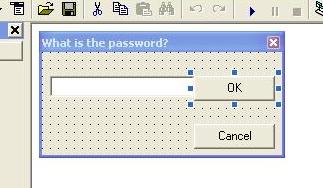
Yes that's right. It's going to be a login program!
Double click on your "OK" button. This will bring up the code form and set up a sub called "Command1_Click" or "Command2_Click". Type this:
Private Sub
Command1_Click()
Dim strUserInput As String
strUserInput = Me.Text1.Text
Retry:
If
strUserInput = "Loopy1034" then
Call LogOn
Else
strUserInput = InputBox("Please try again, remember that it is case sensitive", "Invalid Password", strUserInput)
GoTo Retry
End
If
End Sub
Woah! that's a lot of code for a first time! Lets dissect this sub: (Do not run the code until I tell you to)
Firstly the code is in a sub called "Command1_click" , so when the user clicks on the OK button it triggers the code inside the sub. (NOTE: your name of the OK button may not be Command1, it could be anything you change it to). The first thing we do is tell the computers memory to make space for a string: "Dim strUserInput As String".
Now as you will know we set a string value to our dimension: "strUserInput =" then we use our string value, the "Me" statement is a shortcut for "form1" (the name of our form), you can put any of them, you dont even need to put any of them if you want. The "."(Fullstop) parts just seperates the sentance. The "Text1" part is the textbox object we put on the form , and the "Text" is the option for that textbox - A value, in our case a password the user puts in.
Then we create a point called "Retry", a point is made when you put a ":" at the end of it. You will understand how this works soon.
Next we use the "If" statement, which is very straight forward. We are asking if strUserInput (the password) equals "Loopy1034" (The Actual password to logon - you can change this to what ever you want). I have Indented the code to make it easier to understand, inline with the "If" statement there is "Else" and "End If ", so if strUserInput does equal "Loopy1034" then it will read the code in the gap between the "If" and the " Else". But if strUserInput equals anything else, then read the code between the "Else" and the "End If"
So, if the password is incorrect, we would won't for the user to try again. So we querry them with an "InputBox" like this:
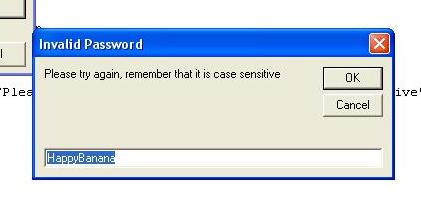
Now I'll explain how the code relates to this example if you haven't worked it out. VB has many handy functions, one of them is an "InputBox". So after "InputBox" theres a "(" (open bracket), the first part in the quotation marks is a prompt = "Please try again,remember that it is case sensitive ", then the second part is the title of the "InputBox": "Invalid Password",last value is the highlighted text in the textbox - strUserInput (the password to retype) and finally is finished with a ")" (closed bracket). We use this function as a string value and set it to the strUserInput dimension because it's now changed.
Once we have a new strUserInput value we want to check if it's the actual password ("Loopy1034"). To do so, we want to repeat those last few lines of code, so we use "GoTo" - which literally means Goto, then we put "Retry" - the pointer we created earlier ("Retry:"). So now we are asking the computer to go back to the top of the "If" statement to try the password check again. - Pretty straight forward stuff!
If the password is correct we want to logon, confirm, give the big "OK", Enter the gates, Dissconnect out of the Matrix, or whateva - I think we should just confirm for now :). Remember when I was explaining how subs work, if you want to create your own, for it to work you would need to call it. This is exactly what's happening, we are going to call a sub that we haven't created yet called "LogOn". by errrrm writing "Call Logon". Isn't this just so basic!
Now I want you to run the code, make sure you know the password, if you are cabbage or have a goldfish memory and forget the password even though it is staring you right in the face, Press "Crtl+Pause/Break" to pause the code, then press the stop button beside the play button.
Notice something crappy about our program. Firstly if you do get the password correct you will come up with a compile error saying "Sub or Function not defined". This is because we haven't made our "LogOn" sub yet, so no need to worry about that. The main problem is what if we didn't know the password but just wanted to get out of the stupid thing!, we are looping around forever until the user will get the right password (and what if you made it something like "MySmellyCatIs16andahalf_69"!). As a programmer you will always come accross unseen problems 1 million times worse than this, but you are just learning, so you need to be introduced to something unexpected.
So how do we tackle a problem like this!?, ask yourself what you need to do generally - not to detailed, then work into detail. So we need to Exit out of the program if the user presses cancel. I'm not sure if theres code to find out if the user presses cancel, I've never found anything on it, but when the user does press cancel it returns a value of nothing - "". We can use this as an indication that the user wants to quit. So just under "Else" put "If strUserInput = "" Then End" like this:
Private Sub
Command1_Click()
Dim strUserInput As String
strUserInput = Me.Text1.Text
Retry:
If
strUserInput = "Loopy1034" then
Call LogOn
Else
If strUserInput = "" Then End
strUserInput = InputBox("Please try again, remember that it is case sensitive", "Invalid Password", strUserInput)
GoTo Retry
End
If
End Sub
So if the password is incorrect then it is possible that the user pressed cancel, thats why we put it there. Now we can say: If strUserInput equals nothing then end the program by using the "End" function. Now run the code and press cancel (on the inputbox) and see for yourself!
Give yourself a pat on the back because you have just created your first functional sub procedure and understand it! (hopefully). Now lets finish it off with a confirm sub.
Below the sub you just created ("Command1_Click") write "Public Sub Logon" and press enter, VB will automatically set the rest up for you:
Public Sub LogOn()
End Sub
How could we confirm the logon? you can put anything you want in here. Lets do something simple like a message saying you have logged on. We will use another VB function called "MsgBox", simular to the "InputBox" but doesnt require input and can be used as a statement or a question, in our case we will use it as a statement. Type this:
Public Sub LogOn()
MsgBox "Welcome User", vbExclamation, "Logon Confirmed"
End
End Sub
Heres a summary of how the MsgBox works:
Msgbox "Prompt" , BoxType , "Title"
Very easy stuff. Then as you would of noticed there is "End" below it to
errrmmm, end the program.
Now just add another "End" function in the forms Cancel button to finish it off. YOUR DONE!!
Download the logon project in a zip
Outro
I hope this introduction gave you a basic understanding of VB code and how it works. What I now recommend you do now is to experiment with what you now learnt, once you have mastered
it go on to more advanced tutorials and master them, don't go to fast into learning to many differant things or you'll get lost and very confused! Try dissecting other VB source code from the net and understand certain parts of it. Go to my Links page to find out more.