Steps on how to send a personal email:
Step.1
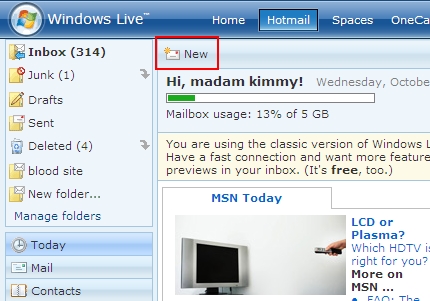
After you have signed in and reached the Hotmail Home page, Click on New at the top of the page to create a new message.
Step.2
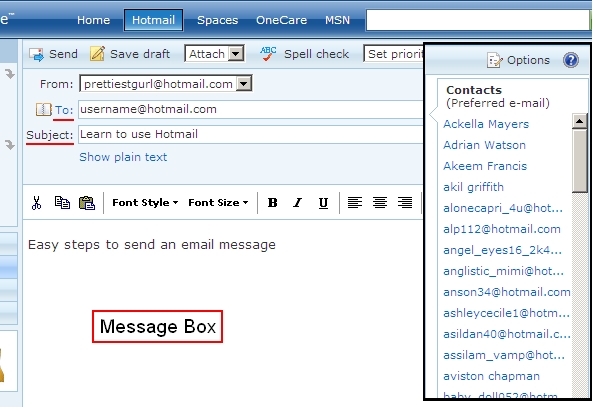
Next, in the page that opens up, type the person�s email address in the To: box who you want to send the message to or, you can click on a name listed in the contact list/email address on the right side of the webpage if the person is already listed as a contact. Multiple email addresses should be separated with a comma.
Give your message a title by typing it in the Subject line.
Type your message in the Message Box. Remember to use Spaces in between words by pressing the space bar. To get capital letters, hold down on the Shift button and the letter at the same time.
Step.3
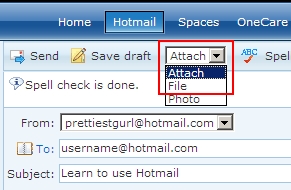
If you want to attach a file or photo to the message, click where it says Attach and a drop down box should appear below. Then, click on File.
Step.4
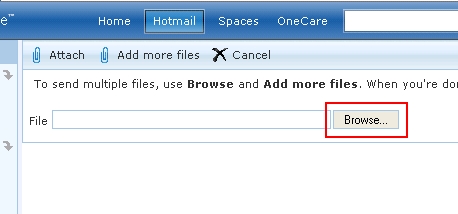
In the next page that opens up, click on Browse to select the file or photo which you want attached.
Step.5
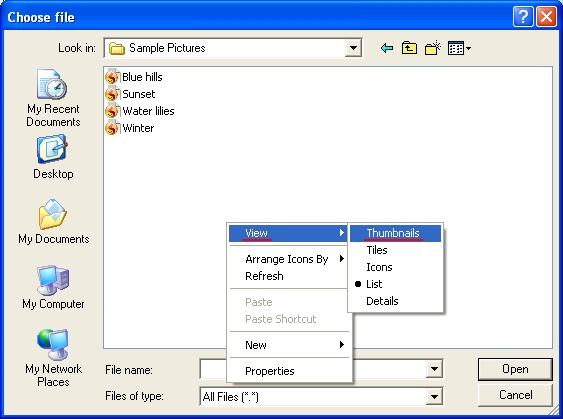
After clicking on Browse, a Choose File menu comes up. Locate the file which you want. For photos, you may not be able to tell which photo you want to attach because the names are unfamiliar.
To solve this problem switch the file view to Thumbnails so you can see a smaller version of the photo.
Right click anywhere in the white space and click View. Next, click on Thumbnails.
Step.6
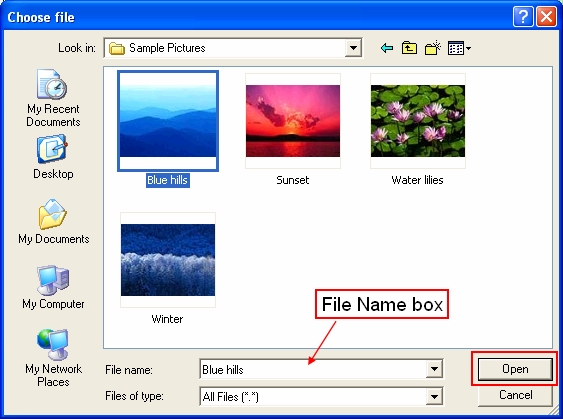
Now you can see what each photo looks like. Click on the file/photo you want to attach. The name of the file should then appear in the File Name box.
Next, click on Open.
Step.7
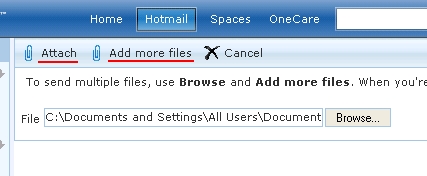
The file location and name automatically goes into the box next to file. From here, you can either click on Add More Files to attach more files/photos to the message where you have to repeat Steps 4 through 6. Or, you can select Attach and return to the New Message area. Cancel also takes you back to the message but removes the file(s) attached.
Step.8
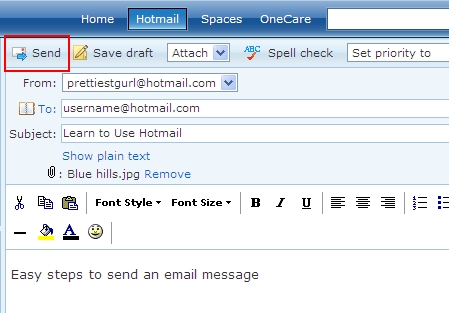
Finally, send your message by clicking on the Send button.