|
ADDING THE SPARKLE STAR
Step 1.
With you animation still open in GA
click on the Add image button to add your sparkle star.
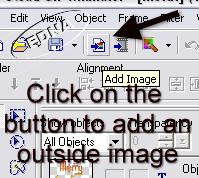
This will insert as one frame. Now the
sparkle is a little big so click on the Transform icon on the left toolbar.
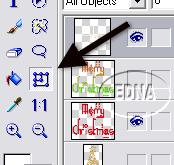
Step 2.
Now grab the corner and make the sparkle star
smaller, then click on it and move it into position, I placed mine on the
top of the tree. That is the first frame done. :-))
Step 3.
Goto: your Tool Menu on the left-hand side and
choose the Pick tool, The Pick tool is the best tool to use, when you have to move an object in GA
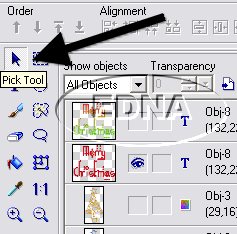
Highlight frame 2 open the eye of the next
coloured tree up one layer, (by now you know what I mean when I
say eye :-))
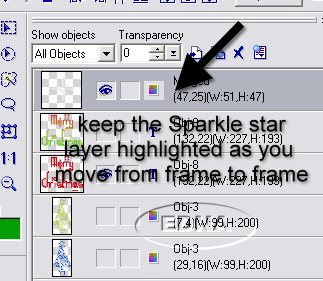
highlight the Sparkle Star layer and move the
Sparkle Star into the next position down and to the right.
Step 4.
Highlight frame 3, open the eye of the next tree
up one layer and move the Sparkle Star into the next position down and to the
left. Do this to each frame.
I also duplicate a couple of frames so that
the Sparkle Star had a bit more distance. In total I had 7 frames
A screenshot of what my Object Manager looks
like in GA
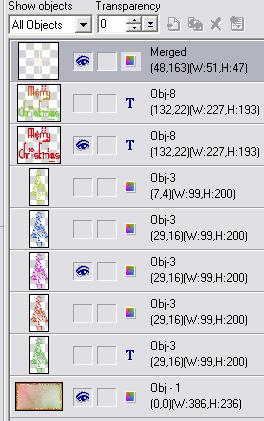
and what my running board looks like in GA

I hope that you have enjoyed this tutorial and
that it has helped you to understand how I add a Sparkle Star to my animations.

Please feel free to print
this tutorial
out for your own personal use, but do not copy it in any way to
put on-line, pass out, or
re-write and claim as your own!
Any resemblance to any other
tutorial like this is purely coincidental.
This tutorial was written
on the 22nd December 2006
Website and web set Design
by and
© to Edna Munn
Index |