How to Change File Associations

(Determines which program opens a file type)

First, you must have administrator access to change these associations in Windows XP.
Login to your administrator account, change your User account type to administrator, logout, then login to your User account.


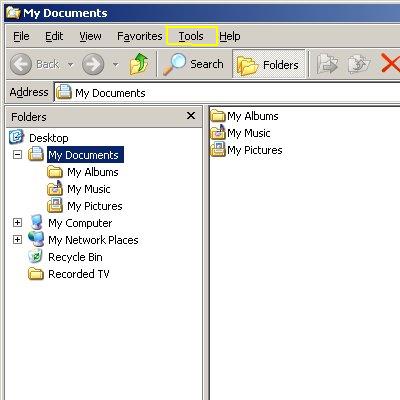
1 -Next, open Windows Explorer
(folder icon, used to browse files on your computer),
and click on Tools on the Menu Bar:


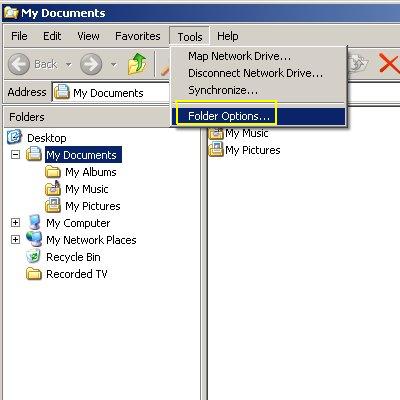
2 - On the Tools menu,
click on Folder Options:


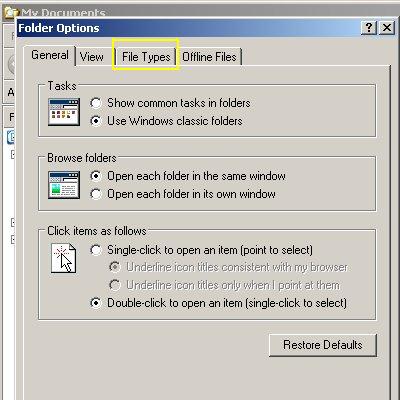
3 - In Folder Options, click on File Types:


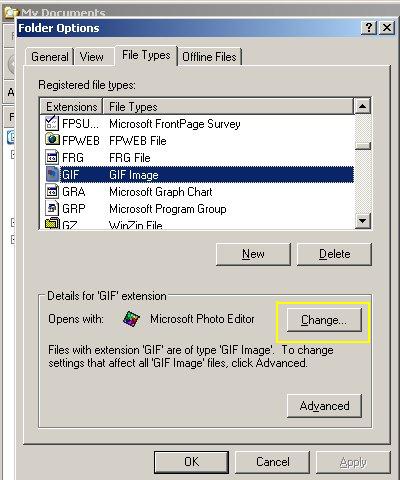
4 - Select the extension & file type you wish to change.
In this example, the GIF/GIF Image extension will be changed from Microsoft Photo Editor to Internet Explorer.

Current association is shown at "Opens with"; then click the Change button:


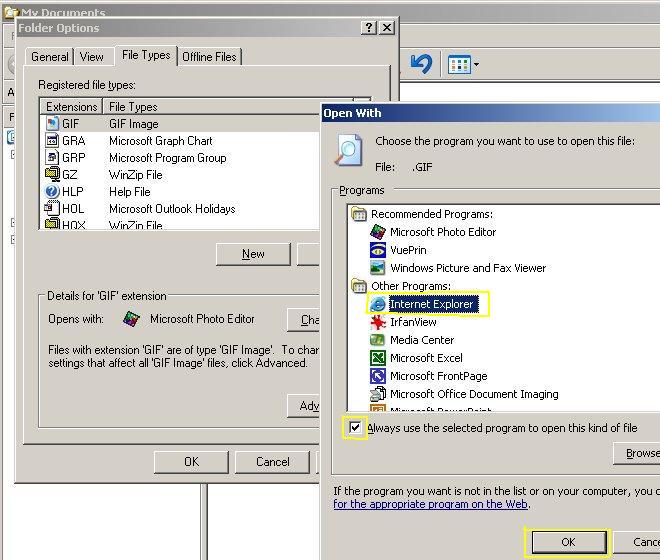
5 - In "Open With" box, select desired program to be used with that file type.
  (If you don't see the program there, use the Browse button to search your computer files.)
Check the "Always use" box to make the change permanent, then click the OK button:


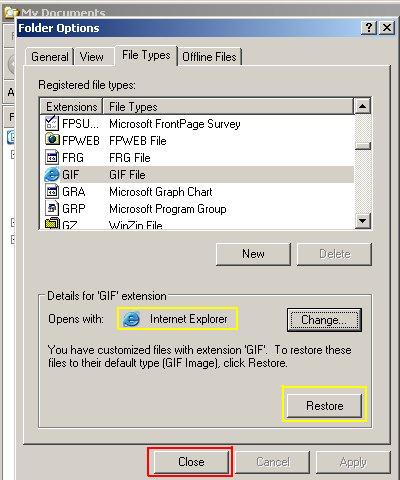
6 - Review the new association;
if satisfied click the Close button.

You're done! Congratulations.


A few files to test with (right-click & chose "Save Target As...", then Save to your computer.
Double-click on the file name in your computer folder, & it will open with the program set as current association):

GIF - GIF Image - Internet Explorer or other Viewer showing transparency and/or animations
JPG - JPEG Image - your favorite image viewer
PNG - PNG Image - current replacement for GIF images
MID - Midi Sequence - Windows Media Player
WAV - Wave Sound - Windows Media Player or Sound Recorder
MP3 - MP3 Format Sound - Windows Media Player
TXT - Text Document - Notepad
Html - HTML Document - Web Browser   (Precious may like this one!)
MPG - Movie Clip - Windows Media Player
WMV - Windows Media Audio/Video File - Windows Media Player
PPS - Microsoft PowerPoint Slide Show - Microsoft PowerPoint

Back to Services Page

Hosted by www.Geocities.ws

1