Texporter Tutorial
V1.0 – The Basics
First of all, you need to download Texporter, if you don’t have it, get it here
http://www.cuneytozdas.com/software/max/texporter/index.htm
NOTE: This tutorial was made for the artists on the team for The Anarchy Army.
This tutorial is copyright of The Anarchy Army.
Do not redistribute it/take its work without The Anarchy Army given some
credit for this easy to follow tutorial.
Go to The Anarchy Army’s web site at www.anarchyarmy.tk
This tutorial’s main purpose was to teach an easy way to get Texporter done and to tell people in my team how to get it setup for our game, but it is also helpful to get it setup in many other games as well…
Good Luck learning!
-Kedhrin Gonzalez
Installing Texporter –
Put it in your 3D Studio Max plugins directory.
It should automatically load.
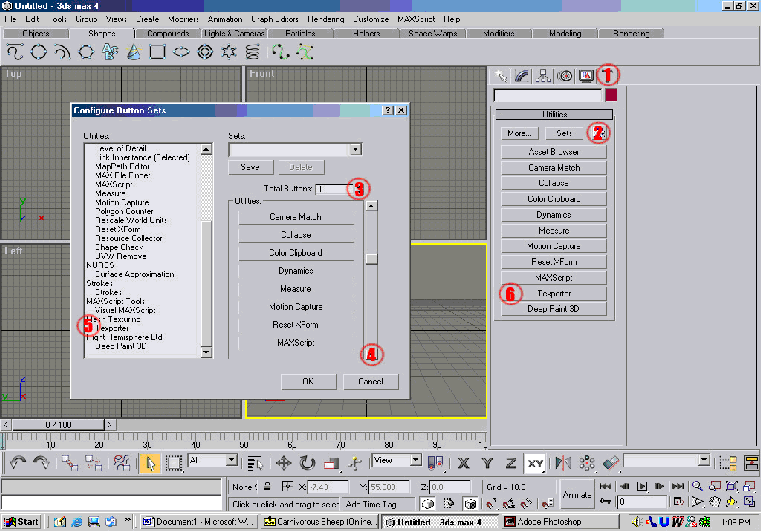
Follow this picture for the next stage of steps
1) Click on the utilities tab
2) Click on the button that looks like a large window with smaller windows inside it
3) Change the total buttons to 11 (or more if you have already 11)
4) Scroll down until you see the blank button at the bottom, once you do, single left click it to highlight it.
5) Drag the Texporter (near the bottom of the list usually) onto the blank button. Press OK
6) It should be now in your list of buttons.
Now that you have texporter in 3D studio max, lets start with how to use it.
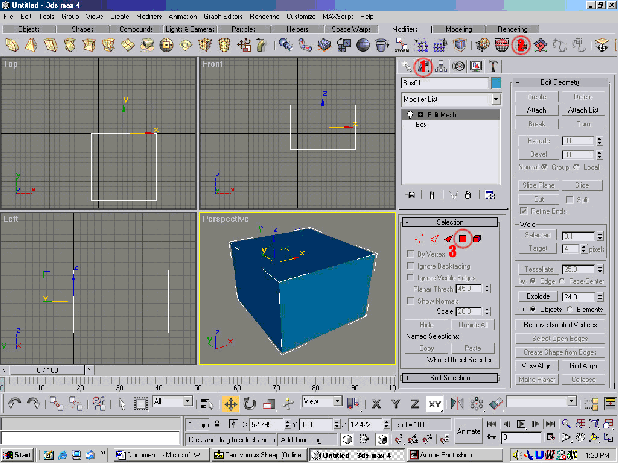
1) Click on the modify tab
2) Click on the modifiers tab (if you are using the 3D Studio max r3 layout, if you wish to use this, go to customize, load custom ui scheme, then select 3DSMaxR3.cui) select the edit mesh modifier button.
3) Go ahead and click the select face button.
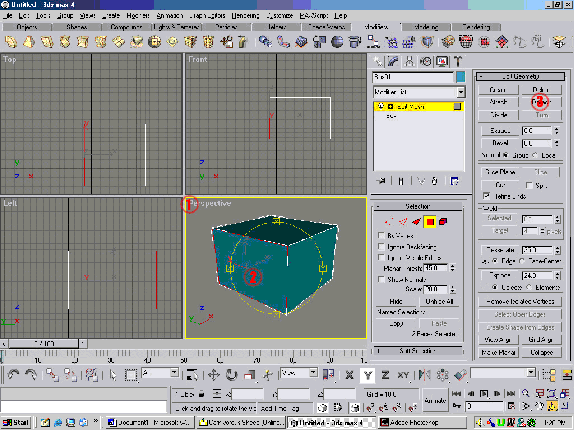
1) Right click the view name, go down to edged faces, this will help you see your faces in 3D view.
2) Select your face/faces
3) Detach it into another object, do not move it yet.
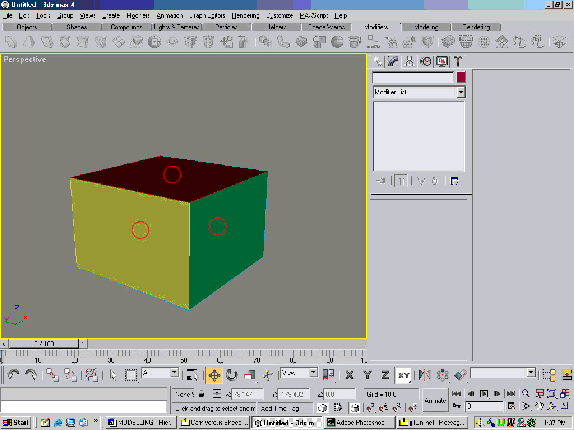
Each circle notates a side; I detached the front, left, right, top, back, and bottom.
So now you have all the faces on their own sides selected.
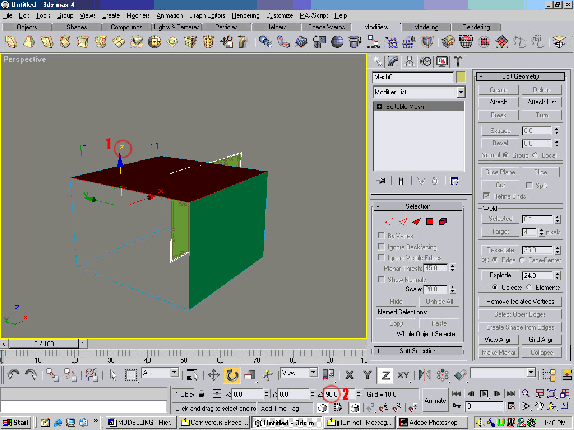
1) I rotated the object with the rotate tool on it’s z axis, always trying to get the faces to point to the Front face.
2) Spin it always at right angles if at all possible.
Spin the left and right faces on its z axis both a 90 degree turn always making sure it faces the front face. On the top and bottom face you need to rotate them on the X axis a 90 degree turn to make it look like a folded cube. For the Back face you need to rotate it 180 degrees and move it to the side of one of the side faces (left or right, whatever is more comfortable for you.)
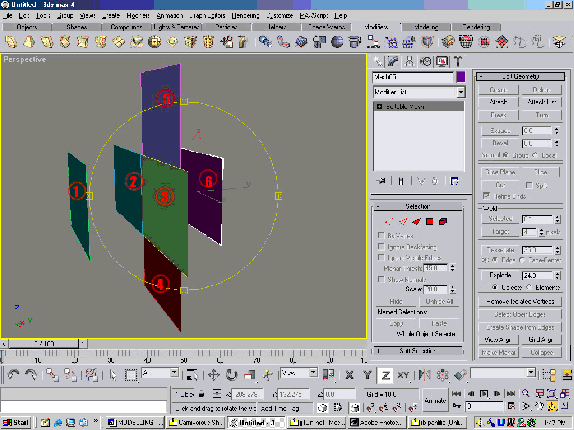
1) Front
2) Left
3) Right
4) Bottom
5) Top
6) Back
Note how they are all facing the front face.
Now I will move them into position.
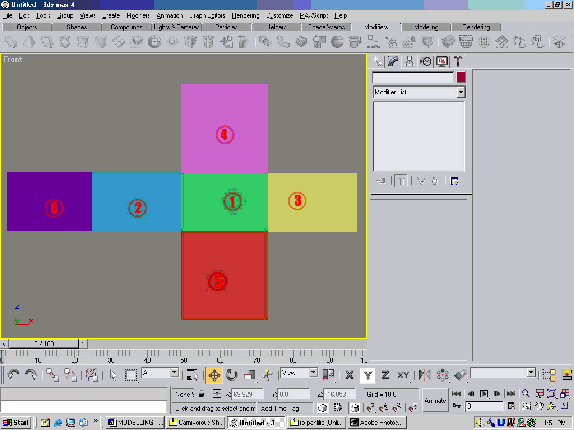
Note how I moved the faces around; I moved them into a good position around the front face.
Note how I moved them to be a good picture in the Front view, make sure there are no overlapping polygons, and make sure they are reasonably placed.
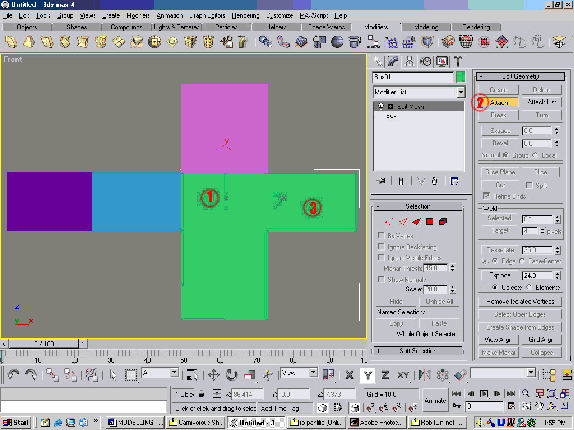
1) I selected the front face, then I went into its modify where edit mesh should still be, if it isn’t on top just add another edit mesh modifier to the modifier stack.
2) Click attack in the modifier list of buttons.
3) Go around and click every face to form one object DO NOT WELD VERTEXES YET
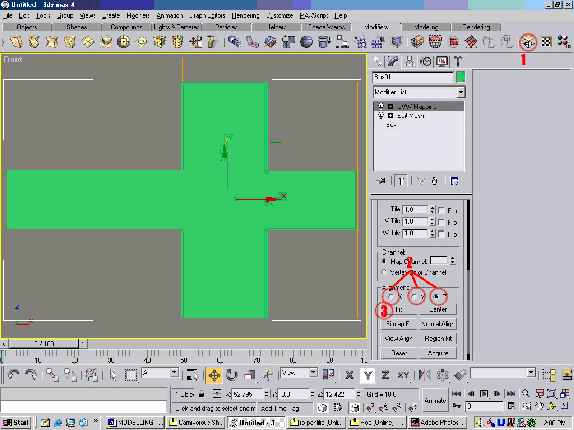
1) click uvw mapping
2) you need to make sure you do not click any of the modifiers at the top of the uvw mapping cords (sphere map, cylinder, box, etc.). Just leave it like that. Here, click either x, y, or z, to make it to where the box is facing towards the frong (you should see a rectangle facing you with a line on the top one)
3) Click fit to make the box squeeze around the object.
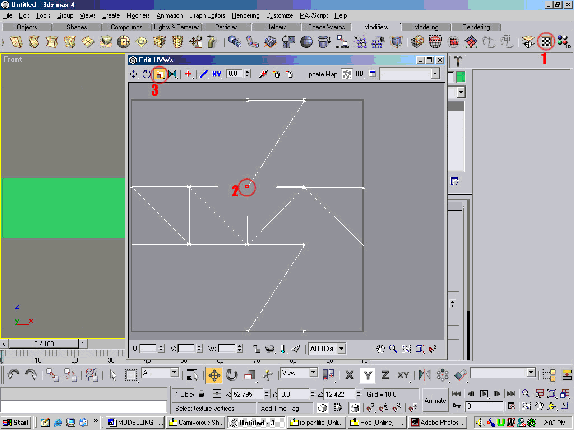
1) Click UVW Unrwrap
2) Go to edit, when in there, select a corner of vertexes (where more than one plane meets)
3) Select the resize tool, make them as close together as possible as to where you can only see one line.
4) Repeat 2,3 on every corner of every meet.
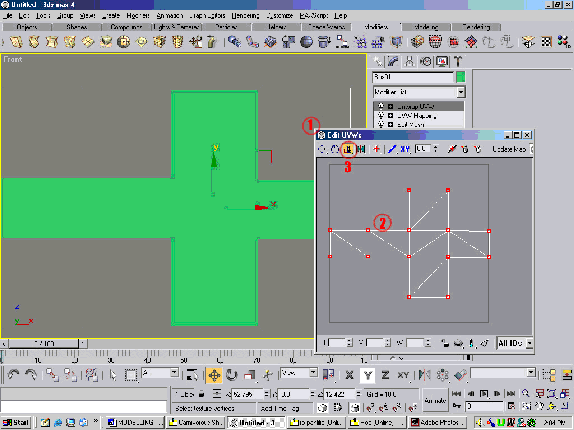
1) resize the window so you can see the box, see how it is shapped, as you can tell it is too long on its y axis in the uvw unwrap window.
2) Select all the vertexes in the uvw unwrap field.
3) Select and hold the resize tool until the drop down box appears. Go to the one that is a smaller box, (horizontal) and another box (vertical). The vertical box will have 2 arrows in it pointing up and down. This is to resize only vertical, which you use to flatten the image like in the picture I made it more fitting to the actual models state.
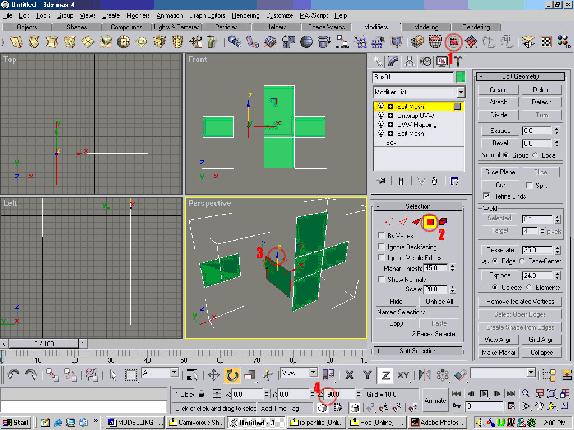
After you have got the uvw unwrap to you standards…
1) Click edit mesh modifier again to bring it to the top of your stack.
2) Select the Select Face Button.
3) Rotate each side back on its z axis to go back in its original position.
4) Make sure they are right angles again to prevent ‘deformities’
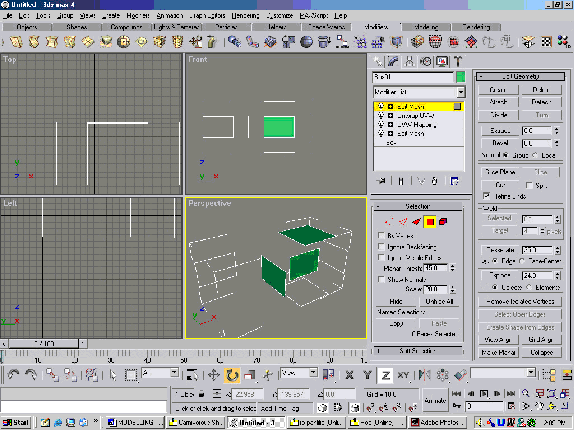
after you did all that you should have something similar to above.
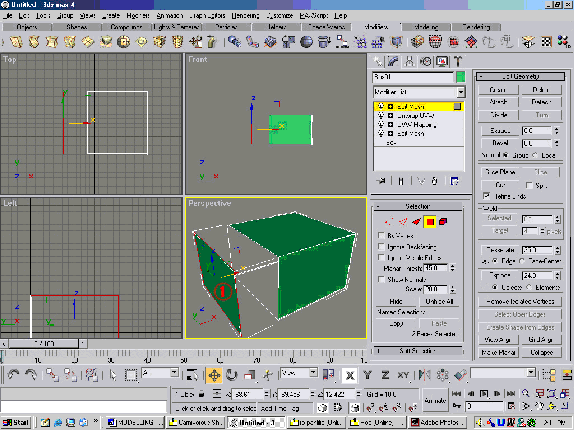
1) Move the faces back into their original positions, forming the box once more.
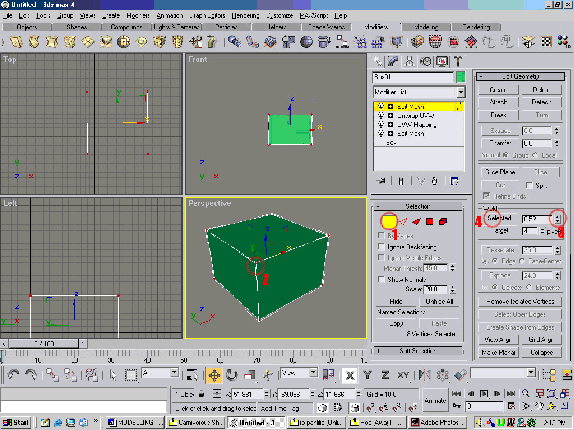
1) select Vertex Select
2) select all the points on the box.
3) Move the weld range up to a reasonable distance (depending on the size of the object, your ranges may differ)
4) Press select to weld all the vertexes again, having the box almost in its original position.
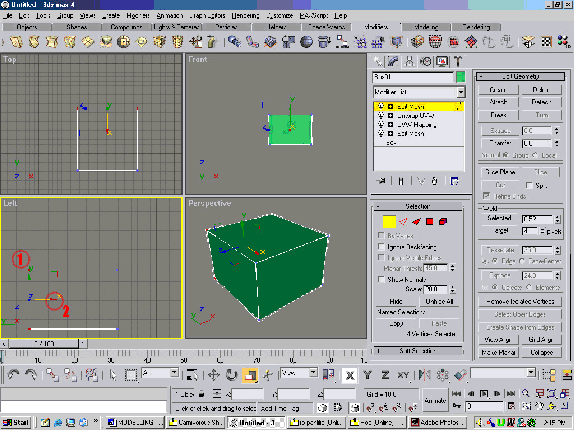
Now, to get rid of “crooked” lines…
1) With the non-uniform scale selected, select the vertexes on the crooked line, the beginning, and the ending ones.
2) Scale on the axis that is to their side of the line. Make sure it is as tight as possible.
You should now have a Full box, back in its normal position, with the coordinates to use Texporter on!
Now lets use Texporter on it!
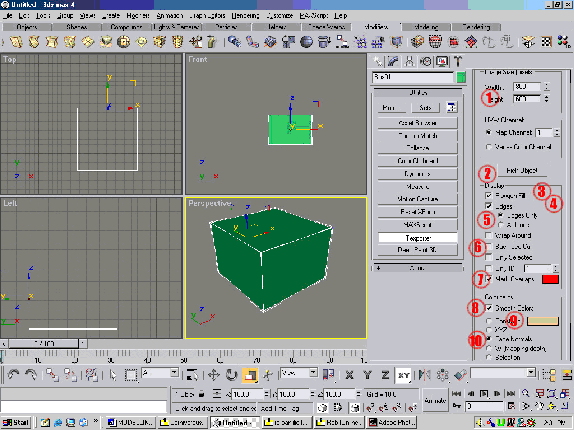
1) Set the width and height of your picture. Make sure it is a good (universal uniform) size. 800x600 is always a good one, you can always resize images later.
2) Pick your object, this will load it, bla bla bla, I will hit this next J.
3) Polygon Fill, fills Edges with a certain fill, the options are down in Colorized by, the only ones you will be able to use with me is Face Normals unless told otherwise.
4) Edges, maps the edges of the object
5) Edges Only or All Lines, Edges only, only shows visible edges of faces, all lines show every polygon.
6) Backface Cull, not sure what it does, but it makes everything black, so always leave it unclicked.
7) Mark Overlaps – this will let you know that there are overlapping polygons in your uvw unrwrapping. Go back to uvw unwrapping if you need to, to fix this. Some times you will need to turn this option off in case you are doing an object that has the same thing on both sides.
8) Smooth Colors Smooth edges between where the colors meet.
9) Constant - A constant color fill
10) Face Normals – Fills in with certain colors that mark normals on the faces.
Note: This is my requirements for the models Texporter file
The Following is the Requirements for The Anarchy Army Staff. you are about to see how we do our work and the tricks we use to be able to tell each others work. Having all the same technique and understanding each others techniques is essential to easy development. You do not have to do the following, but I recommend it.
1) A ALL LINES (no polygon fill) file with a Blue Constant fill.
2) A polygon fill only with normals
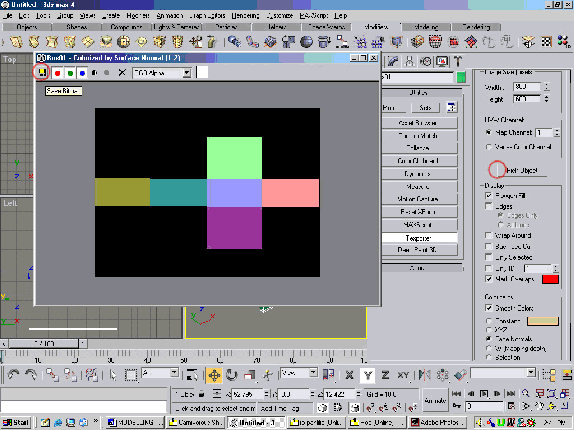
Click pick Object, then click the box, the rendering thing will come up, and show you the finished result. Click the Save button to save it.
Getting it Run in Adobe Photoshop requirements –
Use the bottom layer as the normals picture
Use the second layer as the blank, or texture here, layer
Use the third layer as the Edges picture
Use the 4th layer as the area where you will color it with solid colors to notate ‘side’ on the model
Use the 5th layer to put labels down telling what side is what
Use the 6th layer to put down special notes or explanations of why something is there.
The second layer could be more depending on if you need to do layers to make your texture.