

Guide To
Core CPRS GUI
For the HUI
October 2002
Contents
2. Starting CPRS *
Selecting a patient 4
Notifications 6
3. FEATURES AVAILABLE FROM ANY TAB 7
4. ELECTRONIC SIGNATURE 16
5. PRINTING FROM WITHIN cprs 21
6. TOOLS WITHIN cprs 22
7. PERSONAL PREFERENCES 24
8. cOVER SHEET 39
9. Problems *
10. Meds *
11. Orders 50
Viewing Orders 51
Writing Orders 53
Order Checking *
Quick Orders 54
Order Sets 54
Signing Orders 54
Allergies 57
Labs 63
Medications 66
Vitals 79
Activity/Patient Care/Free Text 79
Order Actions 81
Viewing Notes 83
Custom Order View 85
New Note 87
Encounter Check-out 91
Document Templates 95
Viewing Discharge Summaries 109
Writing a Discharge Summary 111
15. Reports 120
16. nursing 133
17. Helpful Hints 139
18. Glossary 142
The Computerized Patient Record System (CPRS) is a Veterans Health Information Systems and Technology Architecture (VISTA) computer application. Core CPRS enables you to enter, review, and continuously update information connected with any patient. With Core CPRS, you can order lab tests, medications, record a patient’s allergies or adverse reactions to medications, enter progress notes, diagnoses, and treatments for each encounter, and enter discharge summaries.
CPRS not only allows you to keep comprehensive patient records, it enables you to review and analyze the data gathered on any patient in a way that directly supports clinical decision-making.
GUI and Windows
GUI stands for Graphic User Interface, most frequently seen as Windows. If you have already used programs with these screens, then the CPRS GUI screen will seem familiar to you.
If you have little or no familiarity with Windows, you can browse through the Windows help file for information about the basics of using Windows. Also, see the next few pages for brief descriptions of some GUI features.
Online Help
Instructions, procedures, and other information are available from within the CPRS program. The online help that is available in CPRS follows many of the standards and conventions of the Help feature in other Windows programs. To access Help, click on Help and Contents from the menu bar or press the F1 key while you have any CPRS dialog open.
Introduction, cont’d
Windows
An "application window" is the area on your computer screen used by a program. If you have more than one program running at the same time, you can go from one program to another by clicking in each application window. You can also move, close, or minimize the application window to make room for another window. (See Help in Windows for further instructions on these functions.)
Dialog Box
These are "mini" windows that pop up within a window to provide or request information. Usually they require some action before they will go away. Clicking on buttons with the words <Accept>, <Cancel>, <Exit>, or something similar closes these windows.
Menus
Menus are shown in the gray bar near the top of the window. They are File, Edit, View, Tools, and Help — typical menus for most Windows applications. When you click on one of these, a list of options is displayed.
Tabs
CPRS tabs, placed across the bottom of the screen, represent the different components of a Patient Chart. When you click on one of these, a new window opens, with information and available actions for that subject. These tab windows are described in the following pages.
1. Double click the icon for CPRS on your desktop.
Note: Be sure to tab between the Access Code and Verify Code boxes (don't press Enter or Return).
3. Click on the OK button.
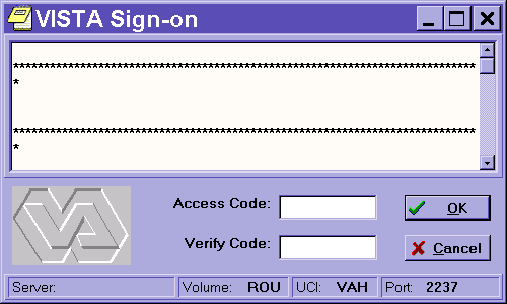
Shortcut: Enter access code, semicolon (;), and verify code in the access code box.
(Example: ab1234;cd5678<Enter>)
Starting CPRS, cont’d
Selecting a Patient
3. In the list box in the center of the screen, locate the patient's name (scrolling if necessary) and click it once. When you click a name, the patient's full name, social security number, and other information appear on the right side of the dialog window.
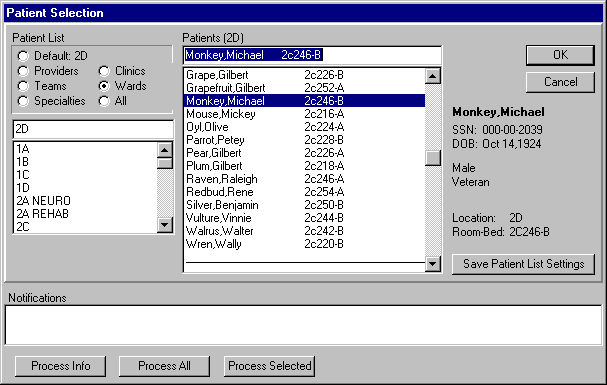
Opening Another Patient Record
From within one patient’s record, you can easily switch to another patient’s record.
Click on File | Select New Patient. The Patient Selection dialog window will appear.
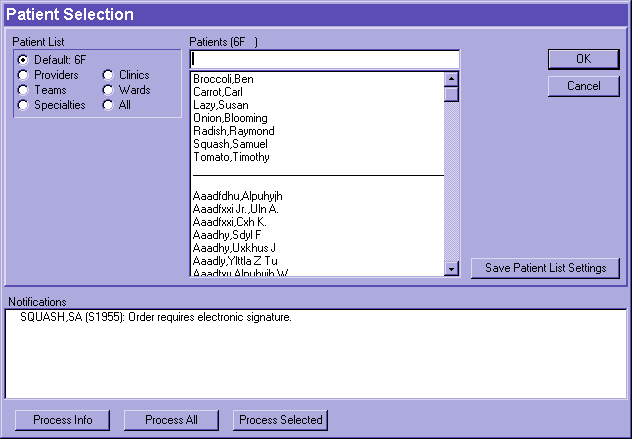
Clinical Notifications are displayed at the bottom of the Patient Selection screen. You will only see notifications for your patients. You can set personal preferences to determine the type of notifications you receive.
2. To take action on one or more notifications:
3. Click the Next button on the status bar to move to the next notification.
3. Features Available from Any Tab

In the CPRS GUI, the tabs are intended to mimic the paper chart. Chart tabs divide functionality. The menu items on the View and Action menus change depending on which tab is selected.
However some features are available regardless of which tab is active:
All of these buttons have two purposes. They provide you with immediate feedback about the patient or the patient’s care, and they provide additional information when clicked.
Features Available from Any Tab, cont’d
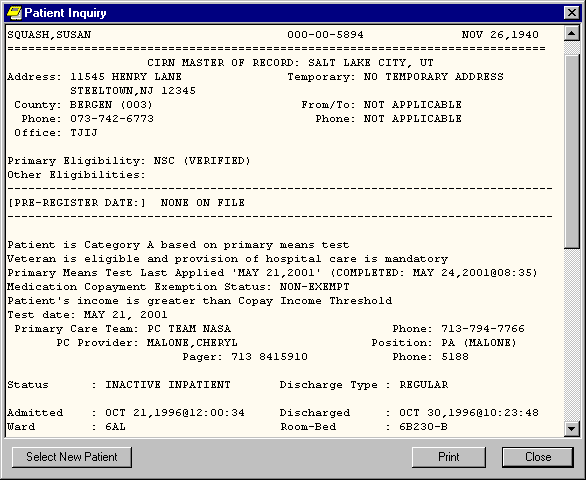
Patient Inquiry
The Patient Inquiry button is the first
button on the button bar. It has a blue
background color.
The Patient Inquiry button displays the following:
Features Available from Any Tab, cont’d
Visit/Encounter Information
 CPRS shows the encounter provider and
location for the visit on the Visit Encounter
button. It is the second button on the button
bar.
CPRS shows the encounter provider and
location for the visit on the Visit Encounter
button. It is the second button on the button
bar.
If the patient is an inpatient, the encounter button will display the patient’s current inpatient location. If the patient is an outpatient it may display as Visit Not Selected depending on how you selected the patient from the Patient Selection screen. You can use this button to schedule new encounters, access existing encounters, and create unscheduled encounters.
If you have full provider privileges, your name will display on this button.
If a provider or location has not been assigned, CPRS will prompt you for this information when you try to enter progress notes, create orders, and perform other tasks to track where the patient was seen and by whom.
To enter or change the Encounter provider/location:
Primary Care Information

To the immediate right of the Encounter button is the Primary Care button. It allows the user to make an inquiry about the primary care team for a patient. If assigned, the team and primary care provider assigned to this patient are visible on the button. If the patient is an inpatient, the attending physician for the inpatient stay is displayed on the button.
For a detailed display, click the button. Detailed information might include:
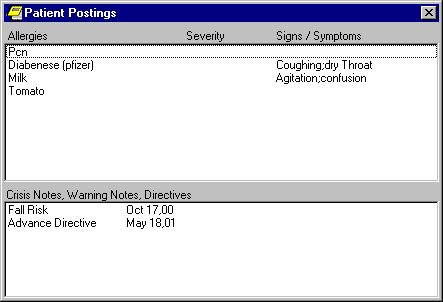
Patient Postings (CWAD)

Postings are a special type of Progress Notes. They contain critical information about a patient that hospital staff need to be aware of. The Postings button is visible on all tabs of the patient chart. It is located on the right side of the button bar. The button is labeled Postings, and if a patient has postings, letters also appear on the button showing which categories of postings the patient has.
Menu Bar
Click on any of the items on the menu bar to see more selections. Some menu items change according to the tab you are currently viewing.
Edit Depending on the context, you can copy, cut, or paste.
View You can change the date range or other parameters to focus the displayed items.
Options This menu contains options that allow you to create quick orders and templates. It is not available on all chart tabs.
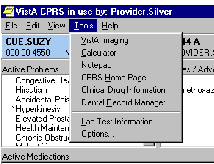
Tools This menu contains links to other non-CPRS software or web sites.
Help Online help about using CPRS is available on this menu.
You will automatically be prompted for a signature when you do any of the following:
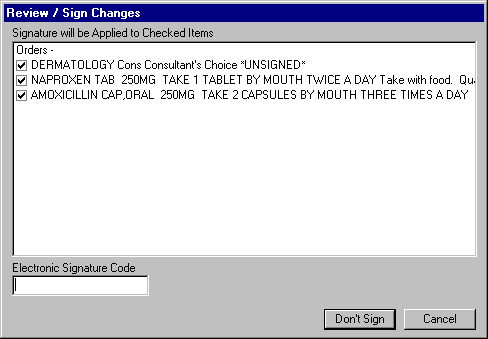 The Review/Sign Changes dialog box shown
below will appear. After signature, orders are
released to the services for action. If the
electronic signature code is not entered, or is
entered incorrectly, the orders are not
released to the services for action, but are held
in an unreleased/unsigned status.
The Review/Sign Changes dialog box shown
below will appear. After signature, orders are
released to the services for action. If the
electronic signature code is not entered, or is
entered incorrectly, the orders are not
released to the services for action, but are held
in an unreleased/unsigned status.Note: Whenever possible it is best to enter all orders and sign them all at once. Each time you enter your signature code, the order(s) just signed will automatically print at the printer designated for the patient’s location.
Electronic signature, cont’d
The following Review/Sign Changes dialog box will be presented if the patient has outpatient medication orders that need to be signed and certain copayment conditions are met. The upper left corner box lists all service connected conditions and rated disabilities. The box to the right lists those conditions exempt from copayment requirements. All unsigned medication orders will display in the lower white box, along with a check block grid.
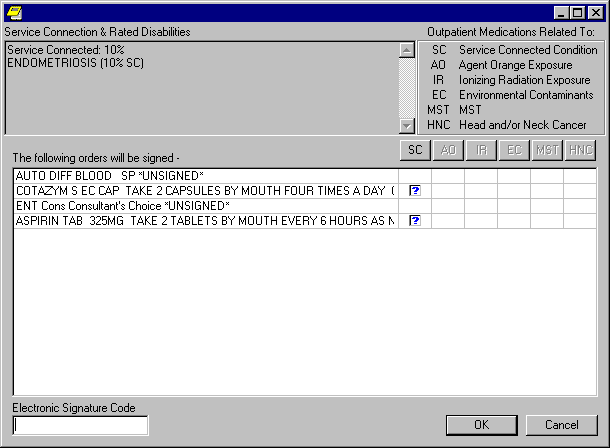
A question mark in a checkbox indicates that the user needs to identify whether that medication order is related to the condition in that column. (SC = Service Connected Condition, AO=Agent Orange Exposure, IR=Ionizing Radiation Exposure, EC=Environmental Contaminants, MST=Military Sexual Trauma, and HNC=Head or Neck Cancer). If you place a check in a box, you are indicating that a medication order is related to the condition in that column. If you create an empty box, you are indicating that the medication order is not related to the condition in that column. Note also that only those exemptions as they apply to the veteran are highlighted and selectable.
You can toggle the checkboxes by:


 or
or  )
) button.
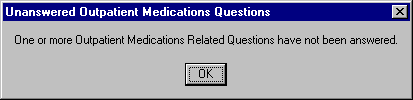
You must either check or uncheck every box that contains a question mark before you can sign the order(s). Here is the message you will see if one or more questions have not been answered.
Criteria Used to Determine if the Copay Buttons are Displayed
The Copay buttons are not displayed unless the current patient has outpatient medication orders and other additional conditions explained below.
Signature Authority levels
CPRS allows for different levels of signature authority.
Electronic signature, cont’d
Electronic Signature Code Edit
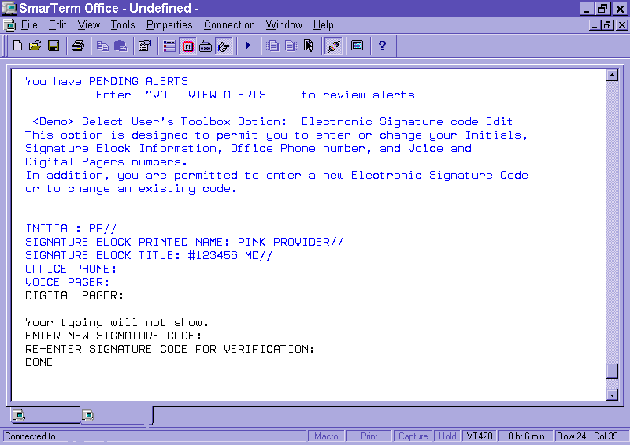 Example:
If you are prompted for your Current Electronic Signature Code and you do not know what it is, you need to contact your ADPAC or go to the IRM Help Desk. They will clear your old electronic signature code and you will then be able to create a new one.
5. Printing from within CPRS
To print graphics and charts, you will need to print to a Windows printer. Otherwise, for text documents, you can print to either a Windows or a VistA printer. The printer language used by Windows printers can accommodate graphics, while the language used by VistA printers cannot.
Many report boxes have Print buttons to make it easier for you to print information. To print information from a Detailed Display dialog box, you must have a Windows printer defined for your workstation.
Go to File | Print Setup… to set up a preferred printer and save it as the default.
The dialog box shown below comes up when you select File | Print.
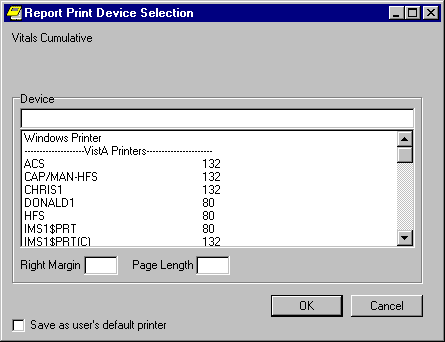
Click on Windows Printer in the dialog window to send your report to the default windows printer set up for your workstation.
Type in a VistA printer name in the text box or scroll through the list of VistA printer names and click on the printer that you want to send your report to.
You do not need to enter a right margin or page length value. These values are already defined by the device.
Check the Save as user’s default printer checkbox to save your selected printer as the default.
6. Tools within CPRS
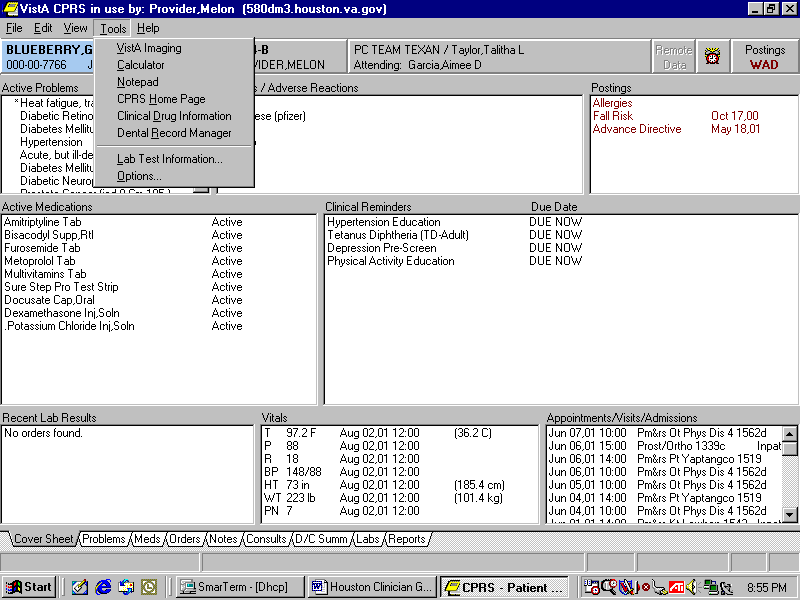
Lab Test Information
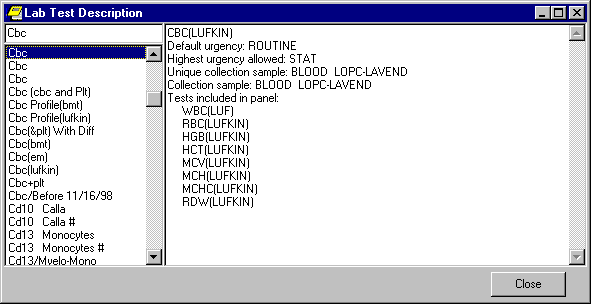
Selecting Tools | Lab Test Information brings up the following dialog. Select a lab test from the left column and information about the lab test (such as labs in the panel, collection sample, and special instructions) will be displayed on the right.
Tools within CPRS, cont’d
Options
Select Options to change many of the settings that control the way CPRS works for you. See Chapter 7 for more information
Other items in the Tools menu are:
7. Personal Preferences
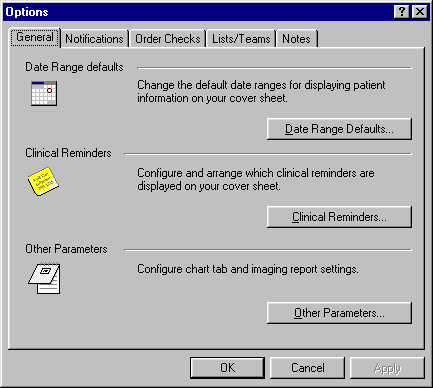
The Options dialog consists of a number of tabs, each of which allows access to a category or type of preference settings.
Personal Preferences, cont’d
General tab
The General tab includes options for setting and changing Date Range defaults, Clinical Reminders, and other parameters involving the initial chart tab on startup and imaging reports.
Personal Preferences, cont’d
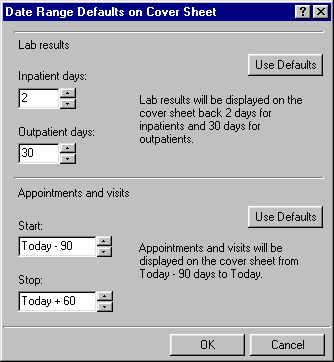
Date Range Defaults…
Click on Date Range Defaults… to set how long lab results and appointments and visits will be displayed on the Cover Sheet. Click on the Use Defaults button to set to the system defaults.
Personal Preferences, cont’d
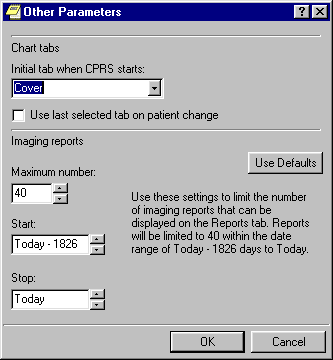
Other Parameters…
To set chart tab preferences click Other Parameters. This option also allows you to set restrictions on the number of image reports you want to display.
Chart tabs
Click on the drop-down button and select the chart tab with which CPRS should open. Click on the check box if you want CPRS to remain on the last selected tab when you change patients.
Personal Preferences, cont’d
Notifications Tab
This tab allows you to change your notification options.
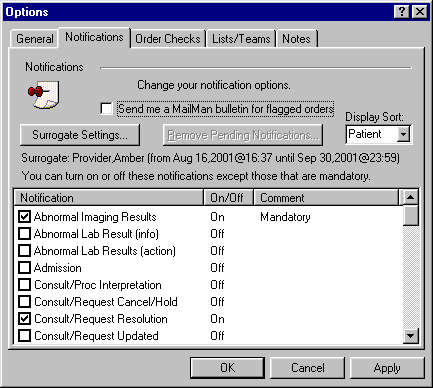
Surrogate Settings…
To set a surrogate, click on Surrogate Settings… From the Surrogate Settings dialog, select a surrogate from the drop-down list. When saved, the surrogate information is displayed on the Notifications tab.
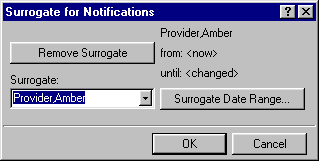
To set a surrogate date range, click on Surrogate Date Range… From the Date Range dialog, click on the ellipsis buttons and select a start date and a stop date. You may also select a start time and a stop time for the surrogate. When saved, the Surrogate Date Range information is displayed on the Surrogate for Notifications dialog.
Personal Preferences, cont’d
Remove Pending Notifications…
Click on Remove Pending Notifications and then on Yes on the Warning dialog to clear all of your current pending notifications. This button is enabled only if you are authorized to use it.
Display Sort
Click on the drop-down button to select the sort method for your notifications. Choices include Patient, Type, and Urgency.
Notifications list
Click the check box next to any Notification to enable or disable it. Notifications with "Mandatory" in the Comment column cannot be turned off or disabled. Click the heading to sort Notifications so that you can see which are turned on and which are turned off.
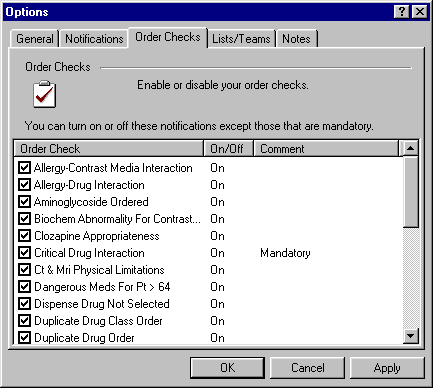
Order Checks tab
Click the check box next to any Order Check to enable or disable it. Order Checks with "Mandatory" in the Comment column cannot be turned off or disabled. Click the heading to sort Order Checks so that you can see which are turned on and which are turned off.
Personal Preferences, cont’d
Patient Selection Defaults
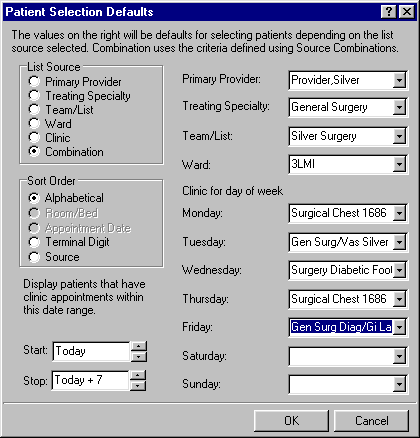
Click on Patient Selection Defaults… to change your defaults for selecting patients. Click a radio button in the List Source group. Combination uses the criteria defined using Source Combinations. After selecting a List Source, click the appropriate drop-down button and select the criteria for that source. If you select Clinic or if Clinic is one of the sources in your combination of sources, you will need to select a clinic for each applicable day of the week. If you do not work in any clinic on a particular day, leave the field for that day empty.
Click a radio button in the Sort Order group to determine the sort order for the patients. If an item is dimmed, it is not available with the List Source(s) you have selected. Alphabetic is the default.
To display patients who have clinic appointments within a specific date range, click the selection buttons. The Start and Stop fields denote the number of days before or after today that appointments should be displayed.
The defaults that are set here are used when you select patients from the Patient Selection dialog in the CPRS chart.
Personal Preferences, cont’d
Personal Lists…
This option allows you to edit a personal list of patients or combinations of wards, clinics, providers, specialties or lists.
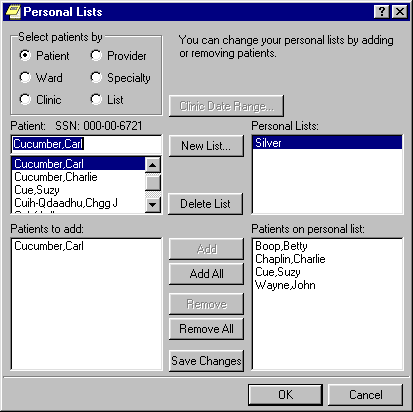
Click Personal Lists... to edit or create list of patients. To create a list, click New List... and type in a name for your list. Click a radio button in Select patients by group to select a method for defining patients on your list. The selection box below the Select patients by group lists the available choices for the selection method. The Patients to add field lists all of the patients that can be added from the particular selection method. With the desired patients in the Patients to add field, click Add (which adds the highlighted patient or patients) or Add All to copy the patients to Patients on personal list. Click Save Changes if you plan to make other changes on the Personal List dialog such as creating one or more additional Personal Lists. Click OK when you have finished making all desired changes and additions to this dialog.
You maintain these lists by using this dialog. Patients are not updated automatically on personal lists. You can select from these lists by selecting the Teams choice on the Patient Selection dialog.
Personal Preferences, cont’d
Source Combinations…
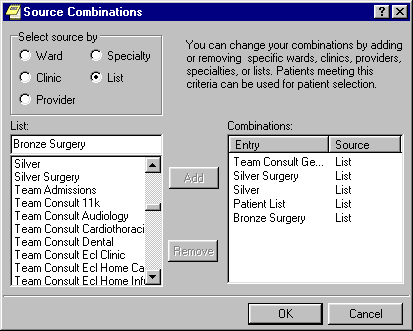
Click Source Combinations… to edit or create a list of sources from which your patients can be selected. You can change your combinations by adding or removing specific wards, clinics, providers, specialties, or lists.
To create a source combination:
1. Click on a radio button in the Select source by group.
2. Click an entry in the selection field below the Select source by group.
3. Click Add.
4. Repeat steps 1 through 3 for each desired source.
5. When all desired entries are in the Combinations field, click OK.
You can create only one combination list. The Combination list can be set as your default using the Patient Selection dialog.
Personal Preferences, cont’d
Notes Tab
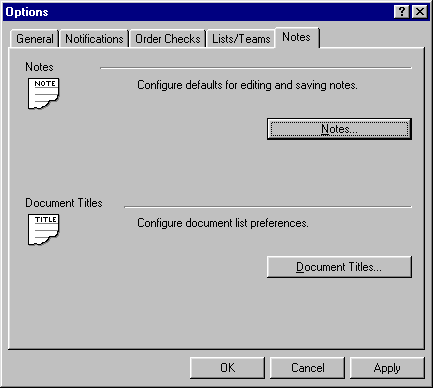
Notes…
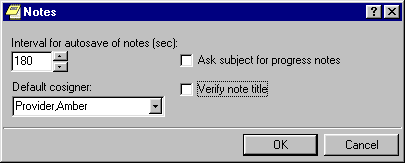
This option on the Notes tab allows you to configure defaults for editing and saving notes. Click on the selection arrows to change the number of seconds between auto save intervals for notes. You may also assign a default cosigner for notes by clicking on the drop-down button and selecting a provider. You may also click on the either of the two check boxes, if you wish to be prompted for a subject for progress notes and if you wish to verify note titles. If the verify note title is NOT checked, your default title will load automatically.
Personal Preferences, cont’d
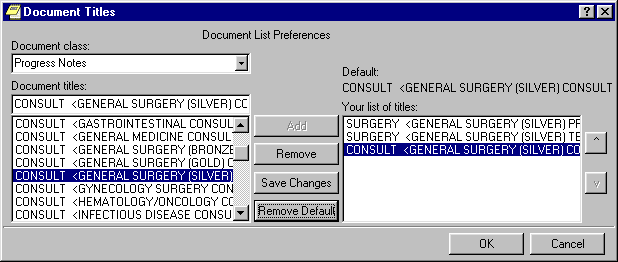
Document Titles…
You may select a personal list of document titles to be displayed for several different types of documents. Click on the drop-down button on the Document class field and select the class of document for which you would like to create a list. When you have selected a document class, the Document titles field is automatically populated with all available choices. Highlight one and click on Add. Hold down the Control key to select more than one title at a time. To select a title from your list as your default, highlight it and click on Set as Default. Click on Save Changes if you will be making more changes on this dialog before you click OK.
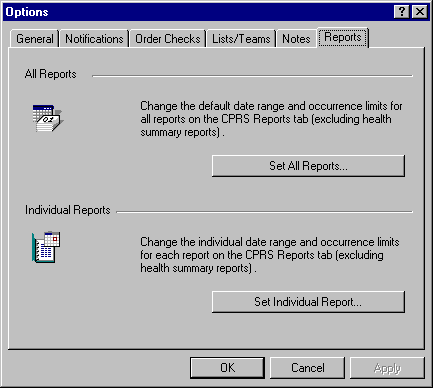
Reports Tab
Use the Reports tab to change the default date range and occurrence limit for all reports or individual reports on the Reports Tab in CPRS.
8. Cover Sheet
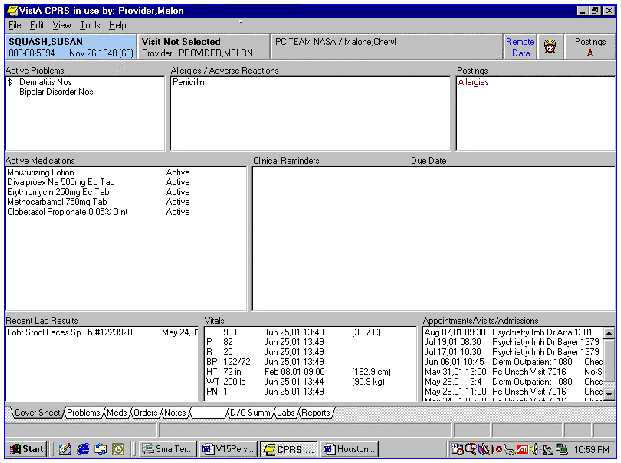
You can quickly review the active problems (asterisks identify acute problems, and dollar signs identify unverified problems). Scroll bars beside a box mean that more information is available if you scroll up or down. Click on any item to get more detailed information.
Cover Sheet, cont’d
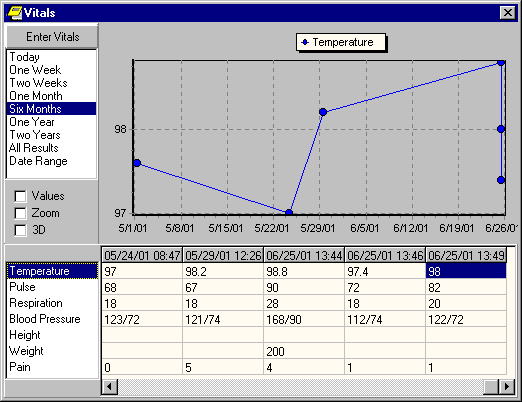
Viewing Vitals
CPRS displays the patient’s most recent Vitals in the Vitals area (in the lower center portion of the Cover Sheet.)
To view the patient’s vitals history
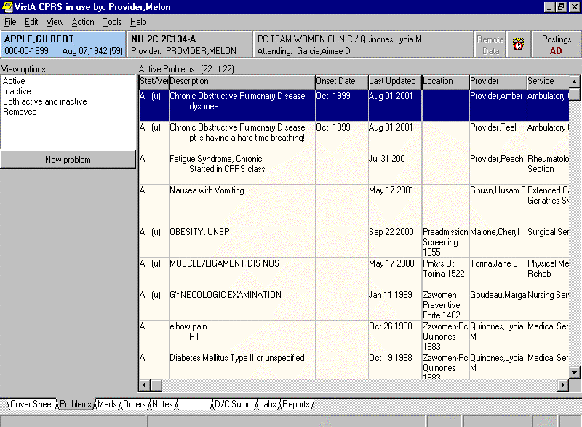 `
`The Problem List is used to document and track a patient’s problems. It provides a current and historical view of the patient’s health care problems across clinical specialties. It allows each identified problem to be traceable through the VISTA system in terms of treatment, test results, and outcome.
When you select the Problem tab, the patient’s active problems are listed in the right-hand box. You can display inactive problems only, both active and inactive problems, and problems for a selected service or provider by changing your view through the View menu. Click Action to see a selection of action items. You can add, change, inactivate, remove, verify, or annotate problems.
Problems, cont’d
To add a new problem to a patient's problem list:

Problems, cont’d
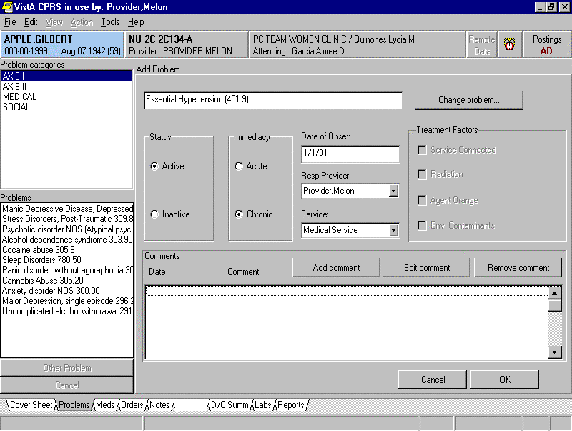 Enter
information about the problem in the
dialog box that appears.
Enter
information about the problem in the
dialog box that appears.Details
To view details about a problem, double click on the problem you want to view.
Verifying a Problem
An unverified problem will have a (u) in the status column.
To verify a problem:
Changing a Problem
CPRS allows you to change existing problems.
To change a problem:
You will inactivate a problem when it has been resolved.
You will use the action to Remove a problem if it has been entered in error. Problems cannot be deleted from the database but they will not display on any reports or lists if they have been removed.
To remove a problem:
On the Meds tab, you can review both Outpatient and Inpatient Medications. The expiration date and refills remaining are shown for Outpatient Medications. You can also get a more detailed display of each order by double-clicking on the medication in the list. To take other actions, such as discontinue, refill, or change, use the Action menu or right-click on a medication. You can order new medications by selecting New Medication from the Action menu or by going to the Orders tab.
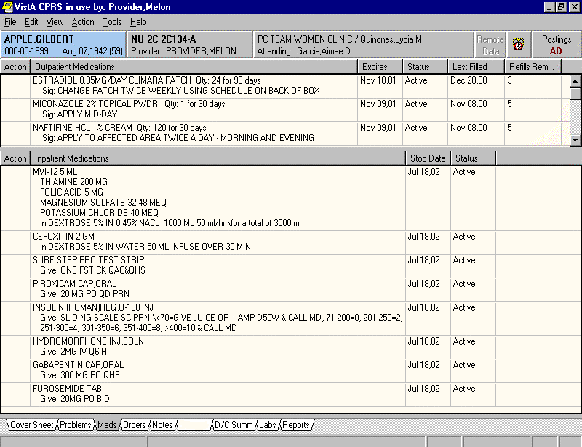
The default order in which meds are displayed is by status, with active orders shown first.
Meds, cont’d
Ordering Medications
Medications can be ordered from either the Meds tab or the Orders tab.
See Chapter 11 for details on ordering inpatient and outpatient medications.
Changing Medication Orders
Use the Change action to start a new dosage or schedule of a medication. When you change an active medication, you will get a new order with the changes and the original order will be discontinued.
To change a medication:
Active orders may be renewed. In addition, inpatient medication orders that have expired in the last four days and outpatient medication orders that have expired in the last 120 days may be renewed. The default Start Date/Time for a renewal order is NOW.
After the new (renewal) order is accepted, the Start Date/Time for the new order becomes the Stop Date/Time for the original (renewed) order. The original order’s status is changed to RENEWED. The renewal and renewed orders are linked and may be viewed using the History Log function. Once an order has been renewed it may not be renewed again or edited.
Meds, cont’d
To renew medication orders:
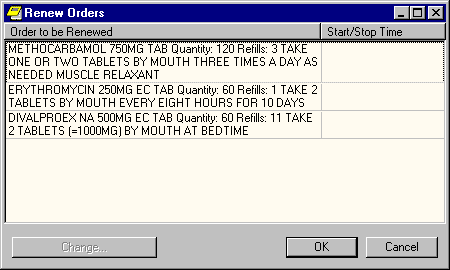 From
the dialog box shown below, highlight the
medications that you want to change and
click on the Change… button.
From
the dialog box shown below, highlight the
medications that you want to change and
click on the Change… button. 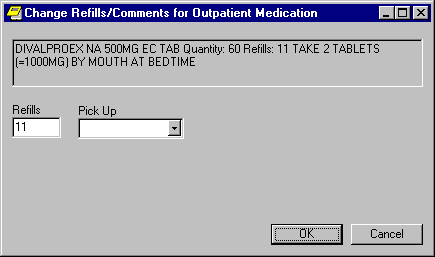
5. Click on OK to accept renewal orders. They will be displayed in blue on the Meds tab and will need to be signed when you have completed placing orders.
Meds, cont’d
Discontinuing Medication Orders
When an order is discontinued, the order’s Stop Date/Time is changed to the date/time the action is taken. An entry is placed in the order’s Activity Log recording who discontinued the order and when the action was taken. Pending and Non-verified orders are deleted when discontinued and will no longer appear on the patient’s profile.
To discontinue a medication order:
 4.
Click on OK.
4.
Click on OK.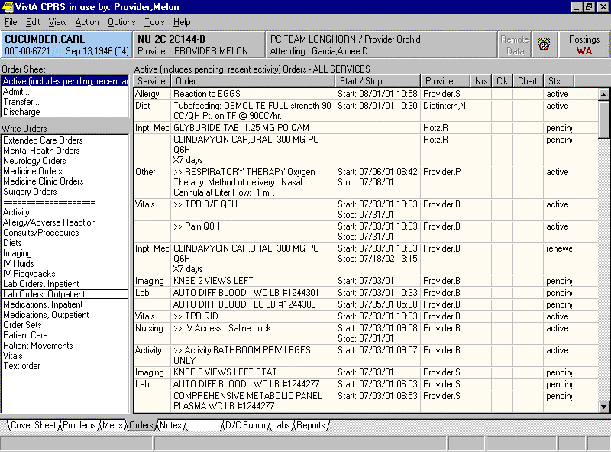 On the
Orders tab, you can write new orders and
view existing orders.
On the
Orders tab, you can write new orders and
view existing orders. Orders, Cont’d
Viewing Orders
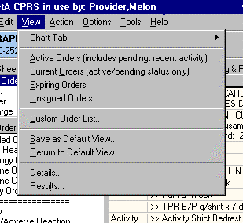 In
CPRS you can choose from several methods
of sorting the orders that are displayed.
Changing the view of the Orders tab
allows you to focus the list of orders on
one of several criteria. Focusing the
list will speed up the selection process.
All of these options are under the View
menu.
In
CPRS you can choose from several methods
of sorting the orders that are displayed.
Changing the view of the Orders tab
allows you to focus the list of orders on
one of several criteria. Focusing the
list will speed up the selection process.
All of these options are under the View
menu.
You can also save a view as your default order view by clicking on View | Save As Default View.
When you view orders, you can quickly get information such as what services the orders are for, the start and stop dates for each order, the name of the provider that entered the order, and the status of the order. Double-click on an order to get more details.
Orders, Cont’d
Custom Order View
If you choose Custom Order List…, you can make the list of orders very specific. You may choose to display orders by any combination of Order Status, Service/Section, and date range. For example, you can view just pharmacy orders. When the Orders tab is displaying only some of the orders, an icon appears below the Postings button on the right side of the dialog. The icon is a pair of hands covering a sheet of paper and indicates that the user is not seeing all of the orders for the selected patient.
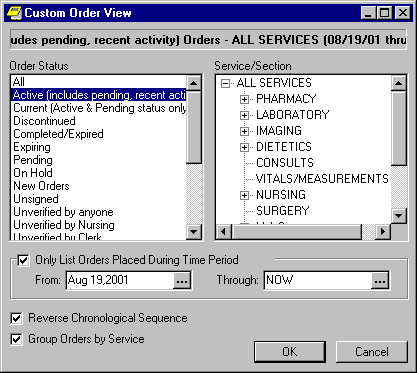
If both the Reverse Chronological Sequence and Group Order by Service boxes are checked, the display of orders will be in reverse chronological sequence within each defined service/section. To have orders displayed by reverse chronological sequence only, remove the checkmark from Group Orders by Service. Once you leave the Custom Order List dialog box you may want to save the new display order as a default view. Click on View | Save as Default View.
Orders, Cont’d
Writing Orders
In the Write Orders box on the left are names of services or categories you may order. Select a service and a box will open with a more detailed list of items for that service. When you select an item from the list, an ordering dialog box appears for you to complete the order information.
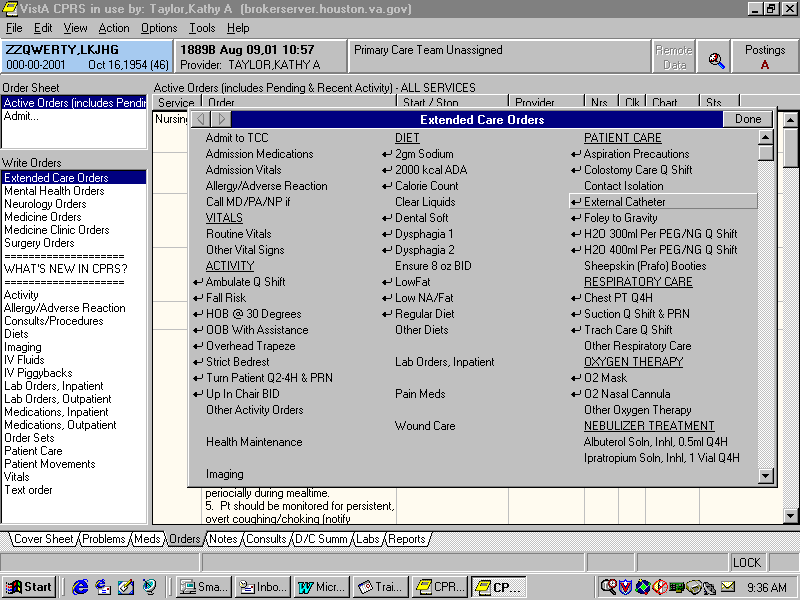
The order menu will contain quick orders and order sets to make ordering items easier for the clinician.
Quick Orders
Some commonly ordered items have been set up so that you don’t have to fill in any details or conditions about the order; you simply click on the order name and it is automatically completed for you. An arrow to the left of the order text designates those orders that are quick orders. The purpose is to minimize the number of prompts to be answered when entering orders.
Note: CPRS allows you to create your own quick orders. After entering an order in the usual manner and before accepting the order, click on Options | Save as Quick Order. You must save it as a Quick Order before accepting/signing the order.
Order Sets
Order sets are comprised of a group of pre-defined, related orders which are used frequently, such as standard admission or pre-op orders. A single selection from the menu may automatically place a number of orders.
Order Checking
Order checks are performed on all orders when you click Accept Order and before you sign the order to identify duplicate orders, order contraindications, and for other conditions.. If the order checks find any of these conditions, you can review them and decide whether to continue placing the order, change it, or cancel it. Some critical order checks require a justification if you continue to place the order.
Signing Orders
When you exit the patient chart, you are prompted to sign your orders. You may also choose to sign orders before you leave the chart by selecting Action | Sign or File | Review/Sign Changes.
Allergies
You may enter allergies from the Orders tab when entering other patient orders.
You can review a patient’s current allergies in several places:
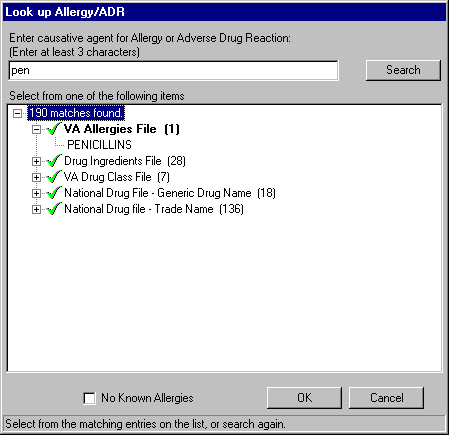
2. In the dialog that appears, select the causative agent. You may type the word or part of the word (a minimum of three characters is required) you are searching for and click Search. In the list that appears, click the causative agent and click OK. The search for a causative agent includes a breakdown of the different files where a match was found, and encourages the user to select from the most preferable source first. The list of matches is returned as a treeview grouped by file. There is a checkbox for No Known Allergies on this dialog box.
Orders, Cont’d
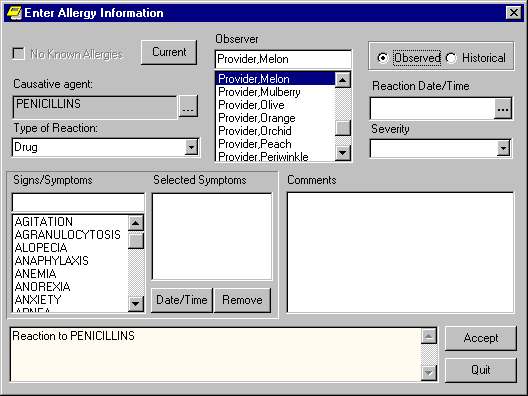
4. Select whether this is an Observed or Historical allergy or reaction. An observed reaction requires both a Reaction Date/Time and a Severity.
5. Select the applicable Signs/Symptoms from the list. If this is an Observed reaction, click on the Date/Time button to record when it was observed.
6. Click on OK.
7. The Enter Allergy Information dialog box remains open for additional allergy entries. Click on the … button for Causative agent to select another allergy or click on Quit.
Note: There is a clinical reminder which is due if neither an allergy or No Known Allergies (NKA) has been entered for the patient. You can also enter allergies through the clinical reminder dialog on the Notes tab.
Orders, Cont’d
Orders, Cont’d
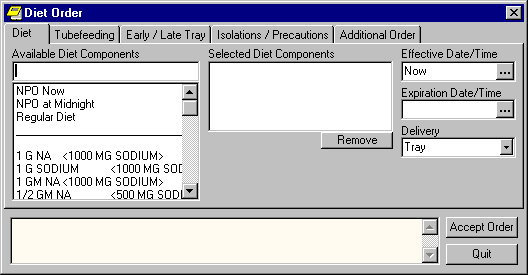
To order diets:
2. You will get a list of common diets and quick orders (shown below). Click on the diet you want to order and complete the order dialog box.
3. Click on Accept Order.
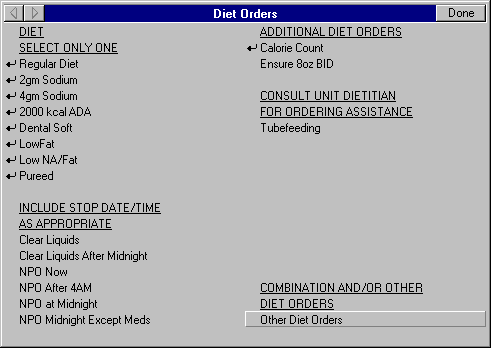
If the diet you want to order is not in the list, click on Other Diet Orders.
The Diet Order dialog shown below has five tabs that offer different types of diet orders. The information you enter on each tab will create a separate order.
Order Inpatient Labs
1. Select Lab Orders, Inpatient from the Write Orders list.
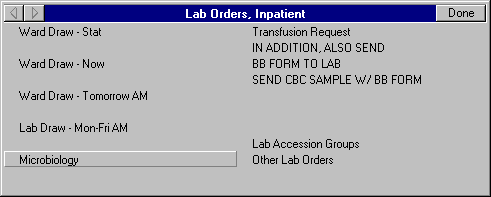
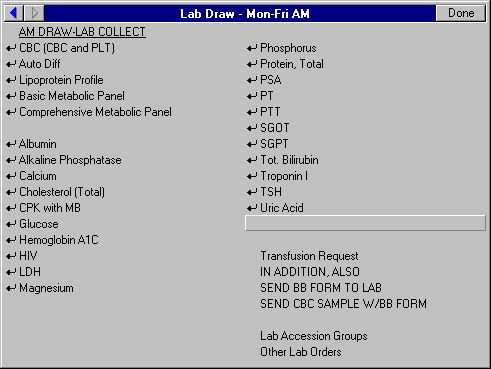 2.
Select the collection method (ward
draw/time or lab draw).
2.
Select the collection method (ward
draw/time or lab draw).
Orders, cont’d
Other Lab Orders
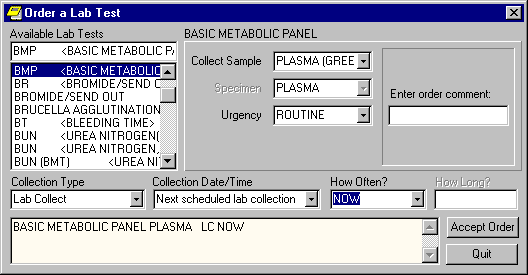 Click
on the Accept Order button.
Click
on the Accept Order button.Orders, cont’d
Order Outpatient Labs
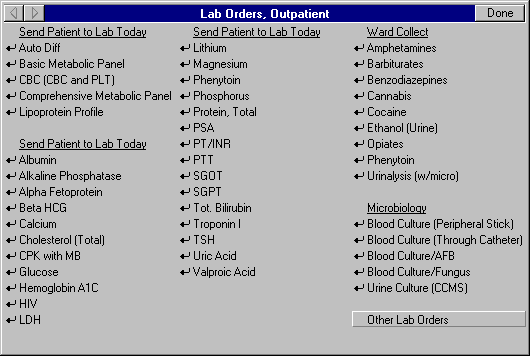
1. Select Lab Orders, Outpatient from the Write Orders list.
You can order Medications either through the Orders tab or the Meds tab.
Outpatient Medications
To order an outpatient medication quick order:
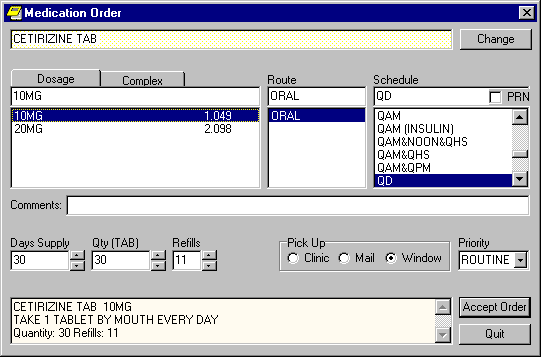
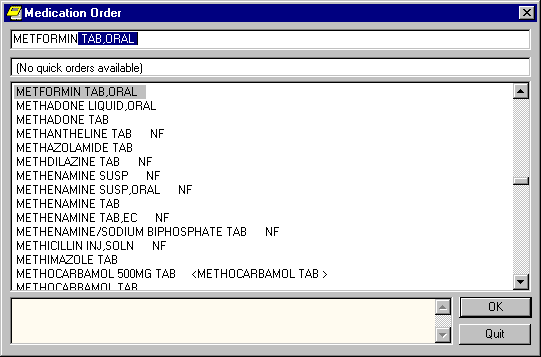
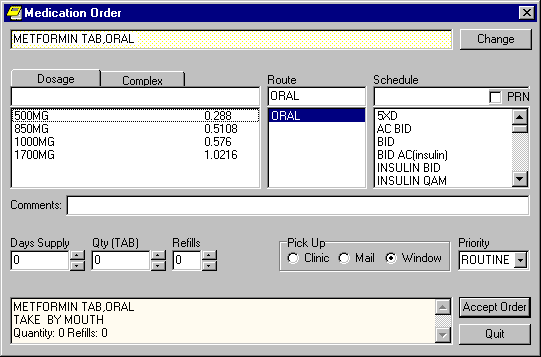
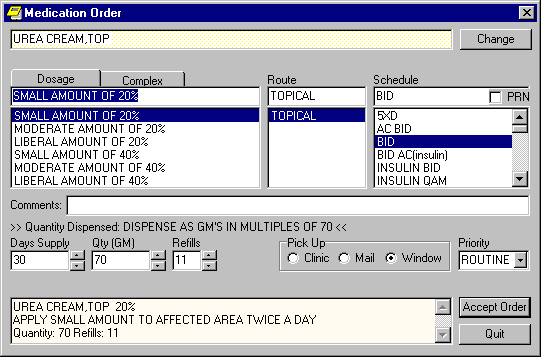
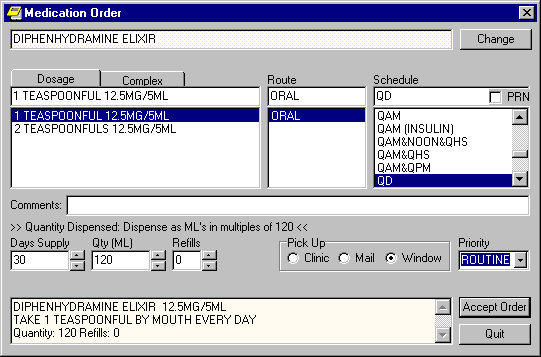
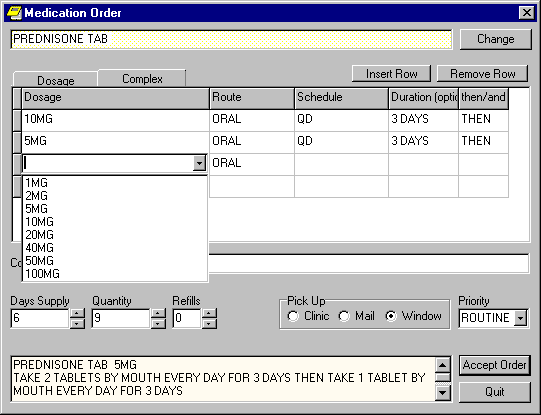
Notes about the outpatient medication dialog:
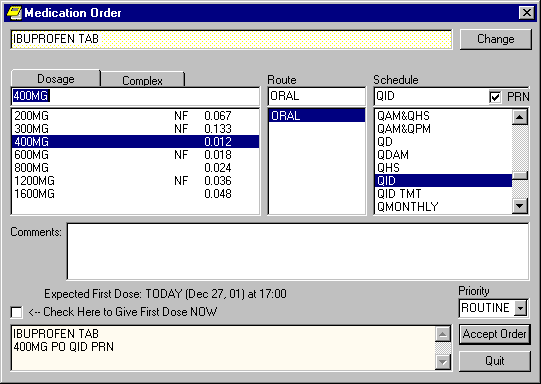
Inpatient Medications
To order an inpatient medication quick order:
 You
will be prompted to sign when you exit
the patient chart.
You
will be prompted to sign when you exit
the patient chart.To order an inpatient medication without a quick order:
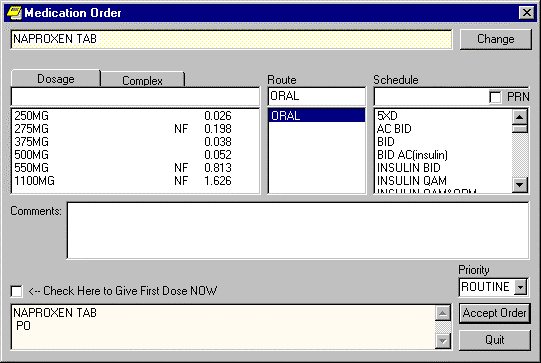 The medication
order dialog box will
appear. Complete all
fields and click on
Accept Order.
The medication
order dialog box will
appear. Complete all
fields and click on
Accept Order.Complex Doses
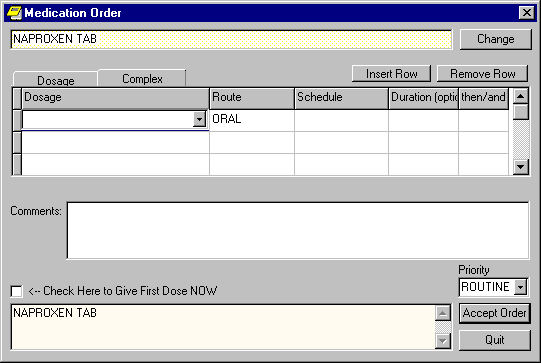 Click on Accept
Order.
Click on Accept
Order.Discharge medications and pass medications are ordered as Outpatient Medications.
Order the discharge
First review both active inpatient medications and outpatient medications on the Meds tab. Often the patient already has active outpatient medication orders for the medications needed for discharge. Don’t write new orders for these medications. Check with the patient to see if they have a supply at home. If you cannot verify that they have meds at home do the following:
If you need to order additional medications for discharge that the patient does not already have as an outpatient medication but has an inpatient order do the following:
If you need to order additional medications for discharge that the patient does not already have as an outpatient medication OR an inpatient medication do the following:
The outpatient medications just signed will not appear on the list of active orders on the Orders tab while the patient is an inpatient. You can review your signed orders on the Meds tab or use the Custom Order View on the Orders tab.
Complete the progress note titled
"Discharge Instructions to the
Patient".
Notes about Discharge Medications/Pass Medications:
and let them know that there are medication orders for discharge in the computer.
IV Fluids
To order IV Fluids:
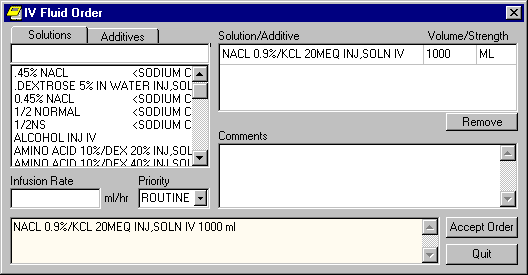
Orders, Cont’d
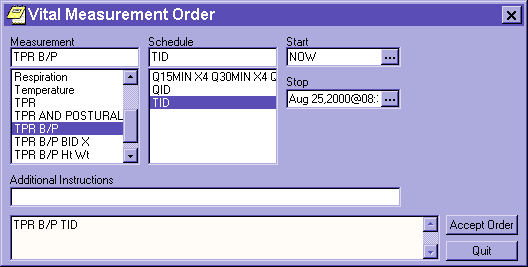 Vitals
To order Vitals:
2. Select the type of measurement from the list in the ordering dialog box. Measurement combinations are also available.
3. Enter the schedule, a start time, and a stop time. Clicking on the box containing three dots at the end of the Start and Stop date fields will open a calendar to choose a date from.
4. Enter additional instructions if desired.
5. Click on the Accept Order button.
Activity/Patient Care/Free Text
Activity, Patient Care, and Free Text orders are different kinds of orders that are placed for nursing and ward staff to take action on. They print only at the patient’s ward/location, and are NOT transmitted electronically to be completed by other services.
Predefined nursing orders (quick orders) may be available under various sub-menus. Selecting Text Order in the Write Orders list may also be used to compose nursing orders. These orders require the ward staff to take action to complete the request. They are identified on the order sheet with two greater than signs in front of the order text.
Vitals orders are another type of nursing care order that is not transmitted electronically to another service.
Orders, Cont’d
Completed orders
See Section 4 of this manual for information about signing orders.
Once orders are electronically signed, they will automatically print on a designated printer. The designated printer is used ONLY for orders. Clerks or other designated nursing staff are responsible for removing the printed orders from the printer and placing them in the patient chart. It is best that only one person is designated per shift for this task. DO NOT remove orders from the printer unless you are IMMEDIATELY placing them in the patient chart.
Two greater than signs printed in front of an order (> >) indicate that it is a generic order. Generic orders do not have a receiving service and require further action by nursing staff.
Printed orders with a line to the right instead of signature information are verbal or telephone orders. These should be placed in the chart temporarily until they are signed by the ordering clinician. The ordering clinician will sign these electronically and a new copy will be printed with the clinician signature information on it. The unsigned copy should be replaced in the chart with the new signed copy.
Orders, Cont’d
Order Actions
Actions are available from the Action menu on the Orders tab or by a right-click on the order. If an action is grayed-out, you cannot perform that action on the selected order.
To take an action on an order.
Order Actions
| Action | Description |
| Change | Allows editing of orders while they are still pending. This creates a new order and a discontinue order which applies to the original order. (Applies to Inpatient Meds only.) |
| Copy to New Order | Allows you to copy an order, rather than having to completely write a new order. This action is useful for ‘re-writes’, or when orders are discontinued on interward transfers. The original order, if active, will not be discontinued. |
| Renew | Allows you to renew or reinstate orders that have been discontinued. Applies to Pharmacy orders only. |
| Discontinue/ Cancel |
Allows you to discontinue Active, Pending, and Unreleased orders. This creates a new discontinue order. When this action is taken on an unsigned order, the order is deleted. |
| Hold | Prevents further processing of an order until the hold is released or until the order expires. Not all types of orders may be placed on hold: Pharmacy orders may be placed on hold, but Lab orders may not be held. |
| Release Hold | Allows an order to continue its processing. |
| Renew | Renews active and/or expiring orders. |
| Alert When Results | Generates an electronic alert when results are available for an order. |
| Flag | Indicates that the order needs clarification or further instructions. |
| Unflag | Removes the flag after clarification or instructions are received. |
| Ward Comments | Allows you to add comments about an order. Comments are displayed on the Details screen. |
| Sign Selected | Allows you to sign selected orders. |
12. Notes
Notes, cont’d
Viewing Notes
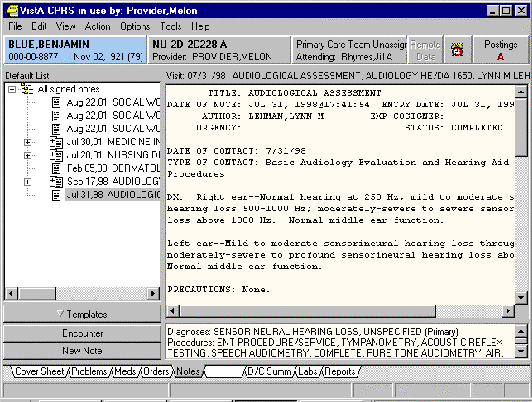
The list of documents on the Notes tab is in a tree structure. Addenda are separately selectable and are displayed as a page with a plus sign behind a note page. Notes with Addenda have a plus sign to the left that can be clicked to expand the view into the original note and any addenda that have been attached to that note. Once expanded, the note or any addendum attached may be selected and viewed individually.
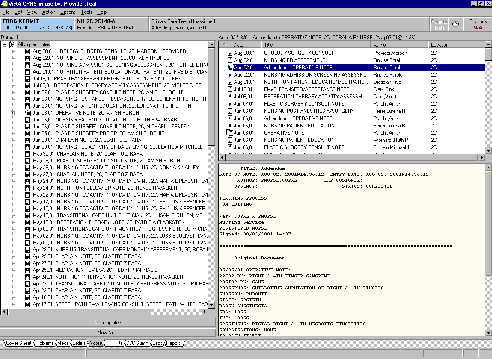
Select a grouping node (for example, "All signed notes" below) in the tree to display a second list of all the documents falling under that node. This second list can be sorted by clicking on the column headings (Date, Title, Author, Location).
Notes, cont’d
Changing Views
Changing the view of the Notes tab allows you to focus the list of notes on one of several criteria. Focusing the list will speed up the selection process.
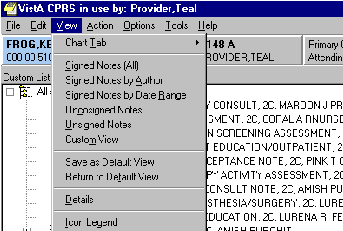
To change the view, either click View on the menu bar and select the desired list item, or click the right mouse button while the mouse pointer is over the left field where the notes are listed.
You may change the Notes List view to include the following choices:
Notes, cont’d
Custom Order View
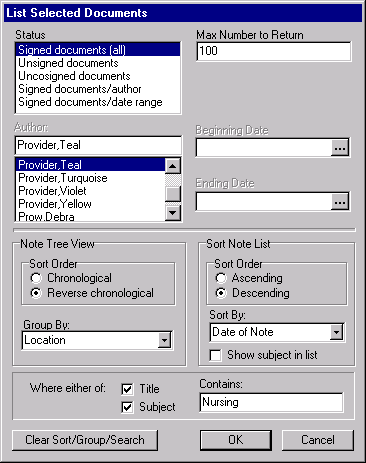
You may select the Custom View option on the menu to further focus the list of notes you wish to have displayed. The List Selected Documents dialog (View | Custom View) allows the items in the tree to be grouped and sorted in a variety of ways. From the List Selected Documents dialog, you may choose to display notes by any combination of Status, Author, and date range.
You may change the "Group By:" field to one of the following choices:
Notes, cont’d
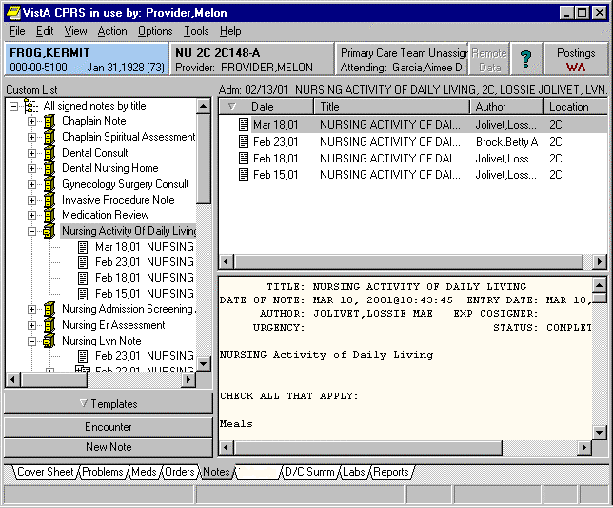 Here
is an example of notes sorted by title.
Here
is an example of notes sorted by title.
Notes, cont’d
To Add a New Note:
Inpatient Notes
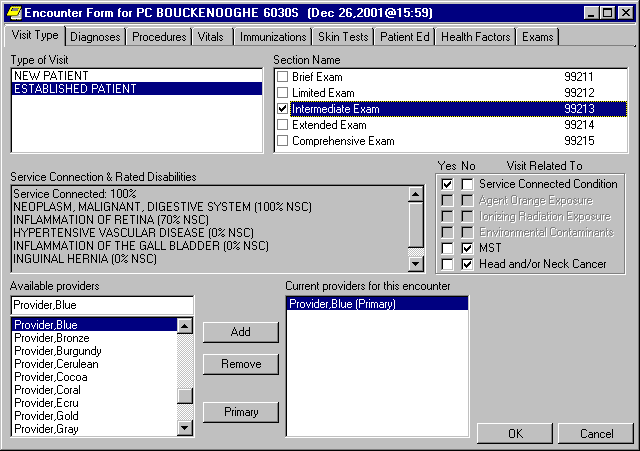
Encounter Check-out
Notes, cont’d
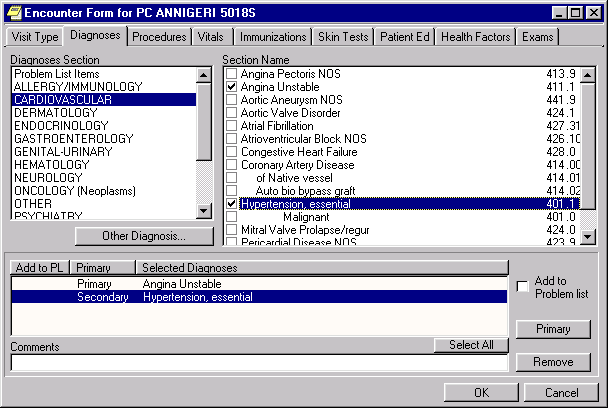
Click on the Other Diagnosis button if you need to select a diagnosis that does not appear in any of the lists. You will get a lookup dialog box. Type in a term or an ICD code and click on Search. Click on the appropriate diagnosis from the list of choices and click on OK.
Notes, cont’d
Additional functions on the Diagnosis Tab
CPRS does not check for completion of the encounter form on scheduled visits. The provider can enter partial information and still sign the note leaving the visit in an "action required" status.
If there isn’t a scheduled appointment and the provider creates a new visit, then CPRS will not let the user sign the progress note until all encounter information is entered.
Encounter information can be added later to an unsigned or signed note.
Notes, cont’d
Document templates let you quickly add commonly used text and objects when writing or editing progress notes, completing consults, or writing discharge summaries. Document templates can be used on the Notes, Consults, and Discharge Summary tabs. These tabs have an Options menu that will allow you to Create New Template or Edit Templates. Clinical Coordinators will also have Create new Shared Template and Edit Shared Templates menu options. All these options enter the template editor window shown below. The Templates drawer is always available on the Notes tab even when a note is not being edited. This allows templates to be copied and used in other text fields throughout CPRS.
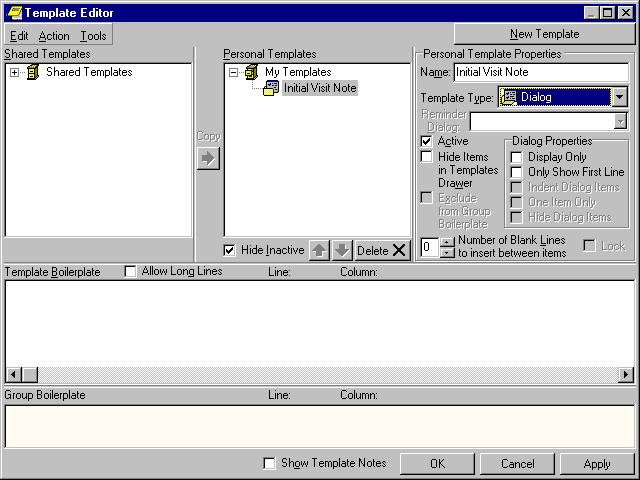
Personal Templates
Shared Templates
Notes, cont’d
Types of Templates
Templates contain text and objects that you can place in a document.
Group templates contain text and objects and can also contain other templates. If you place a group template in a document, all text and objects in the group template and all the templates it contains (unless they are excluded from the group template) will be placed in the document. You can also expand the view of the group template and place the individual templates it contains in a document one at a time.
Dialog templates are like group templates in that they contain other templates. You can place a number of other templates under a dialog template. Then, when you use the dialog template in your document, a dialog appears that has a checkbox for each template under the Dialog template. The person writing the document can check the items they want and click OK to place them in the note.
Folders are like folders or directories in a file system. They are used to group and organize templates. You cannot place a folder in a document. It is there to hold templates and help in finding certain types of templates. For example, you might create a folder called "Radiology" for templates, group templates, and other folders relating to radiology.
Features of Templates
Click on this check box and children templates are no longer available from the template drawer. Only the parent group template, dialog, or folder is available.
Display Only
Click this check box to make individual parts of a dialog as display only. When a template is display only, the check box is removed and the item is used for information or instructions.
Only Show First Line
Click on this check box and the template will display only the first line of text followed by an ellipsis (…). The ellipsis indicates that more text exists. Hold the cursor over the line of text and a Hint box displays the complete text. This feature gives you the ability to have long paragraphs of text that do not take up a lot of room on the template. If selected, the entire paragraph is inserted into the note.
Indent Dialog Items
Clicking on this check box affects the way that children items are displayed on the template. When selected, this feature gives the ability to show hierarchical structure in the dialog. All of the subordinate items for the selected item are indented.
Notes, cont’d
One Item Only
Clicking on this check box affects the way that children items are displayed on the template. Click on this check box to allow only one of the subordinate items to be selectable. Clicking on this check box changes the check boxes into radio buttons so that only one item can be selected at a time. To deselect all items, click on the one that is selected and the radio button is cleared.
Hide Dialog Items
Clicking on this check box affects the way that children items are displayed on the template. Click on this option to have subordinate items appear only if the parent item is selected. This feature allows for custom user input. The user only sees the options related to the items selected. This feature requires boilerplated text at the parent level.
Using Templates
Previewing a Template
Creating Personal Document Templates
Editing Personal Document Templates
To copy text from a template to any text field:
2. Right click on the desired template.
3. Click Copy Template Text or press Ctrl-C to simply copy the text to the clipboard.
4. With the template text copied to the clipboard, switch to any text field in CPRS, right-click in the text field and select Paste.
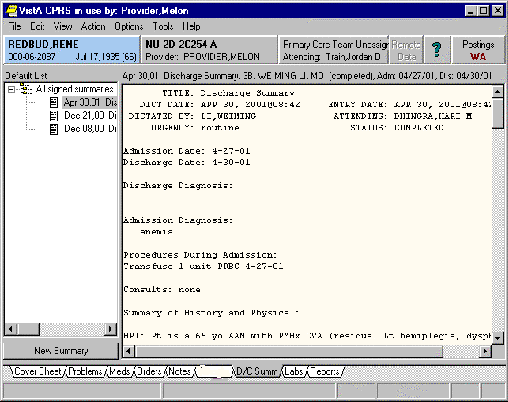
The Discharge Summary tab displays the discharge summaries for the selected patient. The list of documents in the D/C Summ tab is in a tree view. Highlight any discharge summary listed in the left column to view the text of the summary in the right box. Addenda are separately selectable. Discharge Summaries with Addenda have a plus sign in front of them
Discharge Summaries, cont’d
Viewing Discharge Summaries
You may change the Discharge Summaries List view to only include the following summaries:
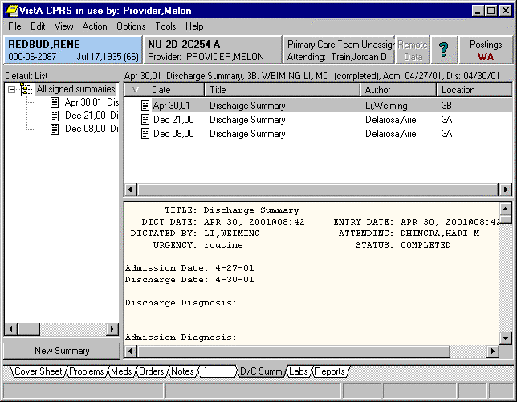
Select a grouping node (for example "All signed summaries") in the tree to display a second list of all documents falling under that grouping node. This second list can be sorted by clicking on the column headings.
Discharge Summaries, cont’d
Custom Order View
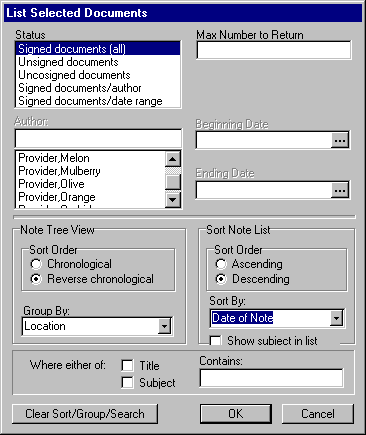
The Custom View dialog (View | Custom View) allows the items in the tree to be grouped and sorted in a variety of ways.
Discharge summaries can be grouped by:
Discharge Summaries, cont’d
Writing Discharge Summaries
You can enter discharge summaries in CPRS. Document templates can be used to make creating these documents faster and easier.

14. Labs
Most Recent
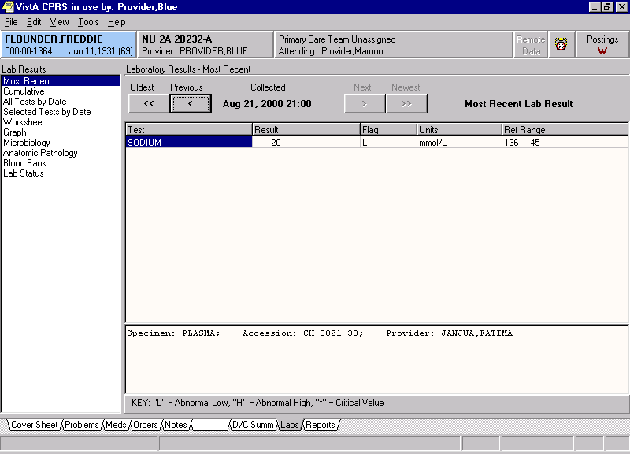 The
default when you select the Labs tab is
Most Recent. Arrow buttons allow you to
move backward and forward to view results
for each collection date.
The
default when you select the Labs tab is
Most Recent. Arrow buttons allow you to
move backward and forward to view results
for each collection date.
Labs, cont’d
Cumulative
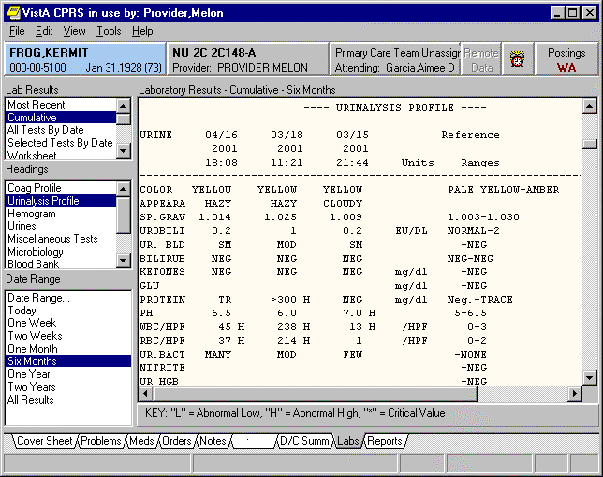
The cumulative is the most comprehensive lab report. It displays all of the patient’s lab results. When selecting a large date range, this report may take some time before being displayed. The results are organized into sections. You can automatically scroll to each section by selecting it in the Headings list box.
Labs, cont’d
All Tests by Date
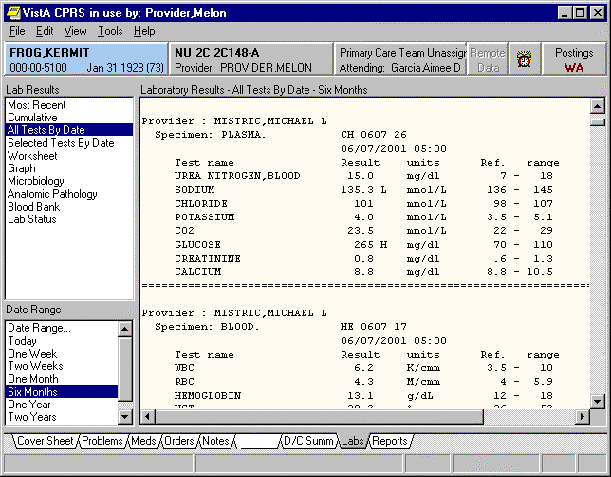 This
report displays all lab results (except
anatomic pathology and blood bank).
Select a date range from the bottom of
the left column. The data is displayed in
the order of the time of collection.
This
report displays all lab results (except
anatomic pathology and blood bank).
Select a date range from the bottom of
the left column. The data is displayed in
the order of the time of collection.
Labs, cont’d
Selected Tests by Date
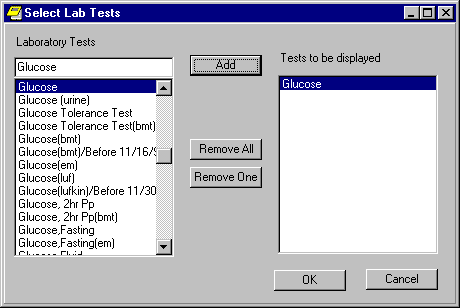
This report is useful when you want to review specific lab results. Microbiology results can also be selected. A dialog box will open.
Labs, cont’d
Worksheet
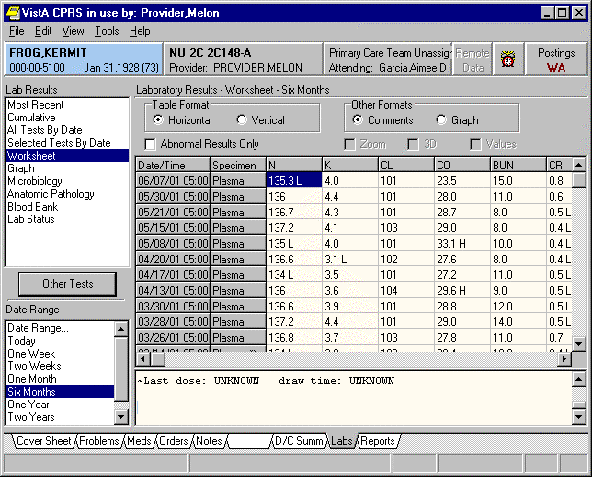
The worksheet is similar to the Selected Test by Date report. It does not display microbiology results, but it has many features for viewing lab results. It is very useful for displaying particular types of patterns of results.
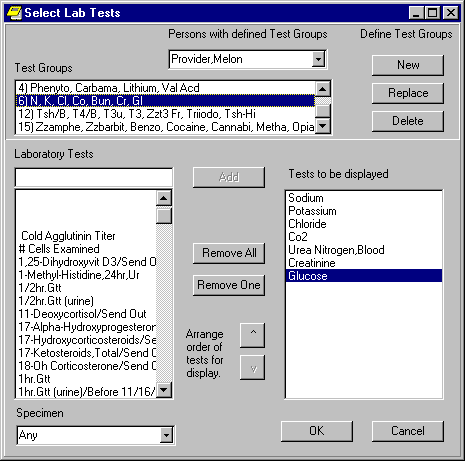
Tests can be selected individually or by test groups. Any number of tests can be displayed. When selecting a panel test, such as CBC, the panel will be expanded to show the individual tests. Tests can be restricted to only display results for a specific specimen type. For example, displaying glucose results only on CSF can be made by selecting the specimen CSF and then selecting the test Glucose.
Test groups allow you to combine tests in any manner. For example, a test group could combine CBC, BUN, Creatinine, and Platelet count. You can save your test groups for later use. You can also select test groups that other users have created. Test groups are limited to seven tests, but you can have an unlimited number of test groups.
To define your own test groups, select those tests you want and click on the New button. If more than seven tests are selected, the New button will be disabled. If you want to delete a test group, highlight it and click on the Delete button. If you want to replace an existing test group with other tests, select the test group, make any changes to the tests to be displayed and click on the Replace button.
Note: These test groups are the same as those you may have already created using the Lab package.
Labs, cont’d
The Worksheet display is a table of results that can be displayed vertically or horizontally by checking on a checkbox located above the results table. Since only results are displayed in the table, comments are footnoted with ** and show in the box below the table. You can filter the results to only show abnormal values with a checkbox. This will quickly show tests that have results beyond their reference values.
Labs, cont’d
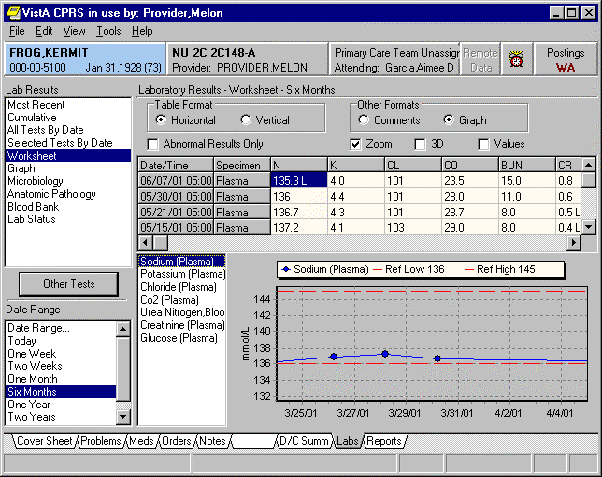
You can toggle between view comments and graph view. The graph format displays each test separately. By selecting each test, you see the trend in values for each time range.
You can also use features to Zoom, apply 3D, and display values on the graph.
Click on a point of the graph and you will get a list of all test values for this collection time.
 Click
on the graph header to get a listing of
all test results currently displayed on
the graph.
Click
on the graph header to get a listing of
all test results currently displayed on
the graph.
Labs, cont’d
 Graph
Graph
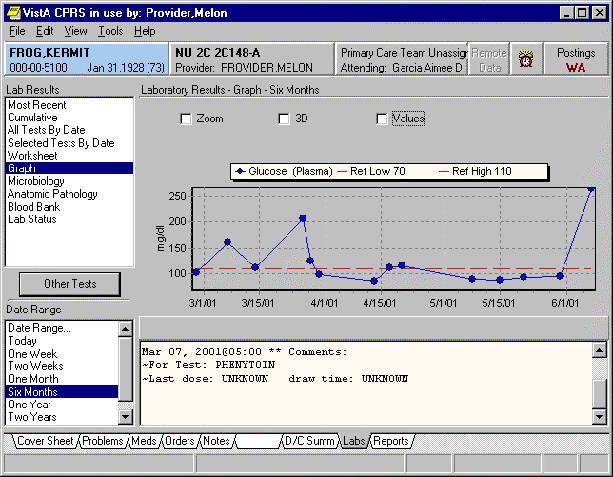
This report displays a single test in a graph. Comments are included. Zoom, 3D, and Values are available features also. Graphs can be printed by right-clicking on the graph and selecting Print from the shortcut menu.
Microbiology, Anatomic Pathology, and Blood Bank
These reports display only the results from these portions of the laboratory.
Lab Status
This report displays the status on current orders. It is best to select a short date range for this display.
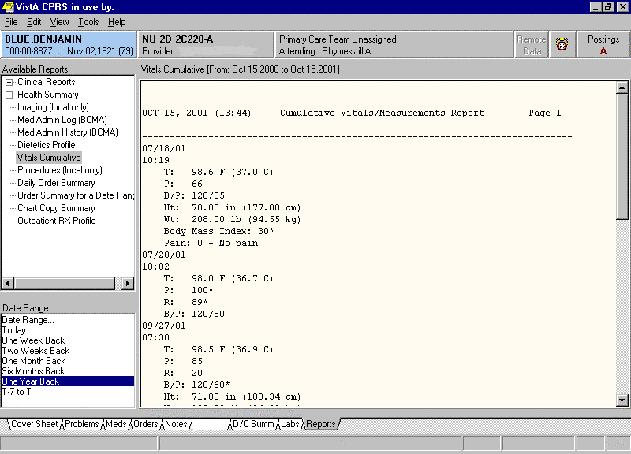
Click on the report you want to view and it will be displayed to the right. Many reports allow you to select a date range from a list at the bottom of the left column. You may set a personal default date range for either all reports or individual reports. See Chapter 7 for more information.
 You
can print any of the reports displayed on
the Reports tab. Select File | Print.
You
can print any of the reports displayed on
the Reports tab. Select File | Print.
Reports, cont’d
The various clinical reports are displayed in either a text format or a table format. In addition, remote data, if selected, is integrated into the table format. The name of the remote facility is displayed in the first column of the table. For reports that are displayed in a text format, remote data is available from tabs that appear at the top of the display window.
Data that appears in a table format can be sorted by clicking on the appropriate column heading. Details about a particular item can be viewed by clicking on that item. Details appear in the lower section of the display window. A right click in the table brings up a menu with selections to print the table, copy highlighted data from the table, or select all of the table data.
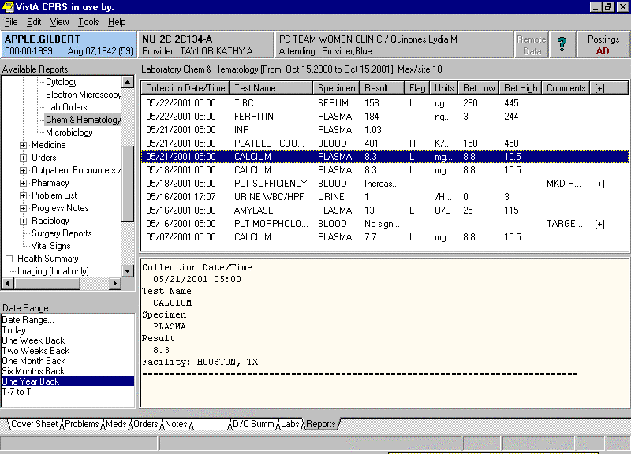 Below
is an example of a data table for lab
results.
Below
is an example of a data table for lab
results.
Reports, cont’d
Health Summary
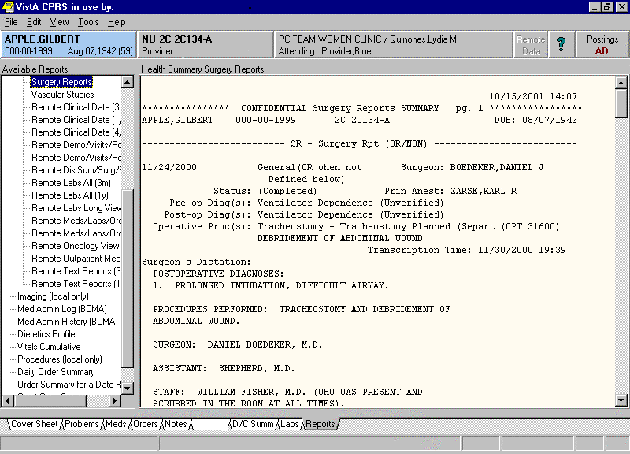 Health
Summary types listed as Remote can be
used to view Remote Data from other VA
facilities.
Health
Summary types listed as Remote can be
used to view Remote Data from other VA
facilities.Find these additional reports in Health Summaries:
16. Nursing
Vital Signs
Vital Signs can be entered from the Cover Sheet in CPRS GUI. Click in the Vitals box on the bottom of your screen. Once it opens, select ENTER VITALS. Another box will open and allow you to enter any or all of the vitals measurements, including pain. It will automatically default to the current date and time. If you need to change the date or time, click on the box with the 3 dots (…). It will display a calendar and a sliding timeline. Click on the date, hour and minutes you want then click OK. If the time you need is not available for you to select, use the sliding bar to go to the hour/minutes that you need. Select the hour and minutes and then click OK. You will then be back at the "Enter vitals" screen, where you can type in your values. Once finished, click on OK and they will be charted. When entering the values, do not use a decimal zero (I.e., 98.0, 99.0). You can and should enter other decimal values, such as 98.6, 101.2).
Verbal and Phone Orders
Signed on Chart orders:
Medications
Nursing no longer needs to use the Non-Verified/Pending Orders option in VistA. Verification of orders is now done in CPRS.
14 Day MAR
Upon admission a 14 Day MAR should be printed for the patient. This option is located in the Pharmacy menu option in the Nurse Menus.
Nursing, cont’d
Nurses and Ward Clerks have the responsibility of electronically verifying doctor’s orders.
24-Hour Certification is referred to as Chart Review in CPRS. Every night after midnight a Daily Order Summary will print on the CPRS printer for chart reviews. This report lists all orders entered for the previous day for all patients on the unit. It should be compared to the patient chart. All orders on the Daily Order Summary must also be in the chart. Night nurses on each unit will perform the chart review of all orders entered in the previous shift. If a night nurse is the first person to take off orders on a patient, the orders can be signed off in both the verify and chart review column of the patients chart. This should be done for orders left from day or evening shift. New orders on the night shift will be signed off in the verified column only and will be reviewed the following midnight.
Steps for Chart Review (24 Hour Certification): The column for Chart review appears to the right of the Nrs and Clk verification columns.
When doing Chart Reviews (24-hour certification) of orders it is best to have ALL ORDERS as your saved view. That way, you do not miss expired, discontinued, stat or now orders. To make ALL ORDERS your default, click on View in the menu bar. Select Custom Order List. In the dialog box that appears click on All in the Order Status box. Click on OK. You may want to save this as your default view. Click on View in the menu bar and select Save as Default View.
When verifying or certifying orders you can shorten the list of orders that you are looking at on the screen by changing your view to Unverified by Anyone, Unverified by Nursing, Unverified by Clerk, or Unverified by Chart Review. This will remove from your view orders that have already been verified. Click View on the menu bar and then Custom Order List. In the dialog box that appears select a status in the Order Status box. Click on OK. You may want to save this as your default view. Click on View in the menu bar and select Save as Default View.
17. Helpful Hints and FAQs
A: You can click on the Help menu at the top of the screen. A Table of Contents is displayed. Choose one of the topics or type in a topic. A window containing information about the topic will be displayed.
Q: How do I activate an order?
A: After completing all the steps for ordering, click the Accept Order button. Some orders require signatures or verification before they can be acted upon.
Q: How do I sign an order?
A: You can sign an order immediately after placing it, after placing all orders for a particular service, or after you have placed all orders during a working session.
A: From the View Menu, pick Signed Notes by Author or Signed Notes by Date Range. When a pop-up box appears, enter the desired date range, then enter the desired order (ascending or descending).
Cross Walk from Manual Physician Orders to CPRS
Manual Process |
CPRS Process |
| Physician hand writes orders | Physician electronically inputs the orders |
| Physician signs orders | Physician signs orders. Orders automatically print to designated printer located next to the MUC. |
| Orders are already on the medical record. | Order are retrieved from the designated printer and placed on the medical record. |
| Orders are
transcribed by the MUC;: Medications on to the MAR Lab and diagnostic tests sent to the designated service. RN will verify all orders for appropriateness, accuracy and completeness. |
MUC or LVN will
electronically verify the appropriate orders with
their scope. RN will electronically verify all orders for appropriateness, accuracy and completeness. RN’s verification will display on all meds in BCMA. |
| Orders faxed to pharmacy by MCU, LVN or RN | Orders are electronically sent directly to pharmacy. |
| Orders are often not legible and require clarification. | Orders are finished by pharmacy. This includes any and all clarification. |
| Orders take up to two hours to display in BCMA. | Once the order is finished by pharmacy, it will display in BCMA. |
| No process previously. | A Daily Order Summary is printed at 12:01 AM to the designated printer. This summary is a caption of all orders written the previous 24 hours. |
| RN OR LVN conducts 24-hour chart review on all medical records. | RN or LVN conducts 24-hour electronic chart review ONLY on medical records with orders written within the previous 24 hours. This information is gathered from the Daily Order Summary. |
ASU
Authorization/Subscription Utility, a VISTA package (initially released with TIU) that allows VAMCs to assign privileges such as who can do what in ordering, signing, releasing orders, etc.
CAC
Clinical Application Coordinator. The CAC is a person at a hospital or clinic assigned to coordinate the installation, maintenance, and upgrading of CPRS and other VistA software programs.
Cover Sheet
The CPRS patient chart screen that displays an overview of the patient’s record.
CPRS
Computerized Patient Record System, the VISTA package (in both GUI and character-based formats) that provides access to most components of the patient chart.
CWAD
CWAD, also known as Postings, is a component of the CPRS that presents information on Crises, Warnings, Allergies/Adverse Reactions, or Advance Directives about a patient.
D/C Summaries
A component of TIU that can function as part of CPRS. Discharge Summaries are recapitulations of a patient’s course of care while in the hospital.
Glossary, cont’d
GUI
Graphical User Interface—a Windows-like screen that uses pull-down menus, icons, pointer devices, and other elements that can make a computer program more understandable, easier to use, allow multi-processing (more than one window or process available at once), etc.
Health Summary
A VISTA package that pulls selected components of data from other VISTA packages to present a summary of a patient’s health care, including clinical reminders. It can be viewed through CPRS reports tab.
Notifications
Notifications are a specialized kind of alert regarding patients or a patient’s orders. These appear on the CPRS patient selection screen and can be acted upon from there. They can be tied to team patient lists.
OE/RR
Order Entry/Results Reporting, a VISTA package that evolved into the more comprehensive CPRS.
Order Checking
A component of CPRS that reviews orders as they are placed to see if they meet certain defined criteria that might cause the clinician placing the order to change or cancel the order (e.g. duplicate orders, drug-drug/diet/lab test interactions, etc.)
Order Sets
Order Sets are collections of related orders or Quick Orders, (such as admission orders or pre-op orders).
Postings
A component of the patient chart that includes critical messages about a patient.
Progress Notes
A component of TIU which functions as part of CPRS. Progress Notes are clinicians’ textual records of a patient’s status at the time of an encounter.
Quick Orders
Quick Orders allow you to enter many kinds of orders without going through as many steps. They are types of orders that physicians have determined to be their most commonly ordered items and that have standard collection times, routes, and other conditions.
Reports
A component of the patient chart that includes health summaries, action profiles, and other summarized reports of patient care.
TIU
Text Integration Utilities; a VISTA package for document handling, that includes Discharge Summary, and Progress Notes, and will later add other document types such as surgical pathology reports. TIU components can be accessed for individual patients through the CPRS, or for multiple patients through the TIU interface.
VISTA
Veterans Information Systems Technology Architecture, the new name for DHCP, the comprehensive, integrated computer system used in the VA Medical Centers.