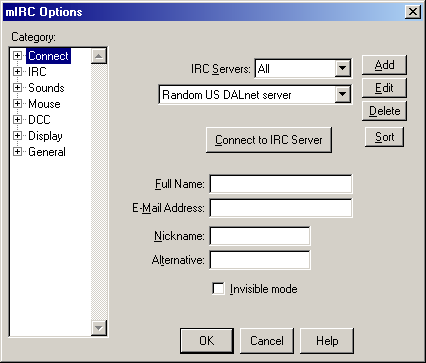
Ok, well first of all you need to go download mIRC. You can find it here after that, you'll install it, then run it... you'll come across this dialog box:
From here, you need to add a server, so you can connect to the #pctalk room, you can do this by clicking the "Add" button, an Add mIRC Server dialog box will popup, looking like this:
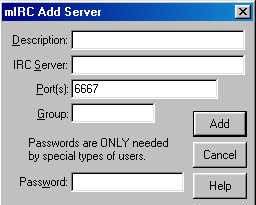
Now.. lets fill this out..
| Description: | Can be whatever you like for example: PCTalk |
| IRC Server: | gear.wyldryde.net |
|
Port(s): |
leave this at 6667 |
| Group: | just leave this blank |
| Password: | this one to, just leave er' blank |
Now that we are done that, click "Add" and that will take you back to the mIRC Options dialog.... lets fill out the rest of the information on there...
| Full Name: | Can be whatever u like, Dont use your full name |
| E-mail Address: | Well, I guess this is were your E-mail Addy goes if you have one |
|
Nickname: |
Mine is kb4db, so that's what I put, yours might be diffrent. Use whatever you want |
| Alternative: | This would be the alternative nick that mIRC would use if your first nickname is already in use |
How about we try and connect now.... go ahead and press the "Connect to IRC Server" button... it should look something like this:
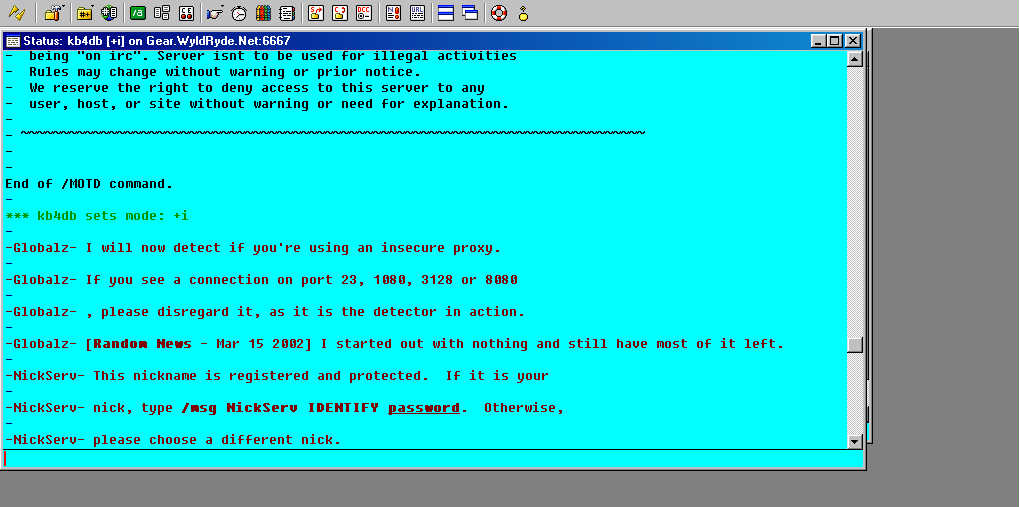
now a box with a list of rooms might popup, like this:
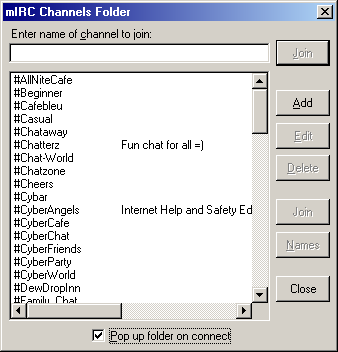
Just go ahead and un-check the box that says "Pop up folder on connect" and close it, it gets annoying after a while.. You might of notice on the screenshot of me connected something like this:
-NickServ- This nickname is registered and protected. If it is your
.
-
-NickServ- nick, type /msg NickServ
IDENTIFY <password>
this is because I've registered my nickname, if the nick name you have chosen is already registered, you can tell if that NickServ message shows up telling you to "IDENTIFY NickServ" and if that doesn't show up, lets register your nick!!! first you have to type /nickserv register YourPassword YourEmail so for example: /nickserv register iamcool [email protected] OK, once you've done that, you'll get a message like this:
-NickServ- The nickname blah1234 has now been registered to
you.
-
-NickServ- For help using NickServ, use: /NickServ
HELP
-
-MemoServ- You have a new system memo; It may be read by issuing
the command /MS READ 1.
MemoServ is like an e-mail service you can send and receive messages to other people on this server, to learn more on this type: /MemoServ HELP
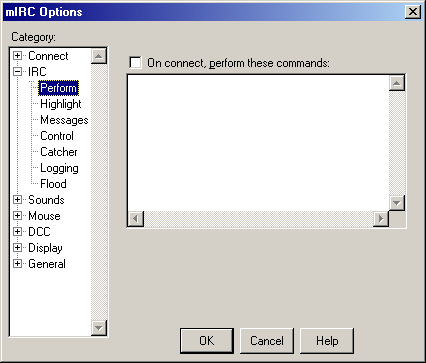
now to make things allot easier when you connect lets make mIRC automatically identify nickserv for you, sound good? OK... click the "Options Button" its at the top of your screen to the right of the little lightning bolt.. From here double click on "IRC" and Select "Perform" like this:
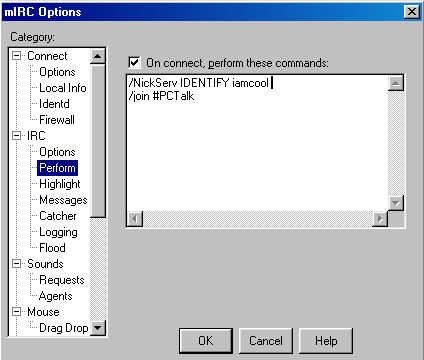
now check off the box that says "On connect, perform these commands" now lets type some commands, for starters lets put the identify command so for example if your password is iamcool type this: /NickServ IDENTIFY iamcool then press enter to go to the next command, now lets type: /join #pctalk now press "OK" now every time you connect, it will identify your nick and join #pctalk whoopee so it should look something like this:
now lets close mIRC and start it again, and that mIRC Options box will popup again, just click "Connect to IRC Server" and mIRC will do its thing and your in #pctalk chattin with great tech's .