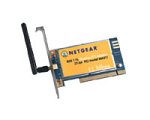
Netgear MA311 + Red
Hat 9 (2.4.20-8) HostAp Driver HowTo
Description
The goal of this HowTo guide
is to install a Netgear MA311 802.11b wireless card in a system running Red Hat
9.
Index
- Install Red Hat 9.0 (2.4.20-8) with no patches
or upgrades
- Download files
- Copy Kernel source
- Install HostAp driver
- Edit startup files.
- Package Group Selection (Add the following)
· SQL Database Server - Add "mysql-server" (Click on Details)
· Development Tools
· Kernel Development
· X Software Development
· Gnome Software Development
· Select System Tools, but remove "ethereal"
Login using root and your password
Start a terminal window.
Download required files
- HostAP
- hostap-driver-0.1.3.tar.gz
- http://hostap.epitest.fi/
- Download to /root/
Hostap
driver install procedures
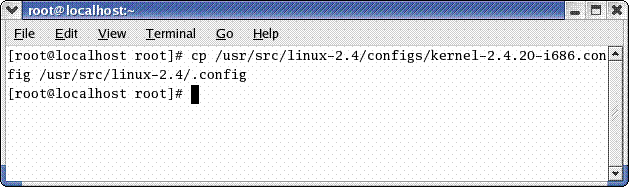
Copy
kernel source. Since I have a Pentium 4 it’s a i686. if you have a i386 then
replace it with i386
#cp
/usr/src/linux-2.4/configs/kernel-2.4.20-i686.config /usr/src/linux-2.4/.config
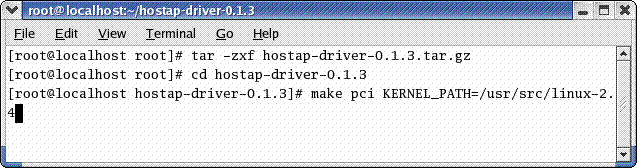
Untar
the driver and “make pci” since the
MA311 is a PCI card.
#make
pci KERNEL_PATH=/usr/src/linux-2.4
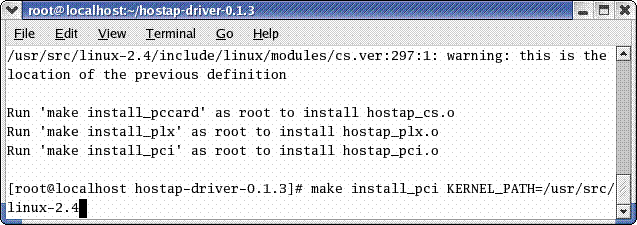
When
“make” is done enter “make install_pci“ to install the driver. Don’t forget the
KERNEL_PATH
#make
install_pci KERNEL_PATH=/usr/src/linux-2.4
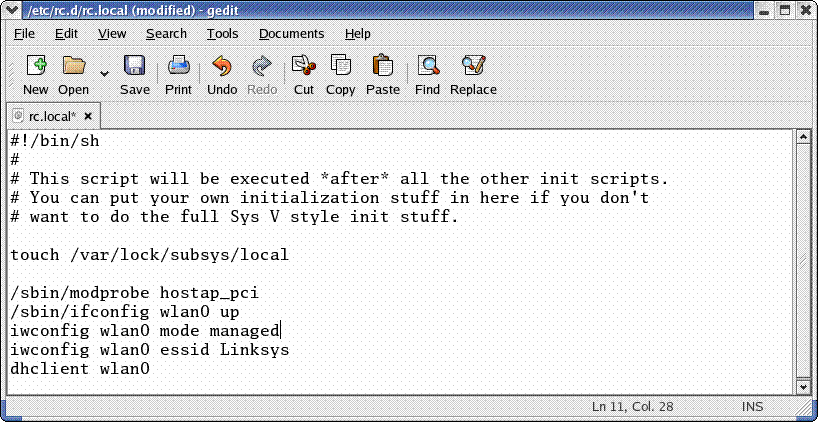
Open
the text editor. Edit /etc/rc.d/rc.local
and enter the following:
/sbin/modprobe
hostap_pci
/sbin/ifconfig
wlan0 up (if static
/sbin/ifconfig/wlan0 192.168.1.x up)
iwconfig
wlan0 mode managed (or ad-hoc)
iwconfig
wlan0 channel 11 (for ad-hoc , in managed this is not used)
iwconfig
wlan0 essid nameofyournetwork
iwconfig
wlan0 enc 1234567890 (if using WEP)
dhclient
wlan0 (if using DHCP to get a lease)
route
add default gw 192.168.1.1 (for static, not used if using DHCP)
echo
“nameserver 206.13.28.12” > /etc/resolv.conf (not used for DHCP )
This
example uses DHCP if you want a static IP you are on your own!
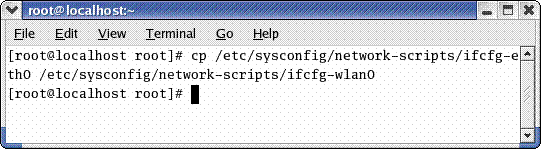
Copy
eth0 network script to wlan0 so it can be modified it for wlan0
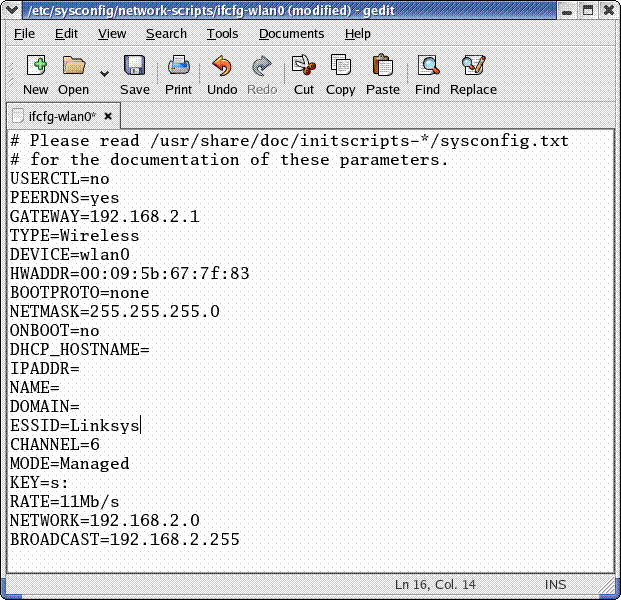
Using
text editor. Open /etc/sysconfig/network-scripts/ifcfg-wlan0 and replace eth0
with wlan0 in the script. Enter your gateway and other details. Save the file.
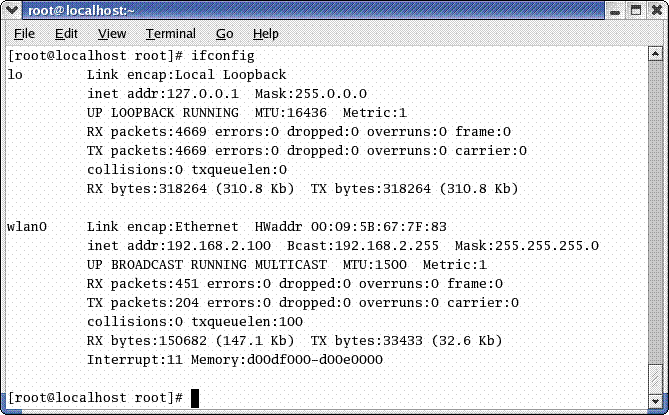
To
check if the MA311 is up and running use “ifconfig” from the terminal. The
network card is not accessible from the Network Configuration GUI in XWindow
but it is working. I don’t know why it is not accessible from the Network
Cofiguration window.
#ifconfig
Connect to the net and have a blast!
Some
neat commands that I don’t want to forget so they are included here.
Ifconfig
eth0 up
Ifconfig
eth0 down
Ifconfig (similar to winipcfg or ipcfg)
Iwconfig
(need more research)
Warning ! Use at your own risk. No warranties expressed or
implied. These procedures may even blow up your computer.
This
HowTO is to be free for all to use and copy. GNU license rules apply.
Copyright
[email protected] all rights reserved.
My
Email: [email protected]